 Rachel Andrew Technical Writer [GitHub](https://github.com/rachelandrew) [LinkedIn](https://www.linkedin.com/in/rachelandrew) [Mastodon](https://front-end.social/@rachelandrew) [Bluesky](https://bsky.app/profile/rachelandrew.bsky.social) [Homepage](https://rachelandrew.co.uk)
Published: October 30, 2024
From Chrome 131 you can use CSS to add content to the margins of pages when they
are printed. This post explains the page model for paged media, and how to use
this feature to improve print output from your webpages.
CSS includes specifications that deal with paged media, the
[CSS Paged Media Module](https://drafts.csswg.org/css-page-3/)
and [CSS Generated Content for Paged Media](https://drafts.csswg.org/css-gcpm/).
They define features that are
only used when a page is printed (including to PDF). There are user-agents that
support this CSS, and let you generate books and other printed material from
HTML and CSS. However, this functionality has never been well supported in web
browsers, despite the fact that we quite often do need to print or create PDFs
from applications.
Chrome and Firefox support the
[`@page`](https://developer.mozilla.org/docs/Web/CSS/@page) at-rule. This rule
lets you define the size of the page you are printing to, and the size of the
margins around the content. From Chrome 131, you can also use generated content
to add content to the margins, by targeting the relevant margin at-rule.
## The page model
The page model used in paged media defines a *page box* , this is your sheet of
paper. Inside the page box is a *page margin* , a *page border* , *page padding* , and
finally the *page area* where your content is displayed. When content is printed
it is fragmented into as many pages as needed to contain it.
The page margin is then split into 16 boxes, with each having a corresponding
at-rule.
- `@top-left-corner`
- `@top-left`
- `@top-center`
- `@top-right`
- `@top-right-corner`
- `@left-top`
- `@left-middle`
- `@left-bottom`
- `@right-top`
- `@right-middle`
- `@right-bottom`
- `@bottom-left-corner`
- `@bottom-left`
- `@bottom-center`
- `@bottom-right`
- `@bottom-right-corner`
### Margin box sizing
The height of the top and bottom boxes and width of the left and right side
boxes is defined by the margin size set using `@page`. The corner boxes
therefore have a fixed size created by the intersection of those margins. The
three boxes between each corner however are flexible. They behave in a similar
way to boxes in a flex layout using `flex: auto`, so they stretch to fill the
space, but if you put a long string of text in one, and nothing in the others,
the one with the text will grow rather than wrap the text.
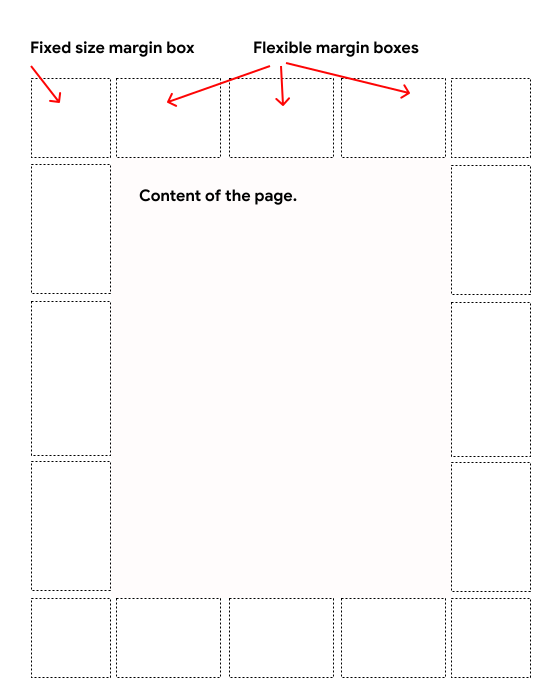 The page area is surrounded by the margin, containing 16 named margin boxes.
## Add content to margin boxes
To add content to margin boxes use CSS generated content, just as you would with
the `::before` and `::after` pseudo-elements. In this case, use the at-rule
related to the box you want to target. The following CSS adds the text "My book"
to the bottom left margin box or right-hand pages. It also styles that text.
```css
@page :right {
@bottom-left {
content: "My book";
font-size: 9pt;
color: #333;
}
}
```
As well as strings of text, you can add page counters to the margins. The
predefined `page` counter contains the current page. The following CSS adds it
to the bottom-right of right-hand pages and the bottom-left of left-hand pages.
```css
@page :right {
@bottom-right {
content: counter(page);
}
}
@page :left {
@bottom-left {
content: counter(page);
}
}
```
There's also a `pages` counter that always contains the total number of pages.
### Things to note when using page margins
If printing from a browser, the browser will automatically add some page margin
content if there is room for it to display. It will do this even if you have
added content. These automatically generated headers and footers can be turned
off in the print dialog.
If you set the margins on a page to 0, or a value so small that there is no
space for the browser headers and footers, they won't display.
Due to the
[concept of a default page layout in Chromium](https://issues.chromium.org/issues/374244475),
if the first page of
your printed document has no room for the automatic content, this will prevent
the browser content from displaying on later pages, even if they do have space.
## Future possibilities for paged media
The paged media specifications include several other features, described in the
article
[Designing for Print with CSS](https://www.smashingmagazine.com/2015/01/designing-for-print-with-css/).
If you have a use case for any of the following features, add it to the linked
bugs.
> [!NOTE]
> **Note:** With all browser bugs adding a comment will send an email to a lot of people. Use the +1 feature in the bug tracker if you just want to signify that you would like to see this happen. Do comment if you have a use case however, or, in the case of a bug, you have additional information to help identify and fix it.
### Set strings
Books often print the current chapter title in the margins. This title can't be
hardcoded into your CSS as it changes as you move through the book. The
`string-set` property lets you set a value from your HTML to then use in the
generated content. The following CSS assumes that chapter titles are marked up
as an ``. It takes the content of each `` and uses it in the top-right
margin on right-hand pages. When it gets to the next `` the value is updated
for margins after that point.
```css
h1 {
string-set: doctitle content();
}
@page :right {
@top-right {
content: string(doctitle);
margin: 30pt 0 10pt 0;
font-size: 8pt;
}
}
```
[Chromium bug for `string-set` and `string()`](https://issues.chromium.org/issues/376420244).
### Cross-references
Once a document is printed, references to other pages are usually indicated by
using the page number where the reference can be found. These cross-references
can be created using `target-counter`. When applied to a link, the link works to
jump to the reference on the web, when printed the page number is shown.
```html
my reference
```
```css
a.xref:after {
content: " (page " target-counter(attr(href, url), page) ")";
}
```
[Chromium bug for cross-references](https://issues.chromium.org/issues/40529223).
### Footnotes
Footnotes are also a feature of the paged media specifications. In HTML, use a
class to identify text that should be a footnote, for example:
```html
This is some text this is a footnote.
```
Then use the `footnote` value of `float`, to turn this text into footnotes. It
will be removed from the paragraph when the document is printed and shown as a
footnote.
```css
.fn {
float: footnote;
}
```
[Chromium bug for footnotes](https://issues.chromium.org/issues/376428674).