 Minh Le [LinkedIn](https://www.linkedin.com/in/le-minh-anh)  Gilberto Cocchi [X](https://twitter.com/gilberto_cocchi) [GitHub](https://github.com/gilbertococchi) [Bluesky](https://bsky.app/profile/gilbertococchi.bsky.social)  Demián Renzulli [X](https://twitter.com/drenzulli) [GitHub](https://github.com/demianrenzulli)  Mari Viana [LinkedIn](https://www.linkedin.com/in/marianasviana)  Thomas Steiner [GitHub](https://github.com/tomayac) [LinkedIn](https://www.linkedin.com/in/thomassteinerlinkedin) [Mastodon](https://toot.cafe/@tomayac) [Bluesky](https://bsky.app/profile/tomayac.com) [Homepage](https://blog.tomayac.com/)
Published: June 6, 2025
Learn how Chrome's new proposed `` element creates a more
streamlined, trustworthy and in-context permission experience.
The Chrome team designed the `` element proposal to put users in
control of powerful capabilities. The element enables developers to create a
seamless end-to-end experience where users can allow usage of these capabilities
in context, while at the same time users are shielded from unwanted
interruptions. This set of case studies demonstrate how the new element works in
practice.
> [!TIP]
> **Success:** From Chrome 144 you can use the new [`` HTML element](https://developer.chrome.com/blog/geolocation-html-element.md.txt). This element represents a major shift in how sites request user location data---moving away from script-triggered permission prompts toward a declarative, user-action-oriented experience. It reduces the boilerplate code required to handle permission states and errors, and provides a stronger signal of user intent, which helps avoid browser interventions (like quiet blocks).
## The problem of asking for permission
To use device features like location, camera, or microphone, users often need to
navigate a frustrating landscape of potentially multiple permission requests.
For developers, calling an API to use a capability is straightforward, resulting
in success or failure. For users, however, this often translates into
interruptive and out-of-context prompts, and seemingly final decisions that
cause frustration and cognitive load.
Permission prompts today often make users wonder, "Why does this site need this
permission (now)?" This lack of clarity often results in users choosing to deny
permission requests. To shield users from interruptions in the future, Chrome
will afterwards prevent further prompts, which, in turn, leads to the inverse
challenge of reversing these denials should the user change their mind later.
This can lead to users abandoning features or the site entirely.
### Provide users with contextual control
The proposed `` element represents a significant evolution in the
ergonomics of web permissions. This proposed HTML element lets you seamlessly
integrate a styleable, but browser-controlled entry point to using powerful
capabilities (for instance, a clear "use camera" button in a video chat)
directly within your site's design. While you enjoy styling flexibility, the
browser maintains control over core text and icons, takes care of security,
consistency, and accessibility. This means that an interaction with this element
serves as a clear signal about the user's intention, enabling the browser to
helpfully guide the user through the necessary decisions and other steps. This
stands in contrast to programmatically triggered prompts, where the browser
lacks a direct signal of user intention, thus has to always balance being
helpful with not interrupting.
 Exemplary implementation of a `` element for using camera. 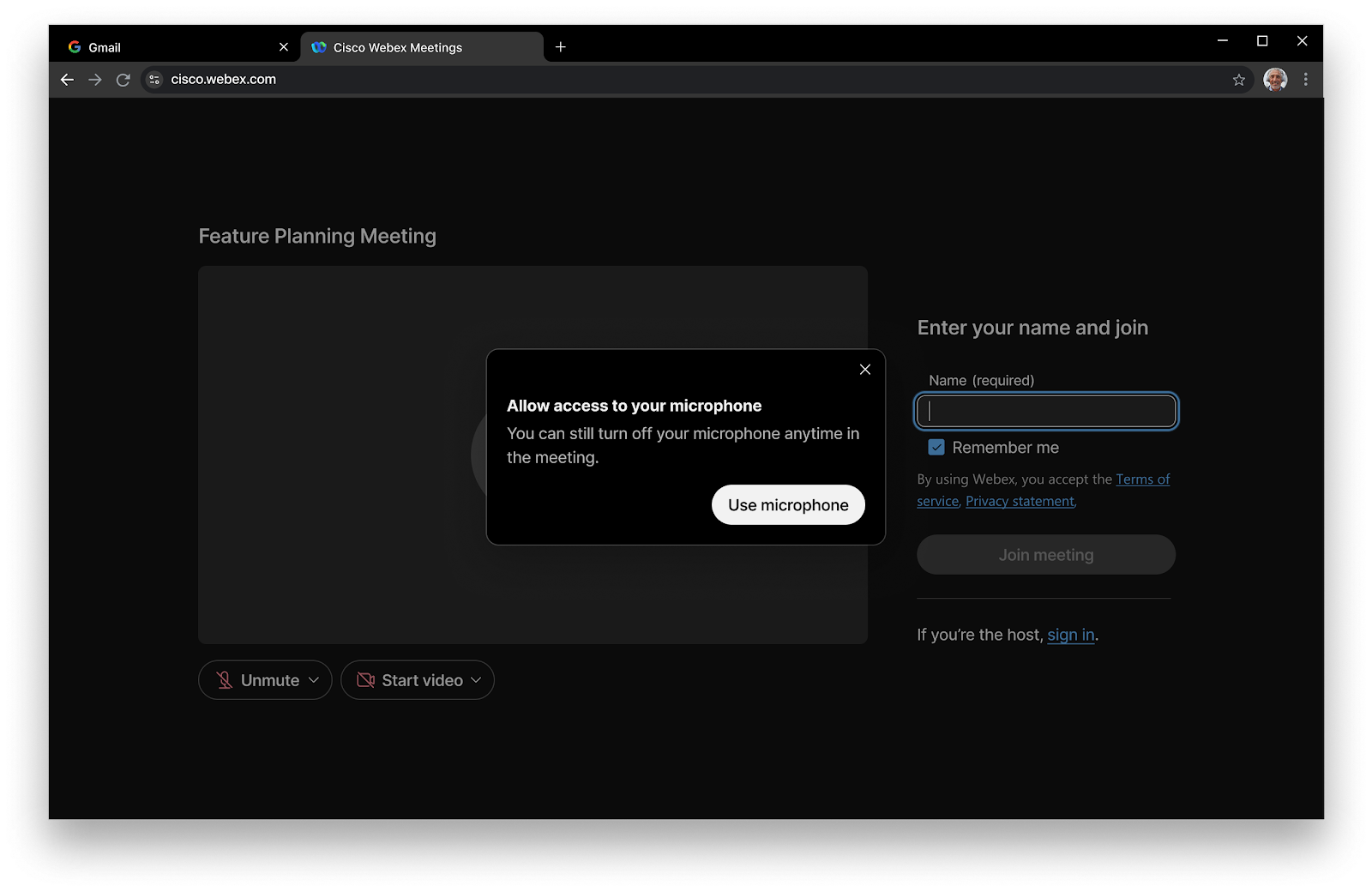 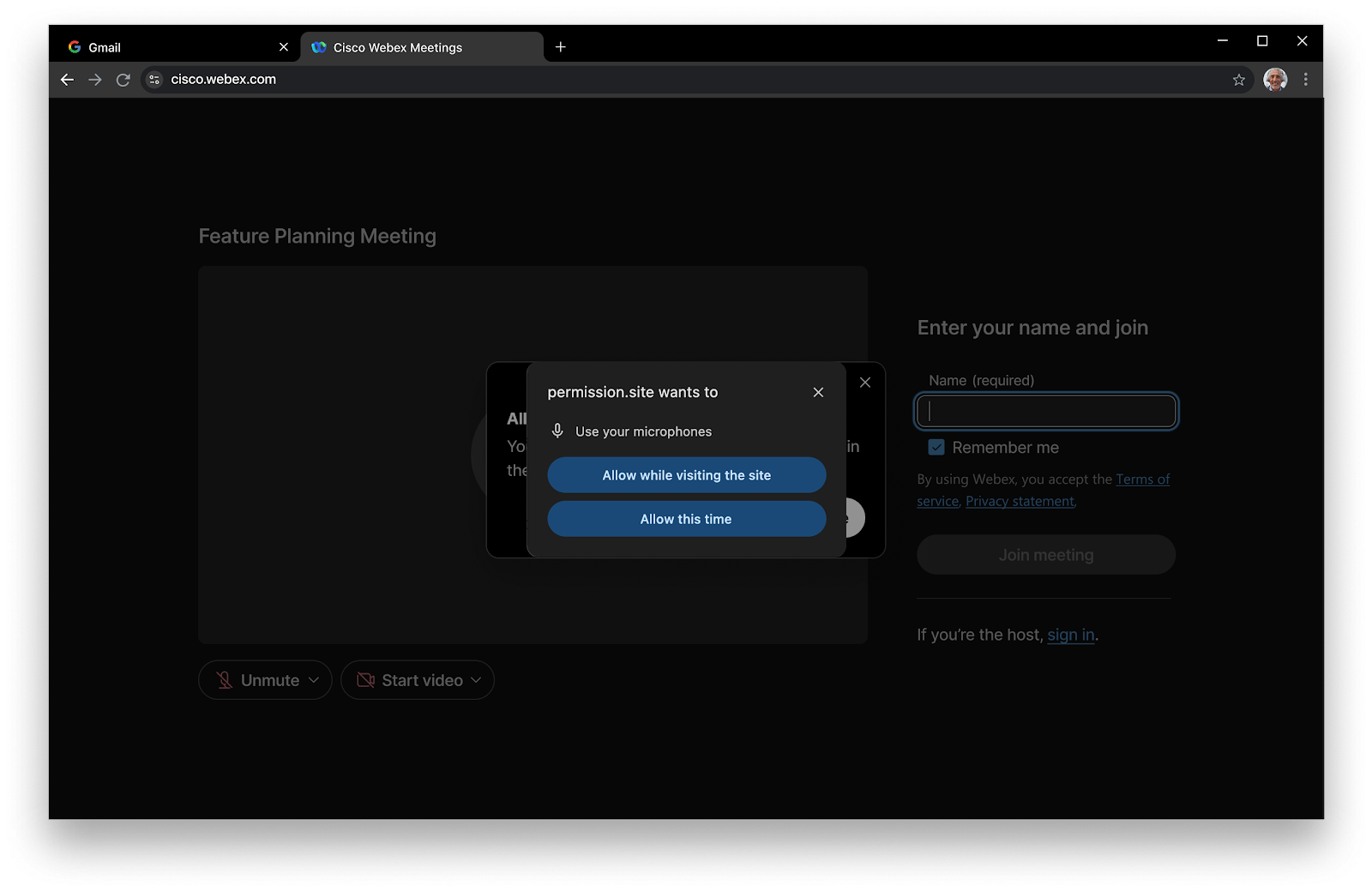 See example implementation in Cisco Webex to help users allow camera access in the moment the user intended to use microphone.
Here's how it transforms the experience:
- **User Initiated:** Instead of the website initiating a prompt, the element takes care by design that the user *chooses* when they want to use the related feature.
- **In-Context Request:** Because the proposed `` element is part of the site's flow, the user understands *why* the permission is needed. They clicked the button to, for example, find nearby stores, so a location request makes sense.
- **Comprehensive Troubleshooting**: Because the browser gets a direct signal about the user's intent, it can be proactive in guiding the user through all the platform-specific steps necessary for capability access. For example, it can deep link into system settings to help the user change the device-level camera setting, the website does not need to provide platform-dependent troubleshooting steps.
- **Streamlined Permission Recovery:** The proposed `` element offers a direct in-page way for the user to change previously denied permissions without going into the browser settings. A click of the element triggers a special version of the permission prompt, resulting in substantial recovery improvements.
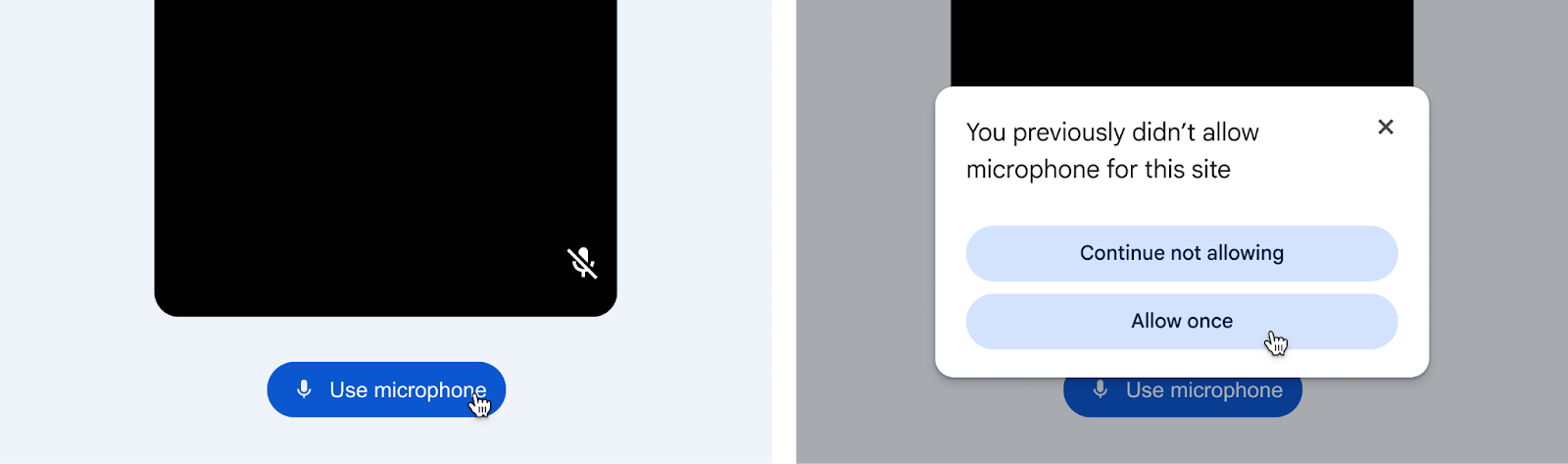 The `` element allows users to quickly change the permission setting without having to navigate to site settings.
This approach moves towards a more intuitive, trustworthy, and user-driven
interaction model.
## Case studies
### Zoom helps its users by decreasing camera and microphone capture errors in the browser by 46.9% with the `` element
[Video](https://www.youtube.com/watch?v=udtFYbfI3SE)
#### The challenge
One of the biggest challenges for conferencing websites is helping users who
previously denied camera or microphone access to re-enable permissions when
joining a video call. The standard flow required navigating browser settings
outside of the conferencing site's interface.
#### The approach
Zoom's testing approach for the impact of the `` element uses a
before--after comparison, where the `` element was exposed to all
Zoom users joining a Zoom Meeting from a desktop Chrome web browser.
#### The result
One of Zoom's key metrics is camera and microphone capture rate, which measures
the camera and microphone being successfully enabled by a user when joining a
Zoom meeting in a browser. Zoom saw major improvements with the ``
element. Failures in the browser experience, like the microphone and camera not
being enabled at the system level or browser level, or users dismissing the
browser's microphone and camera permission prompt, decreased by 46.9%.
The `` element not only helped reduce errors, but it also helped
users who initially faced an issue or who had mistakenly denied access to
recover and configure the microphone and camera, which kept users engaged and
focused on the conversations and meetings, so everyone could be seen and heard
clearly.
### How Immobiliare.it helped users use their map location functionality while previously denied permission by using the `` element
#### The challenge
Users that have previously denied sharing site permission for location on the
Immobiliare.it site have to access the browser's Site Settings and manually
unlock permission in order to be able to grant the location permission again if
wanted.
#### The approach
Immobiliare.it improved their location permissions request flow by using the
Permissions API JavaScript method to detect if a user has already granted
location permissions or not to their site. If they already shared permission,
this would lead to requesting the geolocation `getCurrentPosition()` method as
before. If the Permission API returned that the user blocked the location
permission, the site shows a prompt explaining why the Geolocation button cannot
work and using the `` element as call-to-action.
By clicking the "Use location" `` element, users can seamlessly
share location permission if wanted, even if previously blocked and without
requiring the user to access their browser settings.
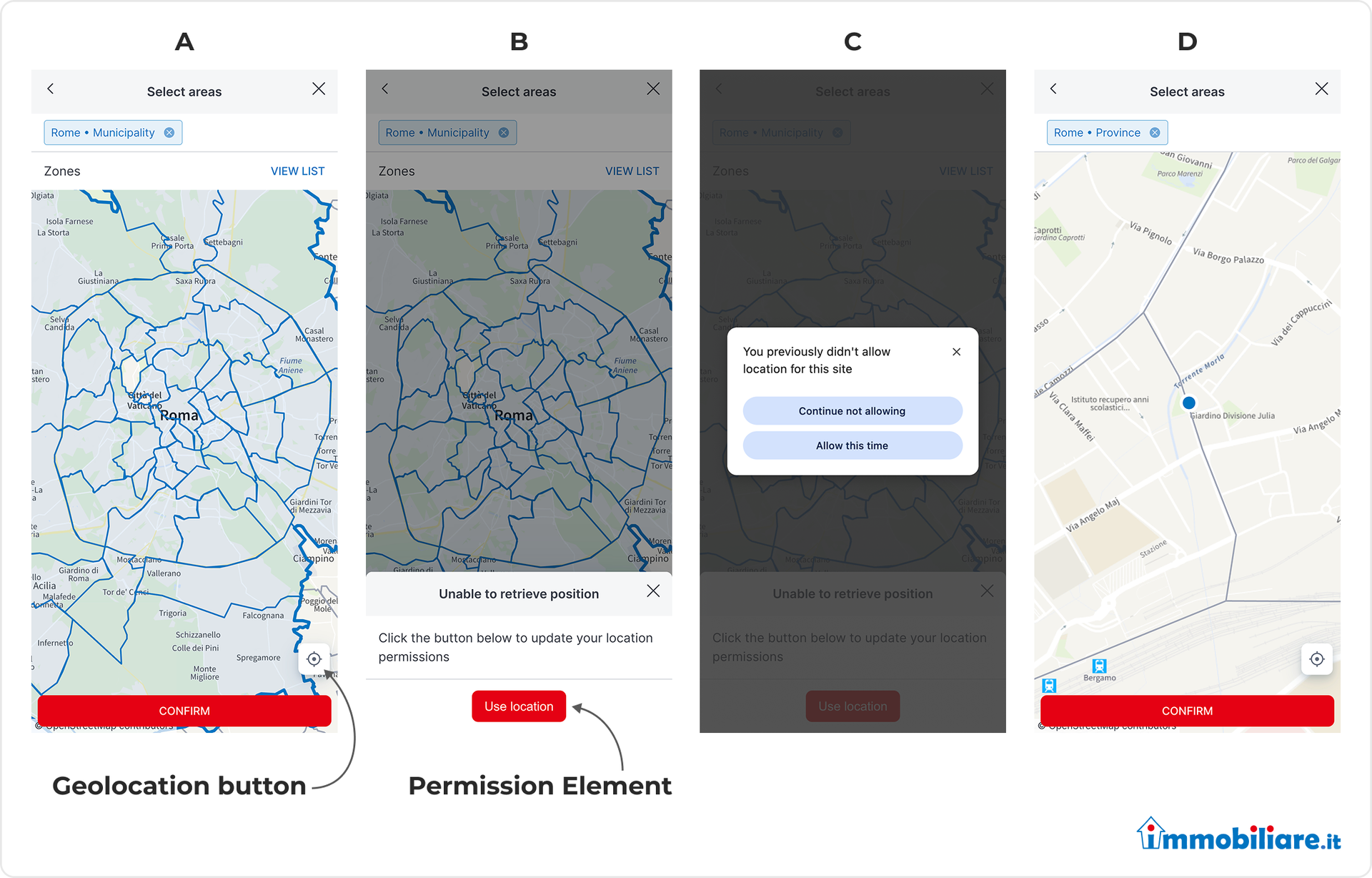 **A:** Geolocation permission userflow start when clicking on the cross hair icon button. **B:** User seeing the messaging UX including the `` element if previously blocked permission. **C:** `` element triggered the browser permission prompt. **D:** User has granted permission, requesting getCurrentPosition() and updating the map.
#### The results
When using the `` element, the success rate of GeoLocation
permissions userflow increased by 20%, which suggests that the new permission
flow using the Permissions API and the `` element helped more users
to allow the permission again, when wanted, even if in the past they blocked
this kind of permission request
### ZapImóveis (OLX BR) enhances location search for intended use with the `` element
ZapImóveis, a leading real estate platform in Brazil, understands that finding
the perfect property often starts with location. As part of the renowned Grupo
OLX, ZapImoveis connects millions of users with a vast inventory of homes,
apartments, land, and other properties for sale and rent across the country.
Recognizing the critical role of location-based search in this process,
ZapImóveis identified an opportunity to enhance user experience by addressing
common frustrations associated with browser permission prompts.
#### The challenge
ZapImóveis identified significant usability issues within
their location search feature, specifically related to the standard browser
permission prompts. Users experienced difficulties both when initially
granting location access and, perhaps more critically, when attempting to
re-enable permissions after having previously denied them. This negatively
impacted the overall user experience and potentially hindered the
effectiveness of location-based search functionality on their websites.
#### The approach
To address these usability challenges, ZapImóveis conducted
an A/B test. In this test, the `` element was introduced to a
subset of users. The goal was to provide a dedicated, in-page control
within the ZapImóveis interface for managing location permissions, thereby
streamlining the permission workflow and making it more intuitive for users.
#### The results
The implementation of ZapImóveis's `` element led
to a notable improvement in location search usability, particularly for
users who actively engaged with location-based features. For those who
initially encountered difficulties with standard browser permission
prompts, the in-page control provided by the `` element enabled
4.3% to successfully grant location access. Furthermore, it significantly
enhanced permission recovery, with 54.4% of users who had previously denied
access successfully re-granting it when they later attempted to use
location-dependent functionalities. While there was a slight increase in
the average time to initially grant permission, the substantial gains in
feature success for users with clear intent justified this trade-off.
[Video](https://www.youtube.com/watch?v=eTF3eJ_W7sQ)
### See more examples for the `` element in action
- Make a video conferencing call on [Google Meet](https://meet.google.com/landing)using the Chrome browser.
- Search for a [restaurant nearby](https://www.google.com/search?q=restaurant+near+me) on Google Search (gradual roll out)
- Test the `` element for all available capabilities on (from Chrome 137)
## Integrate the `` element
The `` element is designed to be straightforward for development
teams to adopt. As a regular HTML element, it can be integrated like any other
button and styled (within browser-controlled limits) to match your site's look
and feel. For browsers that don't yet support the `` element,
developers can provide fallback experiences using existing permission request
methods. For more details read
[Enhancements to the `` element](https://developer.chrome.com/blog/enhancements-to-permission-element.md.txt).
## Make the web more helpful and intuitive
At Google, we're constantly working to make Chrome and the web platform safer,
faster, and more helpful. The `` element represents a significant
step towards a more intuitive and ergonomic model for web permissions. By giving
users clear context and control, the `` element helps bridge the gap
between powerful web capabilities and user trust, enabling richer, more engaging
experiences across the web. We encourage product owners and development teams to
explore how the `` element can enhance their user journeys and
unlock the full potential of their web applications.
## Related links
- [Explainer](https://github.com/WICG/PEPC)
- [Draft specification](https://wicg.github.io/PEPC/permission-element.html)
- [Demo](https://permission.site/pepc)