 Kayce Basques [X](https://twitter.com/kaycebasques) [GitHub](https://github.com/kaycebasques)  Sofia Emelianova [GitHub](https://github.com/sofiayem)
> [!IMPORTANT]
> **Important:** If your site uses third-party cookies, you may consider replacing them with a privacy-preserving alternative, [Privacy Sandbox](https://privacysandbox.com/). To learn how to spot third-party cookies in DevTools, see [Identify and inspect third-party cookies](https://developer.chrome.com/docs/devtools/application/cookies.md.txt#3pc).
[HTTP Cookies](https://developer.mozilla.org/docs/Web/HTTP/Cookies) are mainly used to manage user sessions, store user personalization preferences,
and track user behavior. They are also the cause of all of those annoying "this page uses cookies"
consent forms that you see across the web. This guide teaches you how to view, add, edit, and delete a
page's cookies with Chrome DevTools.
## Open the Cookies pane
1. [Open Chrome DevTools](https://developer.chrome.com/docs/devtools/open.md.txt).
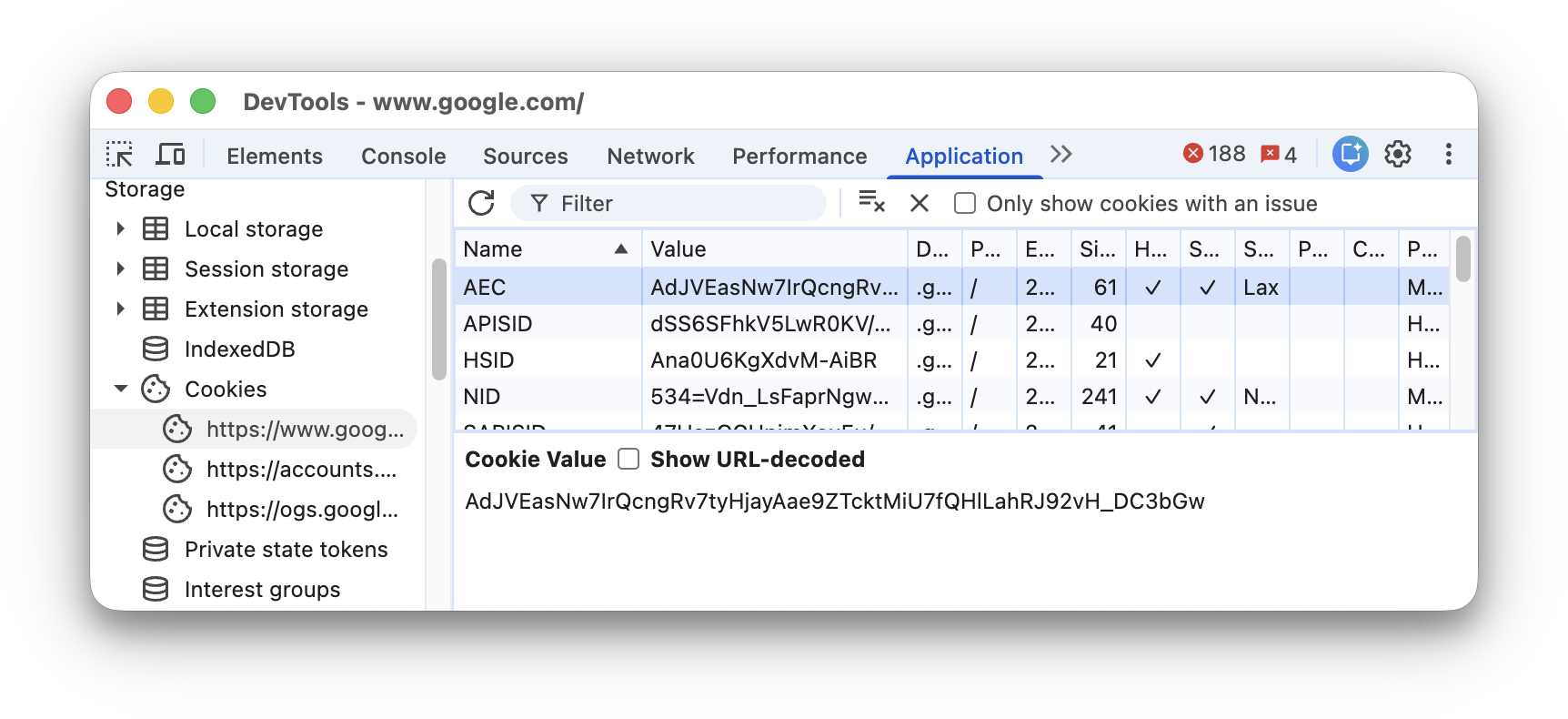
2. Open **Application** \> **Storage** \> **Cookies** and select an origin.
## Fields
The **Cookies** table contains the following fields:
- **Name**. The cookie's name.
- **Value**. The cookie's value.
- **Domain**. The hosts that are allowed to receive the cookie.
- **Path** . The URL that must exist in the requested URL in order to send the `Cookie` header.
- **Expires / Max-Age** . The cookie's expiration date or maximum age. For [session cookies](https://developer.mozilla.org/docs/Web/HTTP/Cookies#define_the_lifetime_of_a_cookie) this value is always `Session`.
- **Size**. The cookie's size, in bytes.
- **HttpOnly**. If true, this field indicates that the cookie should only be used over HTTP, and JavaScript modification is not allowed.
- **Secure**. If true, this field indicates that the cookie can only be sent to the server over a secure, HTTPS connection.
- **SameSite** . Contains `Strict` or `Lax` if the cookie is using the experimental `SameSite` attribute.
- **Partition Key** . For [cookies with independent partition state](https://developer.chrome.com/docs/privacy-sandbox/chips), the partition key is the site of the top-level URL the browser was visiting at the start of the request to the endpoint that set the cookie.
- **Priority** . Contains `Low`, `Medium` (default), or `High` if using deprecated [cookie
Priority](https://bugs.chromium.org/p/chromium/issues/detail?id=232693) attribute.
To view a cookie's value, select it in the table. To see the value without percent-encoding, check **Show URL-decoded**.
## Filter cookies
Use the **Filter** box to filter cookies by **Name** or **Value**.
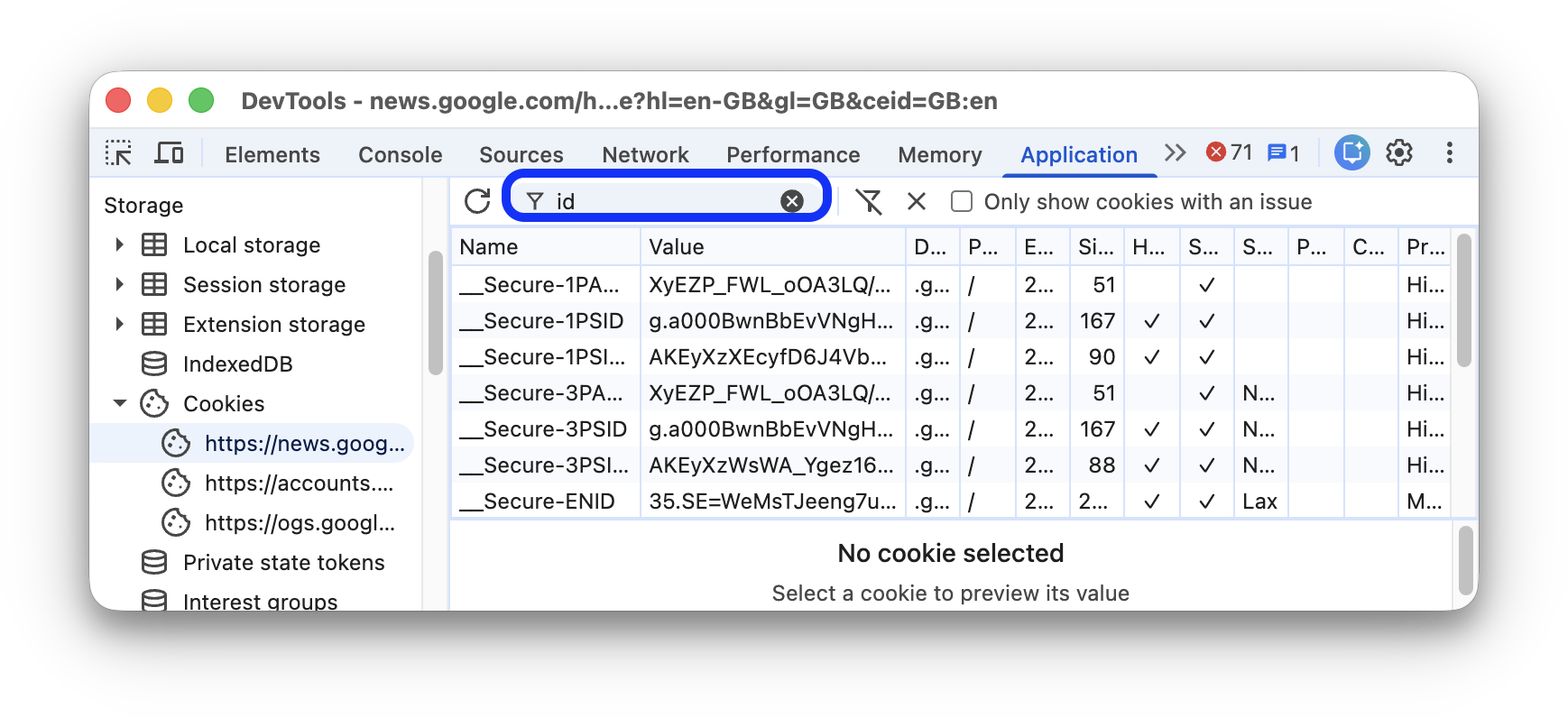
Filtering by other fields is not supported. Filter is case-insensitive.
## Add a cookie
To add an arbitrary cookie:
1. Double-click an empty row in the table.
2. Enter a **Name** and **Value** and press Enter.
DevTools populates other required fields automatically. You can edit them as described next.
## Edit a cookie
All the fields are editable except **Size** that updates automatically.
Double-click a field to edit it.
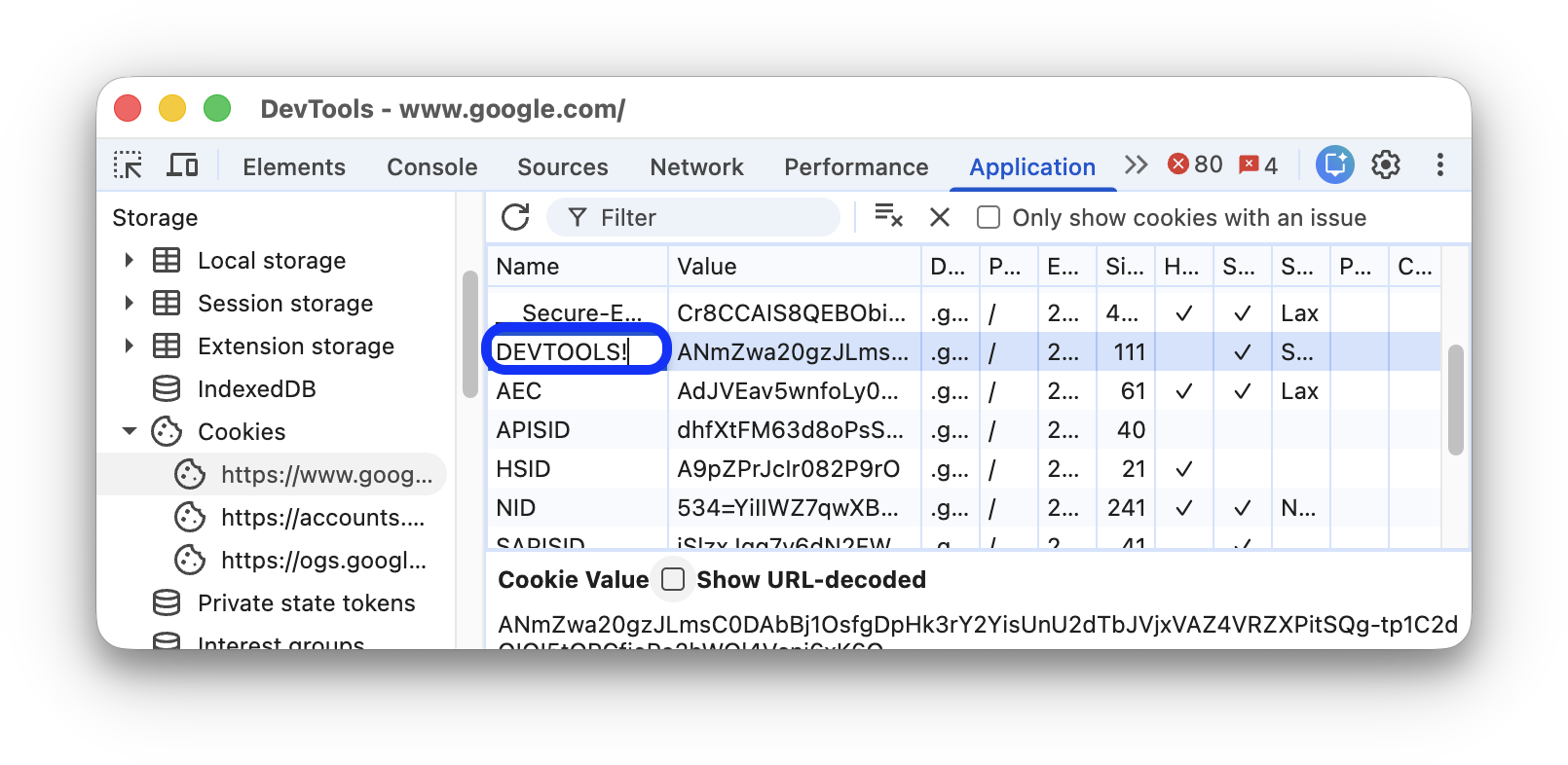
DevTools highlights cookies with invalid [field](https://developer.chrome.com/docs/devtools/application/cookies.md.txt#fields) values in red.
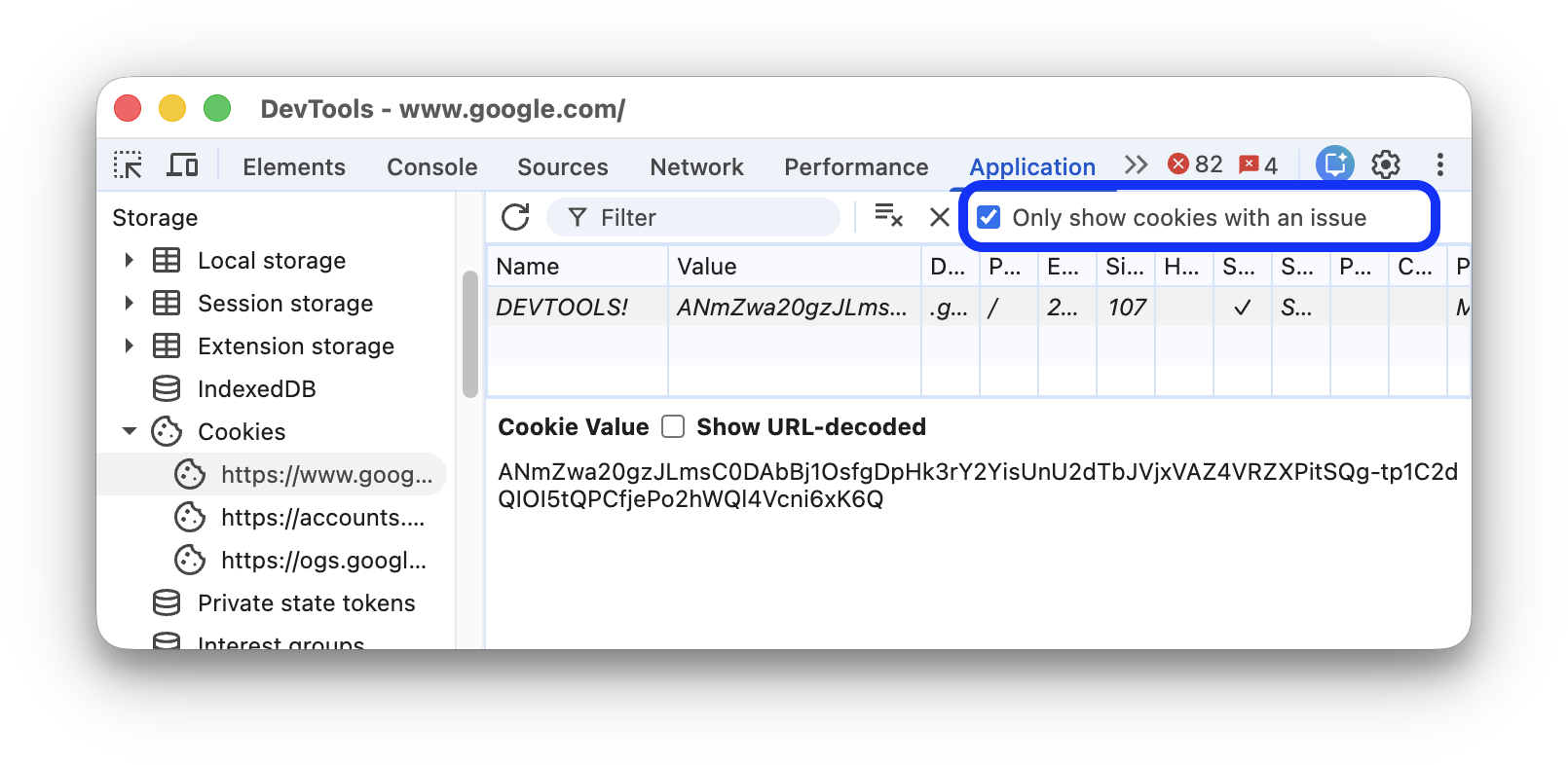
To filter out valid cookies, check **Only show cookies with an issue** in the top action bar.
## Delete cookies
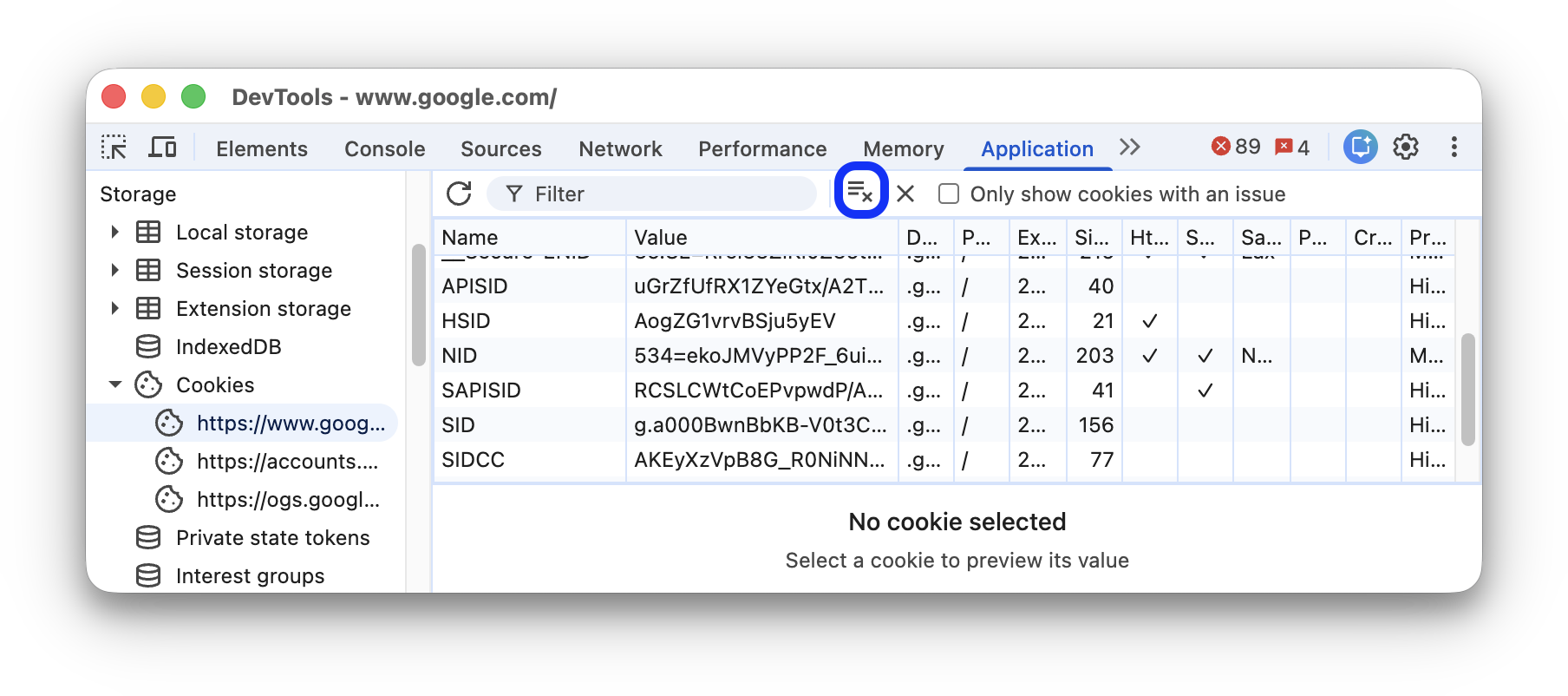
To delete a cookie, select it and click **Delete selected** in the top action bar.
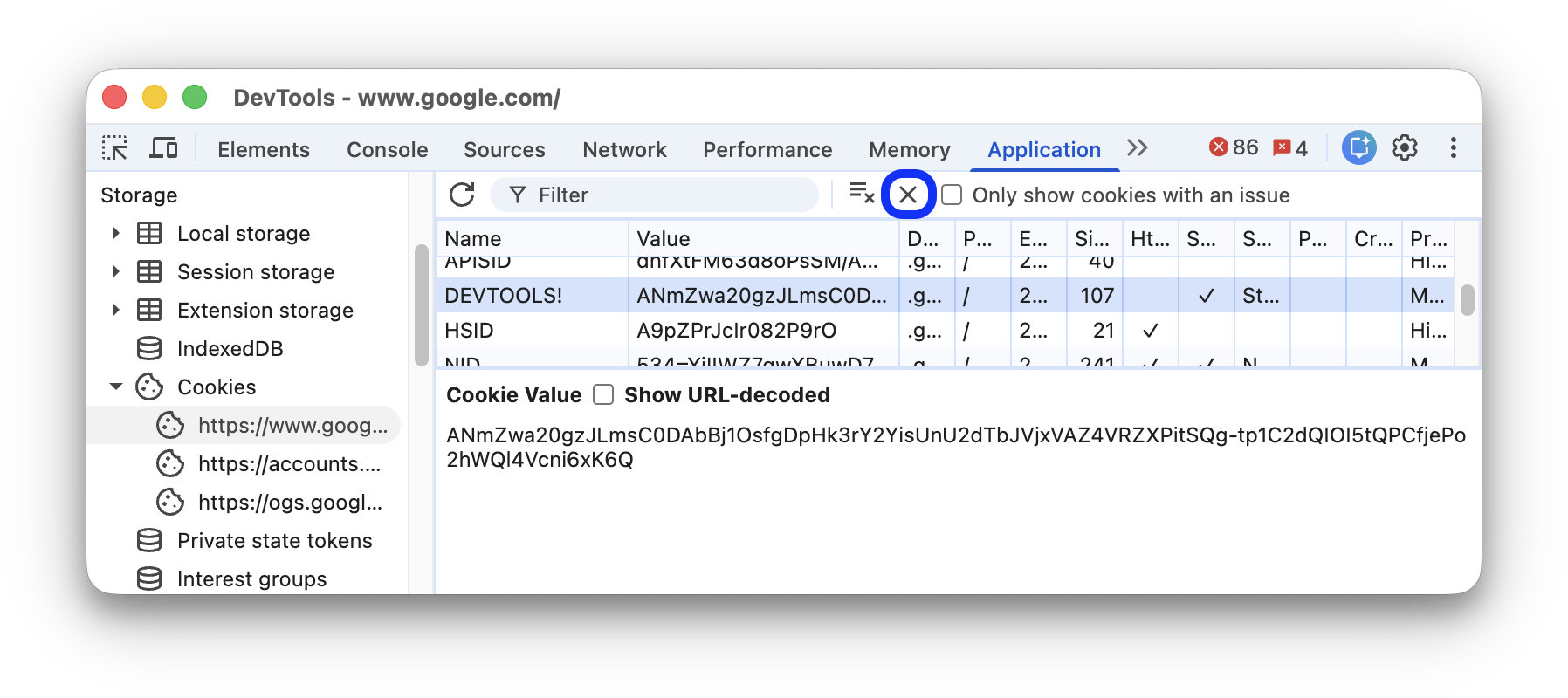
Click **Clear all** to delete all cookies.
## Identify and inspect third-party cookies
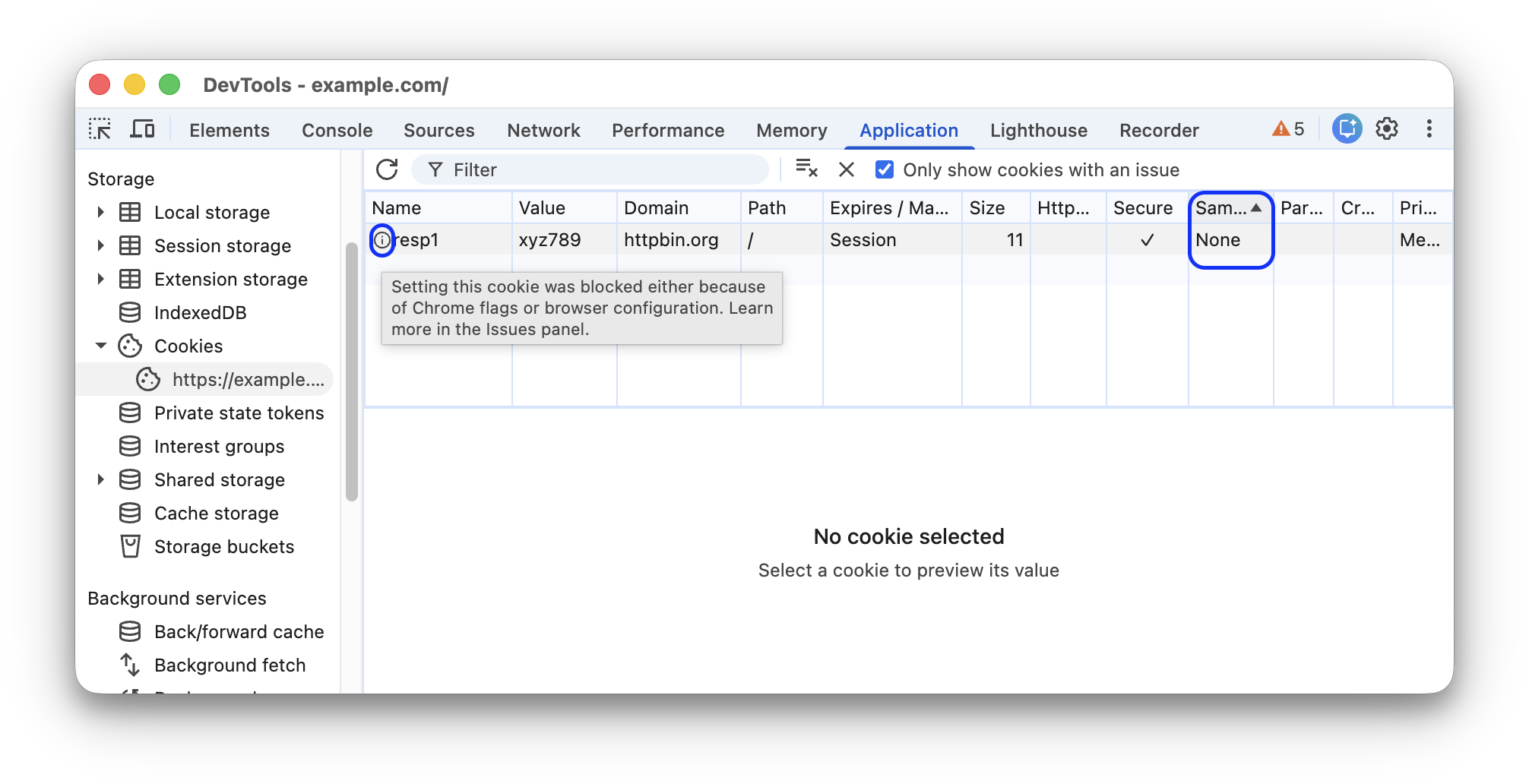
Third-party cookies are those set by a site that's different from the current top-level page. Third-party cookies have the `SameSite=None` attribute.
DevTools lists such cookies in **Application** \> **Storage** \> **Cookies** and shows a warning icon next to them. Hover over the icon to see a tooltip and click it to go to the **Issues** panel for more information.
You can also find third-party cookies in [**Network** \> click request \> **Cookies**](https://developer.chrome.com/docs/devtools/network/reference.md.txt#cookies).
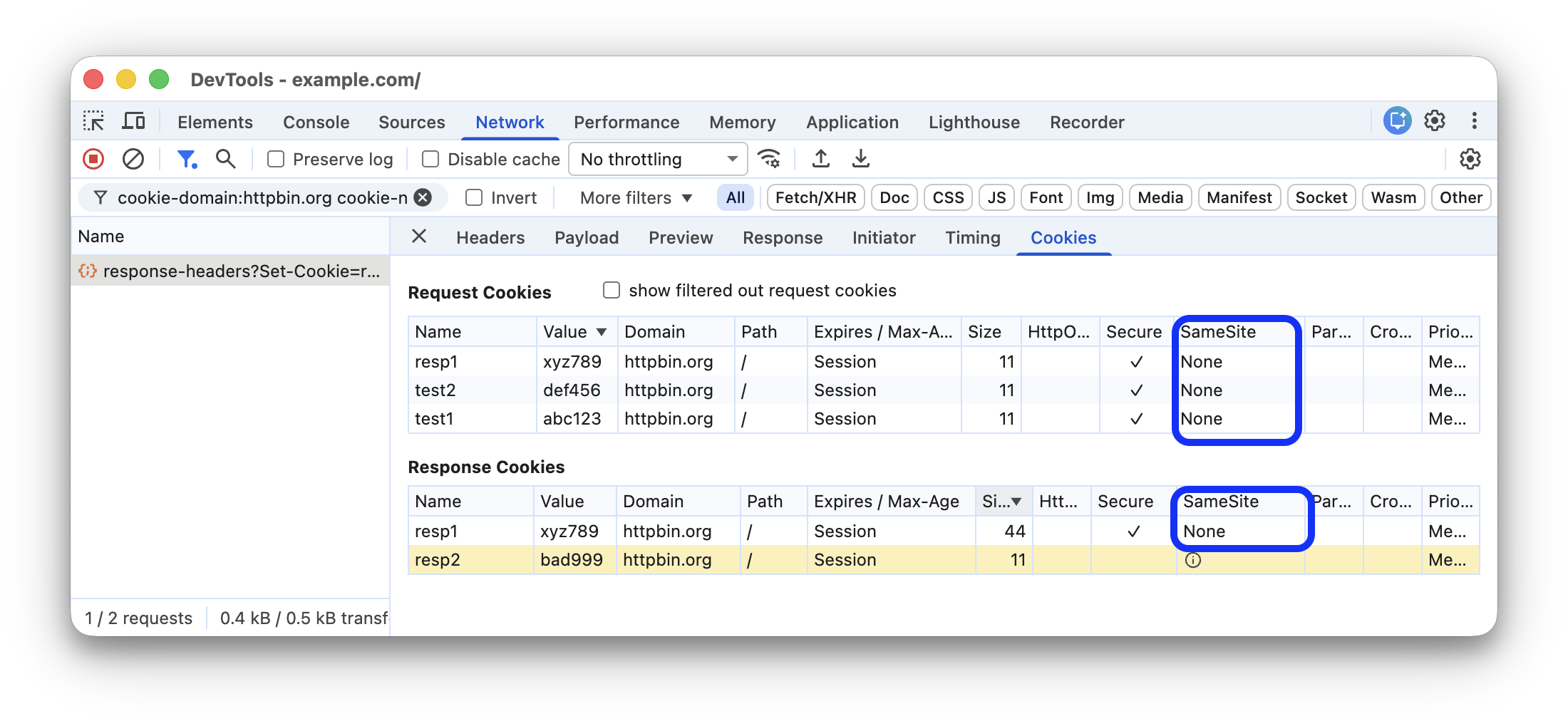
The **Network** panel [highlights cookies with issues](https://developer.chrome.com/docs/devtools/network/reference.md.txt#show-blocked-cookies) and shows a warning icon next to cookies affected where [third-party cookies are not available](https://privacysandbox.google.com/cookies).