 Kayce Basques [X](https://twitter.com/kaycebasques) [GitHub](https://github.com/kaycebasques)  Sofia Emelianova [GitHub](https://github.com/sofiayem)
[Video](https://www.youtube.com/watch?v=xHusjrb_34A)
The **Command Menu** provides a fast way to navigate the Chrome DevTools UI and accomplish common tasks,
such as [disabling JavaScript](https://developer.chrome.com/docs/devtools/javascript/disable.md.txt). You may be familiar with a similar feature in Visual Studio Code
called the [Command Palette](https://code.visualstudio.com/docs/getstarted/userinterface#_command-palette), which was the original inspiration for the **Command Menu**.
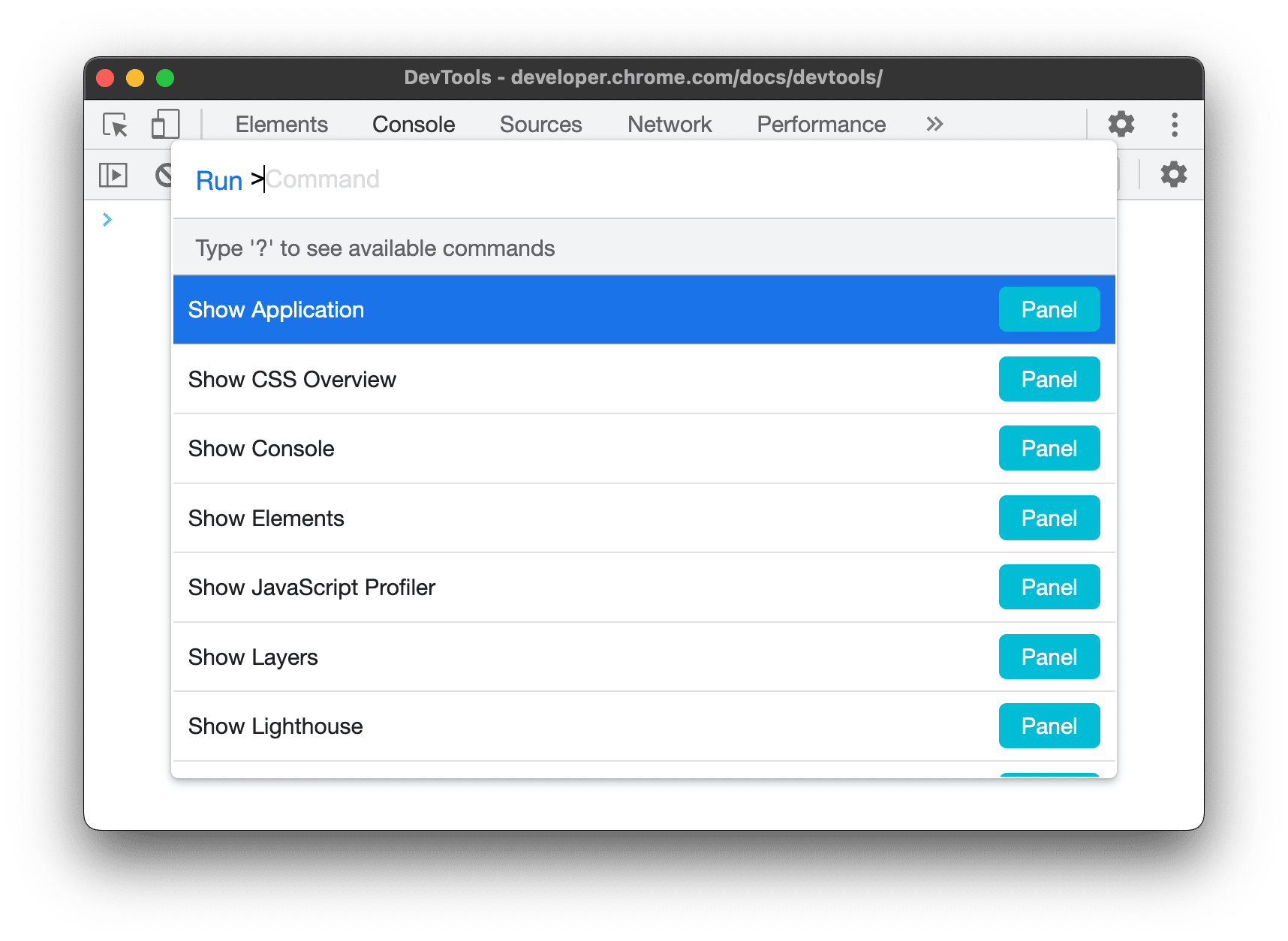
## Open the Command Menu
To open the **Command Menu**:
- Press Control+Shift+P (Windows / Linux) or Command+Shift+P (Mac).
- Click  **Customize and control DevTools** and then select **Run command**.

## Open files
If you use the workflow outlined in [Open the Command Menu](https://developer.chrome.com/docs/devtools/command-menu.md.txt#open), the **Command Menu** opens with a `Run >` prepended in the text box.
To open a file instead, delete the `>` character and start typing a filename.
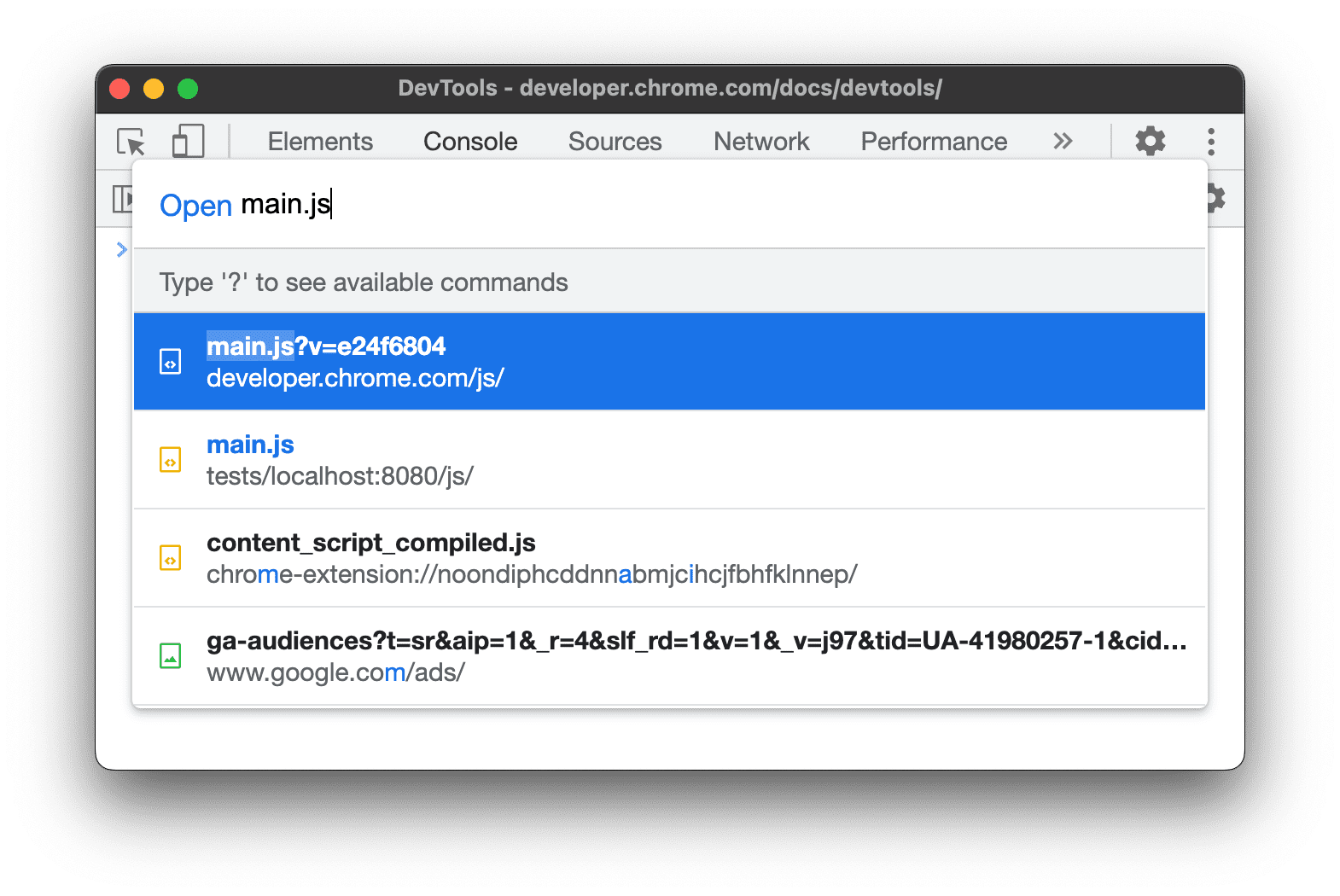
The `Run` prepend changes to `Open` and DevTools searches for relevant files instead.
Alternatively, you can go straight to the **Open File** menu in one of the following ways:
- Press Control+P (Windows / Linux) or Command+P (Mac).
- Click  **Customize and control DevTools** and then select **Open file**.
### Open ignore-listed files
> [!NOTE]
> **Note:** This is a  preview feature available in Chrome from version 106.
By default, DevTools hides the files of known third-parties. To open such files from the menu, disable the [Hide ignore-listed sources](https://developer.chrome.com/docs/devtools/javascript/reference.md.txt#hide-ignore-listed) option in the **Sources** panel.
## Capture area screenshots
The **Command Menu** lets you capture area screenshots of your website, much like the snipping tool.
> [!NOTE]
> **Note:** Area capture won't work if DevTools is undocked from the window.
To take an area screenshot, follow these steps:
1. [Open the Command Menu](https://developer.chrome.com/docs/devtools/command-menu.md.txt#open).
2. Type "screenshot".
3. Select **Capture area screenshot**.
4. Drag to select anywhere on the page to capture it. 
To discover more ways to take screenshots with DevTools, see [4 ways to capture screenshots with DevTools](https://developer.chrome.com/blog/devtools-tips-33.md.txt).
## See other available actions
To see other actions available from the **Command Menu** , delete the `>` character and type `?`.
