 Kayce Basques [X](https://twitter.com/kaycebasques) [GitHub](https://github.com/kaycebasques)  Dale St. Marthe [LinkedIn](https://www.linkedin.com/in/dale-st-marthe)
## Overview
Use the Network conditions panel to override the [user agent](https://developer.mozilla.org/docs/Glossary/User_agent) string and emulate different network speeds.
Overriding the user agent string changes how the browser identifies itself to web servers. This means the browser can simulate earlier versions or different browsers entirely, which is useful for testing responsive design, compatibility, and feature detection.
Note that overriding the user agent string does not change how Chrome browser functions internally, it changes content that Chrome is served.
## Open the Network conditions panel
Open **Network conditions** panel from the **Network** panel, or manually through DevTools.
To use the **Network** panel to open the **Network conditions** panel, follow these steps:
1. [Open DevTools](https://developer.chrome.com/docs/devtools/open).
2. Go to the **Network** panel.
3. Click the **More network conditions** button to open the Network conditions panel.
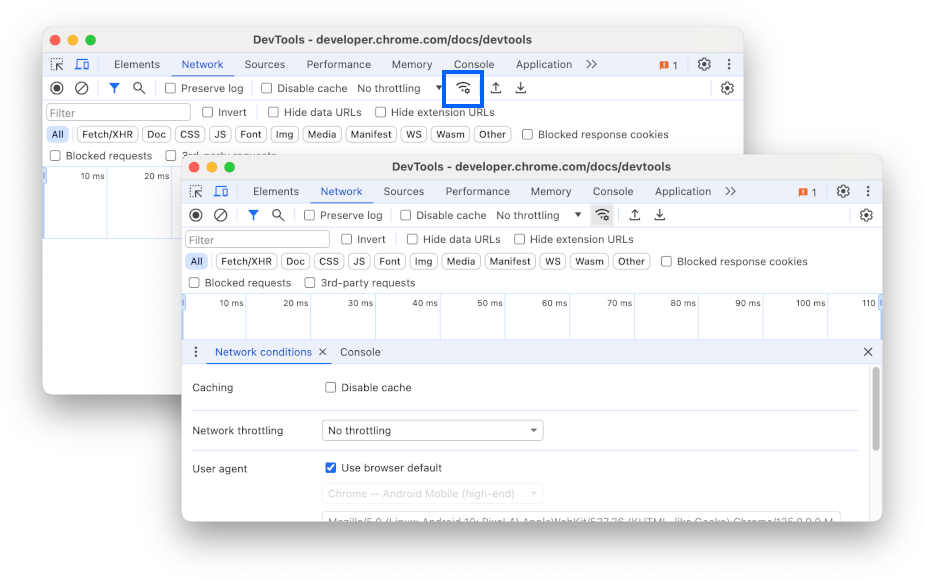 **Figure 1** . The **Network** panel and the **Network conditions** panel
To open **Network conditions** panel manually:
1. [Open DevTools](https://developer.chrome.com/docs/devtools/open).
2. Open the **Command menu** by pressing:
- macOS: Command+Shift+P
- Windows, Linux, ChromeOS: Control+Shift+P  **Figure 2**. The Command Menu
3. Start typing `Network conditions`, select **Show Network conditions** , and press Enter. DevTools displays the **Network conditions** panel at the bottom of your DevTools window.
Alternatively, in the top right corner, select **More options** \> **More tools** \> **Network conditions**.
## Override the user agent string
To override the user agent string from the **Network conditions** panel, follow these steps:
1. Open the **Network conditions** panel.
2. In the **User agent** section disable the **Use browser default** checkbox.
 **Figure 3** . Disabling **Use browser default**
3. Select a user agent string from the list, or enter your own custom string.
4. Refresh the page to view results.
## Edit user-agent client hints
The Network conditions panel lets you customize the [User-Agent Client Hints](https://developer.chrome.com/docs/privacy-security/user-agent-client-hints?utm_source=devtools#introducing_the_new_user-agent_client_hints) of a selected user agent string.
To use this feature, follow these steps:
1. Select a user agent string from the list, or enter your own custom string.
2. Click the **User agent client hints** drop-down. A form will appear with the relevant values autofilled.
 **Figure 4**. The User Agent Client Hints form
3. Edit the form by clicking **delete** to delete items, and **Add brand** to add to the **User agent** and **Full version** lists.
4. When done, click the **Update** button at the bottom of the form.
5. Refresh the page to view results.
## Throttle the network speed
To throttle the network speed from the **Network conditions** panel click the **Network throttling** list, then select either **Fast 3G** , **Slow 3G** or **offline**.
 **Figure 5**. Network throttling list in the Network conditions panel
Additionally, the **Network** panel lets you throttle network speed in a similar way, just open the **Network** panel and select the speed you want from the **Throttle list** in the action bar.
 **Figure 6**. Network throttling list in the Network panel
You can also use the **Performance** panel to throttle network speed. Open the Performance panel, click **Settings** and then select **Fast 3G** or **Slow 3G** from the **Network** list.
 **Figure 7**. Network throttling list in the Performance panel
Set your own custom network throttling parameters by creating a **Network Throttling Profile** . To learn how, see [Throttling](https://developer.chrome.com/docs/devtools/settings/throttling).