 Sofia Emelianova [GitHub](https://github.com/sofiayem)
[Video](https://www.youtube.com/watch?v=KxjGYcHZ_uI)
With local overrides, you can unblock your workflow by prototyping and testing changes and fixes without waiting for the backend, third-parties, or APIs to support them.
Use local overrides to mock remote resources even if you don't have access to them. You can mock responses to requests and various files, for example, [HTTP response headers](https://developer.chrome.com/docs/devtools/overrides.md.txt#override-headers) and [web content](https://developer.chrome.com/docs/devtools/overrides.md.txt#make-changes), including [XHR and fetch requests](https://developer.chrome.com/docs/devtools/overrides.md.txt#override-xhr-fetch).
For example, local overrides can help in the following use cases:
- Mock API and test API fixes before they actually go to production.
- Prototype new UI designs if you already know data structures the backend is going to use.
- Test performance fixes, for example, [eliminate CLS](https://web.dev/articles/cls), to make sure in advance that they are significant.
> [!NOTE]
> **Note:** Watch the video above to learn more about use cases.
Local overrides also lets you keep the changes you make in DevTools across page loads.
## How it works
- When you make changes in DevTools, DevTools saves a copy of the modified file to a folder you specify.
- When you reload the page, DevTools serves the local, modified file, rather than the network resource.
> [!NOTE]
> **Note:** Local overrides automatically disables cache.
You can also save your changes directly to source files. See [Edit and save files with Workspaces](https://developer.chrome.com/docs/devtools/workspaces.md.txt).
## Limitations
Local overrides work for network response headers and for most file types, including XHR and fetch requests, with a couple of exceptions:
- Cache is disabled when **Local overrides** are enabled.
- DevTools doesn't save changes made in the DOM tree of the [**Elements**](https://developer.chrome.com/docs/devtools/dom.md.txt) panel.
- If you edit CSS in the **Styles** pane, and the source of that CSS is an HTML file, DevTools won't save the change.
Instead, you can edit HTML files in the [**Sources**](https://developer.chrome.com/docs/devtools/sources.md.txt) panel.
## Set up local overrides
You can override web content or response headers right away in the **Network** panel:
1. [Open DevTools](https://developer.chrome.com/docs/devtools/open.md.txt), navigate to the **Network** panel, right-click a request you want to override, choose **Override headers** or **Override content** from the drop-down menu. 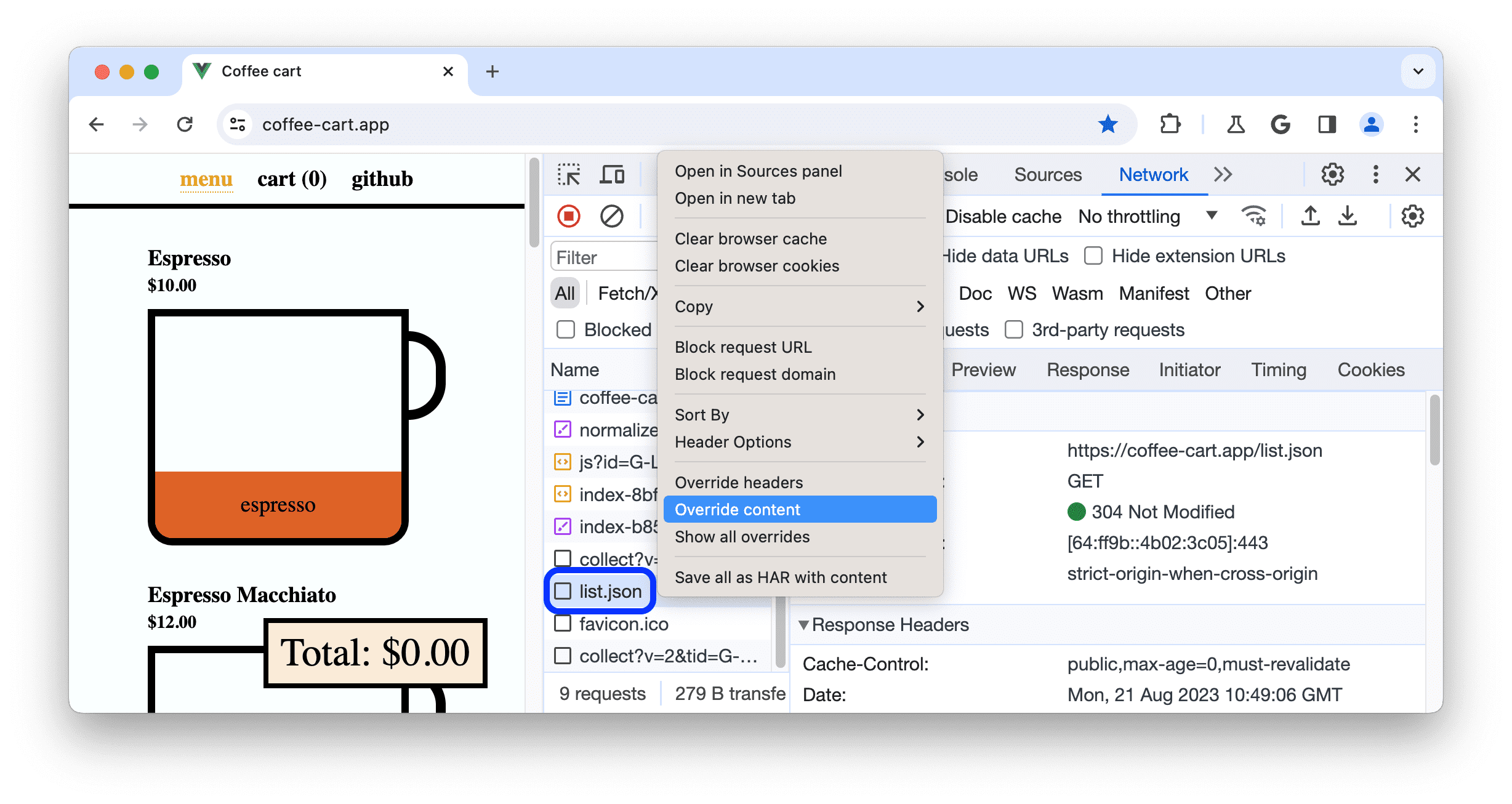
2. If you haven't set up local overrides yet, in the action bar at the top, DevTools prompts you to:
1. **Select a folder** to store the override files in. 
2. Click **Allow** to grant DevTools access rights to it. 
3. If you have local overrides set up but disabled, DevTools automatically enables them.
4. Once local overrides are set up and enabled, depending on what you are about to override, DevTools takes you to:
- The **Sources** panel to let you make changes to [web content](https://developer.chrome.com/docs/devtools/overrides.md.txt#make-changes).
- The editor in **Network** \> **Headers** \> **Response Headers** to let you make changes to [response headers](https://developer.chrome.com/docs/devtools/overrides.md.txt#override-headers).
To temporarily disable local overrides or delete all the override files, navigate to **Sources** \> **Overrides** and clear the **Enable Local Overrides** checkbox or click **Clear** respectively.
To delete a single override file or all overrides in a folder, right-click the file or folder in **Sources** \> **Overrides** , select **Delete** , then click **OK** in the dialog. This action can't be undone and you will have to manually recreate the deleted overrides.
To quickly see all overrides, in the **Network** panel, right-click a request and select **Show all overrides** . DevTools will take you to **Sources** \> **Overrides**.
## Override web content
To override web content:
1. [Set up local overrides](https://developer.chrome.com/docs/devtools/overrides.md.txt#set-up).
2. Make changes to files and save them in DevTools.
> [!NOTE]
> **Note:** You can't override [source-mapped](https://developer.chrome.com/docs/devtools/javascript/source-maps.md.txt) files. If you right-click a request in the **Network** panel and select **Override content** DevTools shows you a dialog that takes you to the original source files instead.
For example, you can edit [files in **Sources**](https://developer.chrome.com/docs/devtools/javascript/reference.md.txt#edit) or [CSS in **Elements** \> **Styles**](https://developer.chrome.com/docs/devtools/css/reference.md.txt#change-declaration), unless the CSS lives in [HTML files](https://developer.chrome.com/docs/devtools/overrides.md.txt#limitations).
DevTools saves the modified files, lists them in **Sources** \> **Overrides** , and shows you the  icon next to the overridden files in the relevant panels and panes: **Elements** \> **Styles** , **Network** , and **Sources** \> **Overrides**.

Additionally, the **Network** panel shows a purple dot icon with a tooltip next to the **Response** tab of a request with overridden web content.

### Override XHR or fetch requests to mock remote resources
With local overrides, you don't need access to the backend and don't have to wait for it to support your changes. Mock and experiment on the fly:
1. [Set up local overrides](https://developer.chrome.com/docs/devtools/overrides.md.txt#set-up).
2. In **Network** , [filter for **XHR/fetch** requests](https://developer.chrome.com/docs/devtools/network/reference.md.txt#filter-by-type), find the one you need, right-click it, and select **Override content**.
3. Make your changes to the fetched data and save the file.
4. **Refresh** the page and observe your changes applied.
To learn this workflow, watch the following video:
### Track your local changes
You can keep track of all the changes you make to web content in one place---the [**Changes**](https://developer.chrome.com/docs/devtools/changes.md.txt) drawer tab.
Additionally, in **Sources** \> **Overrides** , you can right-click the saved file and select **Open in containing folder** from the context menu. This opens the folder you selected during [overrides setup](https://developer.chrome.com/docs/devtools/overrides.md.txt#set-up). There, you can modify the files with your favorite code editor.

## Override HTTP response headers
From the **Network** panel, you can override HTTP response headers without access to the web server.
With response header overrides, you can locally prototype fixes for various headers, including but not limited to:
- [Cross-Origin Resource Sharing (CORS) Headers](https://developer.mozilla.org/docs/Web/HTTP/CORS)
- [Permissions-Policy Headers](https://developer.mozilla.org/docs/Web/HTTP/Headers/Permissions-Policy)
- [Cross-Origin Isolation Headers](https://web.dev/articles/coop-coep)
To override a response header:
1. [Set up local overrides](https://developer.chrome.com/docs/devtools/overrides.md.txt#set-up) and open the page you want to debug.
2. Go to **Network** , find a request, right-click it, and select **Override headers** . DevTools takes you to the **Headers** \> **Response Headers** editor.
3. Hover over a response header value and place a cursor there.

Alternatively, to enable the **Response Headers** editor, hover over a response header value and click **Edit**.
4. Modify or add a new header.
> [!NOTE]
> **Note:** This example adds the `Access-Control-Allow-Origin: *` header to get rid of a [CORS error](https://web.dev/articles/cross-origin-resource-sharing).

- To edit a header value, click it.
- To add a new header, click **Add header**.
- To remove a header override, click next to it. This removes the headers you added or reverts modified values back to original values.
The **Network** panel highlights modified headers in green and removed overrides in red and crossed out. Additionally, the **Headers** tab shows a purple dot icon with a tooltip to let you know that headers are overridden.
5. Refresh the page to apply the changes.
### Edit all response header overrides
To edit all header overrides in one place:
1. Click  **.headers** next to the **Response Headers** section.

DevTools takes you to the corresponding `.headers` file in **Sources** \> **Overrides**.
2. Edit the `.headers` file:
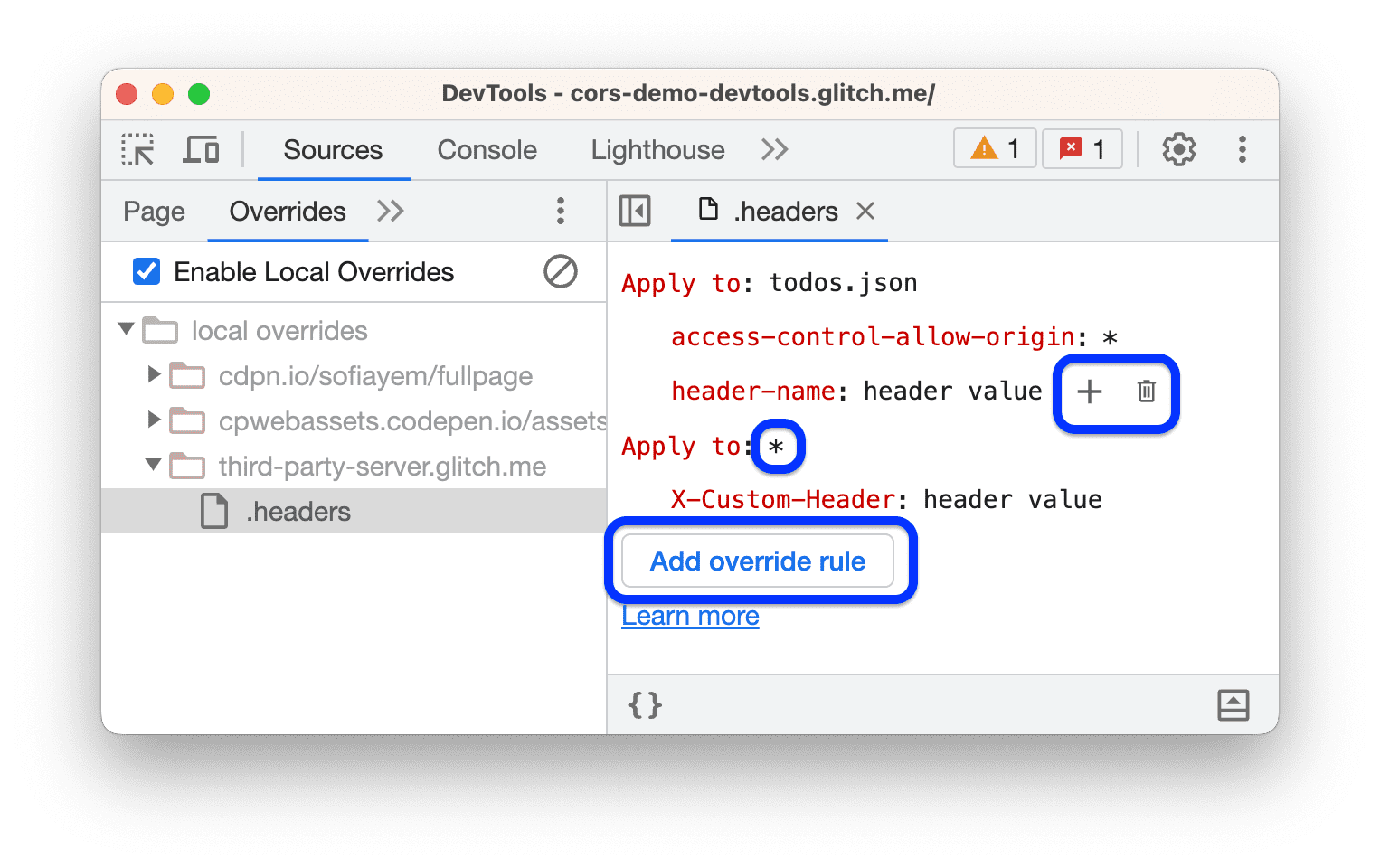
- To add a new override rule, click **Add override rule**. A rule here is a set of headers and values and a single or multiple request to apply them to.
> [!NOTE]
> **Note:** You can use [wildcards](https://chromedevtools.github.io/devtools-protocol/tot/Fetch/#type-RequestPattern) to specify multiple requests at once. Designate multiple characters with `*` and a single one with `?`.
- To add a header-value pair to a rule, hover over another pair and click .
- To revert a header value, remove an added header or a rule, hover over it and click .
3. Save the `.headers` file with Command / Control + S.
4. Refresh the page to apply the changes.