


Published: April 15, 2026
At Chrome, we take a global perspective to understand local needs. We are constantly working to improve localization and support cultural nuances across different regions. Our latest update to Japanese naming conventions in Chrome autofill is part of this ongoing effort to make the web more inclusive and helpful for users everywhere.
This update expands support for phonetic name variations, which lets users automatically fill both their Kanji and Furigana (phonetic scripts in Katakana or Hiragana) name fields. In Japan, names have both a visual representation and a specific phonetic reading, which often requires separate fields in web forms. By enabling support for these phonetic variations, Chrome reduces the friction of completing online forms, for example, medical registrations to ecommerce checkouts, saving users time and effort.
Why Japanese names need dedicated support
Because the same Japanese Kanji can have multiple phonetic readings, online forms typically ask users to enter their name in Kanji and Furigana separately. This ensures that users can be addressed correctly (for example, over the phone) and that data can be sorted and managed accurately.
A major challenge for developers is that there is no standard value for phonetic names in the HTML standard. Therefore, the browser relies on a combination of signals to determine if a field asks for a phonetic name.
How Chrome detects phonetic name fields
Chrome Autofill uses a heuristic based on three primary signals to identify phonetic name fields:
- The
autocompleteattribute - Field labels
- Field
nameattributes
The autocomplete attribute
The autocomplete attribute is the strongest signal and takes precedence.
However, if you use a non-standard value, Chrome does not fall back to
heuristics. Because this prevents Autofill from working correctly, avoid
non-standard Autofill attributes.
Because the HTML specification lacks a dedicated phonetic name value, developers should either leave this attribute missing or set it to its regular name counterpart:
- Phonetic full name:
autocomplete="name" - Phonetic family name:
autocomplete="family-name" - Phonetic given name:
autocomplete="given-name"
Labels and name attributes
Because the standard autocomplete values apply to both regular and phonetic
names, Chrome relies on the field's name and <label> text to distinguish
between them.
The following table lists the valid strings and characters that Chrome's parser uses to identify phonetic fields:
| Field Type | Valid Field Names | Valid Field Labels |
|---|---|---|
| Phonetic full name | full-name-phonetic セイメイ せいめい |
セイメイ せいめい |
| Phonetic family name | family-name-phonetic セイ せい |
セイ せい 姓ふりがな |
| Phonetic given name | given-name-phonetic メイ 名ふりがな |
メイ めい 名ふりがな |
Best practice example
To provide a good experience, structure your forms using clear labels and descriptive fallback names:
<form>
  <!-- Full phonetic name -->
  <label for="phonetic-full">セイメイ</label>
  <input id="phonetic-full" name="full-name-phonetic" type="text"/>

  <!-- Family phonetic name -->
  <label for="phonetic-family">セイ</label>
  <input id="phonetic-family" name="family-name-phonetic" type="text"/>

  <!-- Given phonetic name -->
  <label for="phonetic-given">メイ</label>
  <input id="phonetic-given" name="given-name-phonetic" type="text"/>
</form>
How Chrome determines katakana or hiragana
Chrome Autofill can automatically transliterate and fill either Katakana or Hiragana based on your form's needs.
Chrome inspects the field's label (not its name) to decide which script to use:
- If the label contains at least one Katakana character, Chrome fills the field with Katakana.
- Otherwise, Chrome defaults to Hiragana.
| Field Label | Character script filled |
|---|---|
| セイメイ (Katakana) | Katakana |
| せいめい (Hiragana) | Hiragana |
| Phonetic full name (English) | Hiragana |
| セイメイせいめい (Mixed) | Katakana |
Debug phonetic autofill
You can test how Chrome Autofill handles Japanese phonetic names using a demo site in CodePen: View Demo on CodePen
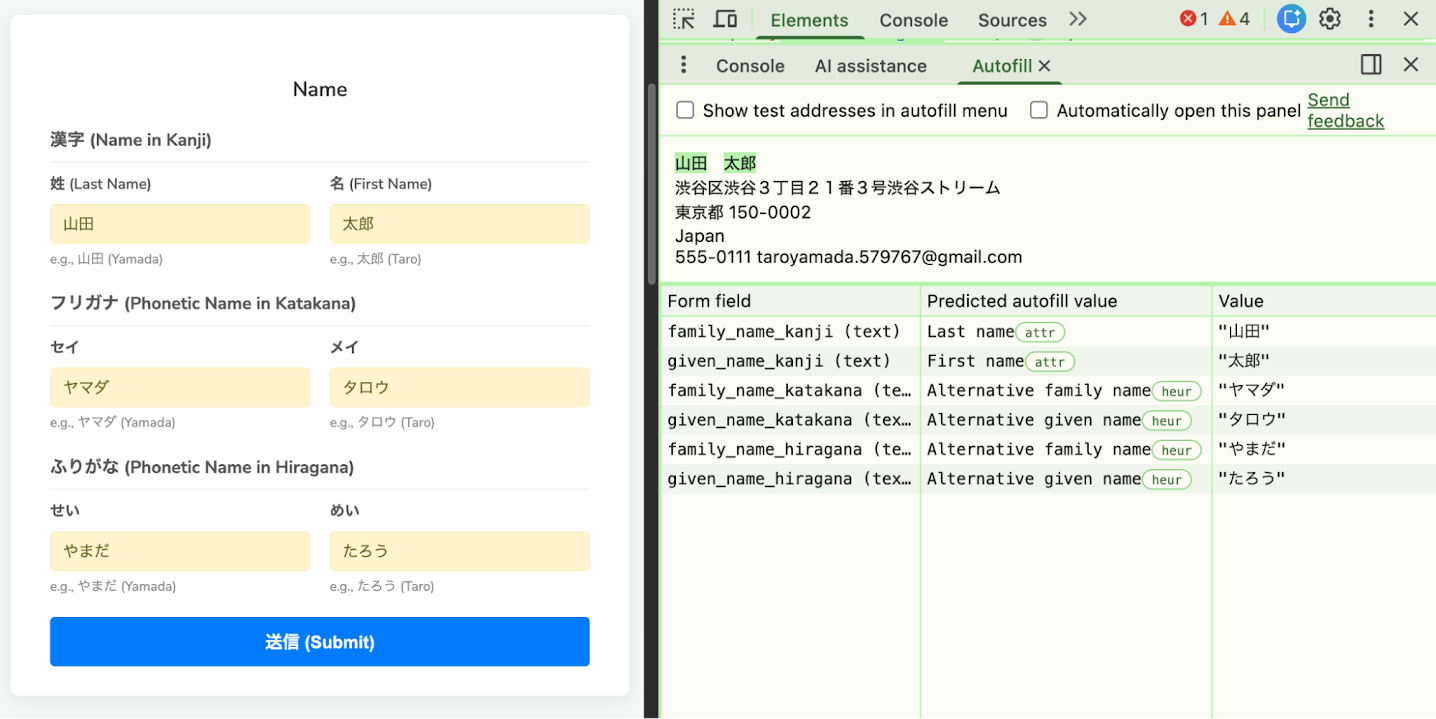
You can verify if Chrome is correctly identifying your fields using Chrome DevTools:
- Open your page and open the DevTools panel.
- Navigate to the Autofill tool (available in the More Tools menu).
- Trigger form filling.
- The tool should classify the phonetic fields as Alternative full name, Alternative family name, or Alternative given name.
How users can set up phonetic names in Chrome
While this post is primarily for developers, understanding how users set up their phonetic profiles can help you test your forms.
- Open Chrome settings by navigating to
chrome://settings/addresses(orchrome://settings/contactInfoin some versions). - Select the three-dot menu beside a contact or address and click Edit.
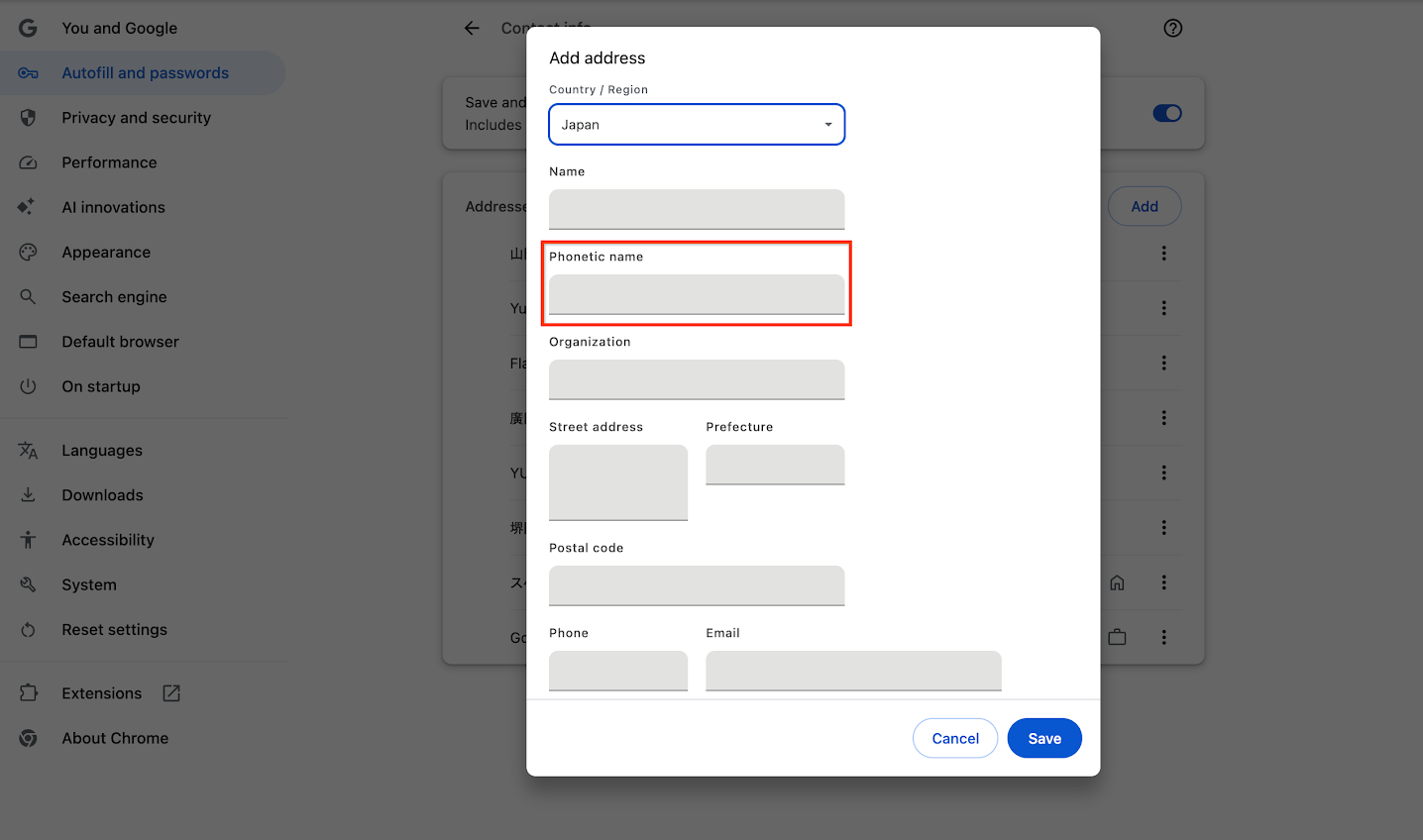
- Enter the Phonetic name (Furigana) in the provided field.
Chrome saves these phonetic profiles, which lets users autofill forms without re-typing. If a user has a phonetic name saved, Chrome tries to apply it whenever it detects an appropriate field (for example, using standard attributes or heuristics).
Help Chrome split names correctly
Chrome automatically splits Japanese full names into family name and given name,
but this process is not always straightforward. While Chrome has built-in
mechanisms to learn and improve these divisions over time, users can manually
ensure accuracy by entering a separator within the Name or Phonetic name
fields in Chrome Autofill settings (chrome://settings/addresses). Chrome
recognizes the following characters as delimiters:
-(Hyphen)・(Katakana Middle Dot)·(Middle Dot)-
(Ideographic Space) - Standard space
While you can enter phonetic names in either script, Chrome defaults to displaying them in Hiragana in the settings UI (matching standard Google Contacts behavior).
For developers, while manual delimiters help Chrome parse single-field inputs,
the most reliable way to ensure Chrome handles names correctly is to eliminate
the ambiguity. Whenever possible, design your forms with separate inputs for
family and given names (using the family-name and given-name autocomplete
attributes).
Improve the Autofill experience
By enabling faster and more accurate form filling, Autofill creates a smoother journey for users and helps organizations reduce form abandonment. To learn more about best practices and how to make your forms fully Autofill-friendly, explore comprehensive resources.