

Published: April 7, 2026
Chrome 147 introduces automatic context selection for AI assistance, upgrades code suggestions to full code completion, modernizes the Device Mode toolbar, brings automatic decoding of compressed network bodies, and several other enhancements.
Automatic context selection in AI assistance
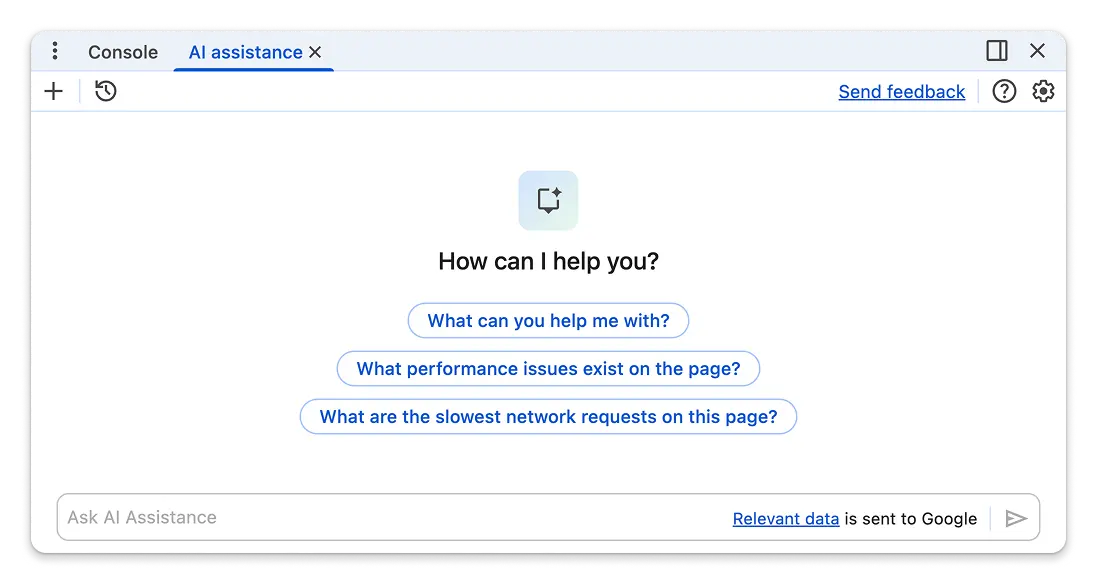
One of the top feature requests for AI assistance was the ability to ask more open-ended questions. A new context selection agent now lets you ask questions without prior context selected, for example:
- "What are the slowest network requests on this page?" Previously, this wasn't possible as you had to select a specific network request.
- "What performance issues exist on the page?" DevTools will now automatically record a trace with your selected settings to answer this.
- "How do I use the animation panel?" or "Where is the high contrast setting in DevTools?", providing direct help with DevTools itself.
As part of this change, AI assistance can now also automatically switch context. It will intelligently update the context based on your actions when the chat is empty, while respecting your manual selections once a conversation has started.
DevTools for Agents
The Chrome DevTools MCP server and CLI have been updated to version 0.21.0, bringing significant improvements for multi-agent workflows, new auditing capabilities through Lighthouse, and an enhanced set of skills.
Key features added since the last update include:
- Integrated Lighthouse audits: You can now run Lighthouse audits directly through MCP, enabling automated performance and quality checks within your agentic workflows.
- Memory Leak Detection skill: Added a new skill for detecting memory
leaks using the
take_memory_snapshottool. - Accessibility skill improvements: The accessibility debugging skill has been refined to better leverage Lighthouse and provide more robust output.
- General usage skills: Dedicated skills for how to use the Chrome DevTools MCP server or the CLI, and how to troubleshoot installations help your agent make the most out of DevTools for agents.
- Multi-agent workflow support: The introduction of
pageIdrouting allows multiple agents to precisely target and interact with specific browser pages in parallel.
To start using these features, check out the GitHub repository with detailed release notes.
Code generation
In Chrome 142 we introduced code suggestions by Gemini in the Console and Sources panels. With Chrome 147 this capability gets upgraded to full code generation.
To generate code, type a natural language comment describing the logic
you need (for example, // Loop to check all img elements for valid alt
attributes) and press Cmd+i (Mac) or Ctrl+i (Windows/Linux) to start
generating. The i in the shortcut is lowercase.
Refreshed Device Mode toolbar
The Device Mode toolbar has been modernized to provide a more consistent and streamlined experience:
- Standardized Controls: Device selection, zoom levels, and Device Pixel Ratio (DPR) now use standard DevTools UI components, improving usability.
- Streamlined Zoom: The zoom menu is now cleaner, with the "Fit to window" option integrated directly into the percentage list. "Auto-adjust zoom" has been moved to its own dedicated toolbar button.
- Orientation Lock Support: DevTools now handles the
screen.orientation.lock()API in device emulation. When a page locks the orientation, the emulated device rotates automatically to match the locked orientation, and the manual rotate button is disabled while the lock is active.
Chromium issues: 40807290
Decoded compressed bodies
Diagnosing issues with compressed resources is now much easier. Previously, if
an HTTP request used Content-Encoding: gzip or deflate, the Payload view
in the Network panel would show garbled binary data instead of the decoded
content.
In Chrome 147, DevTools automatically decodes these compressed bodies, displaying the readable content directly under Payload.
Additionally, the request listing now includes Transfer Size information, providing a clearer picture of data usage over the wire - a detail also utilized by the AI Assistant to select requests better.
Chromium issues: 356158096
Regular expression filters for styles
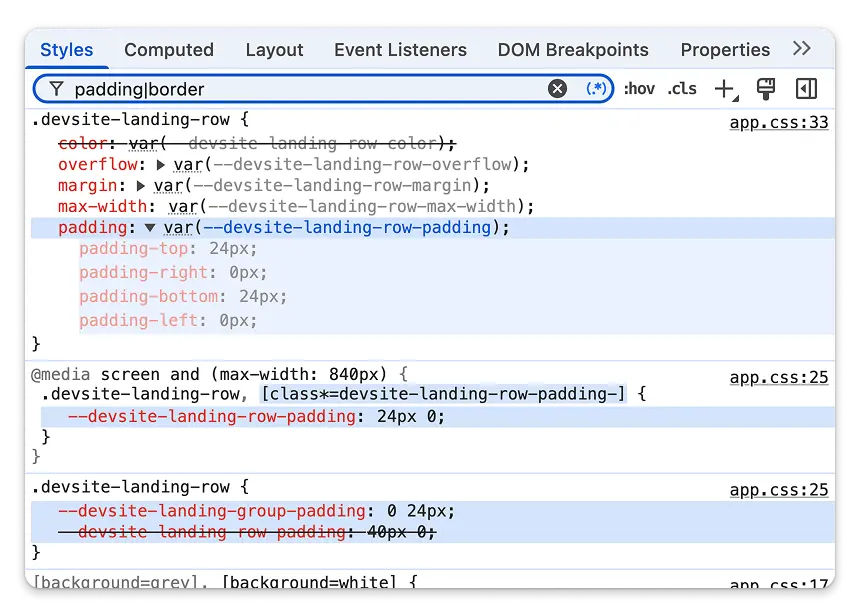
You can now use regular expressions in the filter bars for the Styles,
Computed, and Properties panels. Click the new Regular expression
toggle button (.*) to enable. Then for example type padding|border to highlight
all padding and border properties.
Chromium issue: 40706727
Speculative loads enhancements
Debugging preloading is more robust with new features in the Application > Speculative loads panel:
- Text Filtering: You can now filter the list of rules and attempts using
free text or keyed filters (e.g.,
url:,action:,status:), with support for AND logic between multiple terms. - Clear Button: A new clear button lets you reset the preloading model and clear the displayed rules and attempts.
- HTTP Status Codes: For failed prefetches, DevTools now shows the actual HTTP status code (e.g., 404) in both the status column and details pane, instead of a generic failure message.
Chromium issues: 479524246, 40926909
Miscellaneous
These are some noteworthy fixes and features in this release:
- Console: When all inline stack frames of an error are ignore-listed but the call stack contains non-ignored frames, a toggle now appears to help you focus on actionable code while hiding noisy library traces (379788109).
- Performance: The sidebar state (open/closed) is now persisted; if you close the sidebar, it stays closed across subsequent recordings (437340219).
- Settings: DevTools can now prompt you to restart the browser through an infobar when toggling certain experimental settings.
- Object Inspection: A new "Show all" context menu option in object views
lets you toggle the visibility of nullish (
nullorundefined) properties (41187256). - Elements: The "ad" adorner is no longer restricted to iframes and can now be shown for arbitrary elements tagged as ad-related by the backend (485493202).
- Instruction nodes: Processing Instruction nodes (like
<?xml-stylesheet
... ?>
) are now visible and editable in the DOM tree (484891675)
Accessibility
This release brings several accessibility refinements:
- Performance: The title help button in the performance metric cards is now always visible and keyboard-accessible, rather than only appearing on hover (487613506).
- Sources: Event listener breakpoints can now be checked or unchecked using the Space key (478890182).
- Settings: The Home and End keys now work for navigating to the first and last items of the shortcut list (481747256).
- Lighthouse: Improved screen reader announcements for category groups checkboxes (477643909).