


Published: July 16, 2026
From Chrome 152, Progressive Web Apps (PWAs) installed on macOS will have their notifications natively attributed to the PWA itself, rather than to Google Chrome.
This is a significant improvement in user experience, making web apps feel more integrated into macOS. However, it also introduces important changes to how notification permissions are handled and how certain notification APIs behave.
What is changing?
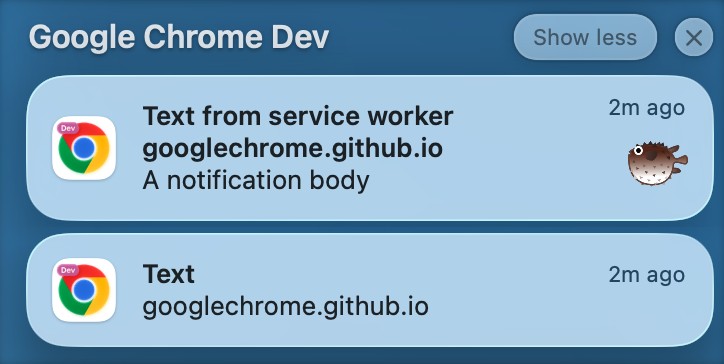
Previously, all notifications sent by PWAs were attributed to Chrome at the OS level. In macOS Notification Center, they appeared under "Google Chrome," and they used the Chrome icon. To disable notifications, users needed to use controls within Chrome, not the macOS System Settings.
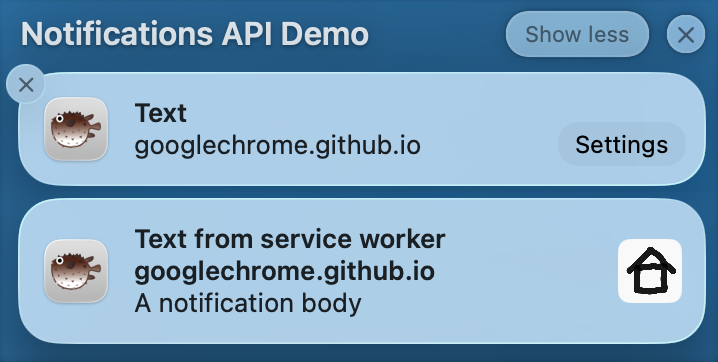
With notification attribution, when a site is installed as a PWA, macOS treats it as a distinct application for notifications. This applies to both newly installed PWAs as well as PWAs the user had previously installed.
Benefits:
- Brand identity: Notifications show the PWA's own name and icon in the macOS Notification Center and banners.
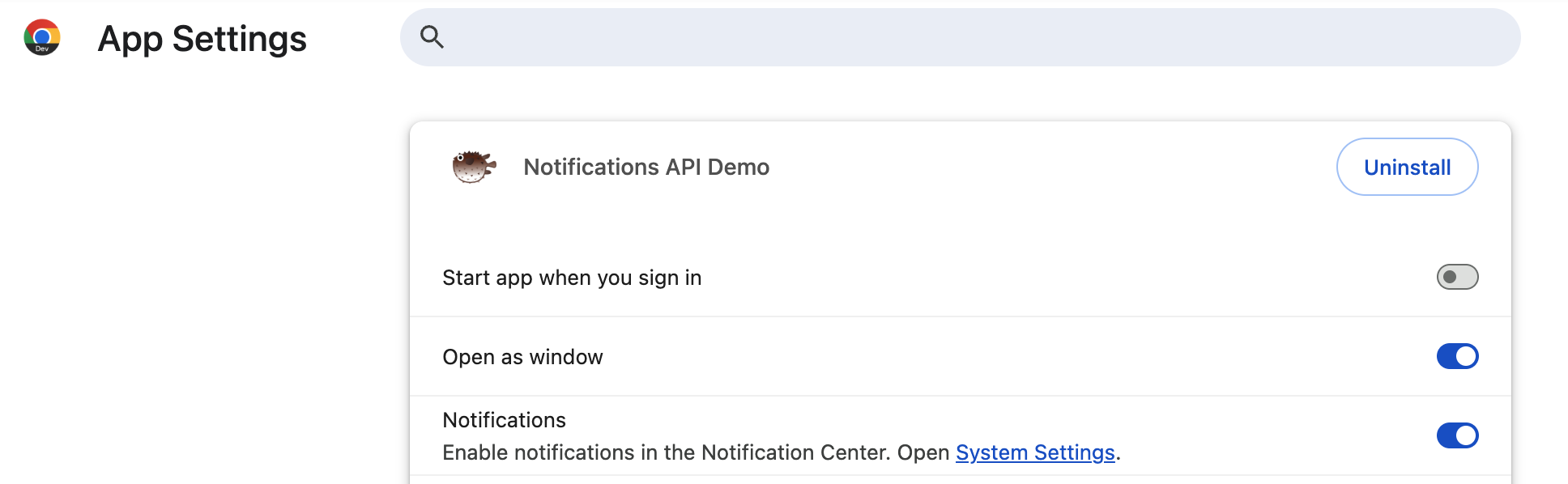
- Well-known user controls: Notification controls for these apps now appear exactly where users expect them to: in the macOS Systems Settings (not Chrome).
- Granular control: Users can manage individual PWA app notification settings (for example, alert styles, lock screen behavior).
- Focus modes: PWAs can be individually allowed or silenced in macOS Focus Profiles (Do Not Disturb).
The new permission flow
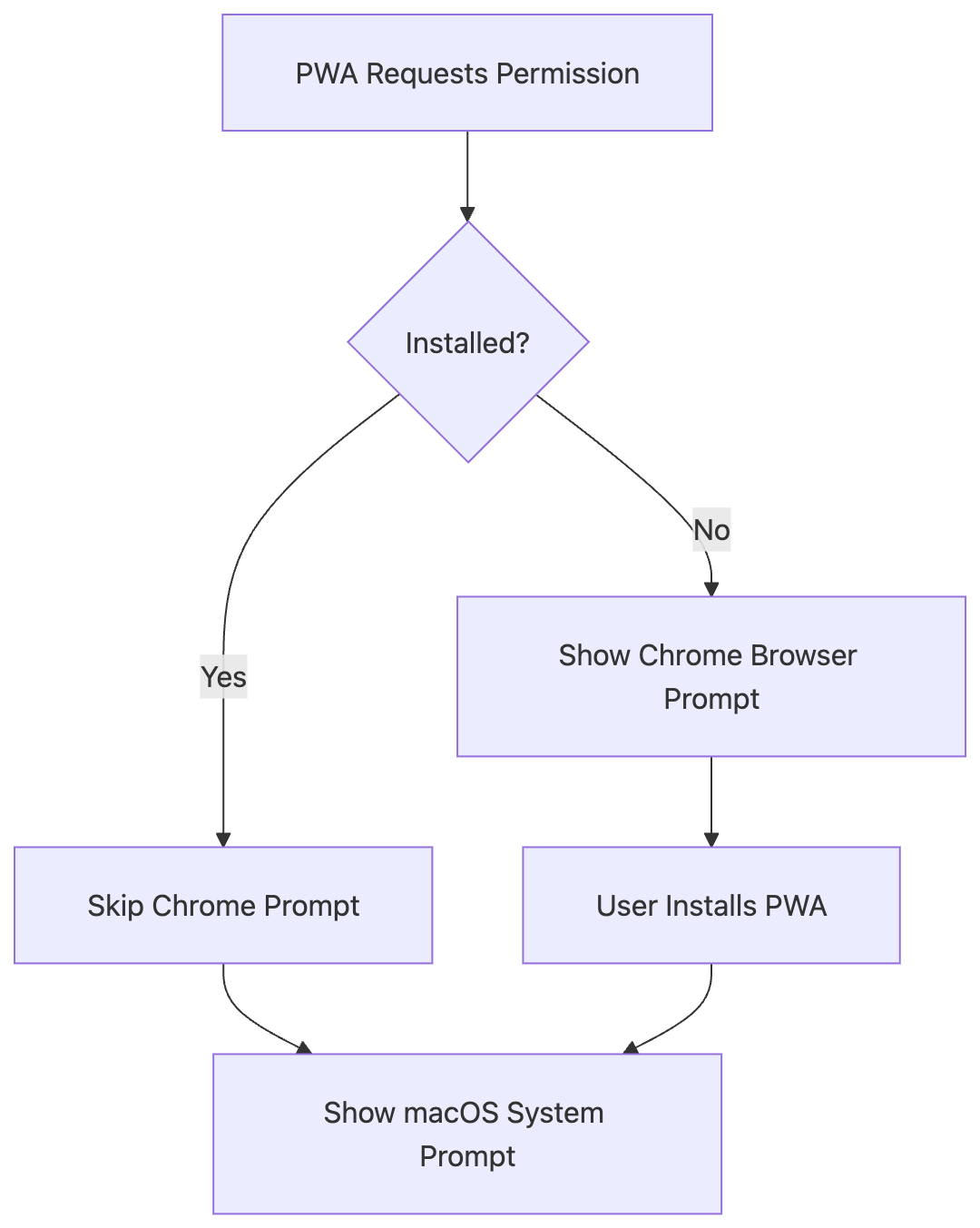
Because macOS now treats the PWA as a separate app, the PWA must obtain OS-level notification permission before it can display notifications. This changes the permission flow for both new and existing users.
New users (first-time permission request)
If a user installs a PWA and the site requests notification permission after installation:
- Chrome will skip the browser-level permission prompt (the drop-down from the address bar).
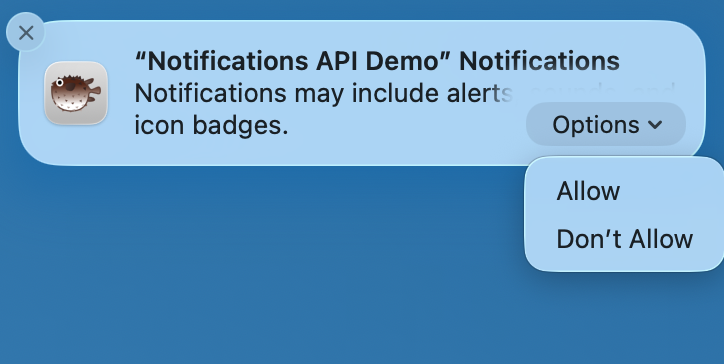
- Chrome will immediately trigger the macOS system permission prompt for the PWA.
Existing users (migration path)
If a user has already granted notification permission to your website in Chrome, and then installs (or has already installed) the PWA, they must still grant OS-level permission to the PWA.
To make this transition as smooth as possible:
- The first time the PWA attempts to send a notification, macOS will display the system permission prompt.
- If the user approves, notifications will continue to work seamlessly.
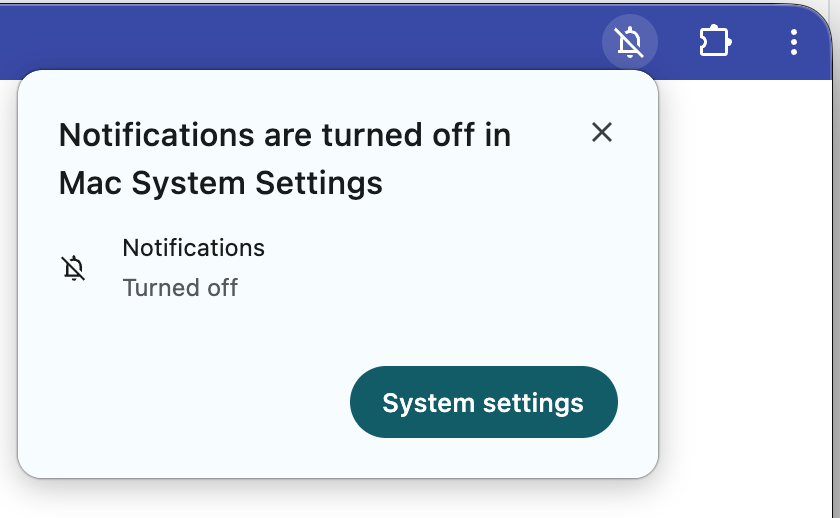
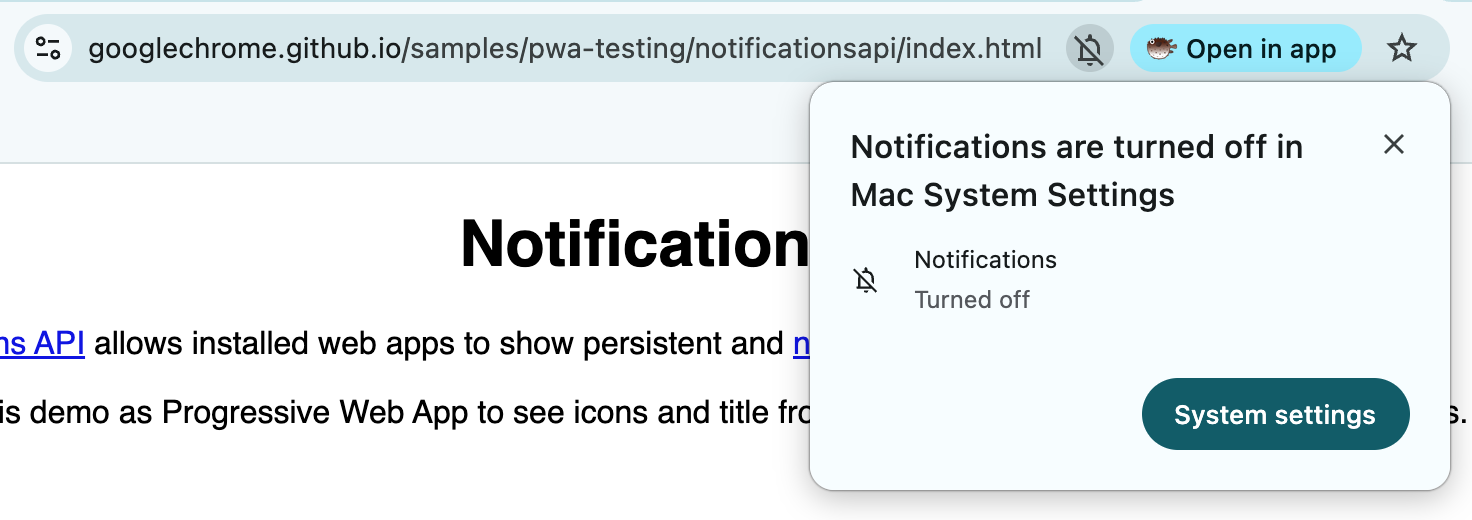
- If the user ignores or dismisses this prompt, the PWA will show an in-app indicator (typically in the app's title bar or menu) guiding them to macOS System Settings to manually enable permissions.
Developer impact: requireInteraction deprecation on macOS
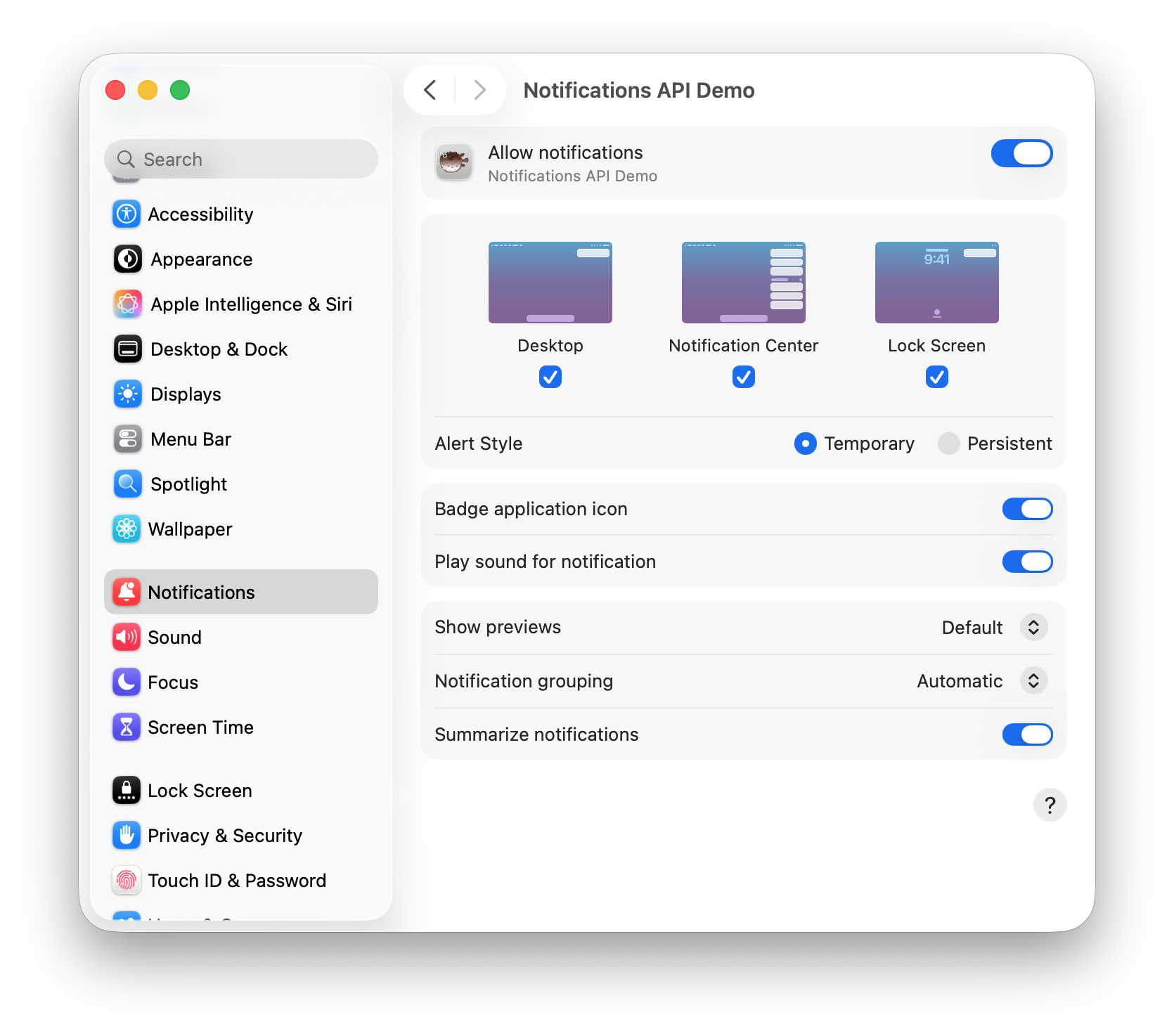
On macOS, whether a notification stays on screen until the user dismisses it ("Persistent") or disappears automatically ("Temporary") is a user-controlled, per-app setting in macOS System Settings.
Because of this OS design, Chrome will no longer respect the
requireInteraction option in the Notification API on macOS when attribution
is active.
What this means for your code:
If your app relies on requireInteraction: true to keep critical notifications
on screen, this will no longer be guaranteed on macOS. Instead, you should:
- Design your app assuming notifications may be transient (Temporary).
- Encourage users who need persistent notifications to configure the PWA's
notification alert style as "Persistent" in
System Settings > Notifications > [Your PWA].
Developer impact: App Badging API requires notification permission
The App Badging API lets web apps set a badge on their application icon (for example, showing an unread message count). On macOS, app icon badging is technically tied to the application's notification settings. Because the PWA now has its own native notification identity:
- Permission required: The PWA must have OS-level notification permission enabled for the badge to appear on the Dock icon. This aligns with macOS platform standards and matches how Safari already handles the Badging API for web apps.
- Silent failure: If the user disables "Badge app icon" in
System Settings > Notifications > [Your PWA], or denies notification permission entirely, calls tonavigator.setAppBadge()will still succeed in JavaScript (without throwing an error), but the badge won't be displayed on the Dock. If your app relies on badging, make sure to request notification permission to ensure the badge can be displayed.
Enterprise administration impact
For enterprise administrators who manage macOS devices and want to pre-grant notification permissions:
- Chrome Policy: You must still configure the Chrome policy
(
NotificationsAllowedForUrls) to grant permission to the PWA's origin. - macOS Policy: In addition, you must now deploy a macOS Configuration Profile (MDM) to pre-grant notification permissions to the PWA's bundle identifier (App Shim).
Without both policies in place, users will still be prompted at the OS level.
Best practices for developers
- Check permission status: Always check
Notification.permissionbefore sending a notification. - Contextual prompts: If you detect that permission is granted at the web level but notifications are not appearing (which can happen if the OS-level permission is revoked), guide the user to their macOS System Settings.
- Prepare for transient notifications: Do not rely on
requireInteractionfor critical user flows on macOS.