

Published: November 17, 2026
Starting with a gradual rollout in Chrome 157, Gemini in Chrome supports the
open agent skills SKILL.md specification and
importing agent skills from other tools that support the format.
If you already write SKILL.md files for other tools, you can import them into
Chrome. If you don't, this article explains how skills work, how Chrome uses
them and how to write skills that work well in Chrome.
What are skills
Skills in Gemini in Chrome are reusable instruction packages that can contain
complex multi-step workflows and reference files. At a minimum, a skill consists
of a folder with a SKILL.md file which includes metadata and instructions for
how to perform a task.
example-skill/
├── SKILL.md          # Required: metadata + instructions
├── references/       # Optional: documentation
├── assets/           # Optional: templates, resources
└── ...               # Any additional files or directories
Skills in Chrome work with the context of the page you're on and any tabs you share. Gemini can use these skills automatically in the relevant context, or you can invoke them manually with slash (/) command or the chat menu.
Use cases
Combining SKILL.md instructions, attached reference files or templates, and
Chrome's tab context can turn repetitive browser tasks into one-step workflows.
Here are a few use cases:
- Generate templated HTML release notes or changelogs.
- Audit specs, drafts, and UI pages against team checklists.
- Synthesize multi-tab research into a recurring weekly brief.
- Draft replies, docs, and posts in your authentic voice.
Here's an example, the release-notes-writer skill, which turns a list of closed issues into release notes.
Skill folder:
release-notes-writer/
├── SKILL.md
├── release-notes.md
└── style-guide.pdf
SKILL.md file:
---
name: release-notes-writer
description: Writes release notes from a list of closed issues or merged changes, using the team's HTML template and style guide. Use when the user asks what changed in a release, milestone, or sprint, or asks for a changelog.
---

# Release notes writer

1. Read the issues or changes on the current page and any shared tabs.
2. Group them into: New features, Improvements, Bug fixes.
3. Leave out internal-only changes (refactors, test fixes, dependency bumps).
4. Write one line per item, following style-guide.pdf.
5. Return the result as HTML using the structure in release-notes.md.

## Common mistakes

- Don't copy issue titles word for word. Rewrite them for the reader.
- Don't include issue IDs unless the template has a place for them.
If you have saved the skill you don't need to explicitly run it every time. The next time you are viewing a milestone or a list of closed issues on your issue tracker and ask Gemini: "What changed this week?". If Gemini decides the skill fits your request, it applies it: it reads the issues on the page and returns release notes in your template.
What Chrome supports
SKILL.md format
While agent skills specification is more extensive, Gemini in Chrome only supports the following:
| Field | Required | Constraints |
|---|---|---|
| name | Yes | Up to 64 characters. Lowercase letters, numbers, and hyphens. Can't start or end with a hyphen. |
| description | Yes | Up to 1024 characters. Says what the skill does and when to use it. |
| metadata | No | A map of string keys to string values. |
Other fields in the specification, such as license, are removed when you import a skill.
Directory structure
Skills can be deployed as a single, standalone file or as a multi-resource bundle. For more complex workflows, Chrome supports nested subfolders inside your skill directory.
Reference files
.html,.md, and structured text templates, rendered in Editor Mode with syntax highlighting based on the Chrome DevTools AI assistant code styling.pdf,csv, andtxtfiles, such as checklists, style guides, or writing samples.
Limits
Chrome supports up to 100 active skills at a time.
Not supported
Scripts and code files are not supported, skills in Chrome can contain
instructions and reference files only. Skills that contain executable script
files (such as .js or .py) can't be uploaded.
How Chrome uses a skill
Gemini in Chrome doesn't load every skill for every request. It reads a skill in three stages:
- For each request, Gemini sees only the name and description of your skills, and uses them to decide whether one fits.
- If a skill fits, Gemini reads the full
SKILL.mdfile. - Gemini opens a reference file only when the instructions call for it.
A skill can run in two ways:
- Automatically: If your request and the context of a page are relevant to a skill's description, Gemini uses it. Gemini uses at most one skill per request.
- Manually: Type a forward slash (/) or click the plus sign (+) in the Gemini side panel and select the skill.
While the response is generating, a label in the side panel shows the skill's name. Every skill is scanned for safety when you save or import it.
Best practices for writing skills that work well in Chrome
- Put the trigger in the description: The description is all Gemini sees when it decides whether to use a skill. Say what the skill does, then when to use it ("Use when the user asks for…"). A vague description means the skill won't run when you expect it to.
- Write for a type of task, not one task: "Write release notes from any list of closed issues" is reusable. "Write the release notes for version 4.2" is not.
- Write for the page: A skill in Chrome works on the current page and shared tabs. Tell Gemini what to look for there ("the issues listed on the page"), not where to go and get it.
- Keep it short: List the steps, the output format, and the mistakes to avoid. Move long material, like a full style guide, into a reference file.
For more guidance, see Write effective skills for Gemini Apps. That article is written for the Gemini app, so some features it mentions aren't available in Chrome.
Create, import, edit and download skills
Create skills
You can create a skill in a few ways:
- Chat with Gemini: In Gemini in Chrome, describe a task you repeat and ask Gemini to create a skill for it. Gemini creates and saves the skill, and you can review and edit it anytime.
- Write a skill from scratch: Create a folder with a
SKILL.mdfile containing metadata and instructions, along with any optional reference files or templates, and import it into Chrome. - Start from the library: Go to chrome://skills, choose a ready-made skill, and make it your own.
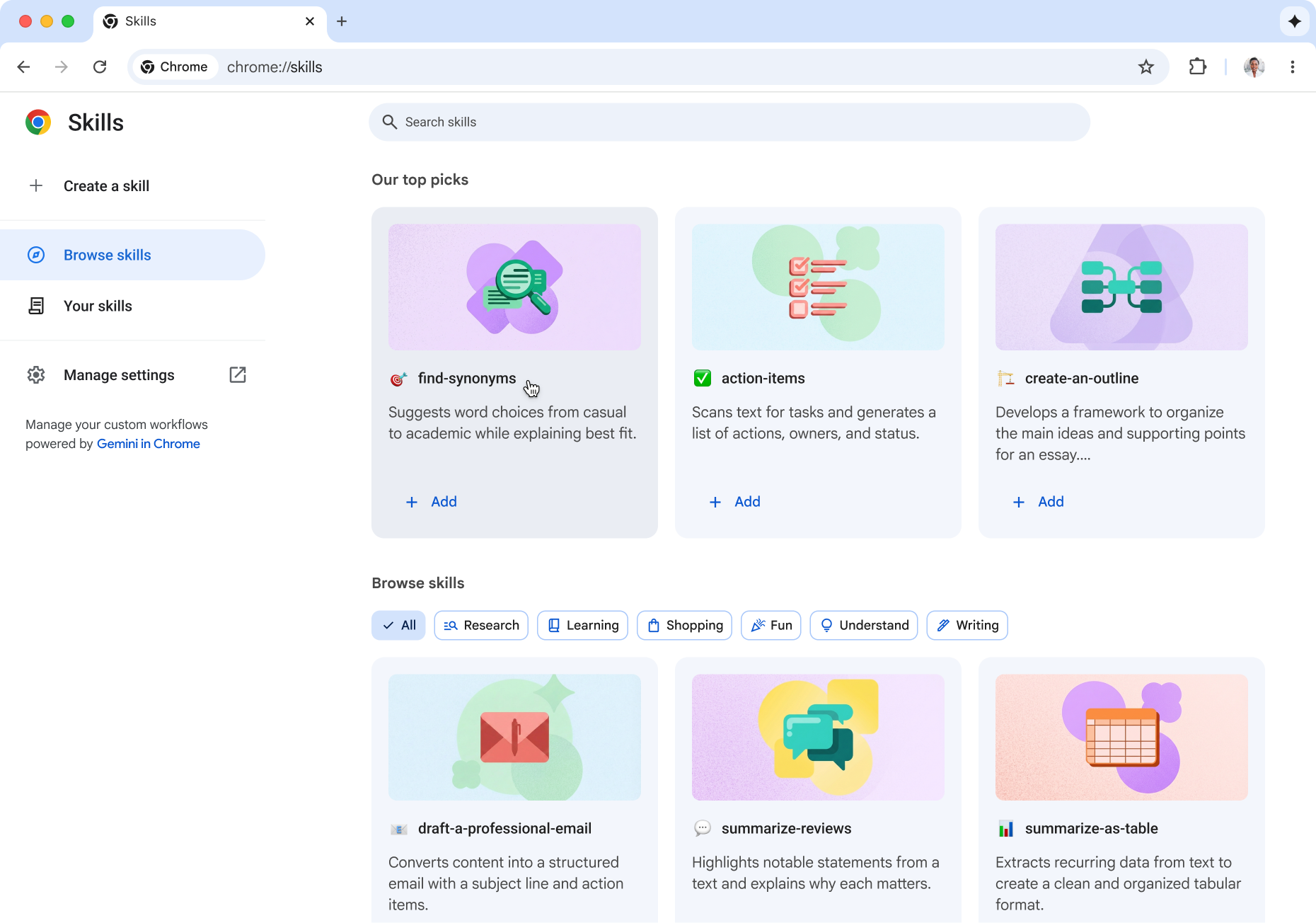
To find your skills, type chrome://skills in your address bar, or in Chrome's three-dot menu, select Extensions and skills > Manage skills. From there you can import, edit and download skills.
Import skills
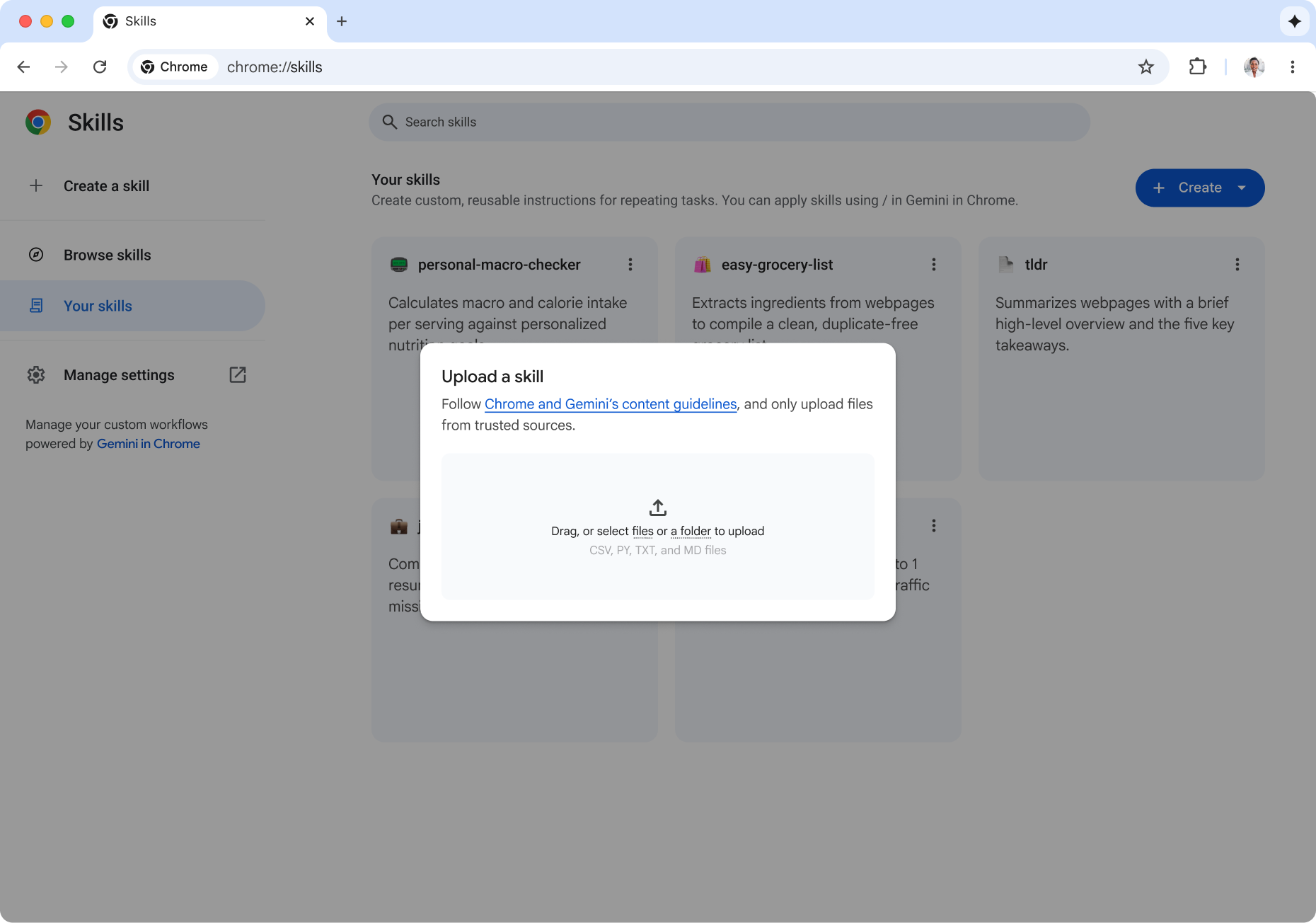
At chrome://skills, click Create > Upload file , then select a SKILL.md file, a
skill folder, or a zip.
Edit skills
Change SKILL.md directly in Chrome.
Download skills
Use it in another tool that supports the format.
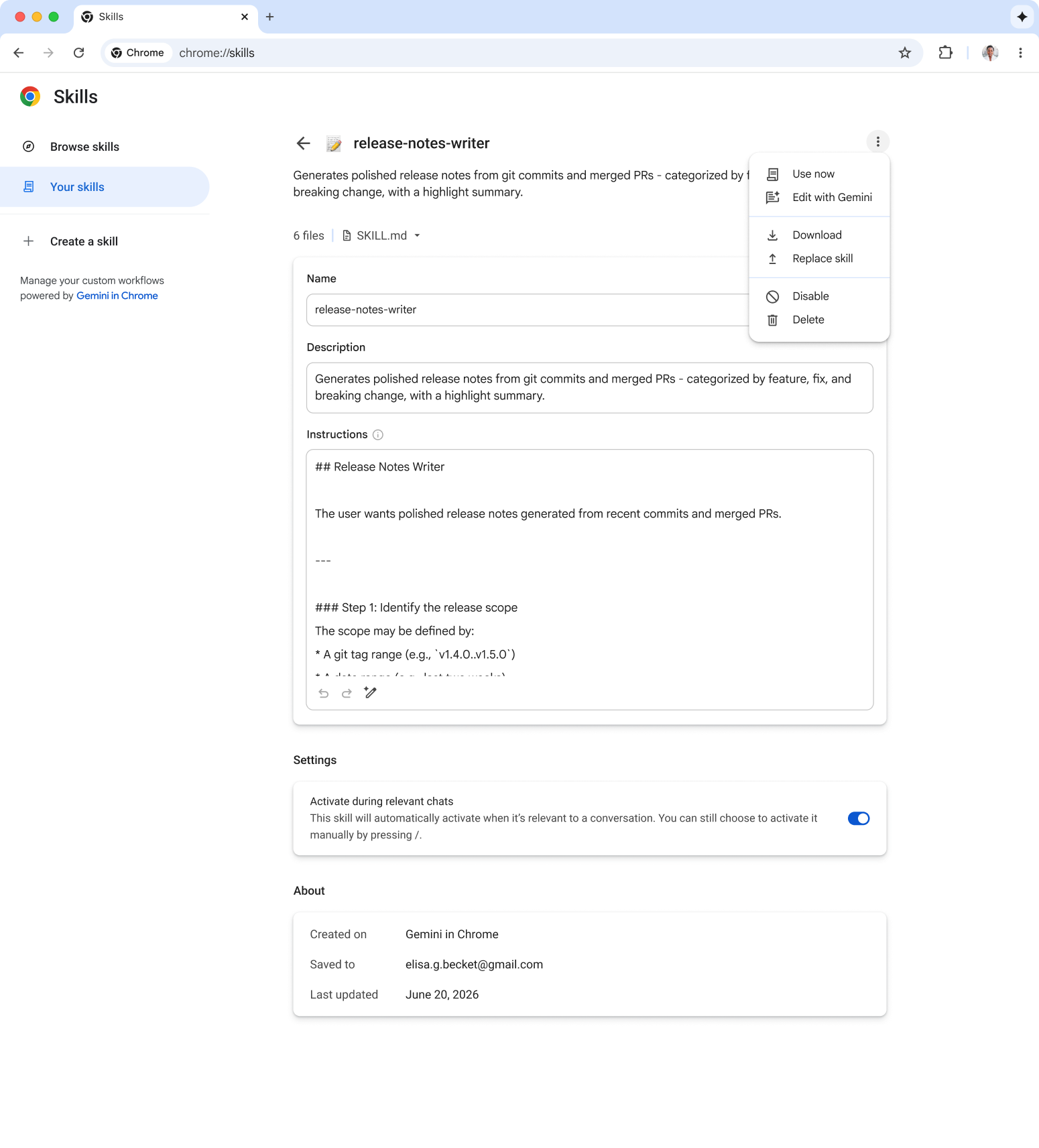
If you saved skills before this update, Chrome uses AI to add a short description. This way, Gemini knows what it's for and when to use it. You can review and edit those descriptions any time.
Get started with agent skills in Gemini in Chrome
Regardless of the tasks you repeat across the web, like auditing live staging pages or transforming closed issues into release notes, agent skills in Gemini in Chrome enable you to execute complex workflows without repetitive manual prompting. Browse the library of skills today, create or import your own!