
Chrome DevTools for agents
Help your agent build, debug, and verify your code correctly. With Chrome DevTools for agents, your AI agent can interact with the Chrome browser to test code, emulate users, and catch bugs using Chrome DevTools’ capabilities before shipping.
 Antigravity
Chrome DevTools for agents comes pre-bundled with Antigravity 2.0. You can start using it immediately with the browser sub-agent. Try using a slash command such as:
/browser Navigate to the Google homepage
To access specialized agent skills, install the DevTools plugin during the Build with Google step of the initial setup or within the application settings.
Antigravity CLI
  # Install as an Antigravity plugin (MCP+Skills).
  # Start Antigravity CLI and use:
  /plugin install chrome-devtools-plugin
 Claude Code
  # Install as a plugin (MCP+Skills)
  # Add the marketplace registry:
  /plugin marketplace add ChromeDevTools/chrome-devtools-mcp
  # Install
  /plugin install chrome-devtools-mcp@chrome-devtools-plugins
 Codex
Codex
codex mcp add chrome-devtools -- npx chrome-devtools-mcp@latest
If you are using any other coding agent like Copilot or OpenCode, follow the instructions on our GitHub repository.
What can your agent do?
Give your agent the ability to interact with the web browser.
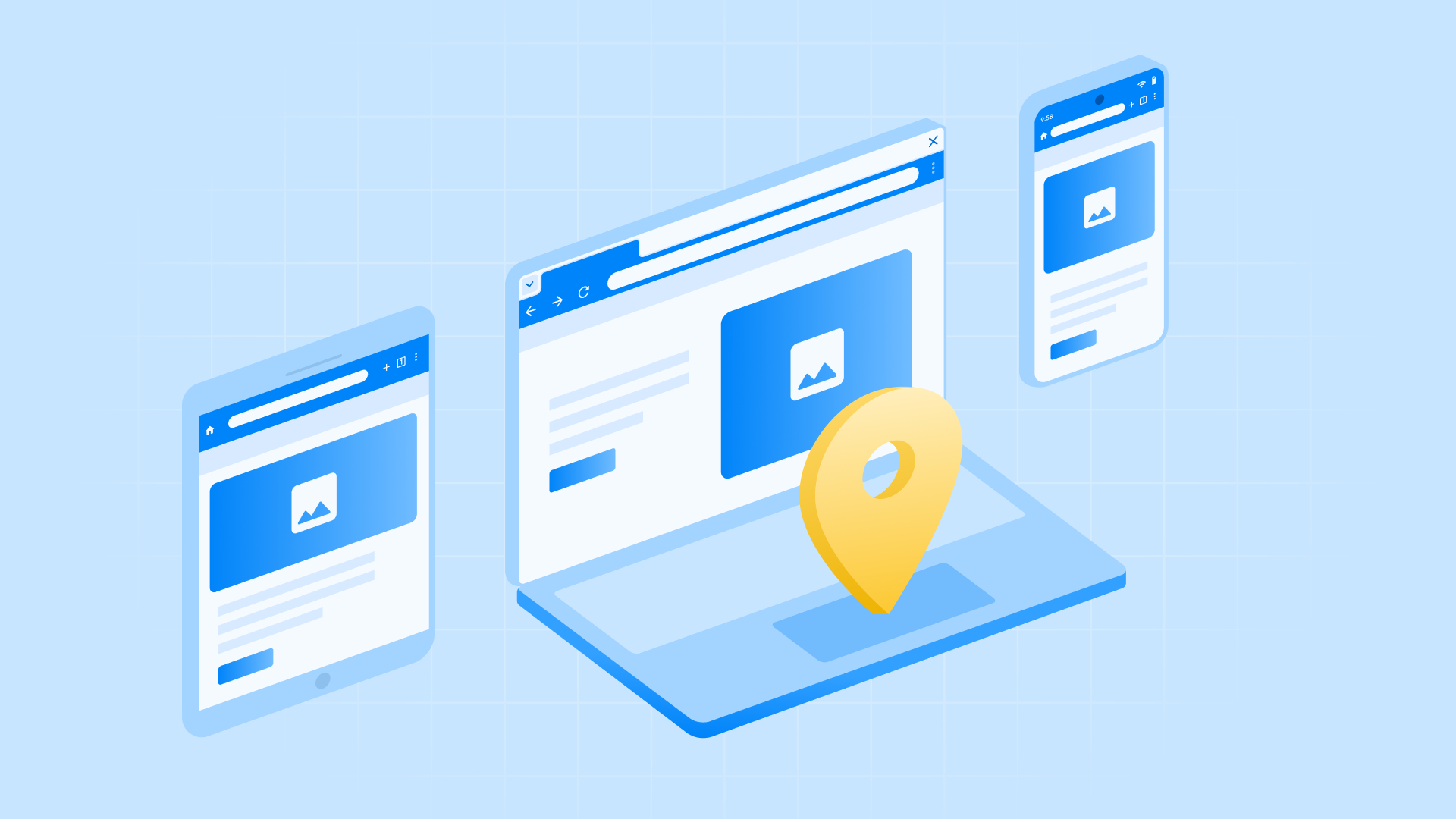
Emulate user experiences
Test responsive designs, different geolocations, and real user flows. Learn more.
Debug your live browser
Connect to your active Chrome session to inspect, pause, and troubleshoot in real-time. Learn more.
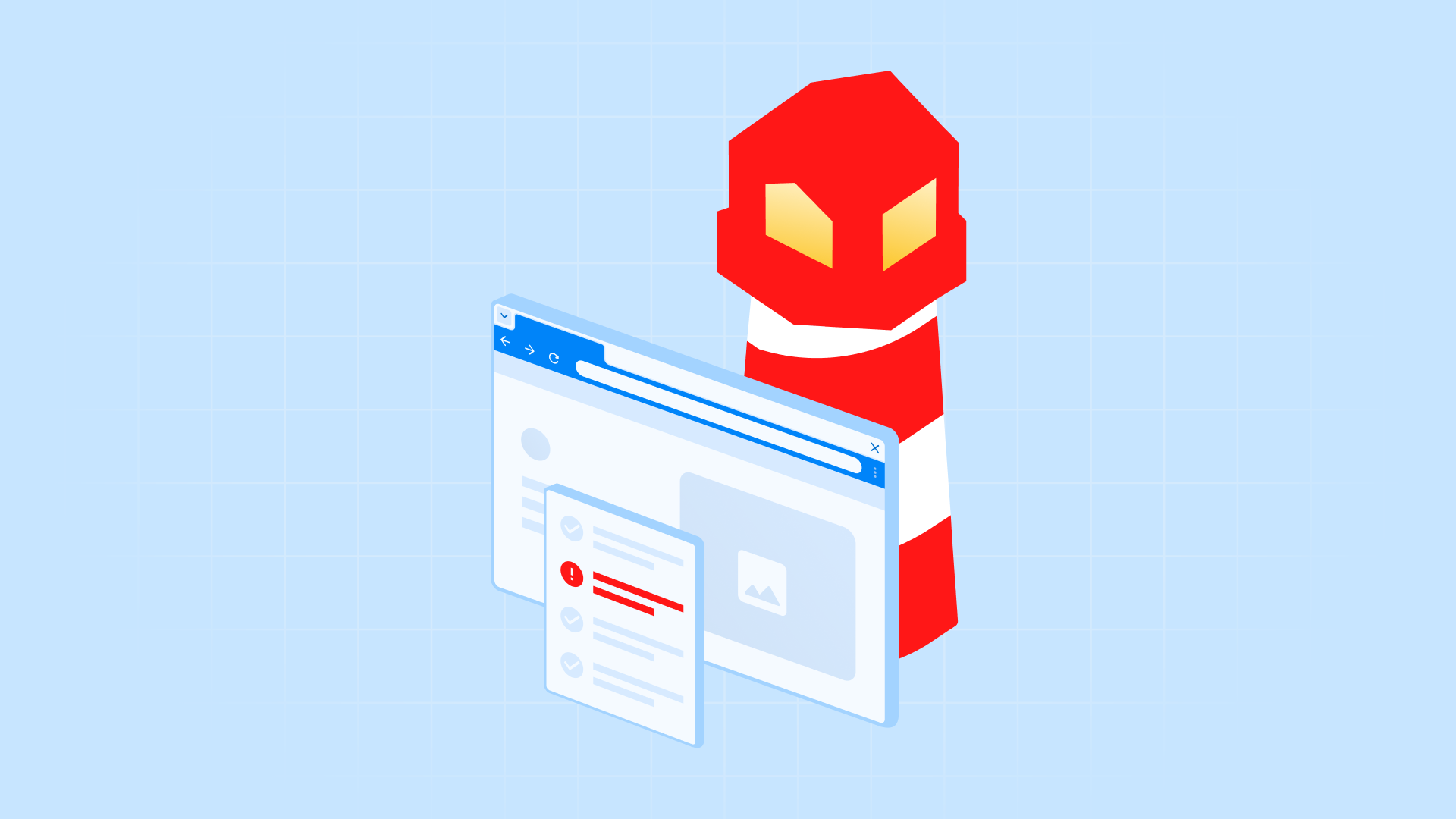
Proactive QA with Lighthouse
Run audits for A11y, SEO, and performance to provide actionable checklists before you push code to production. Learn more.
Prompts that drive better user experiences
Give your AI agent the power to navigate websites, interact with buttons, explore pages, and run instant accessibility audits, all through a fully managed browser instance.
Emulate Experiences
Go to developer.chrome.com on mobile, click the burger menu, and check for top-level navigation items.
Go to https://chrome.dev/devtools-store-locator. Simulate your location is Berlin and check if the store locator shows the Rosenthaler Strasse branch.
Proactive QA (Lighthouse)
Run a Lighthouse accessibility audit and suggest fixes for any low-contrast elements.
Perform an SEO audit and verify all images have descriptive alt text.
Set it up
Learn how to set up Chrome DevTools for agents and see agents debugging and verifying autonomously. This video covers installation, handshake, and using the CLI for batch actions.