

Published: July 16, 2026
In Use the built-in Prompt API with the Vercel AI
SDK, you saw the four core generation
primitives, namely generateText(), streamText(), hybrid code, and structured output using
Output.object(), all powered by @browser-ai/core. This time you build
something more interactive: a full streaming chat UI that runs entirely in the
browser, with automatic fallback to a cloud model when the Prompt API isn't
available.
What you're building
A React chat interface that does the following:
- Uses the Vercel AI SDK's
useChathook for streaming multi-turn conversation. - Runs the model loop in the browser with no backend server required.
- Falls back to Gemini 2.5 Flash automatically when the Prompt API is unavailable.
- Renders assistant replies as GitHub-flavored Markdown, handling incomplete tokens during streaming.
- Shows a "Thinking…" shimmer while waiting for the first token.
- Auto-scrolls to new messages, with a scroll-to-bottom button when you've scrolled up.
Additional dependencies
Along with ai, @browser-ai/core, and @ai-sdk/google, the chat UI needs
React, the AI SDK's React bindings, and a few Markdown packages:
npm install react react-dom @ai-sdk/react
npm install react-markdown remark-gfm harden-react-markdown
npm install -D @types/react @types/react-dom
For the UI, also add Tailwind CSS, some component utilities, and Lucide for icons:
npm install -D tailwindcss postcss autoprefixer
npm install clsx tailwind-merge lucide-react
Vite config: multi-entry build
The project already has index.html. Add chat.html as a second entry point
and configure Vite to build both:
// vite.config.ts
import { defineConfig } from 'vite';
import react from '@vitejs/plugin-react';
import { resolve } from 'path';

export default defineConfig({
  plugins: [react()],
  resolve: { alias: { '@': resolve(__dirname, './src') } },
  build: {
    rollupOptions: {
      input: {
        main: resolve(__dirname, 'index.html'),
        chat: resolve(__dirname, 'chat.html'),
      },
    },
  },
});
chat.html is minimal, just a <div id="root"> and a script tag:
<!doctype html>
<html lang="en">
  <head>
    <meta charset="UTF-8" />
    <meta name="viewport" content="width=device-width, initial-scale=1.0" />
    <title>Built-in AI Chatbot</title>
  </head>
  <body>
    <div id="root"></div>
    <script type="module" src="/src/chat.tsx"></script>
  </body>
</html>
Automatic model selection
In the chatbot, the app makes that choice automatically: it tries the built-in model first, and falls back to the cloud if the Prompt API is unavailable.
It does this at module load time, before React mounts, so the agent is ready by the time the user types their first message:
const agentPromise: Promise<ToolLoopAgent> = (async () => {
  const builtIn = browserAI();
  let model: any = builtIn;

  if (typeof builtIn.availability === 'function') {
    const availability = await builtIn.availability();
    if (availability === 'unavailable') {
      const { createGoogleGenerativeAI } = await import('@ai-sdk/google');
      model = createGoogleGenerativeAI({ apiKey })('gemini-2.5-flash');
    } else if (availability === 'downloadable') {
      await builtIn.createSessionWithProgress(() => {});
    }
  }

  return new ToolLoopAgent({ model, instructions: 'You are a helpful assistant.' });
})();
The new piece is ToolLoopAgent; the AI SDK abstraction that manages a
multi-turn conversation loop on top of any model. It takes the model and a
system prompt, and handles the back-and-forth internally.
Connect the agent to useChat
The @ai-sdk/react package's useChat hook normally talks to an HTTP endpoint.
For browser-side inference, use DirectChatTransport instead. It runs the
ToolLoopAgent loop entirely in the browser with no server involved:
const transport = useMemo(() => new DirectChatTransport({ agent }), [agent]);
const { messages, sendMessage, status, stop } = useChat({ transport });
useMemo is important as DirectChatTransport holds conversation state, so it
must be a stable reference. Recreating it on every render resets the
conversation.
useChat gives you:
Messages: the full conversation asUIMessage[], each with aroleand apartsarraysendMessage({ text }): sends a new user turn and begins streaming the responseStatus:'idle'|'submitted'|'streaming'|'error'Stop: cancels an in-flight generation
Render messages
Each message has a parts array. For this chatbot, we only care about type:
'text' parts. User messages appear as a right-aligned bubble; assistant
messages are left-aligned with an icon:
const ChatMessage = ({ message, isStreaming }: { message: UIMessage; isStreaming: boolean }) => {
  const isUser = message.role === 'user';

  const textParts = message.parts.map((part, i) => {
    if (part.type !== 'text') return null;
    if (isUser) return <span key={i}>{part.text}</span>;
    return <Response key={i} parseIncompleteMarkdown={isStreaming}>{part.text}</Response>;
  });

  if (isUser) {
    return (
      <div className="flex flex-col items-end gap-2 animate-fade-up">
        <MessageContent className="w-fit max-w-[min(80%,56ch)] ...">
          {textParts}
        </MessageContent>
      </div>
    );
  }

  return (
    <div className="flex items-start gap-3">
      <AIIcon />
      <MessageContent className="text-[13px] leading-[1.65]">{textParts}</MessageContent>
    </div>
  );
};
MessageContent and Response are AI Elements.
They are shadcn-style source components you copy into
your project rather than install from npm. Response wraps react-markdown
with remark-gfm for GitHub-flavored Markdown (tables, task lists,
strikethrough) and harden-react-markdown to sanitize links and images in AI
output.
The parseIncompleteMarkdown prop is true while the message is
still streaming. During streaming, the model may write **bold but not
yet close the **, leaving a dangling token that would render as literal
asterisks. parseIncompleteMarkdown closes any open **, __, `, ~~, and
truncates dangling [ link starts so the rendered output stays clean on every
incremental chunk.
The "Thinking…" state
Between sending a message and receiving the first token, status is
'submitted'. During this window the app shows an animated shimmer:
{status === 'submitted' && messages.at(-1)?.role !== 'assistant' && (
  <ThinkingMessage />
)}
The condition messages.at(-1)?.role !== 'assistant' prevents the shimmer from
reappearing once the assistant message has started streaming in.
ThinkingMessage uses a Shimmer component: a <span> with a moving gradient
using background-clip: text that gives the "Thinking…" text a sweeping
highlight effect.
Auto-scroll
When new content arrives, the app scrolls to the bottom, but only if the user is already at the bottom. Scrolling them away from something they're reading mid-conversation would be annoying.
const [isAtBottom, setIsAtBottom] = useState(true);

useEffect(() => {
  if (isAtBottom) endRef.current?.scrollIntoView({ behavior: 'smooth' });
}, [messages, status, isAtBottom]);

const handleScroll = () => {
  const el = containerRef.current;
  if (!el) return;
  setIsAtBottom(el.scrollHeight - el.scrollTop - el.clientHeight < 50);
};
A floating scroll-to-bottom button appears when isAtBottom is false, and fades
out when the user is back at the bottom.
The input area
The textarea auto-resizes as you type by resetting its height to auto on
every input event and then setting it to scrollHeight. It submits on Enter
(not Shift+Enter), and while a response is streaming, the Send button is
replaced by a Stop button that calls stop():
<textarea
  onInput={(e) => {
    const el = e.currentTarget;
    el.style.height = 'auto';
    el.style.height = `${el.scrollHeight}px`;
  }}
  onKeyDown={(e) => {
    if (e.key === 'Enter' && !e.shiftKey) {
      e.preventDefault();
      if (input.trim() && !isStreaming) {
        sendMessage({ text: input });
        setInput('');
      }
    }
  }}
/>;
{
  isStreaming ? (
    <Button variant="outline" onClick={stop}>
      Stop
    </Button>
  ) : (
    <Button type="submit" disabled={!input.trim()}>
      Send
    </Button>
  );
}
Mount with a loading state
Because agentPromise is async, wait for it before rendering
Chat. An App wrapper resolves the promise and shows a spinner in the
meantime:
function App() {
  const [agent, setAgent] = (useState < ToolLoopAgent) | (null > null);

  useEffect(() => {
    agentPromise.then(setAgent);
  }, []);

  if (!agent) {
    return (
      <div className="flex h-dvh items-center justify-center">
        <Loader size={20} />
      </div>
    );
  }

  return <Chat agent={agent} />;
}
Once the agent resolves, whether that's the built-in model booting instantly or waiting for a model download, the spinner disappears and the chat UI mounts.
Demo
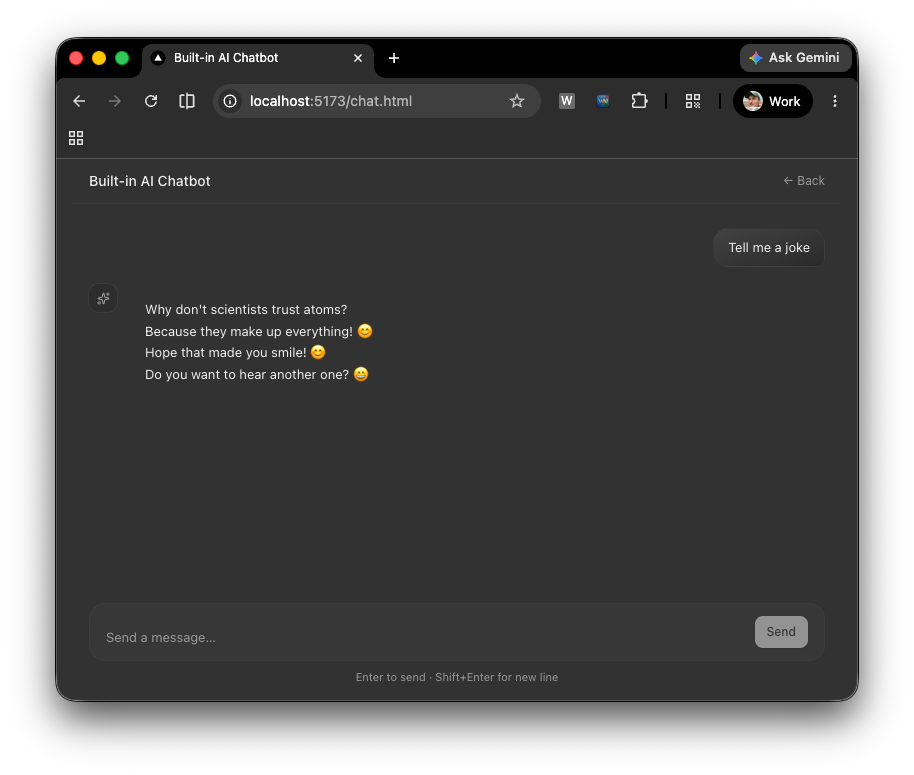
The live demo is a fully functional chatbot running entirely in your browser. Type a message and press Enter. If the Prompt API is available, the reply streams directly from the on-device model with no network request. If your browser doesn't support the Prompt API, it falls back to Gemini 2.5 Flash automatically. Try asking it to explain something in a list, write a code snippet, or use Markdown formatting. The responses render with formatted code blocks, tables, and inline code out of the box.
Conclusion
Over the course of these two articles you've seen the full range of what the Vercel AI SDK makes possible with the browser's built-in Prompt API, from raw generation primitives all the way to a polished streaming chat interface.
In Use the built-in Prompt API with the Vercel AI SDK, you learned how to
use generateText() and streamText() for non-streaming and streaming text
generation, how to request structured JSON output with Output.object(), and
how to write hybrid code that picks between the built-in model and a cloud
provider at runtime with no changes to the generation logic.
In this document, you took those same building blocks and wrapped them in a full
React UI: a ToolLoopAgent to manage the conversation loop, useChat with
DirectChatTransport to stream responses directly in the browser, and AI
Elements components to render Markdown responses cleanly as they arrive; all
with automatic cloud fallback when the Prompt API isn't available.
The result is two demos that work entirely in the browser, with no backend required:
- Use the built-in Prompt API with the Vercel AI SDK demo: text generation, streaming, and structured output side by side
- Use the Vercel AI SDK UI and AI Elements with the Prompt API demo: a full streaming chatbot with Markdown rendering and dark mode