

Published: July 16, 2026
The Vercel AI SDK is a provider-agnostic TypeScript toolkit designed to help you build AI-powered applications and agents using popular UI frameworks like Next.js, React, Svelte, Vue, Angular, and runtimes like Node.js. While the majority of providers are cloud-based, this first guide of a two parts series focuses on a community provider called Browser AI created by Jakob Hoeg Mørk (who was funded by Google). Browser AI lets you use the Prompt API with Vercel's AI SDK. Part two of the series then explains how to add a graphical user interface to your AI application.
Install the library
The @browser-ai/core
package is the AI SDK provider for the Prompt API. You can install it with npm.
The underlying Vercel AI SDK is automatically installed by the package as a peer
dependency.
npm install @browser-ai/core
Basic usage
To use the provider:
- Import the
browserAIconstructor from the@browser-ai/corepackage. - Import the
generateText()or thestreamText()functions from the Vercel AI SDK. Both functions generate text and call tools for a given prompt using a language model:
- The
generateText()function is non-streaming and ideal for short outputs or for outputs where you can only continue once the whole output is received. - The
streamText()function streams text generations from a language model. You can use this function for interactive use cases such as chatbots and other real-time applications.
To create a model instance:
Call
browserAI(). Note: As a best practice, always check the model'savailability(), which allows you to use a fallback (see Hybrid usage) when the model is'unavailable', or to show a progress update when the model is'downloadable'or'downloading'.You can then call
generateText()orstreamText(). Refer to the Vercel AI SDK documentation for the full list of parameters, for example, rather than pass apromptdirectly as in the following code sample, you can also pass a more complexmessagesobject for multi shot prompting, or pass asystemprompt.
import { browserAI } from '@browser-ai/core';
import { generateText, streamText } from 'ai';

(async () => {
  const model = browserAI();
  const availability = await model.availability();

  if (availability === 'unavailable') {
    console.log('Your browser cannot run the built-in AI model.');
    return;
  }

  if (availability === 'downloadable' || availability === 'downloading') {
    await model.createSessionWithProgress((progress) => {
      console.log(`Download progress: ${Math.round(progress * 100)}%`);
    });
  }

  // Non-streaming text generation.
  const { text } = await generateText({
    model,
    prompt: 'Tell me a short joke',
  });
  console.log(text);

  // Streaming text generation.
  const result = streamText({
    model,
    prompt: 'Tell me a long joke',
  });

  for await (const chunk of result.textStream) {
    console.log(chunk);
  }
})();
Multimodal usage
The @browser-ai/core package supports multimodal input using a type: 'file'
object in the messages array's content objects.
content object fields (type: 'file')
| Field | Accepted value types | Description |
|---|---|---|
type |
'file' |
Marks this content object as a file input |
data |
string | Uint8Array | Buffer | ArrayBuffer | URL |
The file content, in one of several supported formats |
When data is a string, it must be one of:
| Format | Description |
|---|---|
| Base64-encoded content | Raw file bytes encoded as base64 |
| Base64 data URL | e.g. data:image/png;base64,... |
| http(s) URL | A remote URL the file will be fetched from |
See the following code snippet for an example:
import { streamText } from 'ai';
import { browserAI } from '@browser-ai/core';

const base64ImageData = await getBase64ImageData();
const audioData = await getAudioBuffer();

const result = streamText({
  model: browserAI(),
  messages: [
    {
      role: 'user',
      content: [
        { type: 'text', text: "What's in this image?" },
        { type: 'file', mediaType: 'image/png', data: base64ImageData },
      ],
    },
    {
      role: 'user',
      content: [
        { type: 'text', text: 'Transcribe this audio file!' },
        { type: 'file', mediaType: 'audio/mp3', data: audioData },
      ],
    },
  ],
});

for await (const chunk of result.textStream) {
  console.log(chunk);
}
Structured output
The Vercel AI SDK supports structured output through zod, a TypeScript-first schema validation with static type inference. Check zod's Defining schemas documentation for details.
To request a JSON object matching your schema, pass output: Output.object({
schema }) to generateText() or streamText():
generateText()withOutput.object()returns the final JSON object in theoutputfield once generation is complete.streamText()withOutput.object()provides apartialOutputStreamasync iterable where each intermediate result is guaranteed to parse correctly as JSON. For example, if your schema enforces an array of two numbers, you would receive[]as the first partial result,[123]as the second, and[123, 456]as the final result.
import { browserAI } from '@browser-ai/core';
import { generateText, streamText, Output } from 'ai';
import z from 'zod';
const model = browserAI();
const schema = z.object({
recipe: z.object({
name: z.string(),
ingredients: z.array(z.object({ name: z.string(), amount: z.string() })),
steps: z.array(z.string()),
}),
});
const prompt = 'Generate a lasagna recipe.';
// Non-streaming object generation.
const { output } = await generateText({
model,
output: Output.object({ schema }),
prompt,
});
console.log(output);
// Streaming object generation.
const { partialOutputStream } = streamText({
model,
output: Output.object({ schema }),
prompt,
});
for await (const partialObject of partialOutputStream) {
console.log(partialObject);
}
Hybrid usage
Where Vercel's AI SDK really shines is hybrid usage. It provides a higher level
abstraction layer on top of the underlying providers' lower level
implementations. When you use the Prompt API as the provider, you create a
model by calling the browserAI constructor.
import { browserAI } from '@browser-ai/core';

const model = browserAI();
To use a different provider, for example, the Google Generative AI provider, you need to do the following:
Install the selected provider.
npm install @ai-sdk/googleInstantiate the
modelusing the provider's constructor, which, for cloud providers like Google Generative AI, typically involves passing an API key. In the case of the Google Generative AI provider, you can also pass a cloud model identifier, for example,'gemini-2.5-flash'. All the rest of the code, like your calls tostreamText(), stay exactly the same.import { createGoogleGenerativeAI } from '@ai-sdk/google'; const API_KEY = 'YOUR_GOOGLE_AI_API_KEY'; const google = createGoogleGenerativeAI({ apiKey: API_KEY }); const model = google('gemini-2.5-flash');
Cloud fallback
A classic hybrid use case is to use the Prompt API when it's available and to
fall back to a cloud provider in other circumstances. To check if the Prompt API
is available, the @browser-ai/core package provides the
doesBrowserSupportBuiltInAI() function. You can use this function to
dynamically instantiate the model as either a cloud-based model or a built-in
model.
import { doesBrowserSupportBuiltInAI } from '@browser-ai/core';

const API_KEY = 'YOUR_GOOGLE_AI_API_KEY';

const model = await (async () => {
  if (doesBrowserSupportBuiltInAI()) {
    const { browserAI } = await import('@browser-ai/core');
    return browserAI();
  }
  const { createGoogleGenerativeAI } = await import('@ai-sdk/google');
  const google = createGoogleGenerativeAI({ apiKey: API_KEY });
  return google('gemini-2.5-flash');
})();
Built-in fallback
Another hybrid use case is to preferably use a cloud provider when online, but to fall back to the built-in provider if the Prompt API is supported.
import { doesBrowserSupportBuiltInAI } from '@browser-ai/core';

const API_KEY = 'YOUR_GOOGLE_AI_API_KEY';

let model;

const switchProvider = async (forceCloud = false) => {
  model = await (async () => {
    if (navigator.onLine || forceCloud) {
      const { createGoogleGenerativeAI } = await import('@ai-sdk/google');
      const google = createGoogleGenerativeAI({ apiKey: API_KEY });
      return google('gemini-2.5-flash');
    }
    const { browserAI } = await import('@browser-ai/core');
    return browserAI();
  })();
};

if (doesBrowserSupportBuiltInAI()) {
  window.addEventListener('online', switchProvider);
  window.addEventListener('offline', switchProvider);
}
await switchProvider(true);
Demo
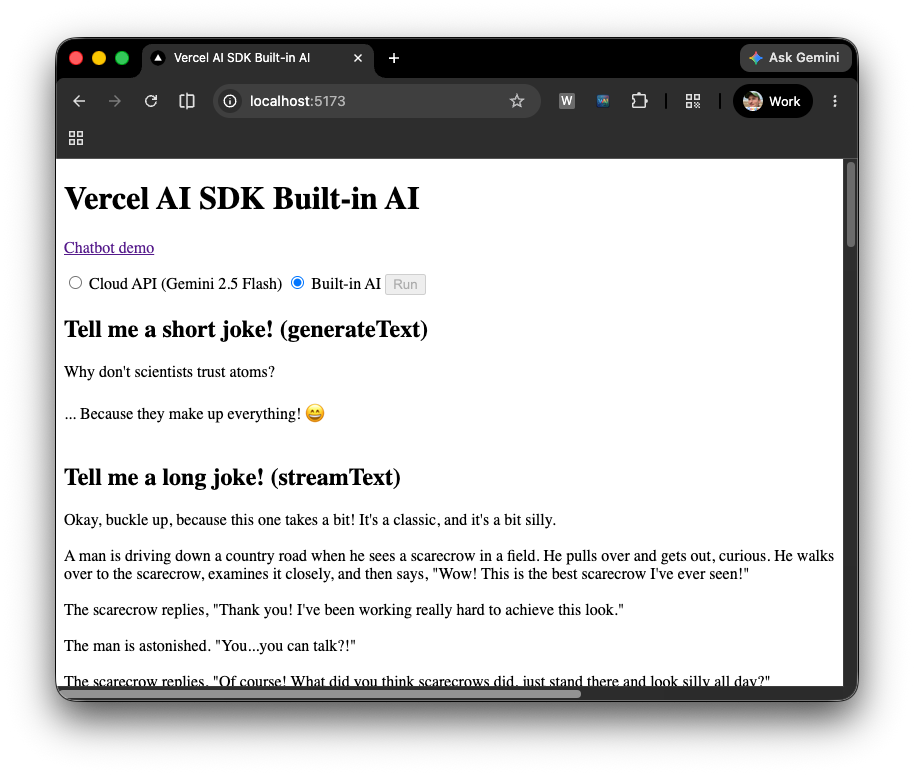
The
live demo
lets you try both providers side by side. Select Cloud API (Gemini 2.5
Flash) or Built-in AI from the radio buttons, hit Run, and watch the
page fill in four sections in sequence: a short joke generated all at once with
generateText(), a long joke streamed token by token with streamText(), a
lasagna recipe returned as a complete JSON object, and then that same recipe
streamed as incrementally valid JSON using partialOutputStream. If you select
Built-in AI and your browser hasn't downloaded the model yet, a progress
indicator appears before the demos begin.
Next step
Now that you know how to use the Prompt API with the Vercel AI SDK, the next step is to make use of the AI SDK UI and AI Elements to add a graphical user interface to your app.
AI SDK UI is designed to help you build interactive chat, completion, and assistant applications with ease. It is a framework-agnostic toolkit, streamlining the integration of advanced AI functionalities into your applications.
AI Elements is a component library and custom registry to help you build AI-native applications faster. It provides prebuilt components like conversations, messages, and more.
Read Use the Vercel AI SDK UI and AI Elements with the Prompt API, to learn how to add a GUI to your app.