
AI coding agents, like Antigravity, can now generate extension code with impressive accuracy. However, to truly unlock their potential and ensure high-quality results, you need to provide them with the right context and tools.
This guide explains how to setup the right tools in your coding agents and how they can help you build better extensions faster.
We have created a skill for coding agents specifically designed for extension development. This skill is a part of our broader initiative, Modern Web Guidance, which provides AI coding agents with the web platform expertise, best practices, and modern API patterns.
But building the extension is just the first step. To help you verify that your code works as expected, Chrome DevTools for agents enables AI coding assistants to debug extensions directly in Chrome and benefit from DevTools debugging capabilities and performance insights.
Setup
Modern Web Guidance
To use the skills pack, install Modern Web Guidance to your preferred environment and add the extensions skill to it. Here are the instructions for some of the popular tools.
CLI
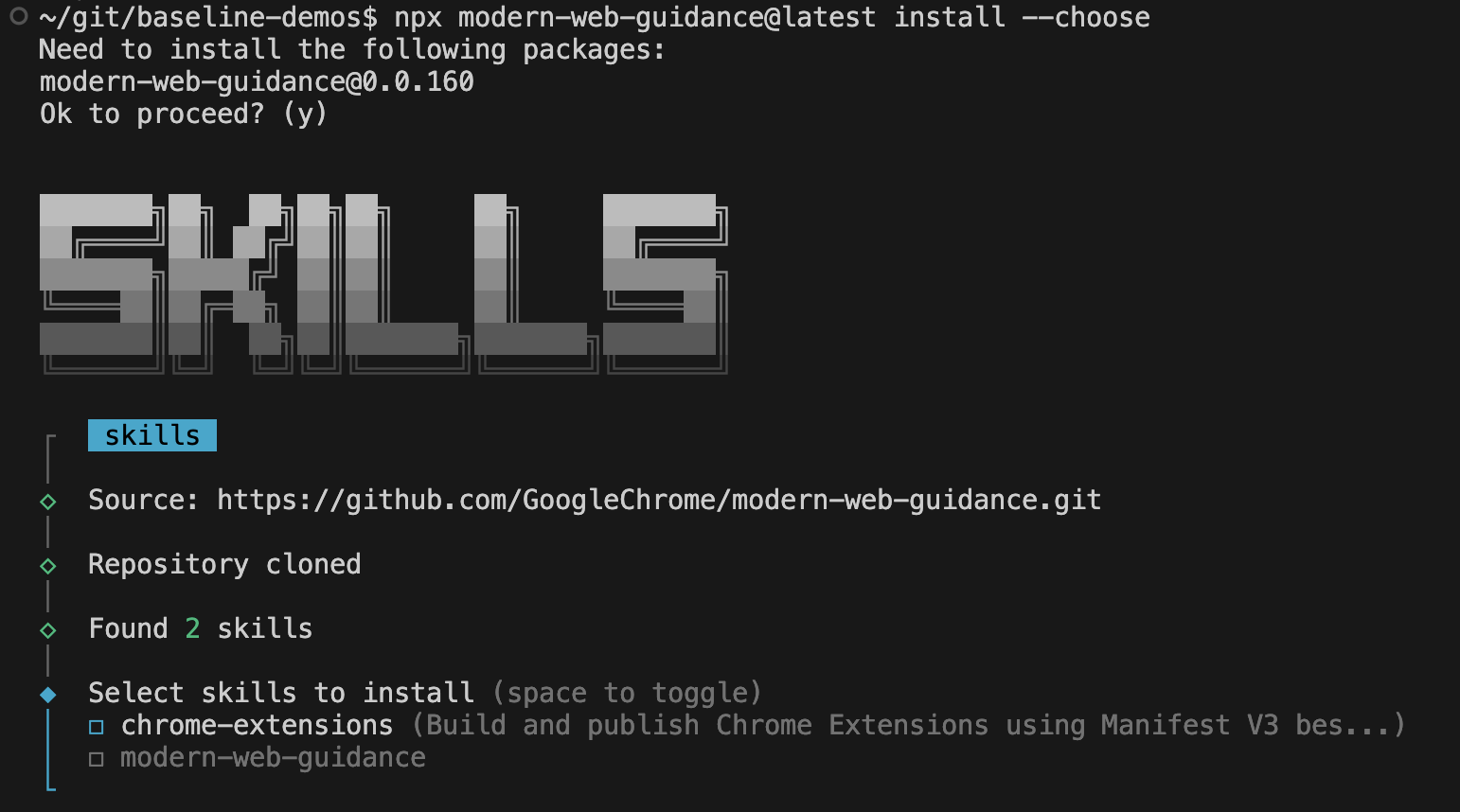
The recommended installation for most coding agents (including Gemini CLI, Claude Code and Codex) is through the modern-web-guidance CLI built by the Chrome team. Installing the skills through the modern-web-guidance CLI will automatically keep skills up to date.
npx modern-web-guidance@latest install --choose
This runs an interactive wizard to install the skills to your preferences. When presented with options, select your coding agent(s) and choose both chrome-extensions and modern-web-guidance.
Antigravity
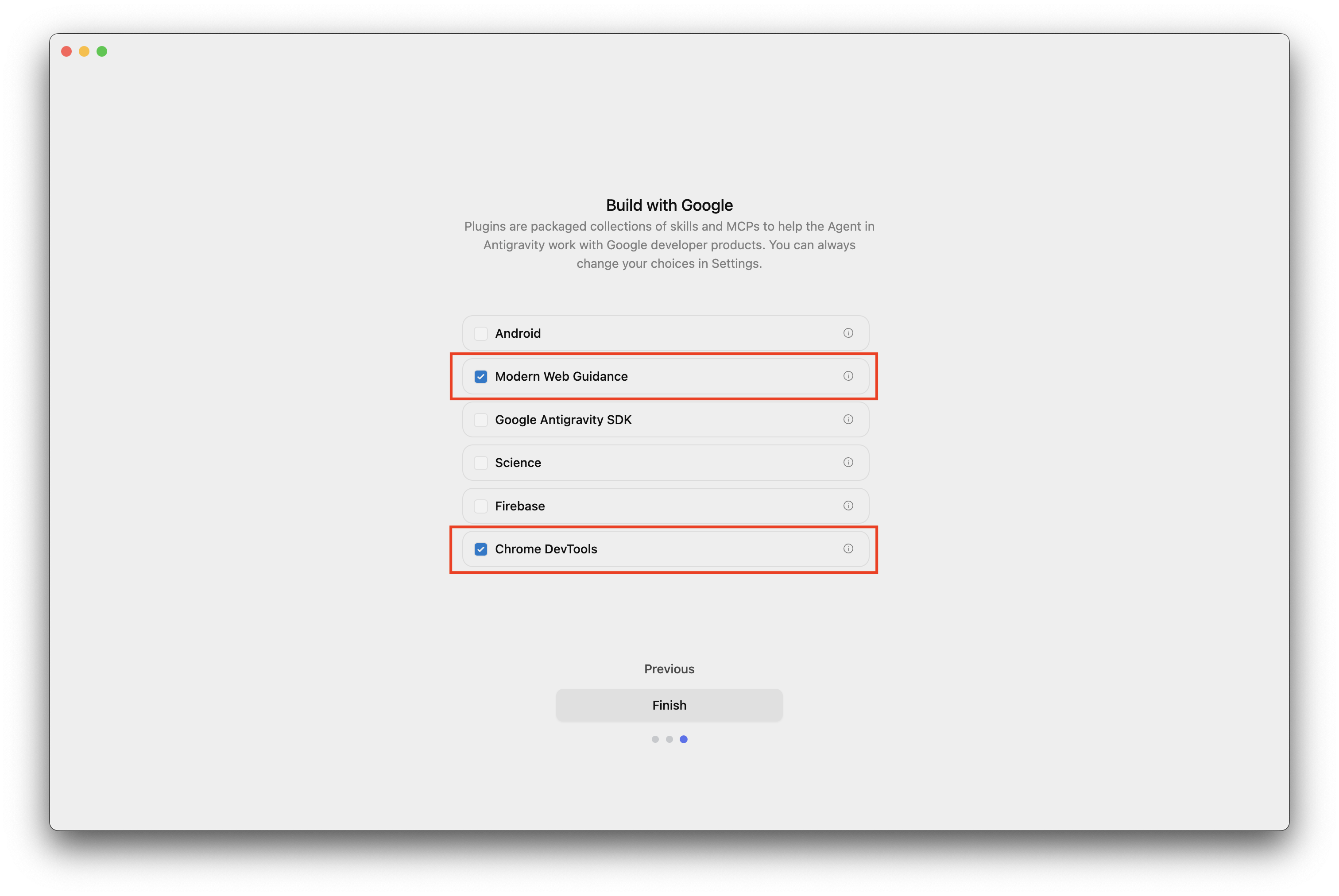
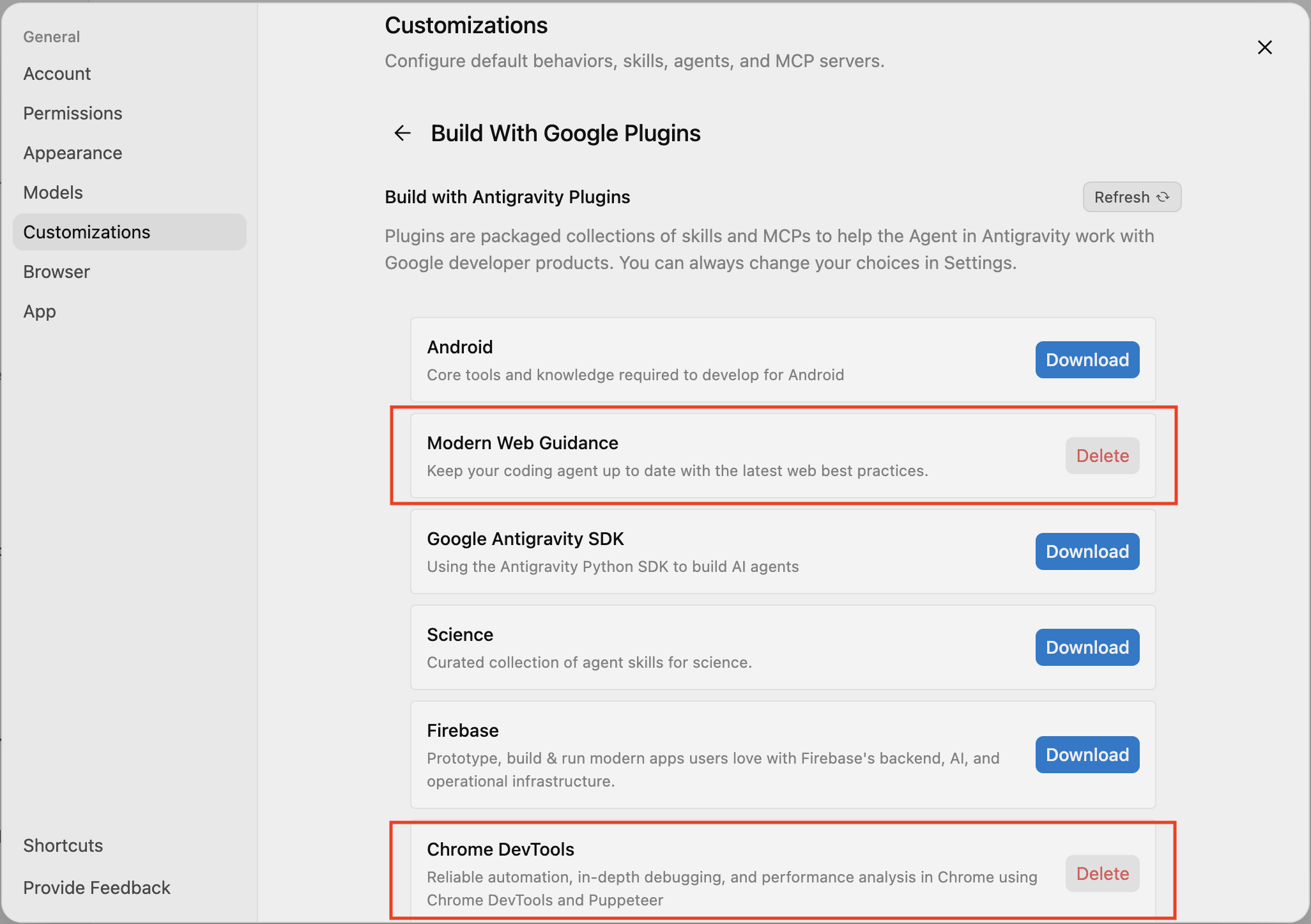
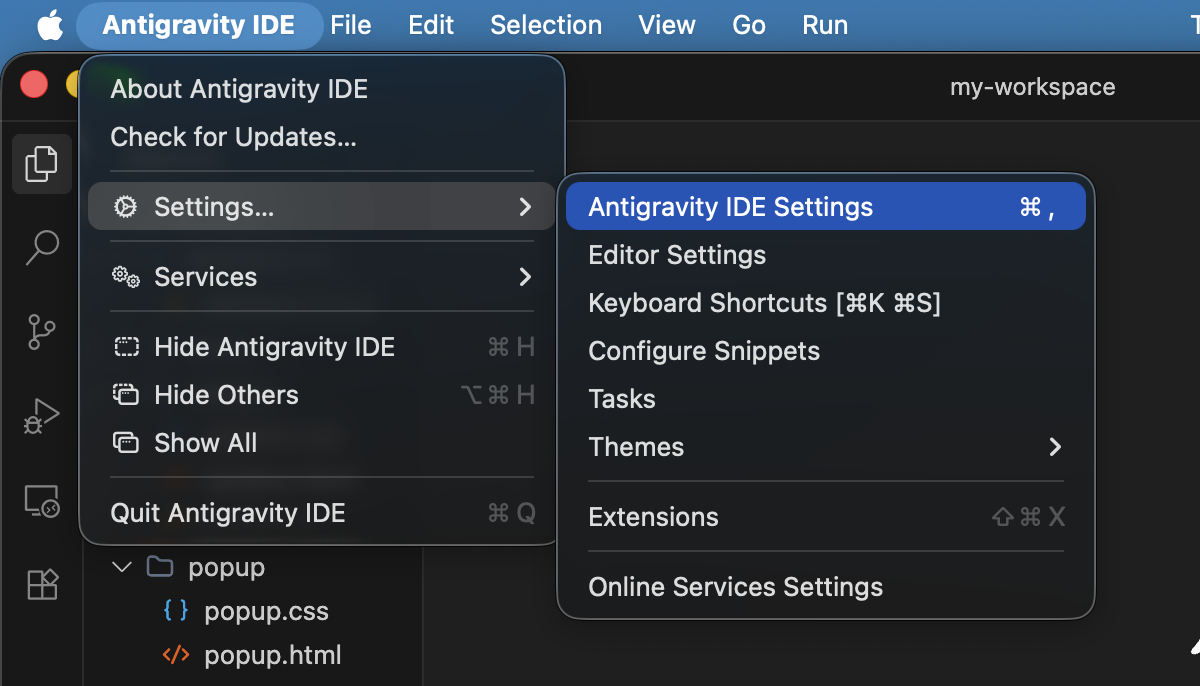
When installing Antigravity, you can select the Modern Web Guidance plugin which includes the extensions skill, or you can add it through Customizations > Build With Google Plugins > Modern Web Guidance.
Chrome DevTools for coding agents
You can add Chrome DevTools for agents to your coding agent of choice either as a plugin, extension or as an MCP server.
Here are the instructions for some of the most popular agents.
Antigravity
- Download Antigravity IDE (Antigravity is not recommended as it doesn't allow you to manually edit the MCP server configuration).
On startup, or in Settings > Customizations, under Build with Google enable Chrome DevTools. This will only install the Chrome DevTools skill, but not the MCP server.
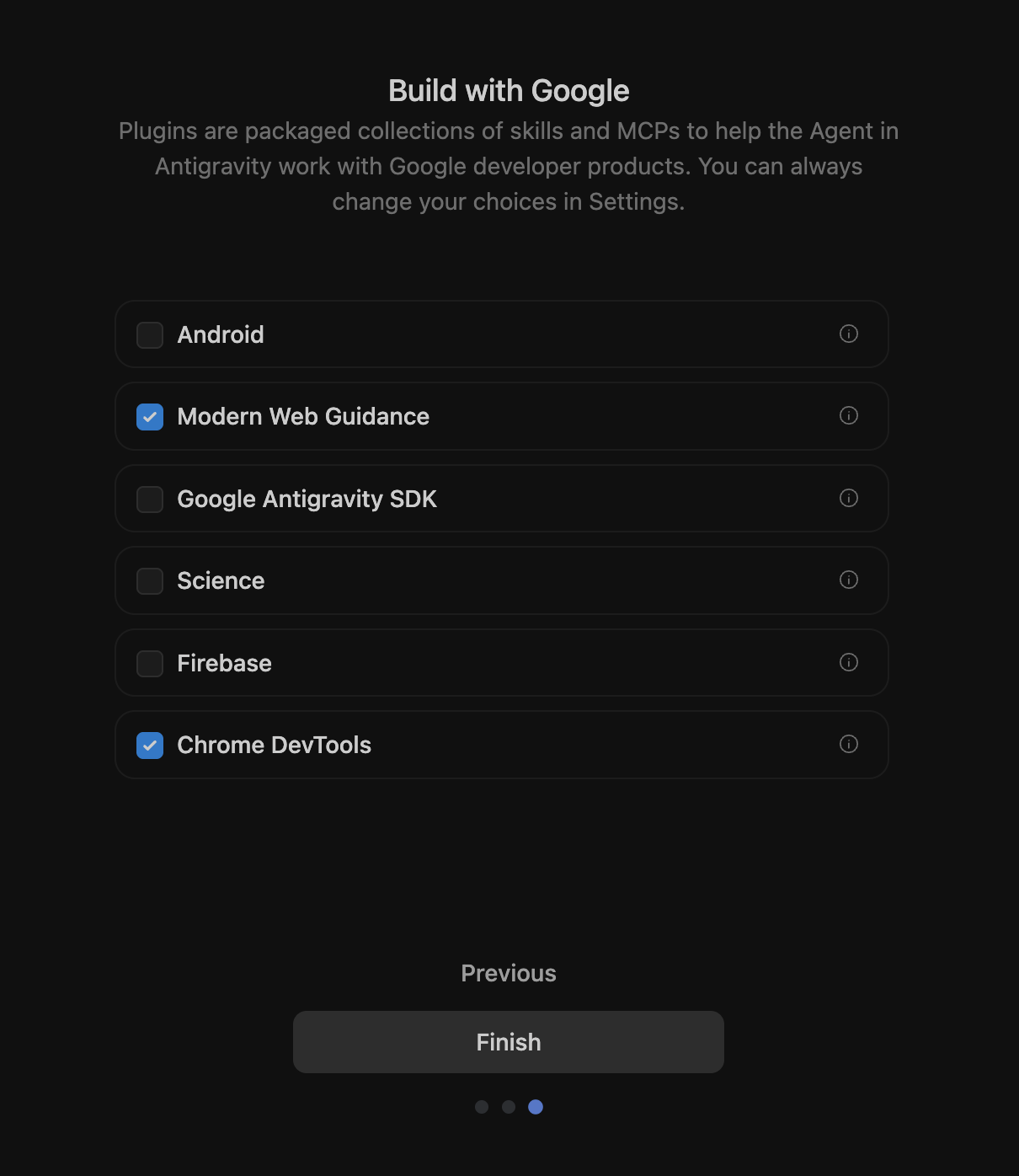
Enabling Modern Web Guidance and Chrome DevTools during startup or customizations. To add the Chrome DevTools MCP server go to Settings > Customization, click the Add MCP server button and search for Chrome DevTools.
Searching for Chrome DevTools in the Add MCP server window. 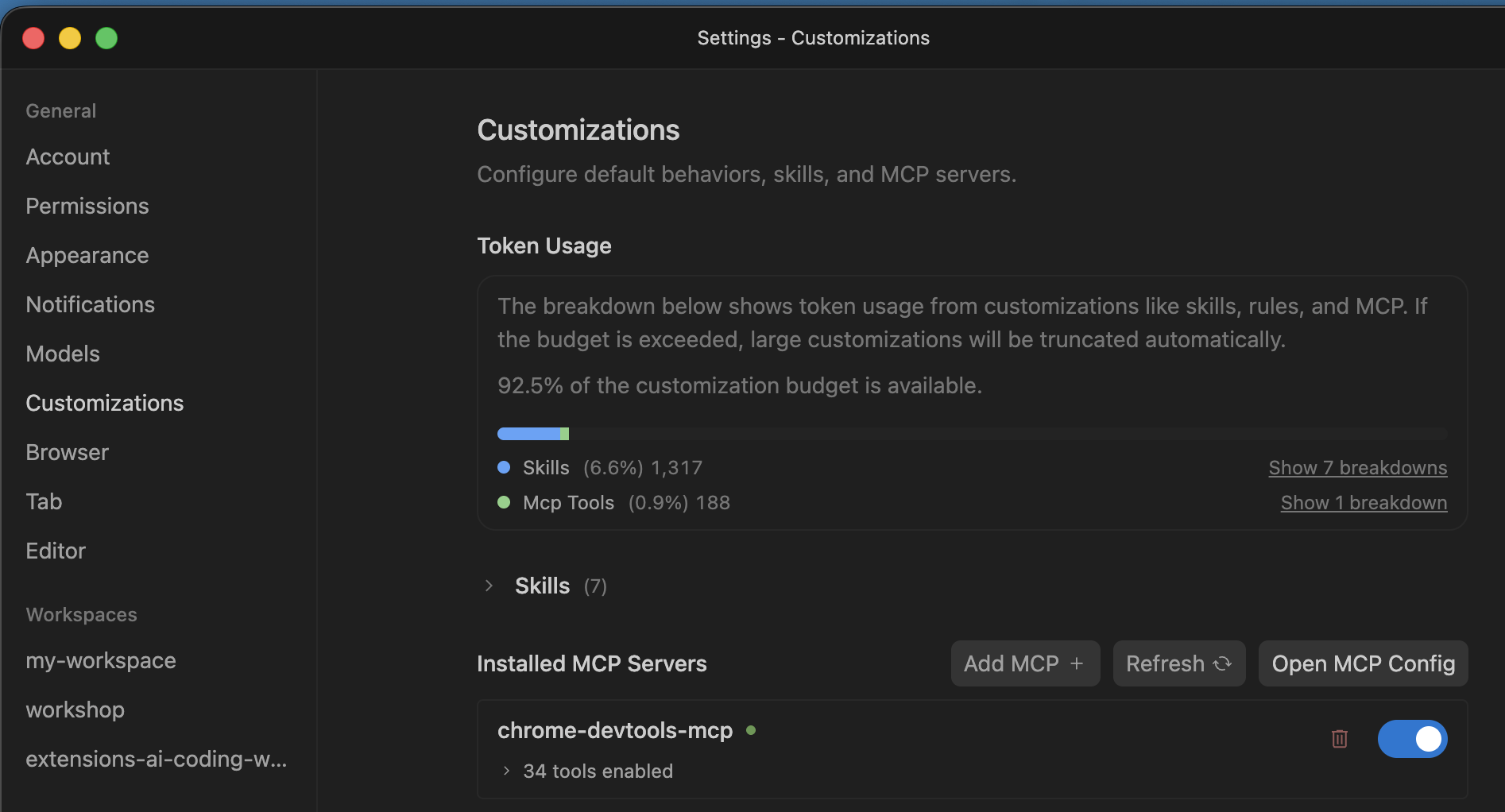
Installing the Chrome DevTools MCP server. 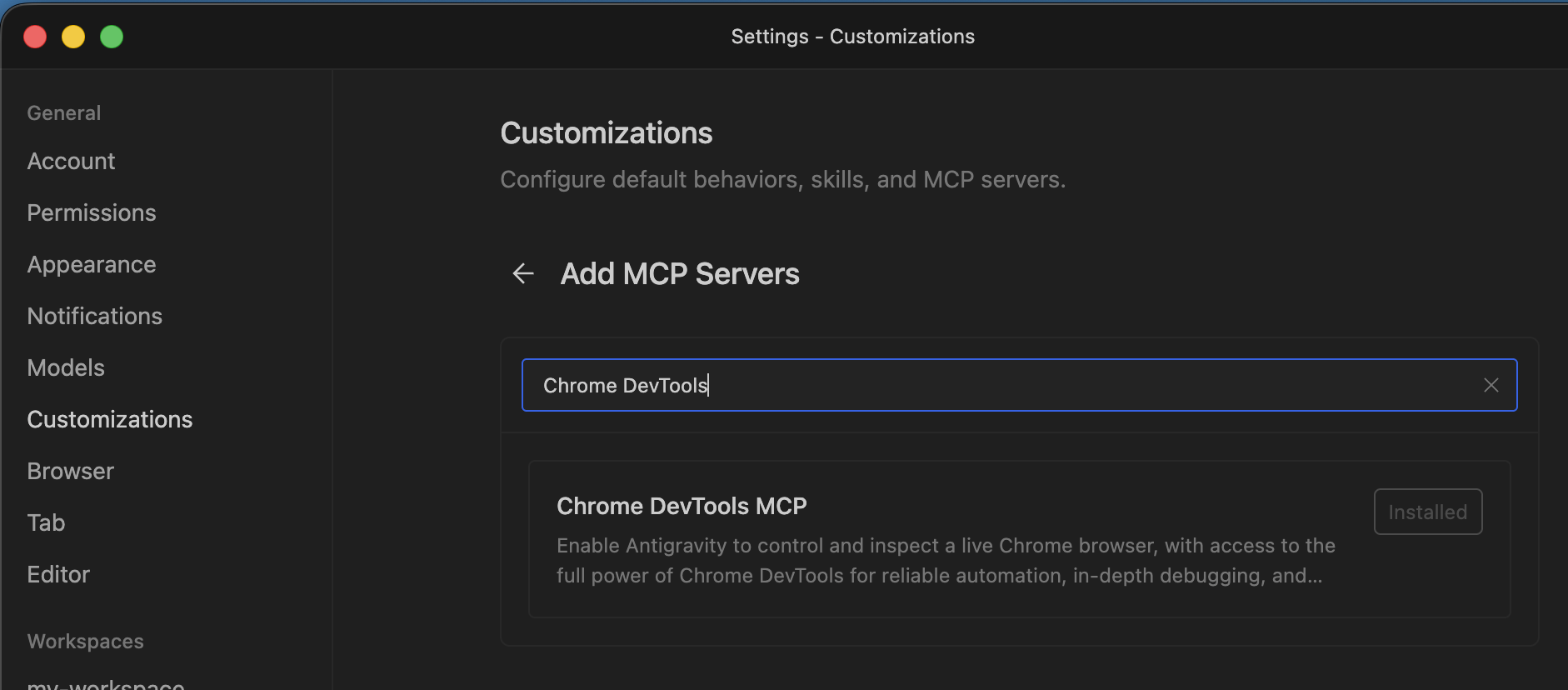
Chrome DevTools MCP server listed under customizations. Click Open MCP Config to open the MCP server configuration. Note that you have to close the settings to see the configuration file in the IDE.
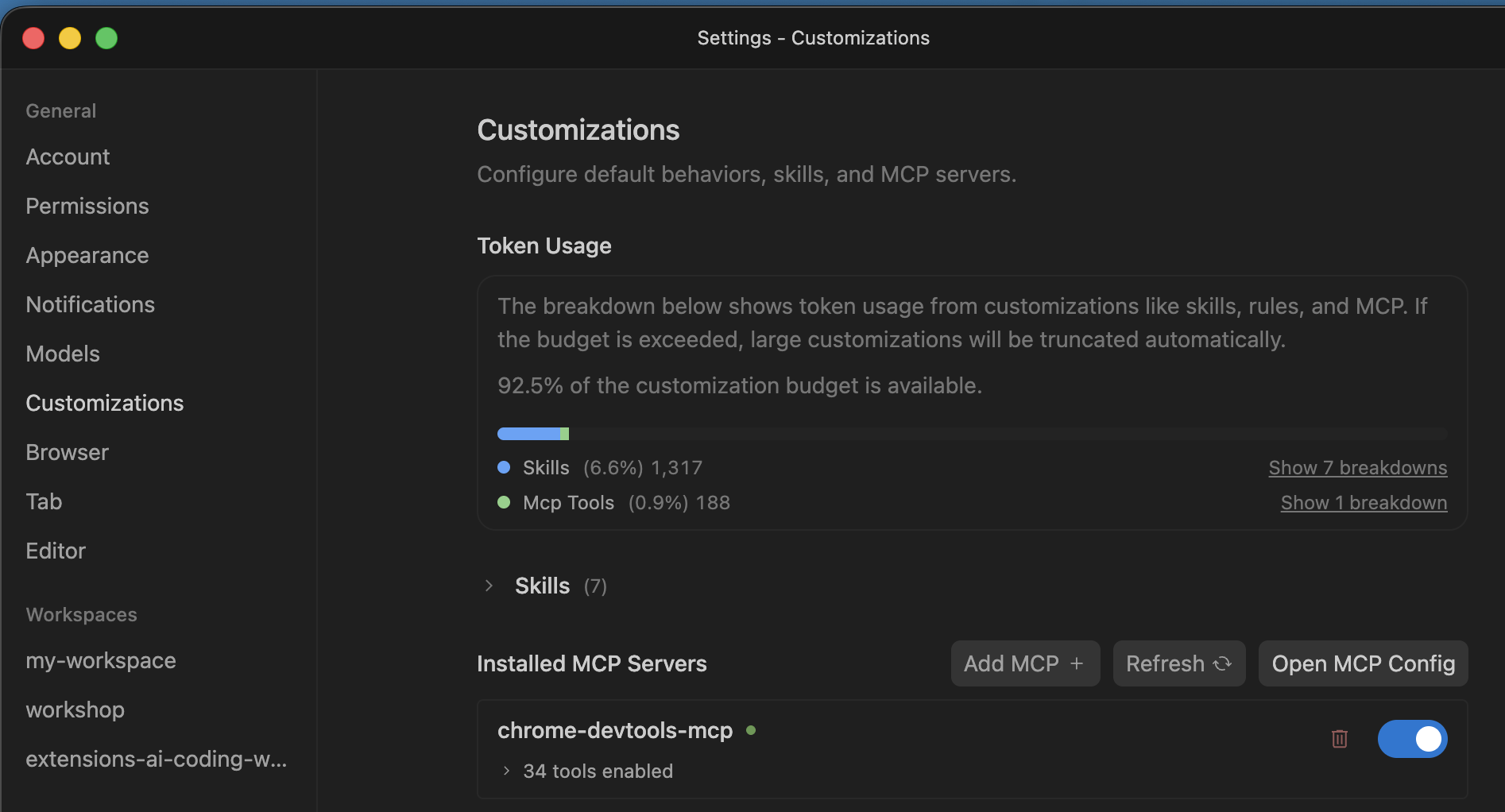
Locating the Open MCP config button in the settings. Add the following two configuration parameters:
--categoryExtensions(to enable the extensions tools) and--autoConnect(to enable connecting to an existing Chrome Profile, which is required when using Chrome's built-in AI APIs or requiring sign-in).{ "mcpServers": { "chrome-devtools-mcp": { "args": [ "-y", "chrome-devtools-mcp@latest", "--categoryExtensions", "--autoConnect" ], "command": "npx" } } }To enable remote debugging, open Chrome, navigate to
chrome://inspect/#remote-debuggingand select Allow remote debugging for this browser instance.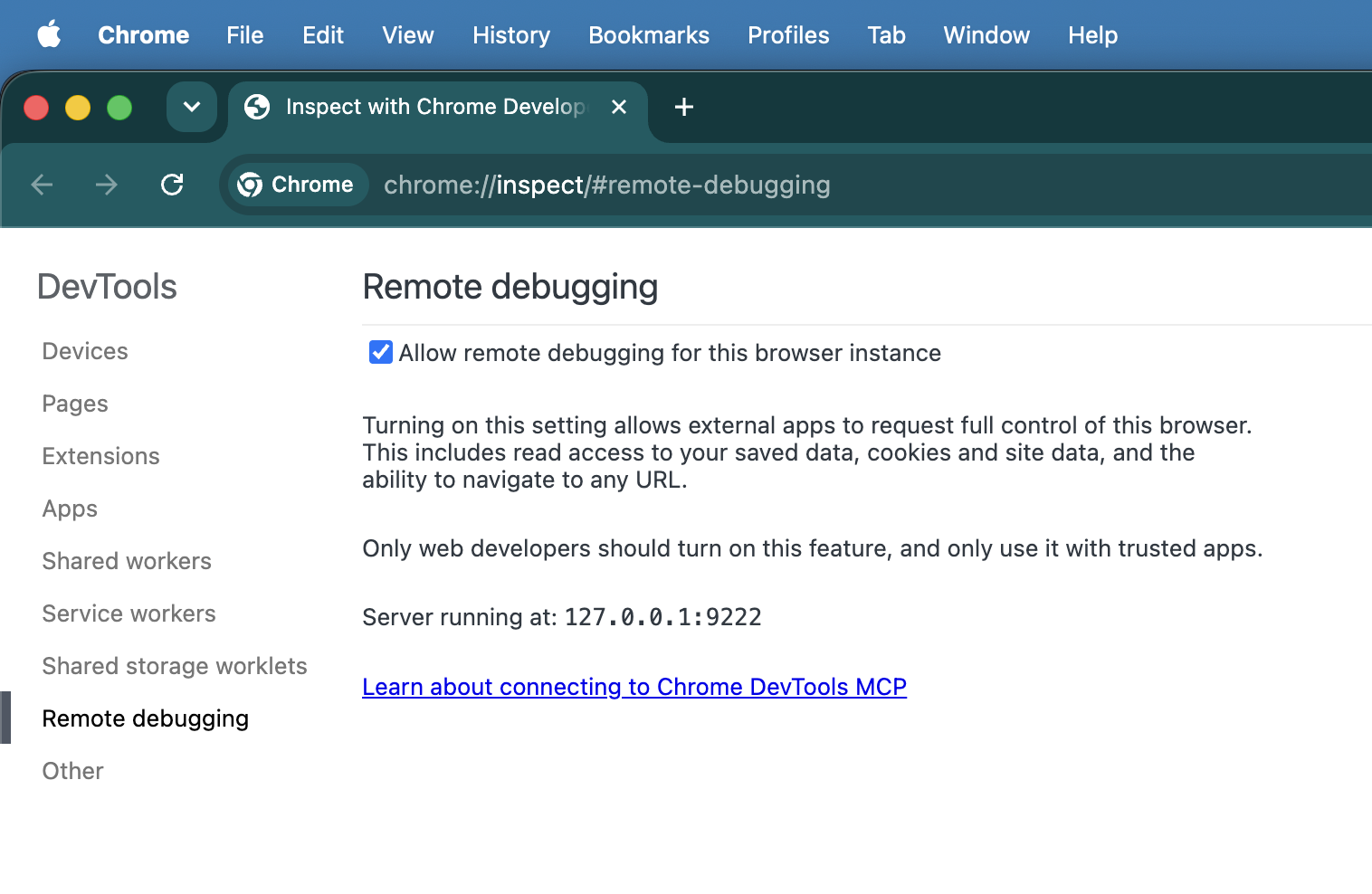
Enabling the Allow remote debugging for this browser instance setting in Chrome. Restart Antigravity IDE.
Create a new workspace and create a test prompt: "Create a hello world Chrome extension. Test using Chrome DevTools." When the agent initiates testing the extension in the browser, Chrome will show you a dialog requesting remote debugging permission. Select Allow. While the remote debugging session is enabled, Chrome will display a banner "Chrome is currently controlled by automated test software".
<figure>
  <img src="image/antigravityide--u84rk62f5t9.png" alt="The remote debugging warning banner and approval popup dialog in Chrome." class="screenshot" width="800">
  <figcaption>The remote debugging banner indicating automated browser control is active.</figcaption>
</figure>
Claude Code
claude mcp add chrome-devtools --scope project -- npx chrome-devtools-mcp@latest --categoryExtensions --autoConnect
Other agents
For instructions on setting up other agents, check the docs on Chrome DevTools MCP GitHub.
CHROMEWEBSTORE.md agent instructions
An important part of publishing an extension is filling out the Developer Dashboard. The skill addresses this by having your coding agent create and maintain a CHROMEWEBSTORE.md file which tracks necessary information, including justifications for each permission requested in the code.
The skill will get triggered when you use phrases like "Let's publish this" or "Prepare this extension for the store", but to streamline your agentic workflows, add the following to your agent's system instructions (for example, ~/.gemini/GEMINI.md for Antigravity or ~/.claude/CLAUDE.md for Claude):
Whenever you are creating or making changes to a Chrome extension, create and manage a CHROMEWEBSTORE.md file. You can use the chrome-extensions skill to learn about the format of this file.
Build and test your extension with coding agents
The extension skill included in Modern Web Guidance helps agents in three key ways:
- Up-to-date API knowledge: It teaches agents about the latest APIs, which may have been released after the model you are using was trained.
- Best practices: It ensures agents have access to all the best practices our team has learned over the years building Chrome extensions.
- Submission readiness: It keeps track of information you might need to submit your extension to the Chrome Web Store, making distribution easier.
Modern Web Guidance also includes skills that cover everything you need to deliver an excellent user experience, such as performance, accessibility, and modern APIs. For example, built-in AI API skills make sure that AI coding agents always use the latest version of the API together with additional information about explicit architectural rules and hardware constraints for using these APIs, to enable efficient management of model downloads, focus on security, and graceful fallback strategies.
The skill also helps your agent track necessary information for publishing, including justifications for each permission requested in the code. For example, if you ask your coding agent to build an extension using the Side Panel API and to publish it to the Chrome Web Store, the agent will recognize that it needs the sidePanel permission. It will then create a CHROMEWEBSTORE.md file with a justification. When you are ready to submit, you can review this justification, make any adjustments if needed, and copy it straight into the Developer Dashboard.
Chrome DevTools for agents enables AI coding assistants to install and debug extensions in a running Chrome instance, specifically:
- Install and uninstall extensions.
- List all installed extensions and reload them.
- Trigger extension actions.
- Inspect every surface of your extension (popup, side panel, service worker).
Here's a prompt and a video showing how that works in practice:
Build a simple "Quick notes" extension that opens a popup text area to save notes and test it in the browser.
In this case, the agent should create a Manifest V3 file and request the storage permission because it knows it needs to persist data. The agent can now build an extension, install it, watch it run, and verify its stability without you ever leaving the chat interface.
This is a simple prompt example. To learn more about different prompt techniques and find what works best for your use case, check out our guide on Prompt engineering.
Prompt examples to streamline distribution with CHROMEWEBSTORE.md
While installing the extension skill and adding instructions to your agent will do most of the work, being specific in your prompts can produce better results for the stage of development you're in. Here's a quick guide on how to prompt your agent to create, update, and maintain your CHROMEWEBSTORE.md file.
- First time publishing: When your extension is feature-complete and you want to generate your initial store presence.
Prepare the extension for publication on the Chrome Web Store.
- Updating permissions and justifications: The Chrome Web Store enforces the single purpose policy and requires granular justifications for every permission requested in your
manifest.json.
We just added the 'declarativeNetRequest' and 'storage' permissions to our manifest. Let's update our store listing.
- Handling a store rejection: If your extension gets rejected or flagged during the review process, you can give the rejection reason directly to the agent and ask it to update your compliance metadata.
Our extension submission was rejected because our privacy policy doesn't explicitly mention how we handle user data locally. Let's update the privacy policy section in CHROMEWEBSTORE.md to resolve this.
Conclusion
Combining Modern Web Guidance skills with Chrome DevTools for agents helps you build high-quality features faster but also ensures your extension is stable and ready for submission to the Chrome Web Store.
Start experimenting with these tools in your next project to see how they can streamline your extension development from initial prototype to publication.