



Published: June 3, 2026
Progressive Web Apps (PWAs) have revolutionized the web by offering app-like experiences. However, one of their greatest strengths has also been a persistent challenge: app identity is tightly coupled to the web origin.
To rebrand or restructure your architecture (for example, moving from
www.example.com/social to social.example.com), you faced a painful dilemma.
There was no way to "move" an installed PWA. Users were forced to manually
uninstall the old app and find the install button for the new one.
The PWA team is excited to introduce PWA Origin Migration in Chrome 150. This new platform feature lets you seamlessly transition installed PWAs to a new, same-site origin with minimal user interruption, while still keeping the user sufficiently informed.
What origin migration enables
You can modify your site architecture without breaking user experience:
- Technical architecture freedom: Change the subdomain or path of your application.
- Fix split app states: Resolve the issue where changing a
start_urlwithout a stable ID accidentally created duplicate app installations.
Users can migrate their apps with a simple update dialog. They are informed of the migration in a similar way to a standard app update. With a single click the old app is uninstalled and the new app is installed and launched.
How to migrate a PWA
To migrate a PWA, follow these steps. The rest of the post goes into more detail:
- Deploy the handshake:
- Add
migrate_fromto the new app. - Add the
allow_migrationfield to the/.well-known/web-app-origin-associationfile on the old origin.
- Add
- Choose behavior:
suggest(or empty) avoids interrupting the user, likely helpful during an initial rollout.forceblocks the user and requires the migration, if the user can't continue using the old URLs. - Keep the old app up-to-date: If the old site redirects to the new site,
use the
install_urlproperty in themigrate_fromblock to ensure the browser can still find the old manifest for potential updates. - Implement
idin the destination manifest: Chrome requires the destination app manifest to include anidfield. This ensures the app cannot hit the common mistake of creating split apps by changing thestart_urlwithout having anidset.
The two-way handshake: How it works
To ensure security and prevent hostile takeovers, the migration requires a secure handshake between the old and new origins. This handshake ensures that both sites are controlled by the same entity.
Step 1: The new app declares the predecessor (required)
Add a migrate_from field to the web app manifest of the new application.
// Manifest at https://fileman.google.com/manifest.json
{
  "name": "File Manager",
  "id": "/files/",
  "start_url": "/files/index.html",
  ....
  "migrate_from": [
    "https://drive.google.com/"
  ]
}
Step 2: The old origin confirms the migration (required)
To prevent a new site from unilaterally hijacking an old app, the old origin
must explicitly authorize the migration. It does this with a .well-known
configuration file.
// File at https://drive.google.com/.well-known/web-app-origin-association
{
  "https://fileman.google.com/files/": {
    "allow_migration": true
  }
}
Step 3: Proactive signaling (optional)
To trigger the update without waiting for the user to visit the new site, update the old app's manifest to point to the new one.
// Manifest at https://drive.google.com/manifest.json
{
  "name": "Drive",
  "start_url": "/",
  "migrate_to": {
    "id": "https://fileman.google.com/files/",
    "install_url": "https://fileman.google.com/drive/installwebapp?usp=migrate"
  }
}
Step 4: Handle redirects (optional)
As an alternative to using the migrate_to field, you can signal the migration
by redirecting the old app URLs to new app, and relying on the
scope_extensions
to have the
out of scope banner not display in the old app.
This means the old app's manifest will never be seen, and thus it can never be
updated. To allow the old app to continue to update before the app migration
occurs, set the install_url inside migrate_from to inform the browser of a
URL to fetch that still has the old manifest attached without redirection.
// Manifest at https://fileman.google.com/manifest.json
{
  "name": "File Manager",
  "id": "/files/",
  "start_url": "/files/index.html",
  ....
  "migrate_from": [
    {
      "id": "https://drive.google.com/",
      "install_url": "https://drive.google.com/drive/installwebapp?usp=migrate"
    }
  ]
}
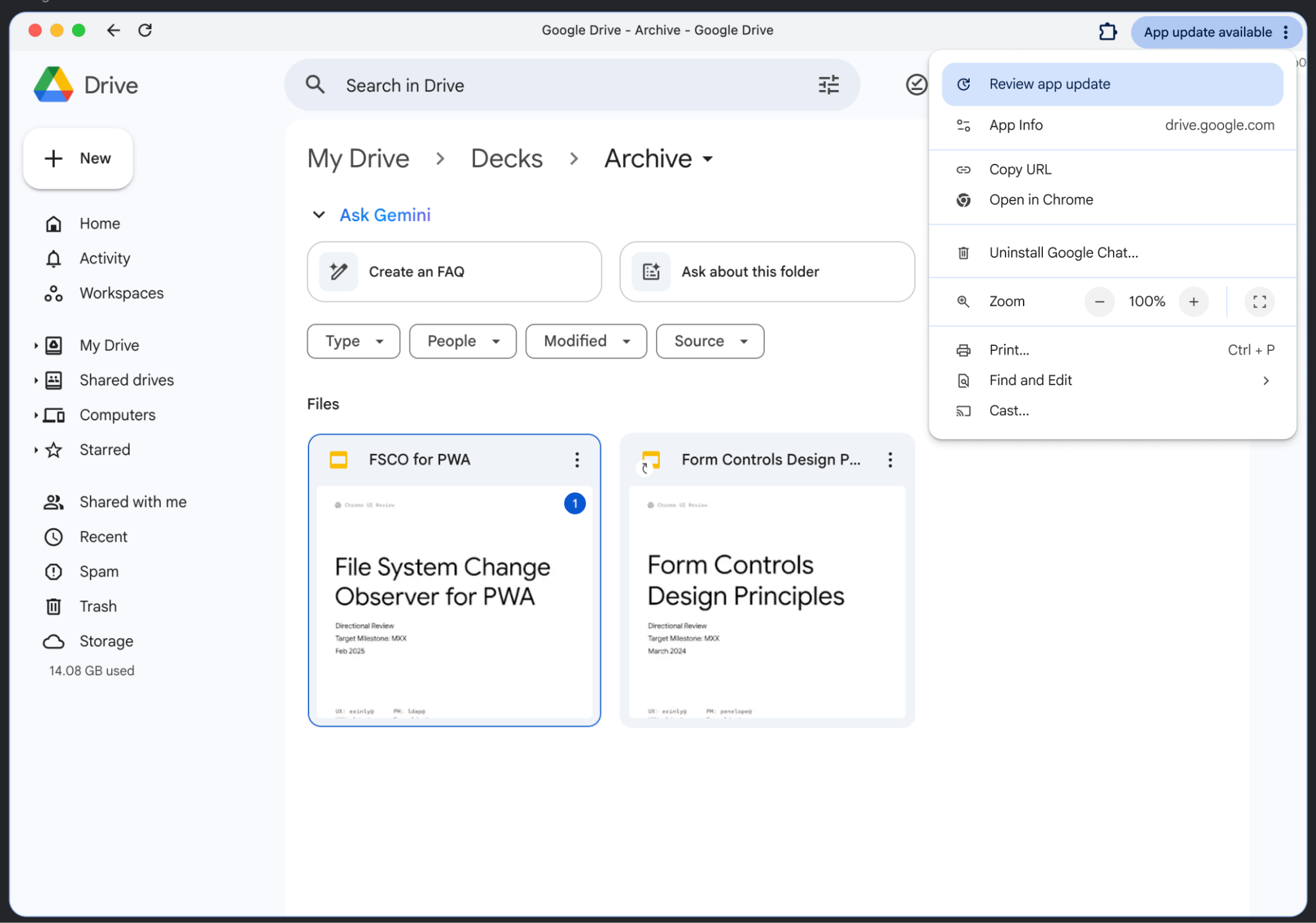
That's it! The UX is similar to the one used for app updating, where the user is notified on the top right corner of the app window:
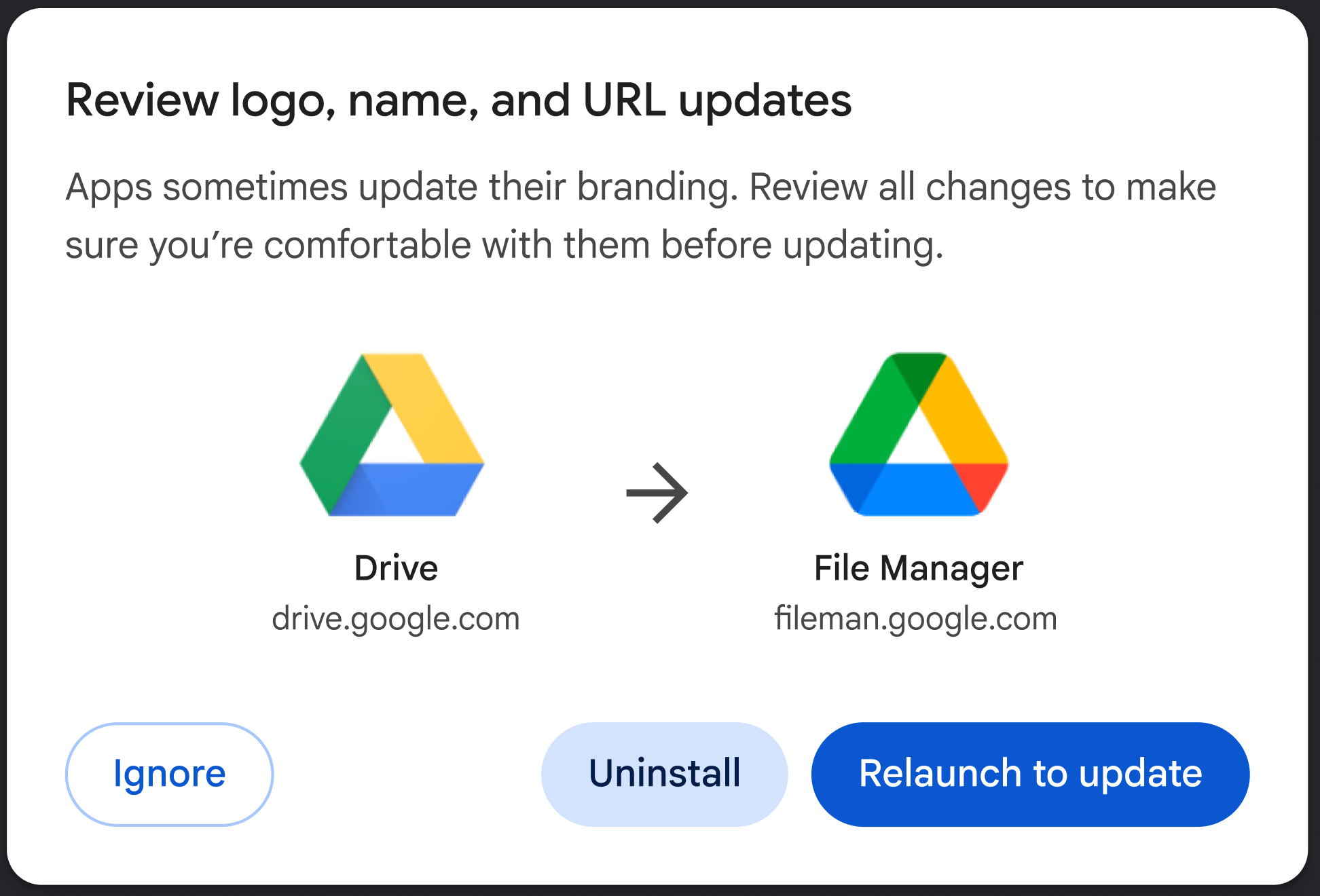
Clicking Review app update shows the following UX (depending on what has changed in the manifest):
Control the user experience
You can choose how aggressive the migration should be using the behavior flag:
- Suggest (default): The user receives a passive notification (for example, in the app menu). They can choose to update, uninstall their app or ignore the migration by launching the dialog.
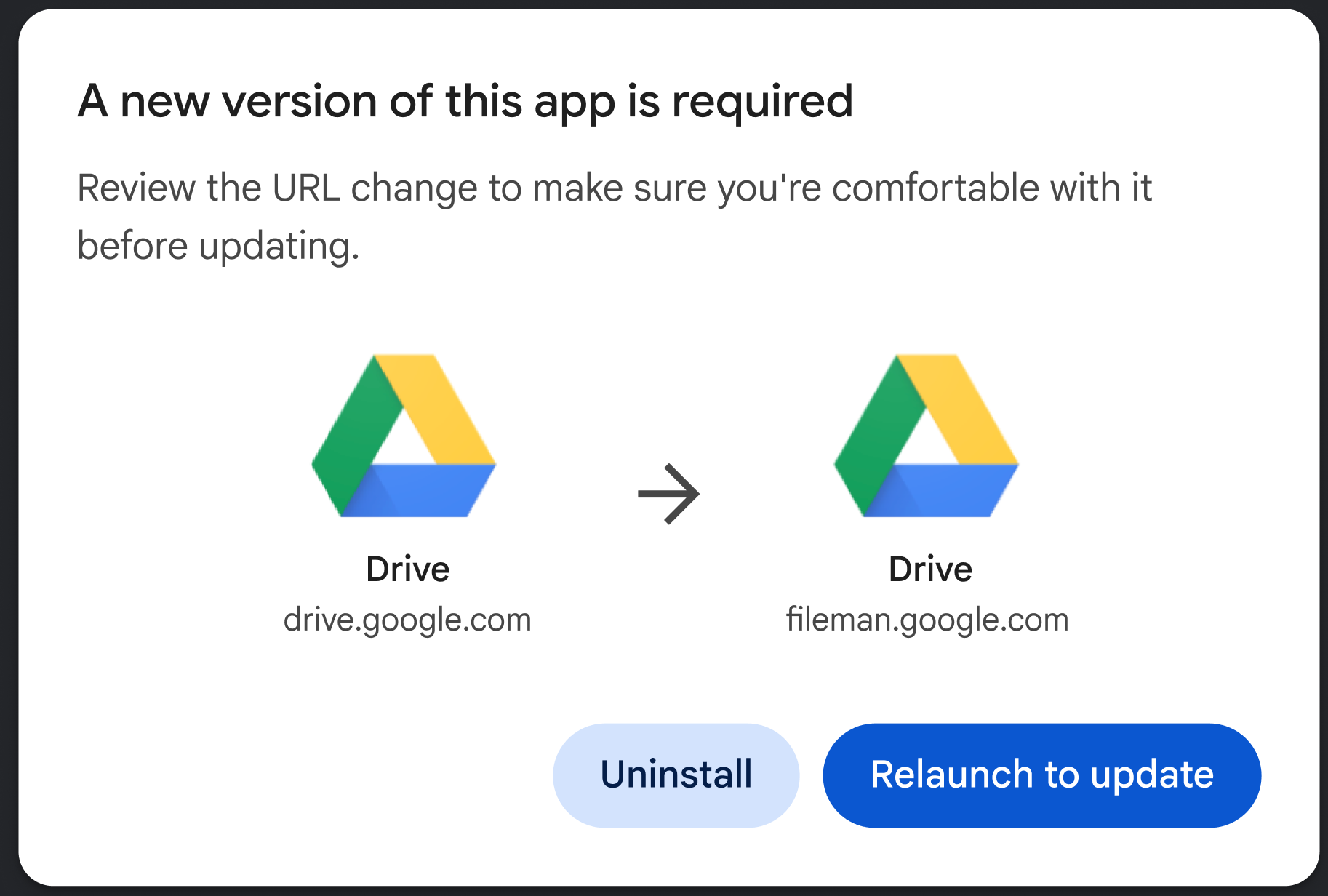
- Force: On the next app launch, the user is presented with a blocking dialog. They must either update to the new origin or uninstall the app (please see the following screenshot).
The following example shows how to set this choice,
"migrate_from": [
  {
    "id": "https://example.com/social/",
    "behavior": "force" // or suggest
  }
]
Conclusion
The PWA Migration feature empowers developers to keep building modern, flexible web architectures without leaving users behind.