
The Email Verification API is a proposal that enables the browser to communicate directly with the email provider to verify that the user owns the email address. Users enter their email, submit the form, and the site verifies the signed email verification token from the browser with the provider without sending an email or interrupting the user's flow.
When collecting an email address during sign-up, sign-in, checkout, newsletter subscription, or account recovery, sites typically confirm that the person submitting the form controls the address. Existing verification methods require users to leave your site, switch apps to check their inbox, copy an OTP, or click a verification link. This disruption increases drop-off and session abandonment for both human users and automated agents. Users often experience friction with existing verification methods, such as delayed emails, expired links, or unrecognized codes.
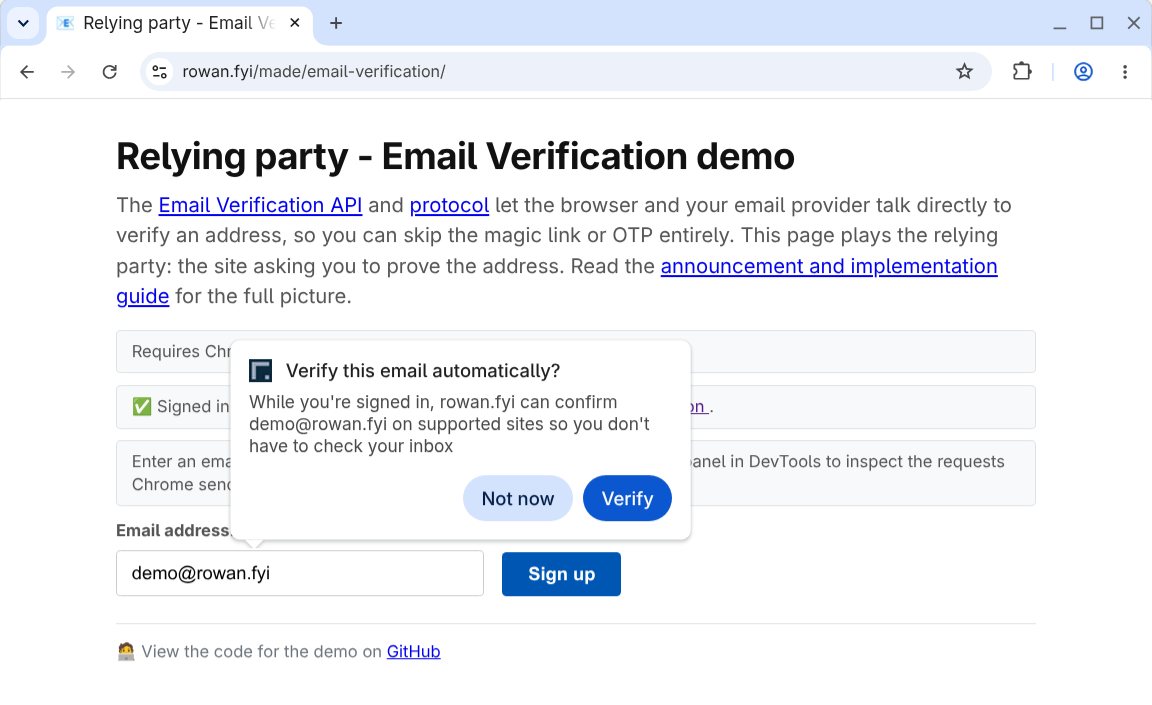
Email verification acts as a progressive enhancement to your existing flow:
- No disruption: Verification occurs in the background while the user fills in the form.
- No feature detection required: Sites add an email input and a hidden token input to their forms. If the browser or provider does not support email verification, or if verification fails, the site falls back to its default email confirmation flow.
- Minimize phishing risks: There's no code to copy or an opportunity to send the user to a fake site.
Useful links
- Email Verification API on GitHub
- Email Verification Protocol on GitHub
- Email Verification on Chrome Platform Status
- Email Verification origin trial registration
You can test the flow in the demo:
- Issuer demo: Provides a mock email account and signed-in session.
- Verifier demo: Verify the demo email or any participating provider email.
Origin trial considerations
Origin trials are experiments to collect feedback, so your input is critical if you participate as a relying party or an identity provider. To report issues, use the following GitHub repositories:
- Browser Email Verification API: WICG/email-verification
- Email Verification Protocol: dickhardt/email-verification
If you encounter bugs in the Chrome implementation, file an issue in the following component:
You control the origin trial functionality on a per-response basis by including the origin trial token. This lets you restrict the feature to a specific segment of your users, such as an A/B testing population. Alternatively, if you have a beta testing or early preview group of users, you may want or need to enable the feature for them. In this case, check against the provided email address before either issuing or validating the token.
Origin trials also have traffic limits to minimize sites relying on the feature before launch. The issuer API is under development, and you should expect backwards-incompatible changes along with updates to the Chrome UX.
Watch for further updates on the blog here and on the evp-announce@chromium.org mailing list as development progresses.
Email verification flow
The following sections explain the key terms and protocol steps when using the Email Verification API.
Key terms
Key terms for the Email Verification API are:
- Verifier: The site that collects the email address and wants to verify it. The verifier is also called the Relying Party.
- Email Provider: The service providing the user's email address, for
example
gmail.com. - Issuer: The service that manages the account for the user's email, for
example
accounts.google.com. The issuer is also called the Identity Provider.
In some cases, the email provider and the issuer operate from the same domain.
However, it's important to distinguish between them because the Email
Verification API is using the active session in the browser with the identity
provider as the verification method. For example, to verify example@gmail.com
the user must be signed in to google.com with that account in the same
browser.
Protocol flow
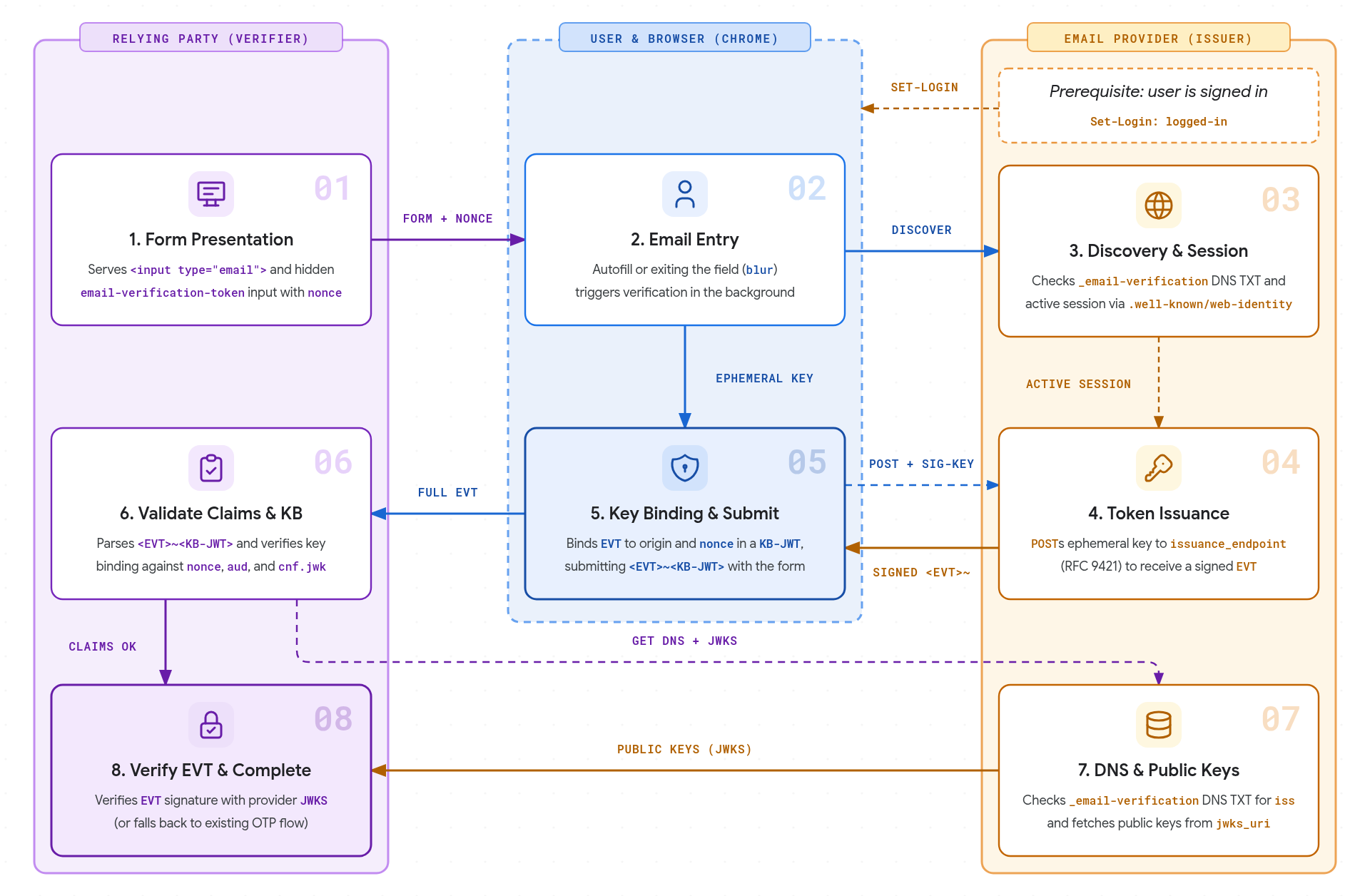
- Form presentation: The relying party serves an HTML form containing an
<input type="email">and a hidden input marked withautocomplete="email-verification-token"and a unique per-instancenonce. - Email entry: When the user enters an email address - either by selecting
an autofill suggestion or by typing or pasting and exiting the field
(
blur) - the browser triggers verification in the background. - Discovery and session: The browser queries the DNS TXT record for
_email-verification.<email-domain>to discover the provider's authorized issuer origin, then checks whether the user has an active session using the issuer's.well-known/web-identityconfiguration and FedCM accounts endpoints. If the domain does not publish an EVP record or no active session exists, the browser stops verification without prompting the user. - Token issuance: The browser discovers the provider's
issuance_endpointfrom.well-known/email-verification, creates an ephemeral key pair, and sends an HTTPPOSTrequest using HTTP Message Signatures (RFC 9421) with the issuer's first-party session cookies and target email address to receive a signed Email Verification Token (EVT). - Key binding and submit: The browser binds the signed
EVTto the relying party origin and formnonceinside a Key Binding JWT (KB-JWT). When the user submits the form, Chrome populates the hidden input with the combined token (<EVT>~<KB-JWT>) and displays a small notification informing the user that their email provider verified their address. - Validate claims and KB: The relying party server parses the
<EVT>~<KB-JWT>token, validates the expected claims (email,email_verified,aud,nonce,iat, andexp), and verifies the key binding signature against the ephemeral public key incnf.jwk. - DNS and public keys: The relying party queries the
_email-verification.<email-domain>DNS TXT record to confirm it matches the token'sissclaim, then fetches the issuer's.well-known/email-verificationmetadata and public keys fromjwks_uri. - Verify EVT and complete: The relying party verifies the issuer's
EVTsignature using the provider's publicJWKS. If no token is received or any validation step fails, the site falls back to its existing email confirmation process.
The first time a user verifies an email address, Chrome displays a permission prompt (a dialog on desktop, or a bottom sheet on Android) before requesting a token. If granted, this permission is remembered per email address across participating sites.
Chrome settings
Users can manage their verified emails:
- On desktop, under Settings > Autofill and passwords > Contact
info > Verified Email (or open
chrome://settings/contactInfo) - On Android, under Settings > Addresses and more > Verified Email
Users can disable the feature entirely or manage individual verified email addresses.
Use case considerations
Email verification is a progressive enhancement to your existing flow that removes the need for a user to leave your site to retrieve an OTP or click a link. Sites can add the email verification fields to all relevant forms, like logins, newsletter sign ups, account creation, and password recovery. EVP triggers only if the browser supports it. If no code is received on submission or any of the validation steps fail, you can fall back to your default email confirmation flow. This also means there is no feature detection for the API; the verifier site treats the EVT as optional, processing it if it is present in the request.
Email verification confirms that the user has an active session with the provider of their email address. It does not verify that your email reached the user. You may still want to send existing welcome or onboarding emails and may want or need to prompt the user to check their spam settings.