

無頭 Chrome 殼層 已在 Chrome 59 中推出。這項功能可在無頭環境中執行 Chrome 瀏覽器。基本上,這就是執行沒有 Chrome 的 Chrome!它將 Chromium 和 Blink 算繪引擎提供的所有現代網頁平台功能帶到指令列。
無頭瀏覽器是自動測試和伺服器環境的絕佳工具,您不需要可見的 UI Shell。舉例來說,您可能想針對實際網頁執行一些測試、建立 PDF,或只是檢查瀏覽器如何轉譯網址。
啟動無週邊工作站 (CLI)
如要開始使用無頭模式,最簡單的方法是從指令列開啟 Chrome 二進位檔。如果已安裝 Chrome 59 以上版本,請使用 --headless 旗標啟動 Chrome:
chrome \
--headless \                   # Runs Chrome in headless mode.
--disable-gpu \                # Temporarily needed if running on Windows.
--remote-debugging-port=9222 \
https://www.chromestatus.com   # URL to open. Defaults to about:blank.
chrome 應指向 Chrome 安裝位置。確切位置會因平台而異。由於我使用 Mac,因此為安裝的每個 Chrome 版本建立方便的別名。
如果您使用 Chrome 穩定版,但無法取得 Beta 版,請按照下列步驟操作:chrome-canary
alias chrome="/Applications/Google\ Chrome.app/Contents/MacOS/Google\ Chrome"
alias chrome-canary="/Applications/Google\ Chrome\ Canary.app/Contents/MacOS/Google\ Chrome\ Canary"
alias chromium="/Applications/Chromium.app/Contents/MacOS/Chromium"
下載 Chrome Canary。
指令列功能
在某些情況下,您可能不需要以程式輔助方式編寫指令碼無頭 Chrome。您可以運用一些實用的指令列旗標執行常見工作。
列印 DOM
--dump-dom 旗標會將 document.body.innerHTML 列印至 stdout:
    chrome --headless --disable-gpu --dump-dom https://www.chromestatus.com/


### Create a PDF

The `--print-to-pdf` flag creates a PDF of the page:

```shell
chrome --headless --disable-gpu --print-to-pdf https://www.chromestatus.com/
擷取螢幕畫面
如要擷取網頁的螢幕截圖,請使用 --screenshot 標記:
chrome --headless --disable-gpu --screenshot https://www.chromestatus.com/

# Size of a standard letterhead.
chrome --headless --disable-gpu --screenshot --window-size=1280,1696 https://www.chromestatus.com/

# Nexus 5x
chrome --headless --disable-gpu --screenshot --window-size=412,732 https://www.chromestatus.com/
使用 --screenshot 執行時,會在目前的工作目錄中產生名為 screenshot.png 的檔案。如要擷取完整網頁的螢幕截圖,步驟會稍微複雜一些。David Schnurr 撰寫的這篇實用網誌文章,可協助您瞭解相關資訊。請參閱「使用 Headless Chrome 做為自動螢幕截圖工具 」。
REPL 模式 (讀取-求值-印出迴圈)
--repl 標記會在無頭模式下執行,您可以在瀏覽器中評估 JS 運算式,直接透過指令列執行:
$ chrome --headless --disable-gpu --repl --crash-dumps-dir=./tmp https://www.chromestatus.com/
[0608/112805.245285:INFO:headless_shell.cc(278)] Type a Javascript expression to evaluate or "quit" to exit.
>>> location.href
{"result":{"type":"string","value":"https://www.chromestatus.com/features"}}
>>> quit
$
在沒有瀏覽器 UI 的情況下偵錯 Chrome
使用 --remote-debugging-port=9222 執行 Chrome 時,系統會啟動啟用 DevTools 通訊協定的執行個體。這項通訊協定可用於與 Chrome 通訊,並驅動無頭瀏覽器執行個體。Sublime、VS Code 和 Node 等工具也使用此通訊協定,對應用程式進行遠端偵錯。#synergy
由於您沒有瀏覽器 UI 可查看網頁,請在另一個瀏覽器中前往 http://localhost:9222,確認一切運作正常。您會看到可檢查的頁面清單,點選即可查看 Headless 呈現的內容:
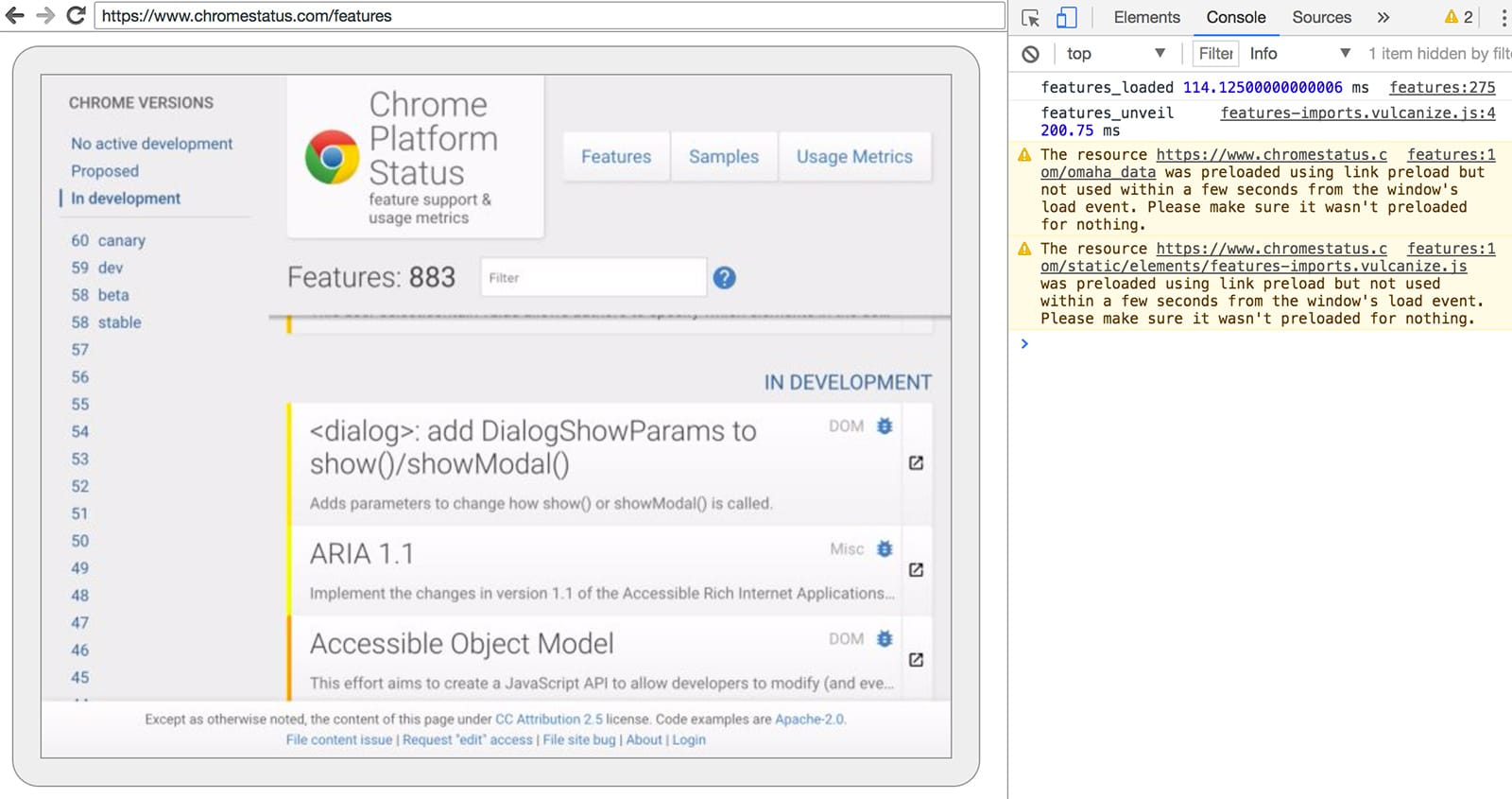
您可以使用熟悉的開發人員工具功能,照常檢查、偵錯及調整網頁。如果您以程式輔助方式使用 Headless,這個頁面也是強大的除錯工具,可查看所有透過線路傳輸的原始開發人員工具通訊協定指令,與瀏覽器通訊。
以程式輔助方式使用 (Node)
布偶操作員
Puppeteer 是 Chrome 團隊開發的 Node 程式庫。這個程式庫提供高階 API,可控制無頭 (或完整) Chrome。這與 Phantom 和 NightmareJS 等其他自動化測試程式庫類似,但僅適用於最新版 Chrome。
Puppeteer 可用於輕鬆擷取螢幕截圖、建立 PDF、瀏覽網頁,以及擷取網頁相關資訊。如果您想快速自動執行瀏覽器測試,建議使用這個程式庫。這項工具會隱藏開發人員工具通訊協定的複雜性,並處理啟動 Chrome 偵錯執行個體等冗餘工作。
安裝:
npm i --save puppeteer
範例 - 列印使用者代理程式
const puppeteer = require('puppeteer');

(async() => {
  const browser = await puppeteer.launch();
  console.log(await browser.version());
  await browser.close();
})();
範例 - 擷取網頁的螢幕截圖
const puppeteer = require('puppeteer');

(async() => {
  const browser = await puppeteer.launch();
  const page = await browser.newPage();
  await page.goto('https://www.chromestatus.com', {waitUntil: 'networkidle2'});
  await page.pdf({path: 'page.pdf', format: 'A4'});

  await browser.close();
})();
如要進一步瞭解完整 API,請參閱 Puppeteer 說明文件。
CRI 程式庫
chrome-remote-interface 是比 Puppeteer API 更低階的程式庫。如果您想貼近硬體並直接使用 DevTools 通訊協定,建議使用這個程式庫。
啟動 Chrome
chrome-remote-interface 不會為您啟動 Chrome,因此您必須自行處理。
在 CLI 區段中,我們使用 --headless --remote-debugging-port=9222手動啟動 Chrome。不過,如要全面自動化測試,您可能需要從應用程式產生 Chrome。
其中一種方法是使用 child_process:
const execFile = require('child_process').execFile;

function launchHeadlessChrome(url, callback) {
  // Assuming MacOSx.
  const CHROME = '/Applications/Google\ Chrome.app/Contents/MacOS/Google\ Chrome';
  execFile(CHROME, ['--headless', '--disable-gpu', '--remote-debugging-port=9222', url], callback);
}

launchHeadlessChrome('https://www.chromestatus.com', (err, stdout, stderr) => {
  ...
});
但如果您想要可攜式解決方案,在多個平台都能運作,情況就會變得複雜。看看 Chrome 的硬式編碼路徑 :(
使用 ChromeLauncher
Lighthouse 是測試網頁應用程式品質的絕佳工具。Lighthouse 內建的 Chrome 啟動模組功能強大,現已獨立出來供單獨使用。chrome-launcher NPM 模組會找出 Chrome 的安裝位置、設定偵錯執行個體、啟動瀏覽器,並在程式完成時終止瀏覽器。最棒的是,這項功能可跨平台運作,這都要歸功於 Node!
根據預設,chrome-launcher 會嘗試啟動 Chrome Canary (如果已安裝),但您可以變更設定,手動選取要使用的 Chrome。如要使用,請先從 npm 安裝:
npm i --save chrome-launcher
範例 - 使用 chrome-launcher 啟動無頭瀏覽器
const chromeLauncher = require('chrome-launcher');

// Optional: set logging level of launcher to see its output.
// Install it using: npm i --save lighthouse-logger
// const log = require('lighthouse-logger');
// log.setLevel('info');

/**
 * Launches a debugging instance of Chrome.
 * @param {boolean=} headless True (default) launches Chrome in headless mode.
 *     False launches a full version of Chrome.
 * @return {Promise<ChromeLauncher>}
 */
function launchChrome(headless=true) {
  return chromeLauncher.launch({
    // port: 9222, // Uncomment to force a specific port of your choice.
    chromeFlags: [
      '--window-size=412,732',
      '--disable-gpu',
      headless ? '--headless' : ''
    ]
  });
}

launchChrome().then(chrome => {
  console.log(`Chrome debuggable on port: ${chrome.port}`);
  ...
  // chrome.kill();
});
執行這個指令碼不會有太多作用,但您應該會在工作管理員中看到 Chrome 執行個體,並載入 about:blank。請注意,不會有任何瀏覽器 UI。我們是無頭。
如要控制瀏覽器,我們需要開發人員工具通訊協定!
擷取網頁相關資訊
,瞭解如何包裝原始通訊協定。如要安裝程式庫,請執行下列指令:
npm i --save chrome-remote-interface
範例
範例 - 列印使用者代理程式
const CDP = require('chrome-remote-interface');

...

launchChrome().then(async chrome => {
  const version = await CDP.Version({port: chrome.port});
  console.log(version['User-Agent']);
});
結果會類似於:HeadlessChrome/60.0.3082.0
範例 - 檢查網站是否具有網路應用程式資訊清單
const CDP = require('chrome-remote-interface');

...

(async function() {

const chrome = await launchChrome();
const protocol = await CDP({port: chrome.port});

// Extract the DevTools protocol domains we need and enable them.
// See API docs: https://chromedevtools.github.io/devtools-protocol/
const {Page} = protocol;
await Page.enable();

Page.navigate({url: 'https://www.chromestatus.com/'});

// Wait for window.onload before doing stuff.
Page.loadEventFired(async () => {
  const manifest = await Page.getAppManifest();

  if (manifest.url) {
    console.log('Manifest: ' + manifest.url);
    console.log(manifest.data);
  } else {
    console.log('Site has no app manifest');
  }

  protocol.close();
  chrome.kill(); // Kill Chrome.
});

})();
範例:使用 DOM API 擷取網頁的 <title>。
const CDP = require('chrome-remote-interface');

...

(async function() {

const chrome = await launchChrome();
const protocol = await CDP({port: chrome.port});

// Extract the DevTools protocol domains we need and enable them.
// See API docs: https://chromedevtools.github.io/devtools-protocol/
const {Page, Runtime} = protocol;
await Promise.all([Page.enable(), Runtime.enable()]);

Page.navigate({url: 'https://www.chromestatus.com/'});

// Wait for window.onload before doing stuff.
Page.loadEventFired(async () => {
  const js = "document.querySelector('title').textContent";
  // Evaluate the JS expression in the page.
  const result = await Runtime.evaluate({expression: js});

  console.log('Title of page: ' + result.result.value);

  protocol.close();
  chrome.kill(); // Kill Chrome.
});

})();
使用 Selenium、WebDriver 和 ChromeDriver
目前 Selenium 會開啟完整的 Chrome 例項。換句話說,這項自動化解決方案並非完全無頭。不過,只要稍做設定,Selenium 就能執行 Headless Chrome。建議您使用無頭 Chrome 執行 Selenium,取得自行設定的完整操作說明。不過,下方也提供一些範例,協助您快速上手。
使用 ChromeDriver
ChromeDriver 2.32 使用 Chrome 61,且可順利搭配 Headless Chrome 運作。
安裝:
npm i --save-dev selenium-webdriver chromedriver
範例:
const fs = require('fs');
const webdriver = require('selenium-webdriver');
const chromedriver = require('chromedriver');

const chromeCapabilities = webdriver.Capabilities.chrome();
chromeCapabilities.set('chromeOptions', {args: ['--headless']});

const driver = new webdriver.Builder()
  .forBrowser('chrome')
  .withCapabilities(chromeCapabilities)
  .build();

// Navigate to google.com, enter a search.
driver.get('https://www.google.com/');
driver.findElement({name: 'q'}).sendKeys('webdriver');
driver.findElement({name: 'btnG'}).click();
driver.wait(webdriver.until.titleIs('webdriver - Google Search'), 1000);

// Take screenshot of results page. Save to disk.
driver.takeScreenshot().then(base64png => {
  fs.writeFileSync('screenshot.png', new Buffer(base64png, 'base64'));
});

driver.quit();
使用 WebDriverIO
WebDriverIO 是 Selenium WebDriver 之上的較高層級 API。
安裝:
npm i --save-dev webdriverio chromedriver
範例:在 chromestatus.com 上篩選 CSS 功能
const webdriverio = require('webdriverio');
const chromedriver = require('chromedriver');

const PORT = 9515;

chromedriver.start([
  '--url-base=wd/hub',
  `--port=${PORT}`,
  '--verbose'
]);

(async () => {

const opts = {
  port: PORT,
  desiredCapabilities: {
    browserName: 'chrome',
    chromeOptions: {args: ['--headless']}
  }
};

const browser = webdriverio.remote(opts).init();

await browser.url('https://www.chromestatus.com/features');

const title = await browser.getTitle();
console.log(`Title: ${title}`);

await browser.waitForText('.num-features', 3000);
let numFeatures = await browser.getText('.num-features');
console.log(`Chrome has ${numFeatures} total features`);

await browser.setValue('input[type="search"]', 'CSS');
console.log('Filtering features...');
await browser.pause(1000);

numFeatures = await browser.getText('.num-features');
console.log(`Chrome has ${numFeatures} CSS features`);

const buffer = await browser.saveScreenshot('screenshot.png');
console.log('Saved screenshot...');

chromedriver.stop();
browser.end();

})();
下載舊版無頭 Chrome (chrome-headless-shell)
從 Chrome 112 版開始,Chrome 的新無頭模式 (--headless=new) 已推出。開發人員可透過這個模式執行 Chrome 本身,而非在無人環境中執行獨立的二進位檔,且不會顯示任何 UI,非常適合用於測試和自動化用途。
舊版無頭殼層和新版無頭模式的用途不同:
- 舊版無頭 Shell 是 Chromium
//content模組的輕量包裝函式,因此依附元件數量大幅減少。具體來說,這項功能不需要 X11/Wayland、D-Bus,而且在某些方面比完整版 Chrome 瀏覽器更有效能。因此適合自動擷取螢幕截圖或網頁資料等用途。 - 另一方面,新版無頭模式是真正的 Chrome 瀏覽器,因此更真實可靠,且提供更多功能。因此更適合進行高準確度的端對端網頁應用程式測試或瀏覽器擴充功能測試。
換句話說,您需要在效能和真實性之間取捨。哪種無頭模式最適合你?這取決於您的用途。
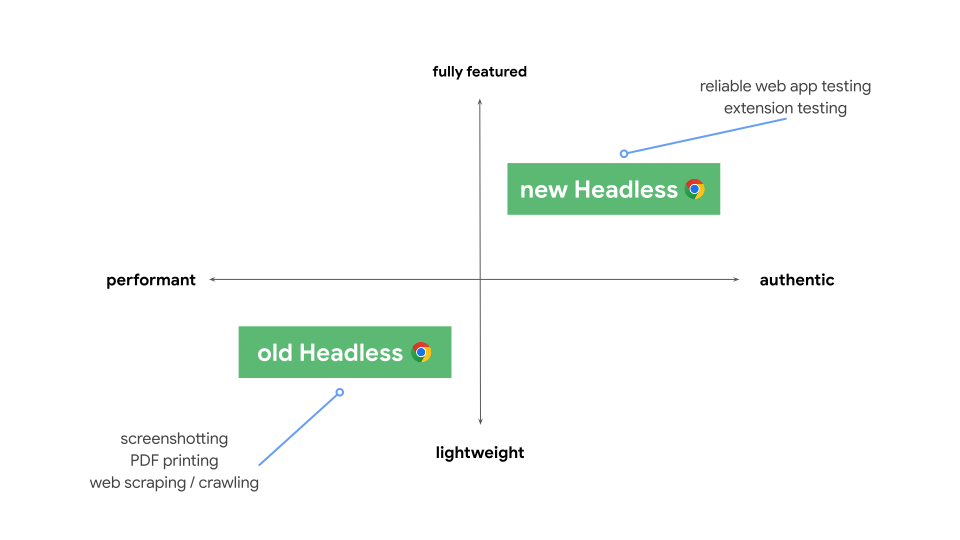
如果開發人員和測試人員的自動化用途不需要完整的 Chrome 功能,不妨使用舊版無頭模式。否則,新版無頭瀏覽器可能是最佳選擇。
為確保開發人員和測試人員能繼續選擇這兩種做法,我們很高興宣布舊版無頭實作方式現在以獨立 chrome-headless-shell 二進位檔的形式提供。這些新的 chrome-headless-shell 二進位檔是為每個面向使用者的 Chrome 版本產生,並從 Chrome 120 開始,透過 Chrome for Testing 基礎架構提供下載。
如何取得 chrome-headless-shell 二進位檔?
與其他 Chrome for Testing 二進位檔相同,下載適用於您平台的 chrome-headless-shell 最簡單的方法,就是使用 @puppeteer/browsers 指令列公用程式 (可透過 npm 取得)。例如:
# Download the latest available `chrome-headless-shell` binary corresponding to the Stable channel.
npx @puppeteer/browsers install chrome-headless-shell@stable

# Download a specific `chrome-headless-shell` version.
npx @puppeteer/browsers install chrome-headless-shell@120.0.6098.0
如果您想自行建構自動化指令碼來下載 chrome-headless-shell 二進位檔,我們也提供相關資源。Chrome for Testing 提供 JSON API 端點,可取得各 Chrome 發布管道 (穩定版、Beta 版、開發人員版和 Canary 版) 的最新可用版本。如要快速瞭解最新狀態,請參閱 Chrome for Testing 可用性資訊主頁。
意見回饋
期待收到您對「chrome-headless-shell」的意見回饋。如有任何問題,歡迎回報。
其他資源
以下提供幾個實用資源,幫助您快速上手:
文件
- 開發人員工具通訊協定檢視器 - API 參考資料文件
工具
- chrome-remote-interface - 包裝開發人員工具通訊協定的節點模組
- Lighthouse - 自動化工具,用於測試網頁應用程式品質,大量使用通訊協定
- chrome-launcher - 用於啟動 Chrome 的節點模組,可供自動化作業使用
示範
- 「The Headless Web」:Paul Kinlan 的精彩網誌文章,介紹如何搭配 api.ai 使用無頭技術。
常見問題
我需要 --disable-gpu 旗標嗎?
僅適用於 Windows。其他平台不再需要這類虛擬桌面。--disable-gpu 旗標是暫時解決幾個錯誤的權宜措施。日後發布的 Chrome 版本將不再需要這個標記。詳情請參閱 crbug.com/737678。
所以我還是需要 Xvfb 嗎?
否。無頭 Chrome 不會使用視窗,因此不再需要 Xvfb 等顯示伺服器。因此您可以放心地執行自動化測試。
什麼是 Xvfb?Xvfb 是適用於類 Unix 系統的記憶體內顯示伺服器,可讓您執行圖形應用程式 (例如 Chrome),無需連接實體螢幕。許多人會使用 Xvfb 執行舊版 Chrome,進行「無頭」測試。
如何建立執行無頭 Chrome 的 Docker 容器?
請參閱 lighthouse-ci。其中包含範例 Dockerfile,使用 node:8-slim 做為基礎映像檔,並在 App Engine 彈性環境中安裝及執行 Lighthouse。
我可以搭配 Selenium / WebDriver / ChromeDriver 使用這項功能嗎?
適用。請參閱「使用 Selenium、WebDriver 和 ChromeDriver」。
這與 PhantomJS 有何關係?
無頭 Chrome 與 PhantomJS 等工具類似,兩者都可用於無頭環境中的自動化測試。兩者之間的主要差異在於,Phantom 使用舊版 WebKit 做為轉譯引擎,而無頭 Chrome 則使用最新版 Blink。
目前 Phantom 也提供比 DevTools 通訊協定更高階的 API。
該到哪裡回報錯誤?
如要回報 Headless Chrome 的錯誤,請前往 crbug.com。
如要回報開發人員工具通訊協定的錯誤,請前往 github.com/ChromeDevTools/devtools-protocol。