

Web Bluetooth API を使用すると、ウェブサイトは Bluetooth デバイスと通信できます。

ウェブサイトが近くの Bluetooth デバイスと安全かつプライバシーを保護した方法で通信できるとしたらどうでしょうか?これにより、心拍数モニター、歌う電球、さらにはカメまでがウェブサイトと直接やり取りできるようになります。
これまで、Bluetooth デバイスとやり取りできるのはプラットフォーム固有のアプリのみでした。Web Bluetooth API は、この状況を変え、ウェブブラウザにも Bluetooth を導入することを目的としています。
始める前に
このドキュメントは、Bluetooth Low Energy(BLE)と Generic Attribute Profile の仕組みに関する基本的な知識があることを前提としています。
Web Bluetooth API 仕様はまだ最終版ではありませんが、仕様の作成者は、この API を試して仕様に関するフィードバックや実装に関するフィードバックを積極的に提供してくれる熱心なデベロッパーを探しています。
Web Bluetooth API のサブセットは、ChromeOS、Android 6.0 向け Chrome、Mac(Chrome 56)、Windows 10(Chrome 70)で利用できます。つまり、近くの Bluetooth Low Energy デバイスにリクエストして接続したり、Bluetooth の特性を読み取り / 書き込みしたり、GATT 通知を受信したり、Bluetooth デバイスが切断されたタイミングを把握したり、Bluetooth の記述子を読み取り / 書き込みしたりできるということです。詳しくは、MDN のブラウザの互換性の表をご覧ください。
Linux と以前のバージョンの Windows の場合は、about://flags で #experimental-web-platform-features フラグを有効にします。
オリジン トライアルで利用可能
Web Bluetooth API を使用しているデベロッパーからできるだけ多くのフィードバックを得るため、Chrome は以前に Chrome 53 で ChromeOS、Android、Mac 向けのオリジン トライアルとしてこの機能を追加しました。
トライアルは 2017 年 1 月に正常に終了しました。
セキュリティ要件
セキュリティのトレードオフについては、Web Bluetooth API 仕様に取り組んでいる Chrome チームのソフトウェア エンジニアである Jeffrey Yasskin 氏の Web Bluetooth Security Model の投稿をおすすめします。
HTTPS のみ
この試験運用版 API はウェブに追加された強力な新機能であるため、安全なコンテキストでのみ利用できます。つまり、TLS を考慮してビルドする必要があります。
ユーザー ジェスチャーが必要
セキュリティ機能として、navigator.bluetooth.requestDevice を使用した Bluetooth デバイスの検出は、タップやクリックなどのユーザー操作によってトリガーされる必要があります。pointerup、click、touchend イベントをリッスンすることについて説明します。
button.addEventListener('pointerup', function(event) {
  // Call navigator.bluetooth.requestDevice
});
コードを確認する
Web Bluetooth API は、JavaScript の Promise に大きく依存しています。Promise についてよく知らない場合は、こちらの Promise のチュートリアルをご覧ください。もう 1 つ、() => {} は ECMAScript 2015 のアロー関数です。
Bluetooth デバイスをリクエストする
このバージョンの Web Bluetooth API 仕様では、セントラル ロールで実行されているウェブサイトが BLE 接続を介してリモート GATT サーバーに接続できます。Bluetooth 4.0 以降を実装するデバイス間の通信をサポートします。
ウェブサイトが navigator.bluetooth.requestDevice を使用して付近のデバイスへのアクセスをリクエストすると、ブラウザはデバイス選択ツールをユーザーに表示します。ユーザーは、デバイスを 1 つ選択するか、リクエストをキャンセルできます。
navigator.bluetooth.requestDevice() 関数は、フィルタを定義する必須オブジェクトを受け取ります。これらのフィルタは、アドバタイズされた Bluetooth GATT サービスやデバイス名に一致するデバイスのみを返すために使用されます。
サービスのフィルタ
たとえば、Bluetooth GATT バッテリー サービスをアドバタイズする Bluetooth デバイスをリクエストするには:
navigator.bluetooth.requestDevice({ filters: [{ services: ['battery_service'] }] })
.then(device => { /* … */ })
.catch(error => { console.error(error); });
ただし、Bluetooth GATT サービスが標準化された Bluetooth GATT サービスのリストにない場合は、完全な Bluetooth UUID または 16 ビットまたは 32 ビットの短い形式のいずれかを提供できます。
navigator.bluetooth.requestDevice({
  filters: [{
    services: [0x1234, 0x12345678, '99999999-0000-1000-8000-00805f9b34fb']
  }]
})
.then(device => { /* … */ })
.catch(error => { console.error(error); });
名前フィルタ
また、name フィルタキーでアドバタイズされるデバイス名、または namePrefix フィルタキーでこの名前の接頭辞に基づいて Bluetooth デバイスをリクエストすることもできます。この場合、サービス フィルタに含まれていないサービスにアクセスできるようにするには、optionalServices キーも定義する必要があります。そうしないと、後でアクセスしようとしたときにエラーが発生します。
navigator.bluetooth.requestDevice({
  filters: [{
    name: 'Francois robot'
  }],
  optionalServices: ['battery_service'] // Required to access service later.
})
.then(device => { /* … */ })
.catch(error => { console.error(error); });
メーカー データフィルタ
manufacturerData フィルタキーでアドバタイズされるメーカー固有のデータに基づいて Bluetooth デバイスをリクエストすることもできます。このキーは、必須の Bluetooth 企業識別子キー(companyIdentifier)を含むオブジェクトの配列です。また、データ接頭辞を指定して、その接頭辞で始まる Bluetooth デバイスのメーカーデータをフィルタすることもできます。サービス フィルタに含まれていないサービスにアクセスできるようにするには、optionalServices キーも定義する必要があります。そうしないと、後でアクセスしようとしたときにエラーが発生します。
// Filter Bluetooth devices from Google company with manufacturer data bytes
// that start with [0x01, 0x02].
navigator.bluetooth.requestDevice({
  filters: [{
    manufacturerData: [{
      companyIdentifier: 0x00e0,
      dataPrefix: new Uint8Array([0x01, 0x02])
    }]
  }],
  optionalServices: ['battery_service'] // Required to access service later.
})
.then(device => { /* … */ })
.catch(error => { console.error(error); });
マスクは、データ接頭辞とともに使用して、メーカーデータのパターンを照合することもできます。詳しくは、Bluetooth データフィルタの説明をご覧ください。
除外フィルタ
navigator.bluetooth.requestDevice() の exclusionFilters オプションを使用すると、ブラウザ選択ツールから一部のデバイスを除外できます。これは、より広範なフィルタに一致するがサポートされていないデバイスを除外するために使用できます。
// Request access to a bluetooth device whose name starts with "Created by".
// The device named "Created by Francois" has been reported as unsupported.
navigator.bluetooth.requestDevice({
  filters: [{
    namePrefix: "Created by"
  }],
  exclusionFilters: [{
    name: "Created by Francois"
  }],
  optionalServices: ['battery_service'] // Required to access service later.
})
.then(device => { /* … */ })
.catch(error => { console.error(error); });
フィルタなし
最後に、filters の代わりに acceptAllDevices キーを使用して、近くにあるすべての Bluetooth デバイスを表示できます。一部のサービスにアクセスするには、optionalServices キーも定義する必要があります。そうしないと、後でアクセスしようとしたときにエラーが発生します。
navigator.bluetooth.requestDevice({
  acceptAllDevices: true,
  optionalServices: ['battery_service'] // Required to access service later.
})
.then(device => { /* … */ })
.catch(error => { console.error(error); });
Bluetooth デバイスに接続する
BluetoothDevice を取得したら、次はどうすればよいでしょうか。サービスと特性の定義を保持する Bluetooth リモート GATT サーバーに接続しましょう。
navigator.bluetooth.requestDevice({ filters: [{ services: ['battery_service'] }] })
.then(device => {
  // Human-readable name of the device.
  console.log(device.name);

  // Attempts to connect to remote GATT Server.
  return device.gatt.connect();
})
.then(server => { /* … */ })
.catch(error => { console.error(error); });
Bluetooth の特性を読み取る
ここでは、リモート Bluetooth デバイスの GATT サーバーに接続します。次に、プライマリ GATT サービスを取得し、このサービスに属する特性を読み取ります。たとえば、デバイスのバッテリーの現在の充電残量を読み取ってみましょう。
次の例では、battery_level は標準化されたバッテリー残量特性です。
navigator.bluetooth.requestDevice({ filters: [{ services: ['battery_service'] }] })
.then(device => device.gatt.connect())
.then(server => {
  // Getting Battery Service…
  return server.getPrimaryService('battery_service');
})
.then(service => {
  // Getting Battery Level Characteristic…
  return service.getCharacteristic('battery_level');
})
.then(characteristic => {
  // Reading Battery Level…
  return characteristic.readValue();
})
.then(value => {
  console.log(`Battery percentage is ${value.getUint8(0)}`);
})
.catch(error => { console.error(error); });
カスタム Bluetooth GATT 特性を使用する場合は、完全な Bluetooth UUID または 16 ビットまたは 32 ビットの短縮形を service.getCharacteristic に指定できます。
特性に characteristicvaluechanged イベント リスナーを追加して、その値を読み取ることもできます。Read Characteristic Value Changed Sample をご覧ください。このサンプルでは、今後の GATT 通知を任意で処理する方法も確認できます。
…
.then(characteristic => {
  // Set up event listener for when characteristic value changes.
  characteristic.addEventListener('characteristicvaluechanged',
                                  handleBatteryLevelChanged);
  // Reading Battery Level…
  return characteristic.readValue();
})
.catch(error => { console.error(error); });

function handleBatteryLevelChanged(event) {
  const batteryLevel = event.target.value.getUint8(0);
  console.log('Battery percentage is ' + batteryLevel);
}
Bluetooth の特性に書き込む
Bluetooth GATT 特性の書き込みは、読み取りと同じくらい簡単です。今回は、心拍数モニター デバイスの [消費エネルギー] フィールドの値を 0 にリセットするために、心拍数コントロール ポイントを使用します。
魔法は使っていません。詳しくは、心拍数制御ポイント特性のページをご覧ください。
navigator.bluetooth.requestDevice({ filters: [{ services: ['heart_rate'] }] })
.then(device => device.gatt.connect())
.then(server => server.getPrimaryService('heart_rate'))
.then(service => service.getCharacteristic('heart_rate_control_point'))
.then(characteristic => {
  // Writing 1 is the signal to reset energy expended.
  const resetEnergyExpended = Uint8Array.of(1);
  return characteristic.writeValue(resetEnergyExpended);
})
.then(_ => {
  console.log('Energy expended has been reset.');
})
.catch(error => { console.error(error); });
GATT 通知を受信する
デバイスの Heart Rate Measurement 特性が変化したときに通知を受け取る方法を見てみましょう。
navigator.bluetooth.requestDevice({ filters: [{ services: ['heart_rate'] }] })
.then(device => device.gatt.connect())
.then(server => server.getPrimaryService('heart_rate'))
.then(service => service.getCharacteristic('heart_rate_measurement'))
.then(characteristic => characteristic.startNotifications())
.then(characteristic => {
  characteristic.addEventListener('characteristicvaluechanged',
                                  handleCharacteristicValueChanged);
  console.log('Notifications have been started.');
})
.catch(error => { console.error(error); });

function handleCharacteristicValueChanged(event) {
  const value = event.target.value;
  console.log('Received ' + value);
  // TODO: Parse Heart Rate Measurement value.
  // See https://github.com/WebBluetoothCG/demos/blob/gh-pages/heart-rate-sensor/heartRateSensor.js
}
通知のサンプルでは、stopNotifications() を使用して通知を停止し、追加された characteristicvaluechanged イベント リスナーを適切に削除する方法を示しています。
Bluetooth デバイスとの接続を解除する
ユーザー エクスペリエンスを向上させるために、切断イベントをリッスンして、ユーザーに再接続を促すことをおすすめします。
navigator.bluetooth.requestDevice({ filters: [{ name: 'Francois robot' }] })
.then(device => {
  // Set up event listener for when device gets disconnected.
  device.addEventListener('gattserverdisconnected', onDisconnected);

  // Attempts to connect to remote GATT Server.
  return device.gatt.connect();
})
.then(server => { /* … */ })
.catch(error => { console.error(error); });

function onDisconnected(event) {
  const device = event.target;
  console.log(`Device ${device.name} is disconnected.`);
}
また、device.gatt.disconnect() を呼び出して、ウェブアプリと Bluetooth デバイスの接続を解除することもできます。これにより、既存の gattserverdisconnected イベント リスナーがトリガーされます。別のアプリがすでに Bluetooth デバイスと通信している場合、Bluetooth デバイスの通信は停止しません。詳しくは、デバイス切断サンプルと自動再接続サンプルをご覧ください。
Bluetooth ディスクリプタの読み取りと書き込み
Bluetooth GATT 記述子は、特性値を記述する属性です。Bluetooth GATT 特性と同様の方法で読み取りと書き込みを行うことができます。
たとえば、デバイスの健康温度計の測定間隔のユーザーの説明を読み取る方法を見てみましょう。
次の例では、health_thermometer は体温計サービス、measurement_interval は測定間隔の特性、gatt.characteristic_user_description は特性のユーザー説明記述子です。
navigator.bluetooth.requestDevice({ filters: [{ services: ['health_thermometer'] }] })
.then(device => device.gatt.connect())
.then(server => server.getPrimaryService('health_thermometer'))
.then(service => service.getCharacteristic('measurement_interval'))
.then(characteristic => characteristic.getDescriptor('gatt.characteristic_user_description'))
.then(descriptor => descriptor.readValue())
.then(value => {
  const decoder = new TextDecoder('utf-8');
  console.log(`User Description: ${decoder.decode(value)}`);
})
.catch(error => { console.error(error); });
デバイスの健康温度計の測定間隔のユーザーの説明を読み取ったので、次は、その説明を更新してカスタム値を書き込む方法を見ていきましょう。
navigator.bluetooth.requestDevice({ filters: [{ services: ['health_thermometer'] }] })
.then(device => device.gatt.connect())
.then(server => server.getPrimaryService('health_thermometer'))
.then(service => service.getCharacteristic('measurement_interval'))
.then(characteristic => characteristic.getDescriptor('gatt.characteristic_user_description'))
.then(descriptor => {
  const encoder = new TextEncoder('utf-8');
  const userDescription = encoder.encode('Defines the time between measurements.');
  return descriptor.writeValue(userDescription);
})
.catch(error => { console.error(error); });
サンプル、デモ、Codelab
以下のすべての Web Bluetooth サンプルは正常にテストされています。これらのサンプルを最大限に活用するには、[BLE Peripheral Simulator Android App] をインストールすることをおすすめします。このアプリは、Battery Service、Heart Rate Service、Health Thermometer Service を備えた BLE 周辺機器をシミュレートします。
初級
- Device Info - BLE デバイスから基本的なデバイス情報を取得します。
- バッテリー残量 - バッテリー情報をアドバタイズしている BLE デバイスからバッテリー情報を取得します。
- エネルギーをリセット - 心拍数をアドバタイズする BLE デバイスから消費されたエネルギーをリセットします。
- Characteristic Properties - BLE デバイスの特定の特性のすべてのプロパティを表示します。
- 通知 - BLE デバイスからの特性通知を開始および停止します。
- デバイスの切断 - BLE デバイスに接続した後、切断して切断の通知を受け取ります。
- 特性を取得 - BLE デバイスからアドバタイズされたサービスのすべての特性を取得します。
- 記述子を取得 - BLE デバイスからアドバタイズされたサービスのすべての特性の記述子を取得します。
- メーカーデータ フィルタ - メーカーデータに一致する BLE デバイスから基本的なデバイス情報を取得します。
- 除外フィルタ - 基本的な除外フィルタを備えた BLE デバイスから基本的なデバイス情報を取得します。
複数のオペレーションを組み合わせる
- GAP 特性 - BLE デバイスのすべての GAP 特性を取得します。
- デバイス情報特性 - BLE デバイスのすべてのデバイス情報特性を取得します。
- リンク損失 - BLE デバイスのアラート レベル特性を設定します(readValue と writeValue)。
- サービスと特性の検出 - BLE デバイスからアクセス可能なすべてのプライマリ サービスとその特性を検出します。
- 自動再接続 - 指数バックオフ アルゴリズムを使用して、切断された BLE デバイスに再接続します。
- Read Characteristic Value Changed - BLE デバイスからバッテリー残量を読み取り、変更の通知を受け取ります。
- Read Descriptors - BLE デバイスからサービスのすべての特性の記述子を読み取ります。
- Write Descriptor - BLE デバイスの「Characteristic User Description」記述子に書き込みます。
厳選された Web Bluetooth デモと公式の Web Bluetooth Codelab もご覧ください。
ライブラリ
- web-bluetooth-utils は、API に便利な関数を追加する npm モジュールです。
- Web Bluetooth API シムは、最も一般的な Node.js BLE 中央モジュールである noble で利用できます。これにより、WebSocket サーバーやその他のプラグインを必要とせずに、noble を webpack/browserify できます。
- angular-web-bluetooth は、Web Bluetooth API の構成に必要なボイラープレートをすべて抽象化する Angular 用のモジュールです。
ツール
- Web Bluetooth を使ってみるは、Bluetooth デバイスとの通信を開始するための JavaScript ボイラープレート コードをすべて生成するシンプルなウェブアプリです。デバイス名、サービス、特性を入力し、そのプロパティを定義すれば、準備完了です。
- すでに Bluetooth デベロッパーである場合は、Web Bluetooth Developer Studio Plugin で Bluetooth デバイス用の Web Bluetooth JavaScript コードも生成できます。
ヒント
Chrome の about://bluetooth-internals で Bluetooth 内部ページを利用できます。このページでは、近くの Bluetooth デバイスのステータス、サービス、特性、記述子など、あらゆる情報を確認できます。
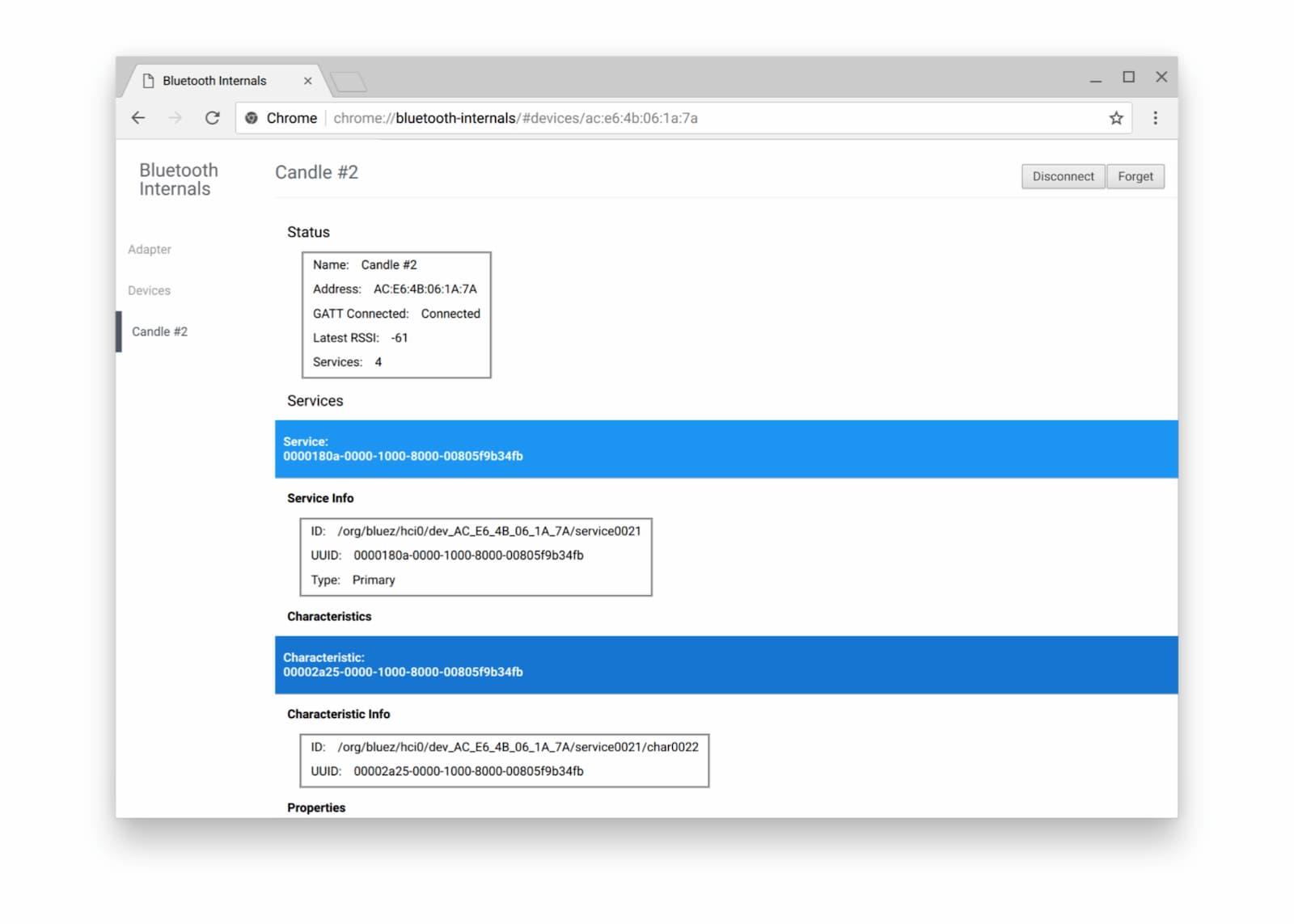
また、Bluetooth のデバッグは難しい場合があるため、Web Bluetooth のバグを報告する方法の公式ページも確認することをおすすめします。
次のステップ
まず、ブラウザとプラットフォームの実装ステータスを確認して、Web Bluetooth API のどの部分が現在実装されているかを確認してください。
まだ未完成ですが、近い将来に提供される予定の機能の概要は次のとおりです。
- 付近の BLE アドバタイズメントのスキャンは
navigator.bluetooth.requestLEScan()で行われます。 - 新しい
serviceaddedイベントは、新たに検出された Bluetooth GATT サービスをトラッキングし、serviceremovedイベントは削除されたサービスをトラッキングします。Bluetooth GATT サービスから特性や記述子が追加または削除されると、新しいservicechangedイベントが発生します。
API のサポートを表示する
Web Bluetooth API を使用する予定はありますか?公開サポートは、Chrome チームが機能の優先順位を決定するうえで役立ち、他のブラウザ ベンダーにサポートの重要性を示すことにもなります。
ハッシュタグ #WebBluetooth を使用して @ChromiumDev にツイートし、どこでどのように使用しているかをお知らせください。
リソース
- Stack Overflow
- Chrome の機能のステータス
- Chrome 実装のバグ
- Web Bluetooth の仕様
- GitHub の仕様に関する問題
- BLE Peripheral Simulator アプリ
謝辞
レビューしてくれた Kayce Basques に感謝します。