

As a web developer, it's best practice to design your applications using the lowest-trust security model possible, such as a Progressive Web App (PWA). This approach maximizes your reach, minimizes the security overhead you have to manage, and offers the greatest flexibility for both developers and users. However, because the web is designed to be safe by default, its conservative security model naturally restricts access to the operating system and certain powerful device APIs.
Isolated Web Apps (IWAs) solve this by providing an isolated, bundled, versioned, signed, and highly trusted application model built on top of the web platform. Yet, before making the leap to an IWA, it's worth considering a more gradual step: connecting your PWA with a Chrome Extension. Available in managed ChromeOS environments—such as managed user sessions, Managed Guest Sessions (MGS), or Kiosk mode—this technique lets your app use lower-level extension APIs through secure message passing. The following diagram illustrates this progressive approach: starting with a standard web application, adding the capabilities to become an installable PWA, and finally exploring the PWA and Chrome Extension path to unlock additional APIs.
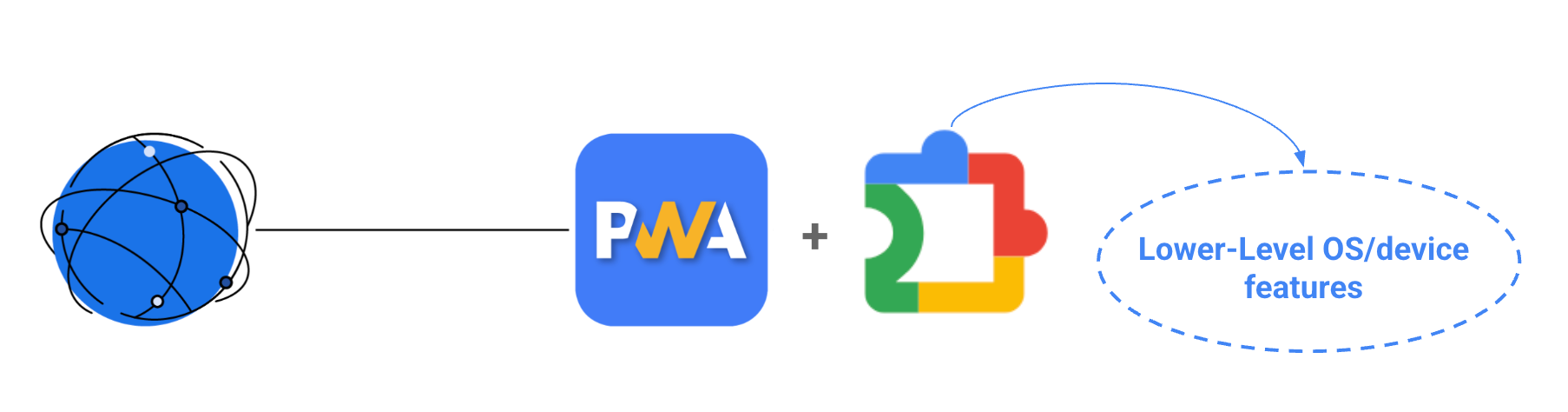
If your application requires advanced capabilities that remain unavailable even
with Chrome Extension APIs—such as
Controlled Frame or the
Direct Sockets API—then
migrating to an Isolated Web App (IWA) is your best path forward. However, while
IWAs unlock powerful new web features, you might still need specific
device-level APIs that are exclusive to Chrome Extensions, such as
chrome.runtime.restart() for rebooting a ChromeOS device in Kiosk mode.
Fortunately, you can connect an IWA to a Chrome Extension using the exact same
approach as a PWA. This technique is covered in the following steps.
Step by step implementation
Deploy the Companion Extension
Extensions are deployed through the Chrome Admin Console. Depending on your target environment, you will configure this in the corresponding section (for example, navigate to Devices > Chrome > Apps & Extensions > Kiosks for Kiosk mode, or the respective tabs for Users & Browsers or Managed Guest Sessions). You can either self-host the extension at a publicly accessible link or host it directly in the Chrome Web Store. For more detailed instructions on managing extensions refer to the official documentation.
Implement message passing
Extension setup
To receive and respond to messages from your web app, expose a background script
that listens for messages to arrive from the client (your web app) and then
proxy those requests to a corresponding API call. In the following example, a
request is proxied to restart the ChromeOS device when the web app sends a
custom message object that contains a methodName of callRestart.
Background.js
// message handler - extension code
chrome.runtime.onMessageExternal.addListener(function (request, sender, sendResponse) {
  if (request.methodName == 'callRestart') {
    chrome.runtime.restart();
  }
});
The manifest for the extension can be configured to allow external function
calls to the extension using the externally_connectable key which specifies
what sites and extensions are allowed to call methods in the extension. More
information about Chrome extensions and manifest v3 can be found in the
official documentation.
If you are connecting from a Progressive Web App (PWA), you will list the standard HTTPS domain where your app is hosted under the matches array. Here is an example of a manifest configured for a PWA running in Kiosk mode:
Manifest.json
{
  "manifest_version": 3,
  "name": "Restart your kiosk app",
  "version": "1.0",
  "description": "This restarts your ChromeOS device.",
  "background": {
    "service_worker": "background.js"
  },
  "externally_connectable": {
    "accepts_tls_channel_id": false,
    "matches": [
      "*://developer.chrome.com/*"
    ]
  }
}
If you are connecting from an Isolated Web App (IWA), the mechanism is
exactly the same, but the URL scheme changes. Because IWAs are securely packaged
and don't run on standard web servers, they use their own protocol. You must
add the IWA's origin using the isolated-app:// scheme.
Manifest.json
{
  "manifest_version": 3,
  "name": "IWA Companion Extension",
  "version": "1.1",
  "description": "Companion extension for the IWA",
  "background": {
    "service_worker": "/scripts/background.js"
  },
  "externally_connectable": {
    "matches": [
      "isolated-app://*/*"
    ]
  }
}
This is the minimum amount of code required in an extension to listen for messages from a PWA or IWA.
PWA and IWA setup
To call the extension from a web app, you need to know its static extension ID.
This ID can be found on the chrome://extensions page, shown when you install
your Chrome extension, or from the Chrome Web Store after the extension has been
uploaded. This lets your web app specify the exact extension to communicate
with. After that, call
chrome.runtime.sendMessage
and pass in the extension ID with a message to send to the extension.
const STATIC_EXTENSION_ID = 'abcdefghijklmnopqrstuvwxyz';
// found from chrome extensions page of chrome web store.
const callExtensionAPI = function (method) {
  chrome.runtime.sendMessage(STATIC_EXTENSION_ID, {
    methodName: method,
  });
};
callExtensionAPI('callRestart');
For more information on connecting web apps to extensions for message passing, refer to the Extensions documentation.
Demo
To see this implementation in action, explore the
IWA Kitchen Sink repository.
This project serves as a
comprehensive playground for various IWA capabilities, featuring demos for
high-trust APIs like Direct Sockets and Controlled Frame.
It also provides a complete, working example of the IWA-to-Chrome-Extension
connection. The repository includes a sample companion extension and a dedicated
web interface that demonstrates how to use secure message passing to trigger
extension-exclusive methods. For example, you can test fetching the user's
profile information with the chrome.identity.getProfileUserInfo() API directly
from the Isolated Web App.
Conclusion
Connecting your web applications to a Chrome Extension offers a secure, progressive path to unlocking native-like device capabilities. As you design your app's architecture, keep these key takeaways in mind:
- Start with the Web: Default to a PWA for the best reach and lowest security overhead.
- Bridge the gap with Extensions: For deeply integrated, OS-level features (like device rebooting in Kiosk mode), deploy a companion Chrome Extension and connect it to your application using secure message passing.
- Upgrade to IWAs only if needed: Use Isolated Web Apps when you require high-trust APIs like Direct Sockets, Controlled Frame or any of the other IWA-only APIs.