


DevTools provides an AI assistance panel that helps you understand your website and fix issues by chatting with a built-in AI agent.
The AI assistance panel is powered by Gemini and does the following:
- Specializes in web development.
- Can answer general questions about the whole web page as well as provide specific insights about a variety of topics, including but not limited to styling, networking, performance, and more.
- Autonomously narrows down and selects specific context for you to chat about, such as DOM elements, network requests, performance trace events, and more.
- Can perform autonomous actions such as run audits and record performance traces.
- Provides a step-by-step walkthrough of its actions and reasoning and links to relevant parts of DevTools, so you can inspect them with a click.
- Can suggest code changes and generate a prompt with its insights for your coding agent to execute.
With AI assistance, you can debug styling, networking, performance, sources of your website, and more.
To chat with Gemini in the AI assistance panel effectively, learn how to open the panel, prompt, and control the conversation flow.
Open the AI assistance panel
The AI assistance panel opens in the drawer by default.
To open the panel, click the AI assistance button located at the global entry point on the right of the main toolbar at the top.
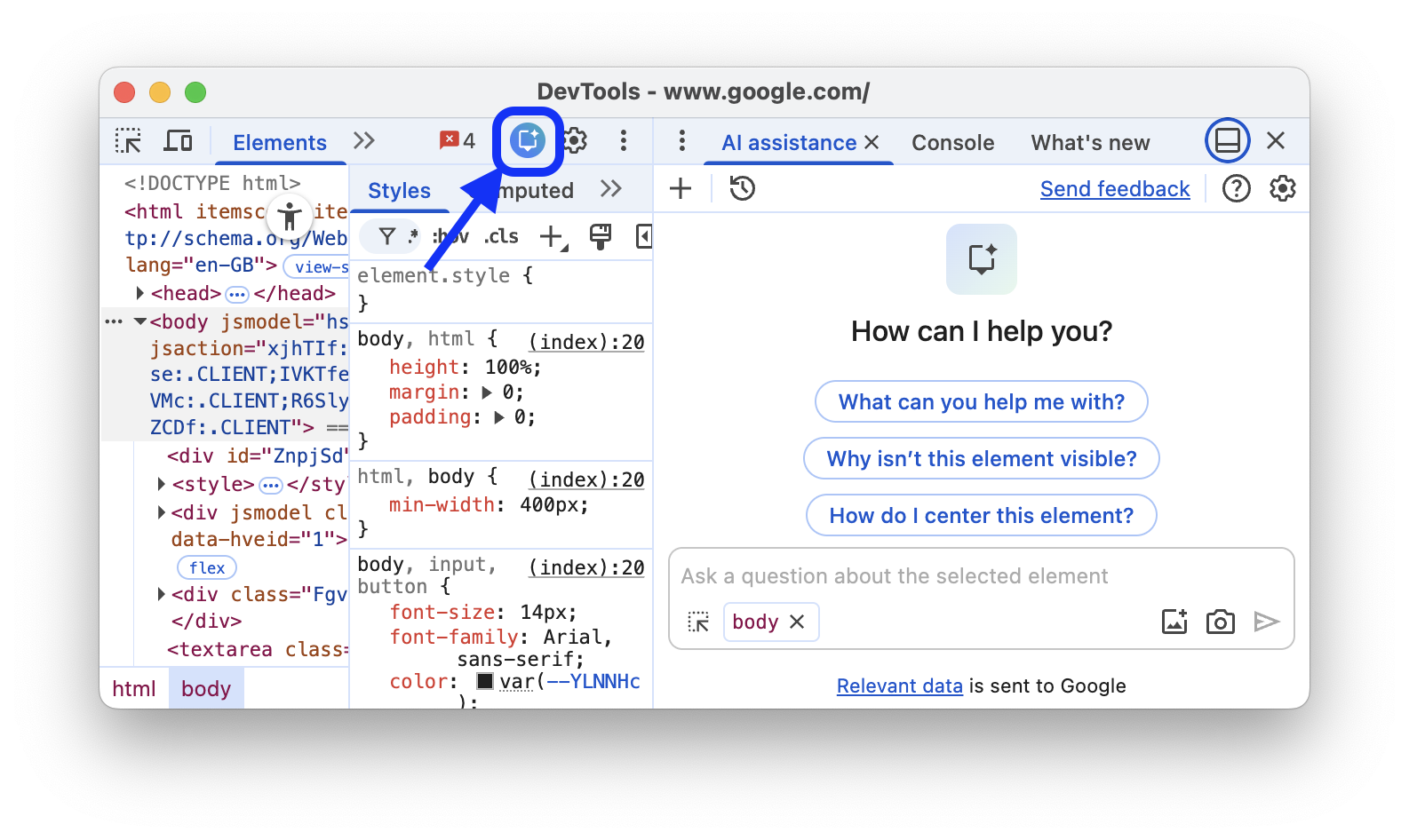
From the panels
You can open the panel, with conversation context selected, directly from the Elements, Network, Sources, or Performance panels in two ways:
Click the
 Debug with AI button next to an element, network request, source file, or an expanded performance insight.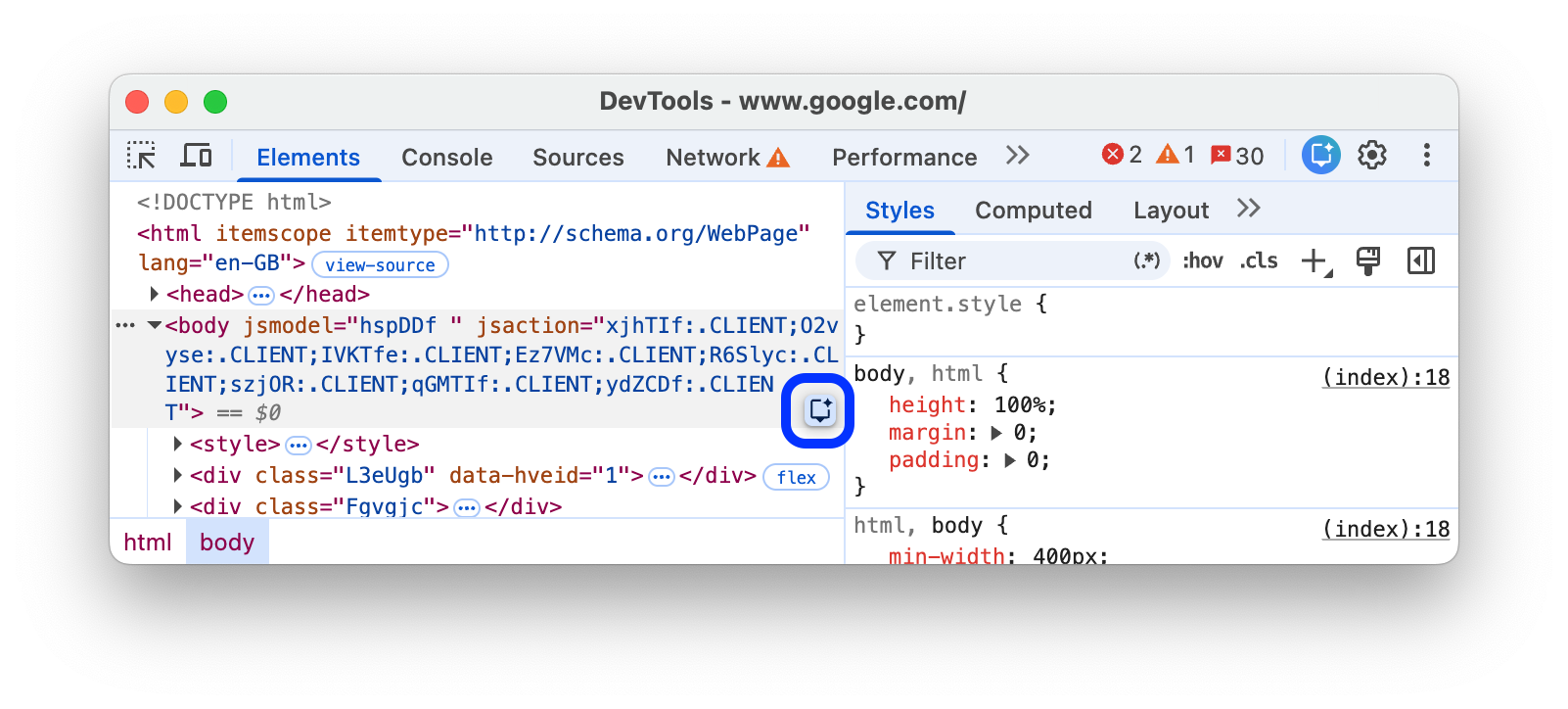
Right-click an element, request, file, or trace entry and select one of the common prompt options from the Debug with AI context menu.
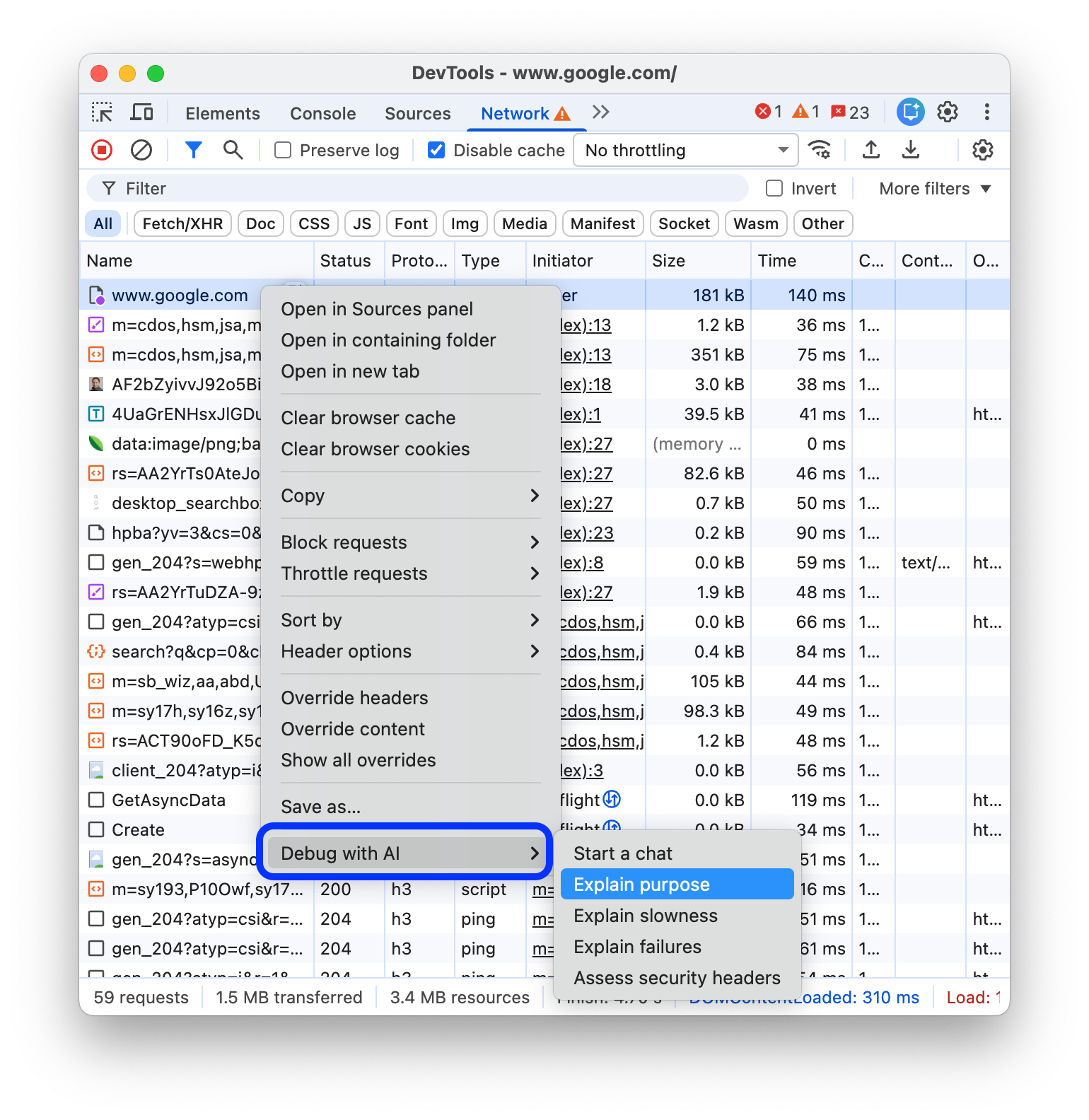
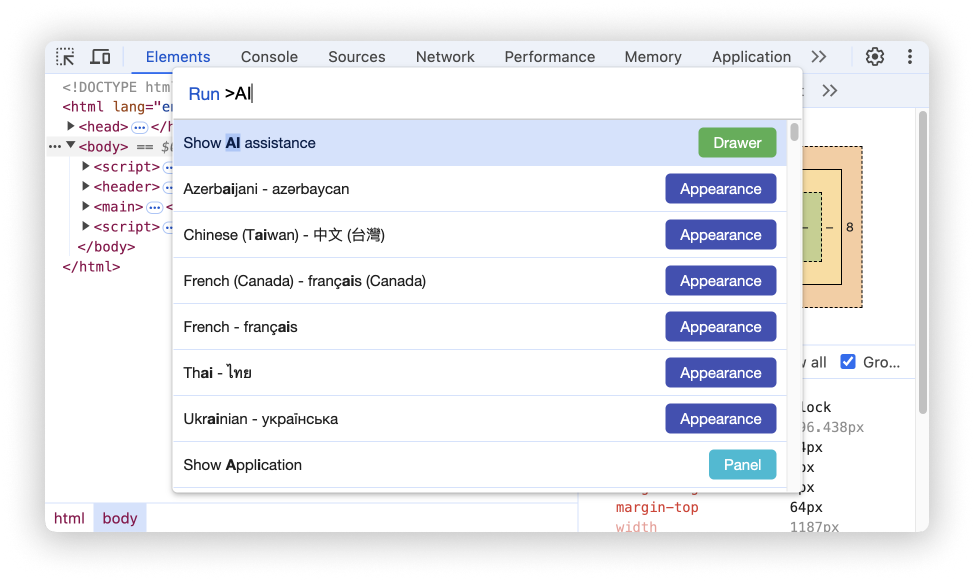
From the command menu
To open AI assistance from the command menu, type AI and then run the
Show AI assistance command, which has the Drawer badge next to it.
From the 'More tools' menu
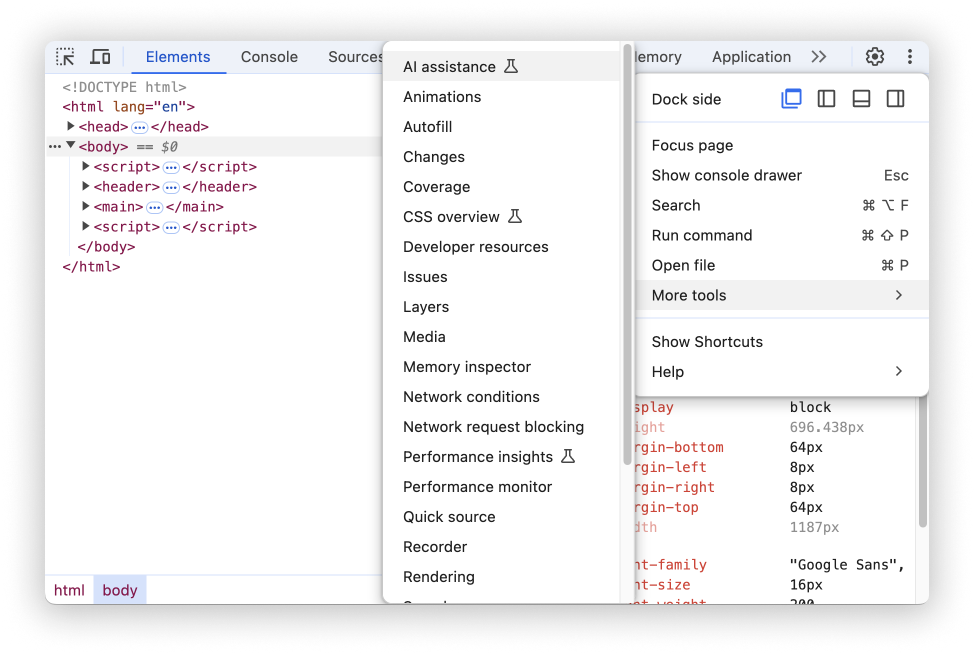
Alternatively, in the top right corner, select More options > More tools > AI assistance.
Prompting
When starting a new conversation, AI assistance offers example prompts to help you get started quickly.
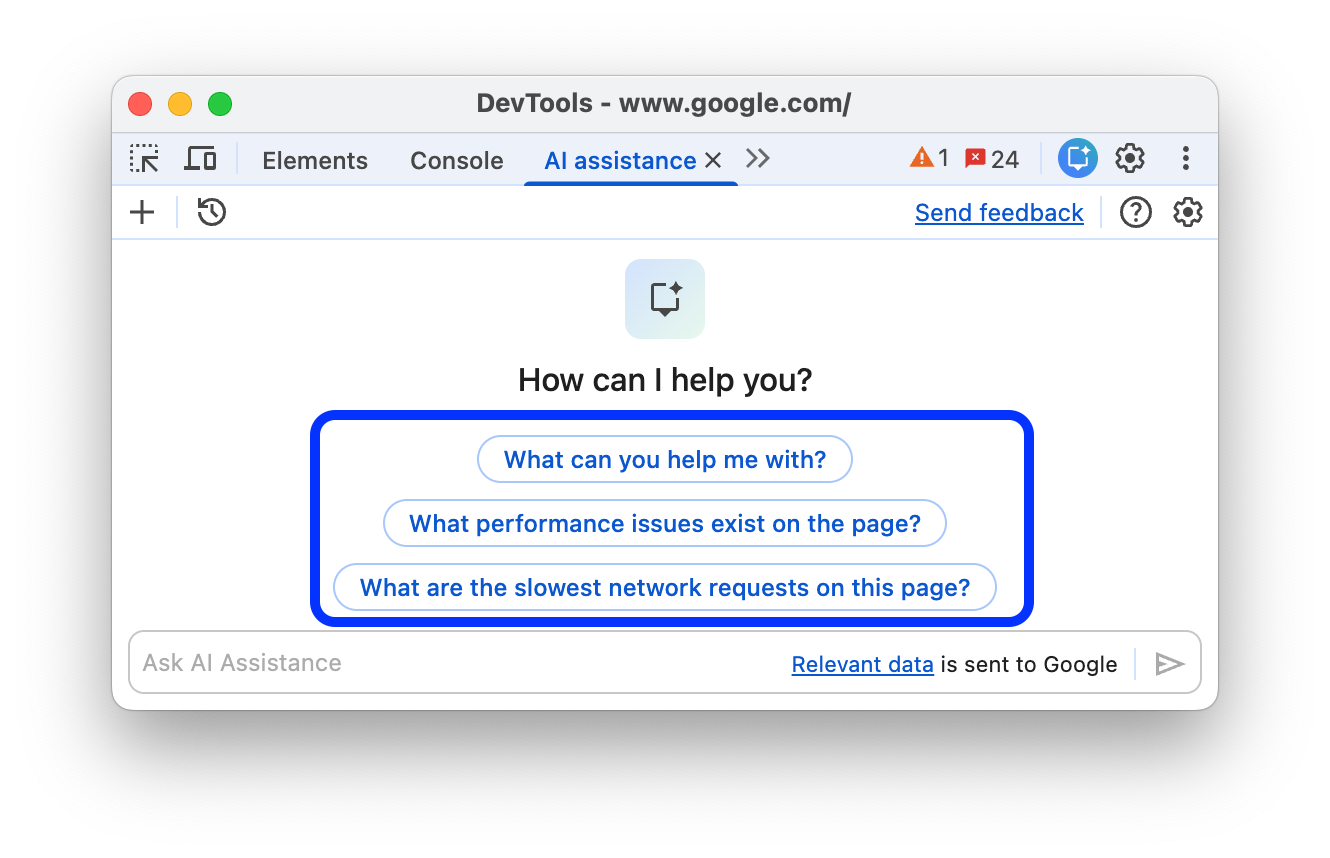
Click any of the prompts to prefill the prompt input field at the bottom of the panel.
Alternatively, type your own prompt or question into the input field.
To send a prompt, either press Enter or click the arrow on the right hand side of the input field.
Open-ended prompts without context
With the free-form chat box, you can ask higher-level open-ended questions without prior context. For example:
How to use DevTools to debug accessibility?AI assistance will first run a Lighthouse audit for accessibility to better answer your prompt.
What are the slowest network requests on this page?AI assistance will provide a list of suspect requests and links to them in the Network panel, so you can select a request as conversation context with a click.
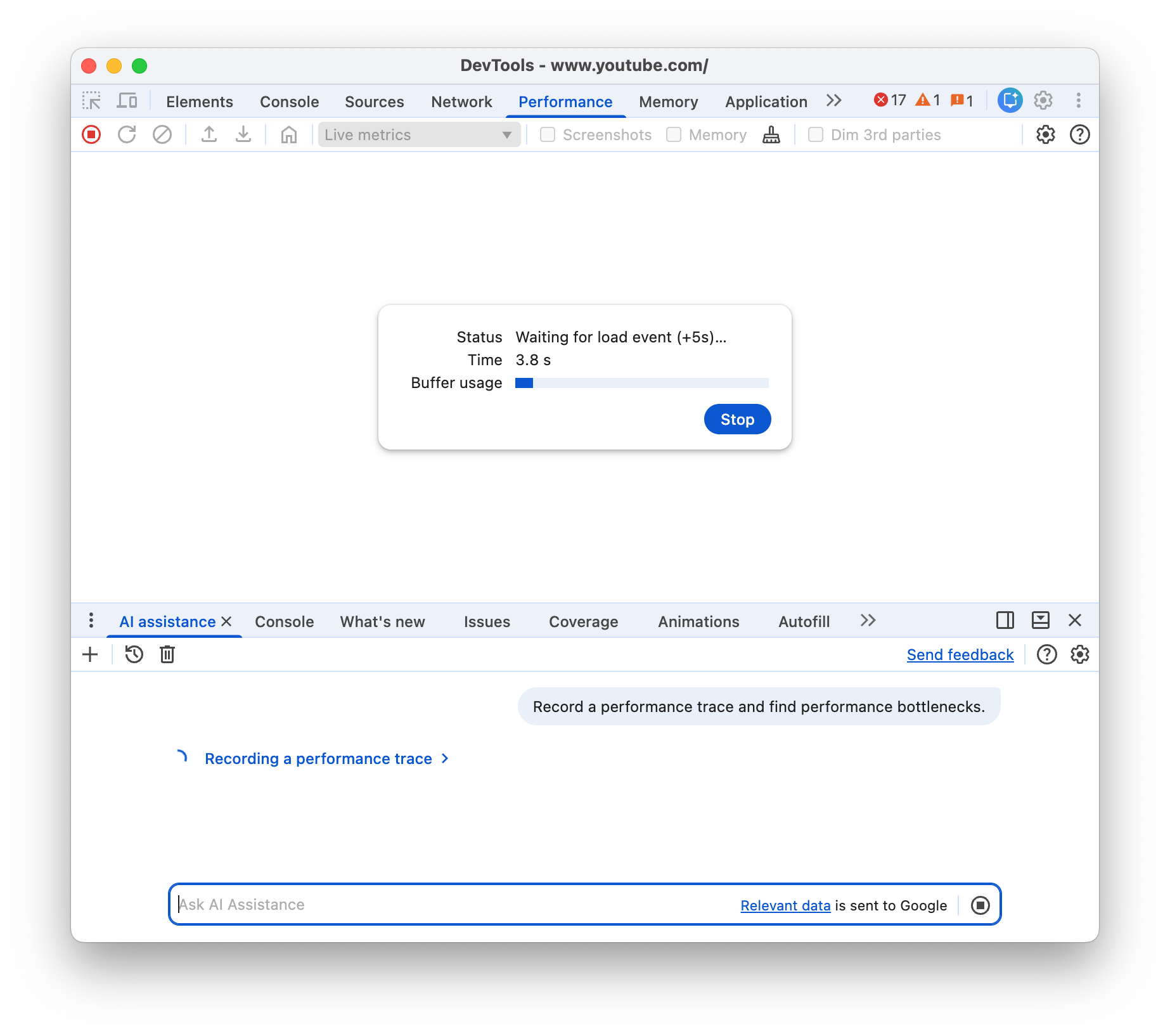
What performance issues exist on the page?AI assistance will automatically record a performance trace with your selected settings to answer this prompt.
Prompts like
How do I use the Animation panel?orWhere is the high contrast setting in DevTools?will provide direct help with DevTools itself.
Once you start the chat, AI assistance will intelligently update the context based on your actions when the chat is empty, while respecting your manual selections when you make them.
Prompts with context
When you open AI assistance from a panel, the corresponding conversation context is selected in the chat box, so you can chat specifically about what you selected.
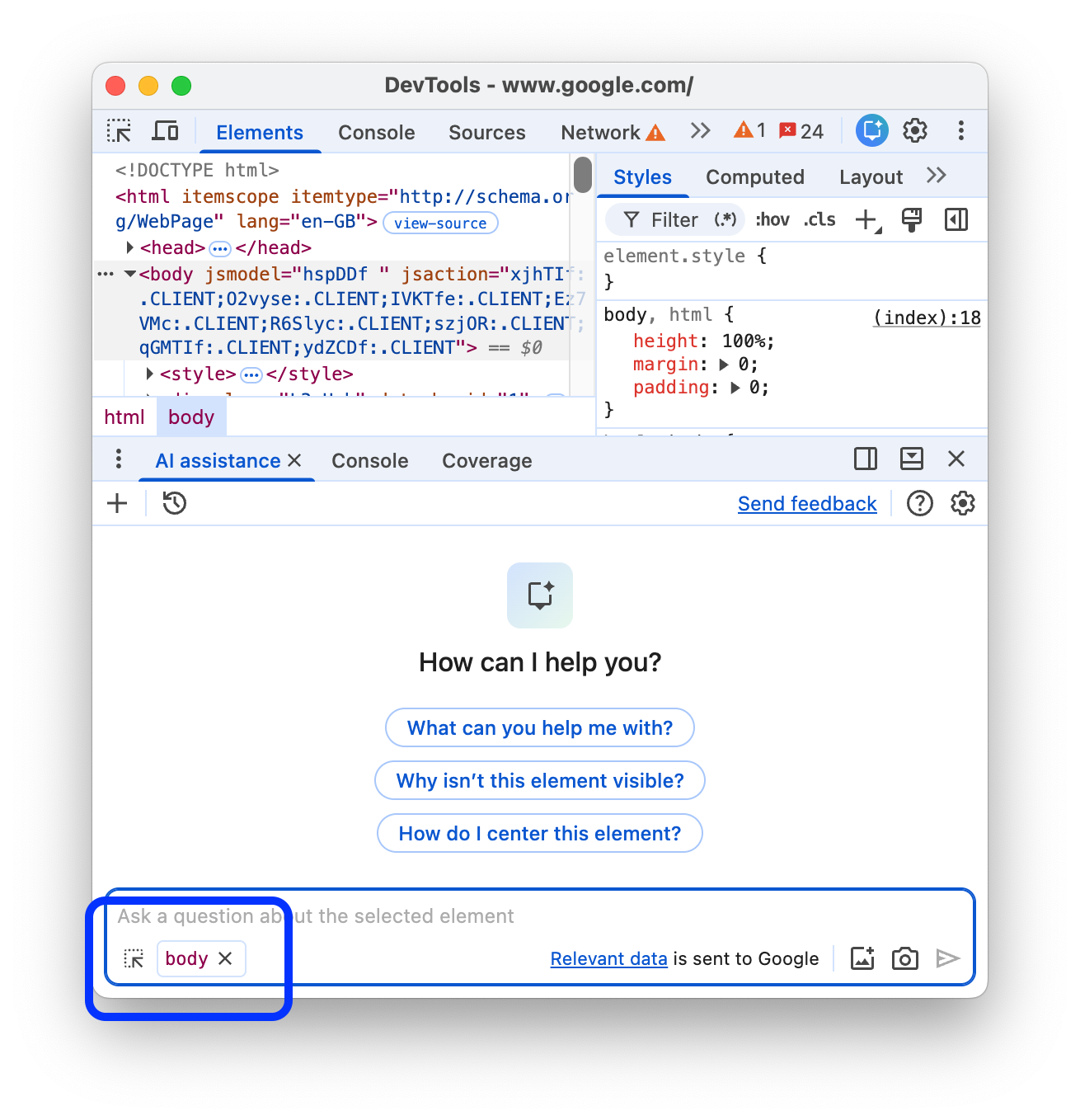
At any time, you can manually change the context by selecting an element in Elements, request in Network, trace entry in Performance, or file in Sources.
You can also copy parts of a file from, for example, the Sources panel and paste it into the chat to ask what it does.
Next, learn more about conversation flow in AI assistance.
Conversation flow
Sending a prompt starts the conversation with the agent. To get the information required to answer your prompt best, the agent generates and executes JavaScript that calls web APIs.
Agent progress is shown in steps. The initial step status is Investigating….
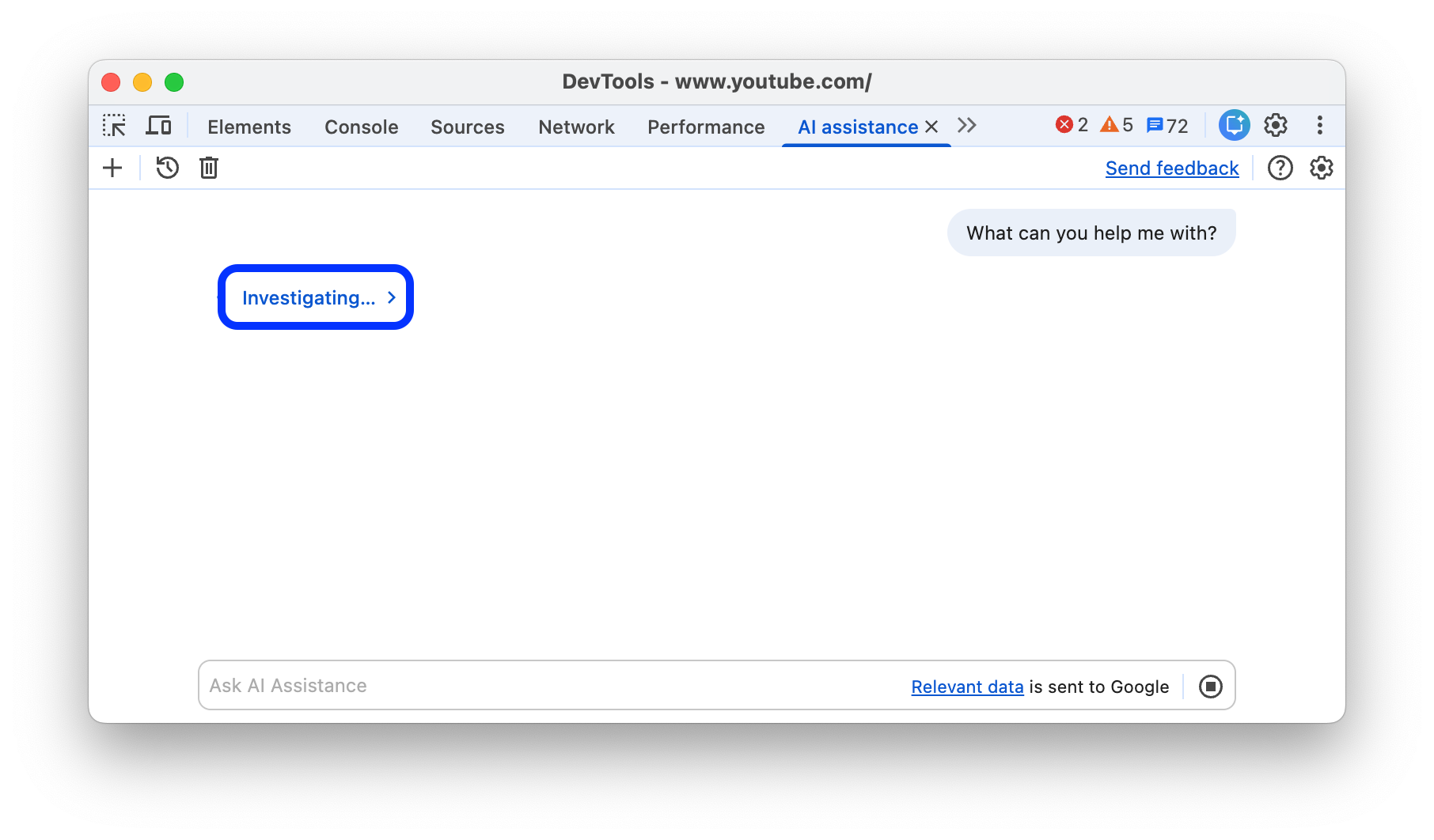
The initial step label updates as the agent executes more specific actions to answer your prompt.
Depending on what you are debugging, the agent may also execute actions in DevTools such as record a performance trace or run Lighthouse audits.
Agent walkthrough
Once the agent generates an answer to your prompt, the initial step label changes to Show agent walkthrough or Show thinking, which you can expand to see the steps taken by the agent to analyze data in a side panel on the right.
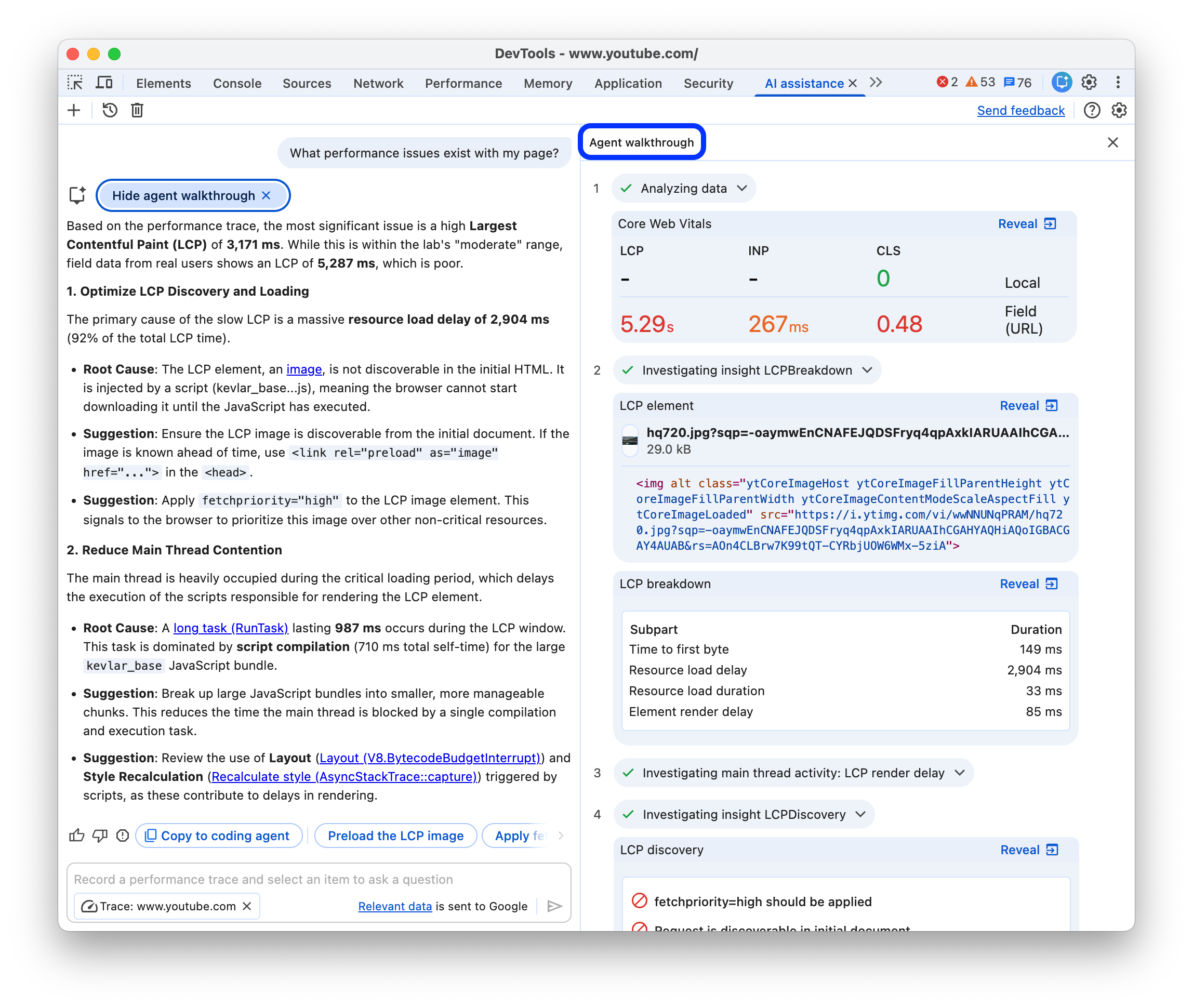
The steps include:
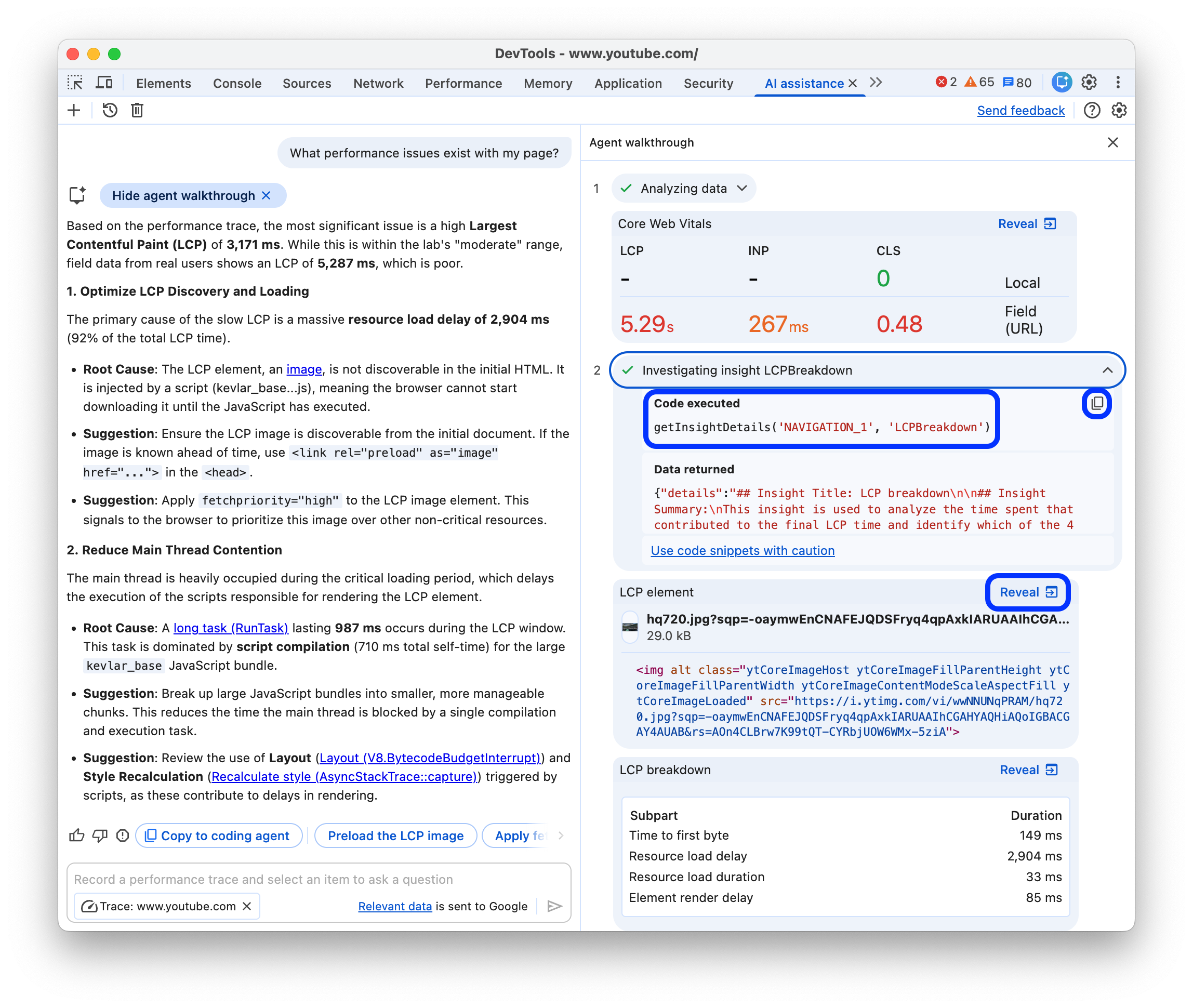
- Expandable code snippets the agent executed together with the returned data. You can copy the code and execute it in the Console.
- Widgets that present findings in a more human-readable format.
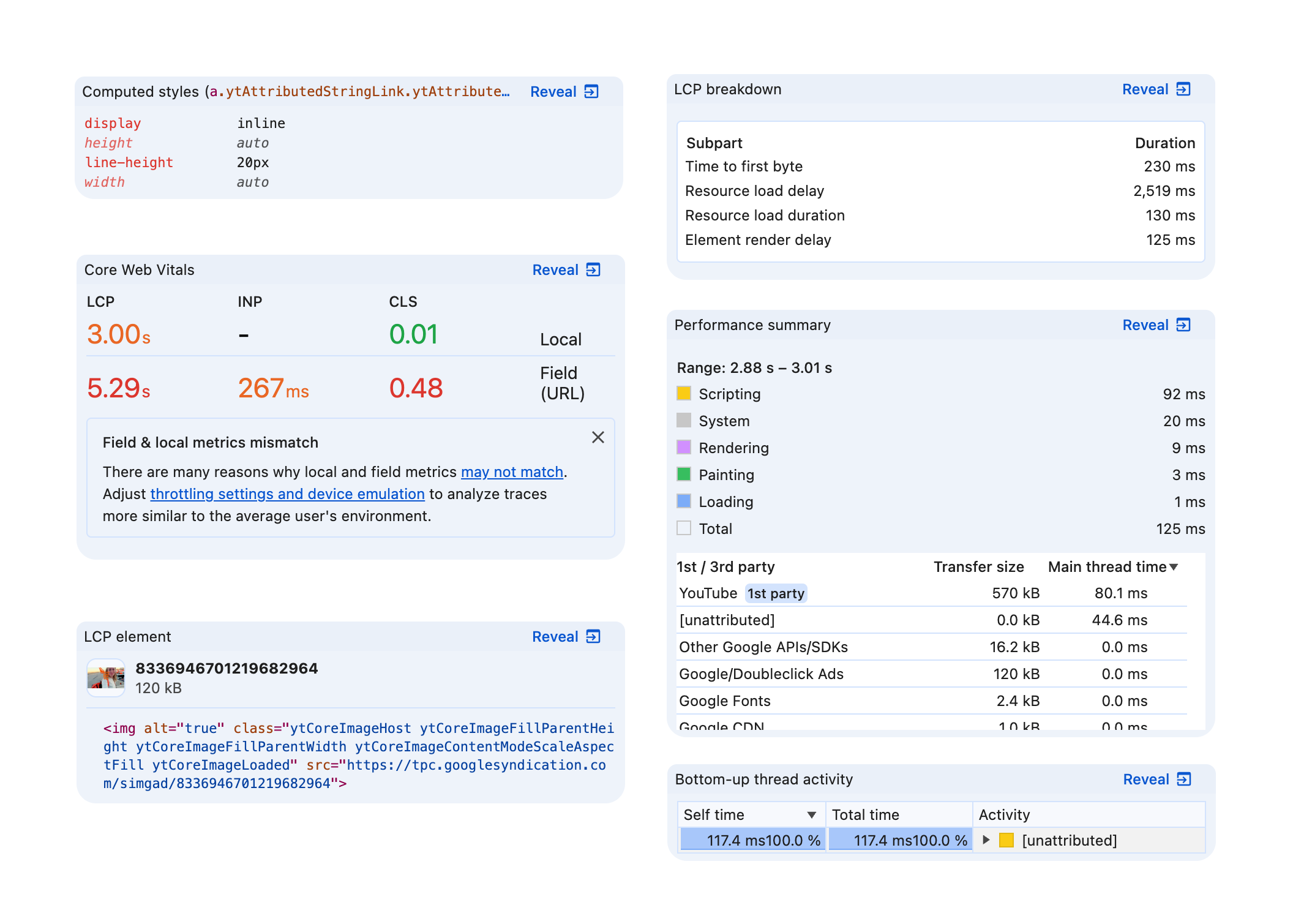
The widgets have a Reveal button in the top right corner that takes you to the relevant part of DevTools.
Follow-up prompts
Once the agent comes to a final answer it may suggest follow-up prompts. Click any to continue the conversation.
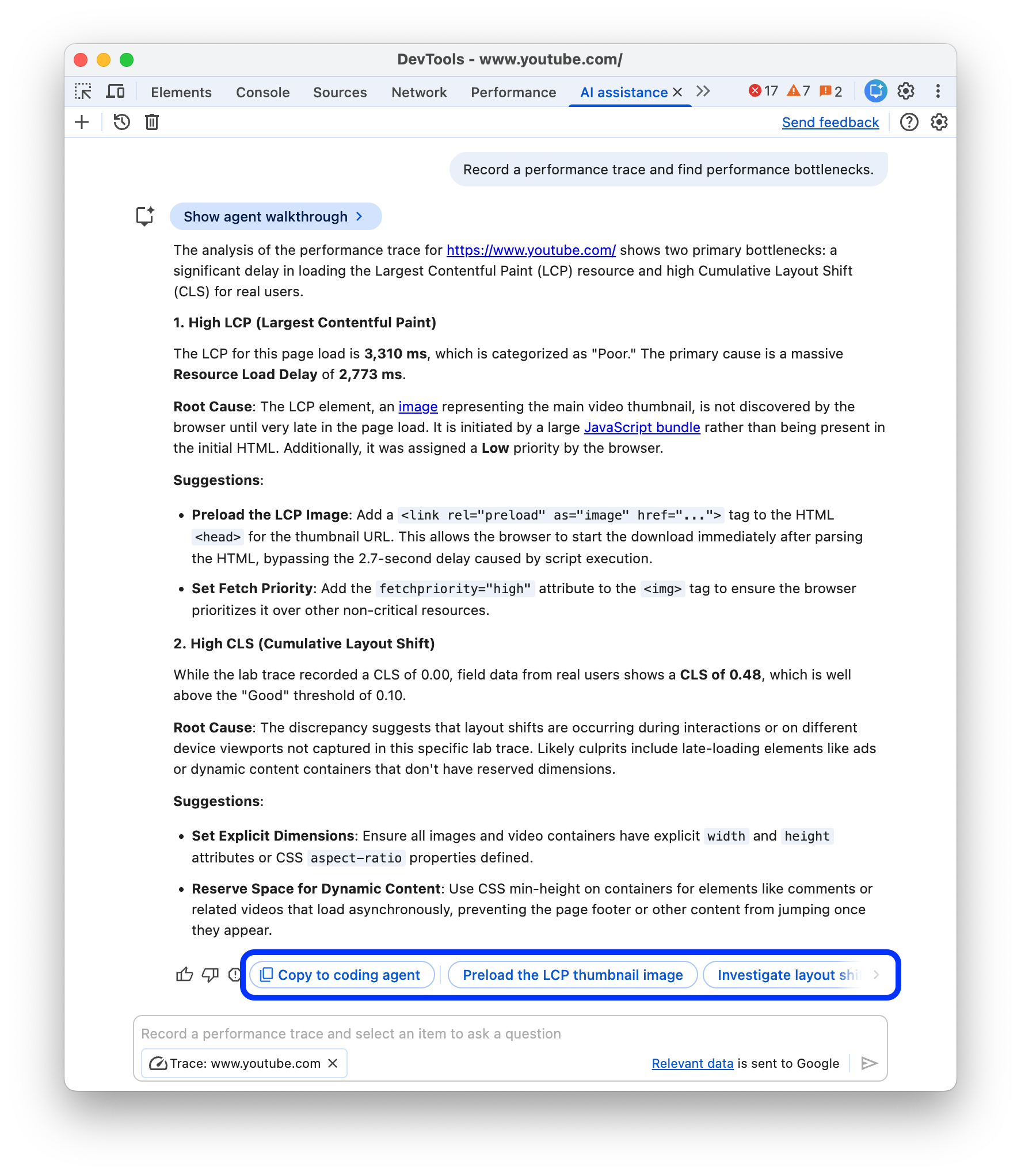
Generate a prompt for your coding agent
To generate a prompt for your coding agent, click Copy to coding agent.
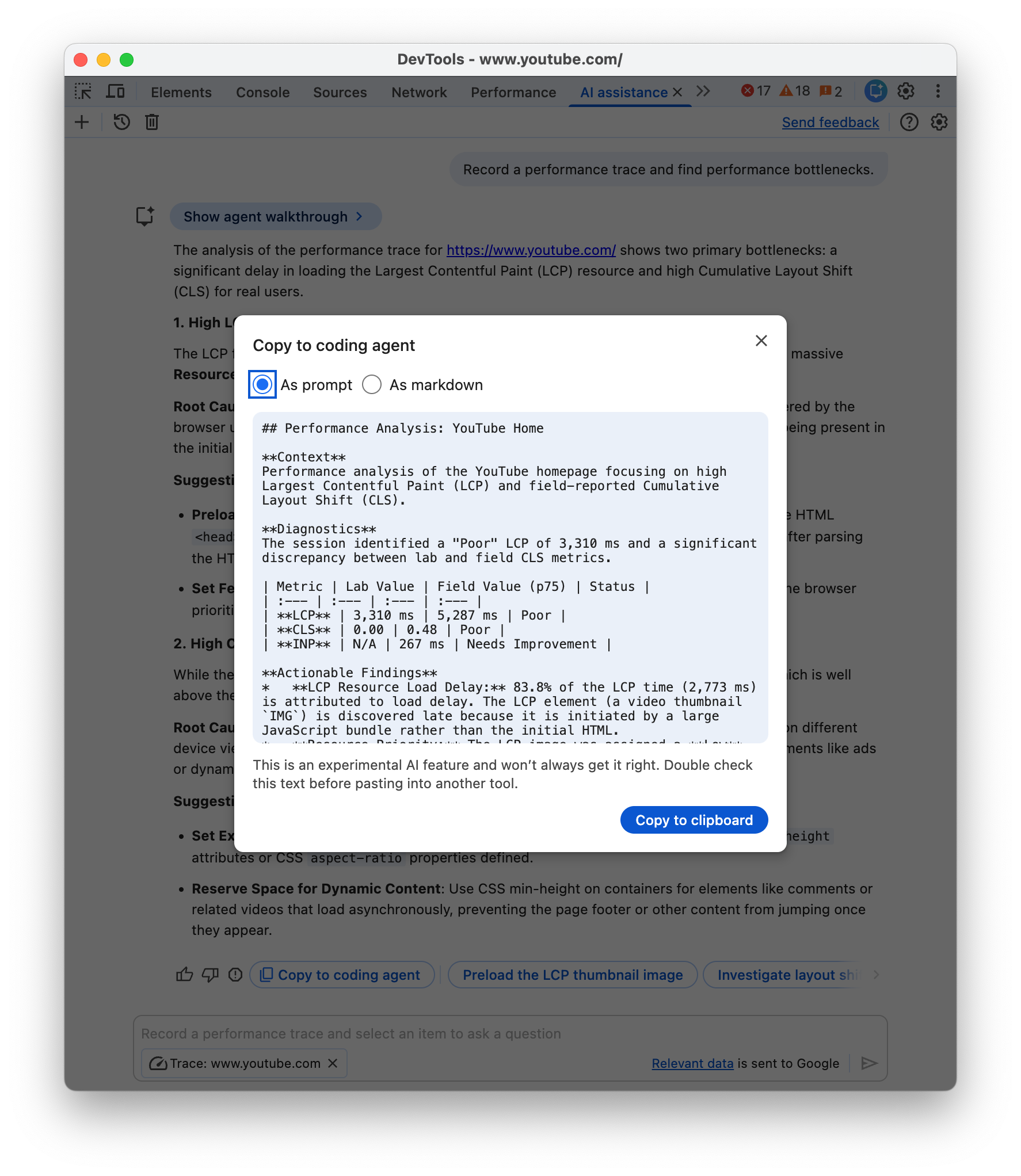
The agent will summarize its findings and insights and provide an actionable prompt, in a minimized form or in human-readable Markdown format, which you can copy to clipboard and continue coding with an AI agent of your choice.
Paused conversations
AI assistance might generate code with side effects. When that happens, the conversation is paused before the code is executed.
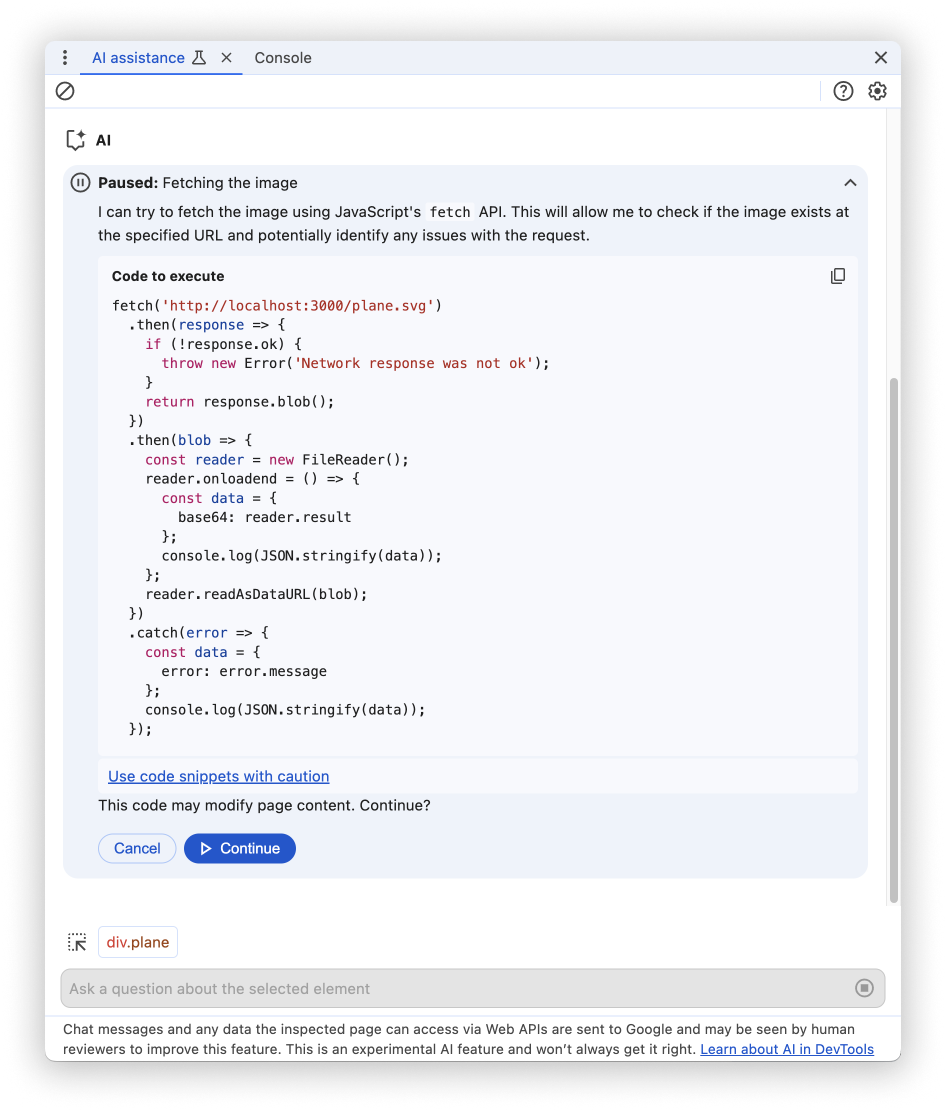
When the conversation pauses, review the code proposed by the agent. Click Continue to proceed or Cancel to prevent execution.
You can inspect suggested code changes in the Changes panel.
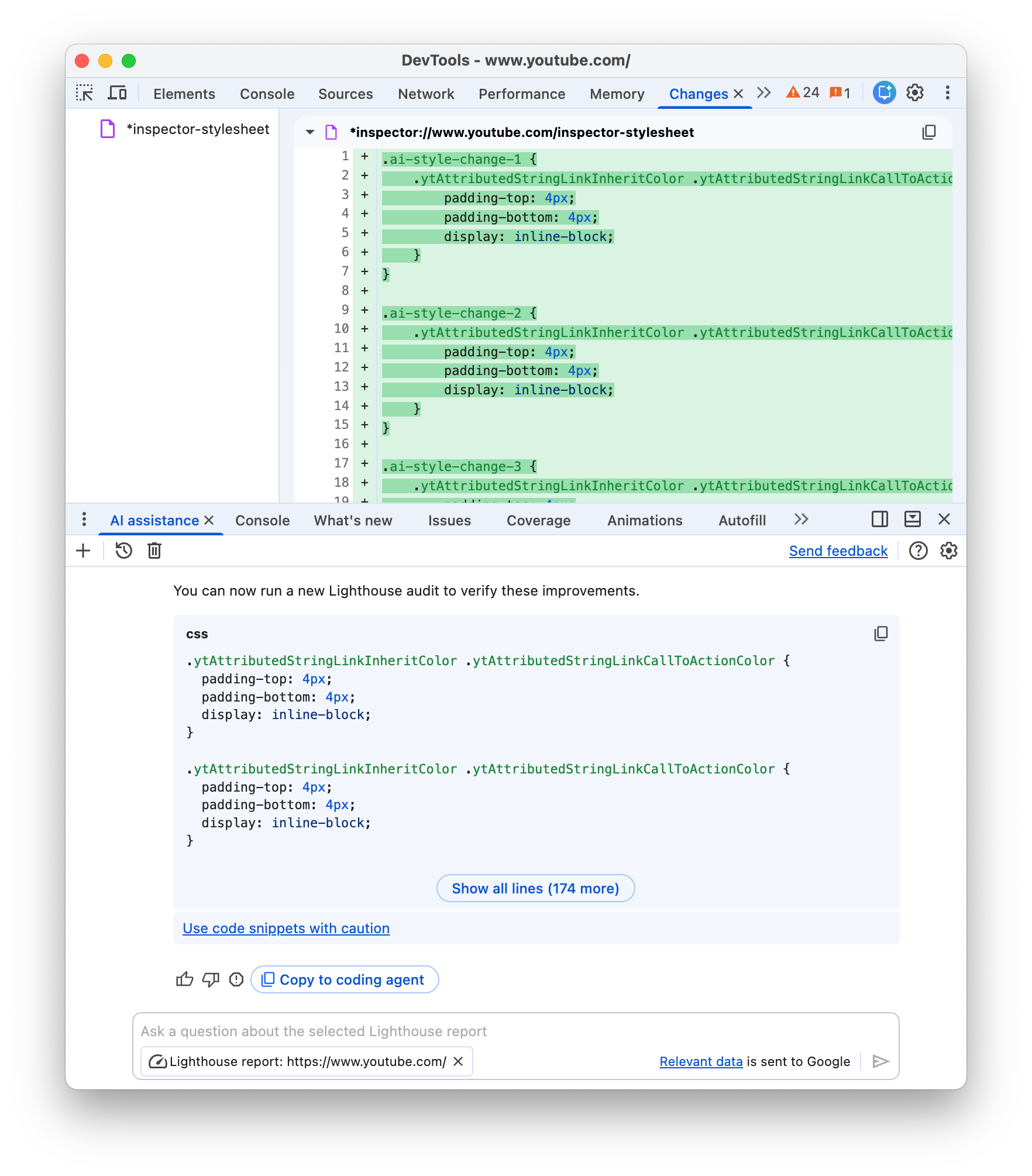
The agent applies the changes inside DevTools, but you can configure your workspace to let DevTools save changes to your sources.
Save changes to your workspace
With a connected workspace folder, you can save style changes suggested by AI assistance back to CSS source files on your computer.
To do this:
First, generate a metadata file and connect a workspace folder.
Alternatively, you can add a folder manually.
Start a chat from the Elements panel.
Prompt AI assistance to modify your CSS.
AI assistance may generate code and pause execution. Review the code and click Continue to test changes live.
Expand the Unsaved changes section and click Apply to workspace.
Review the changes in a
diffand click Save all.
To learn this workflow, see:
No answer given
AI assistance might not provide answers due to various reasons.
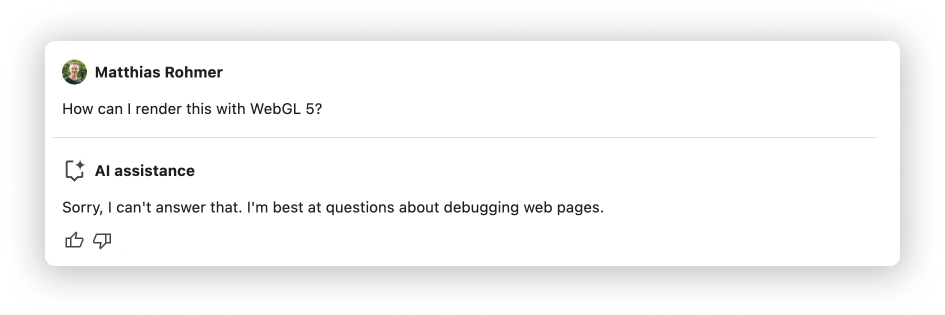
If you think your prompt is something AI assistance should be able to discuss, file a bug.
Conversation history
Once you start a conversation, every next answer is based on your previous interactions between you and the AI.
AI assistance saves your conversation history between sessions, so you can access your previous chats even after DevTools or Chrome reload.
Use the controls in the top-left corner of the panel to control your conversation history.
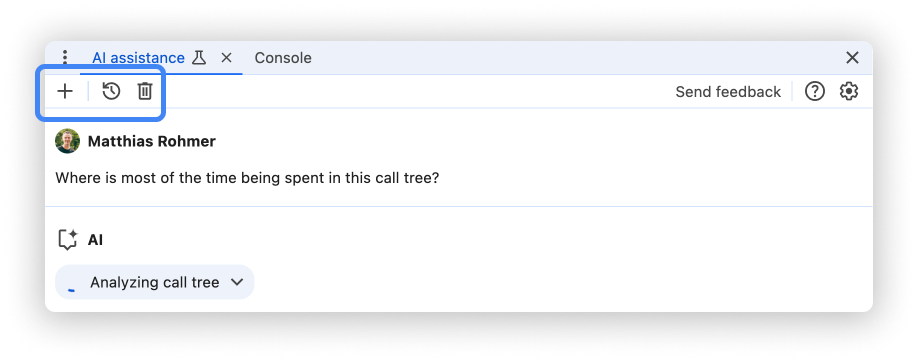
Start new
To start a new conversation with the currently selected conversation context, click the button.
Continue
To continue a past conversation, click the button and select it from the context menu.
Delete
To delete a conversation from history, click the button.
Rate answers and provide feedback
AI assistance is an experimental feature. Therefore we are actively looking for your feedback to learn how we can improve answer quality and the overall experience.
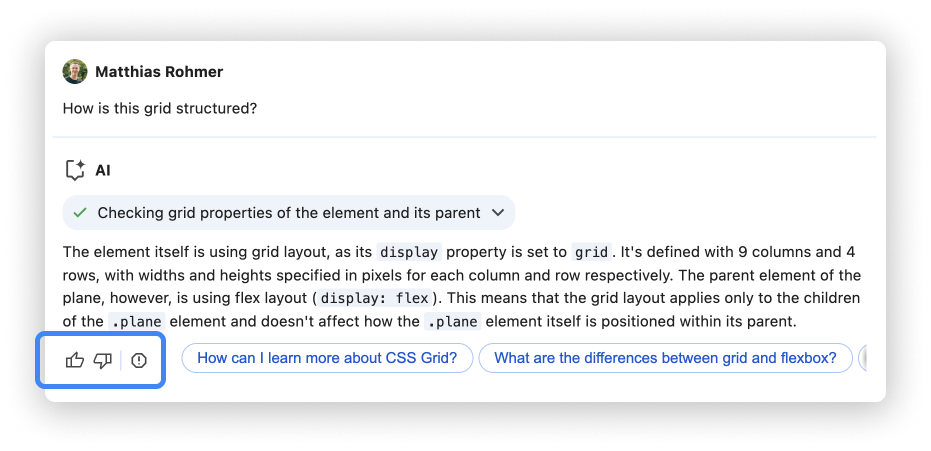
Vote answers
Rate an answer using the Thumbs up and Thumbs down buttons below the answer.
Report answers
To report inappropriate content, click the button next to the voting buttons.