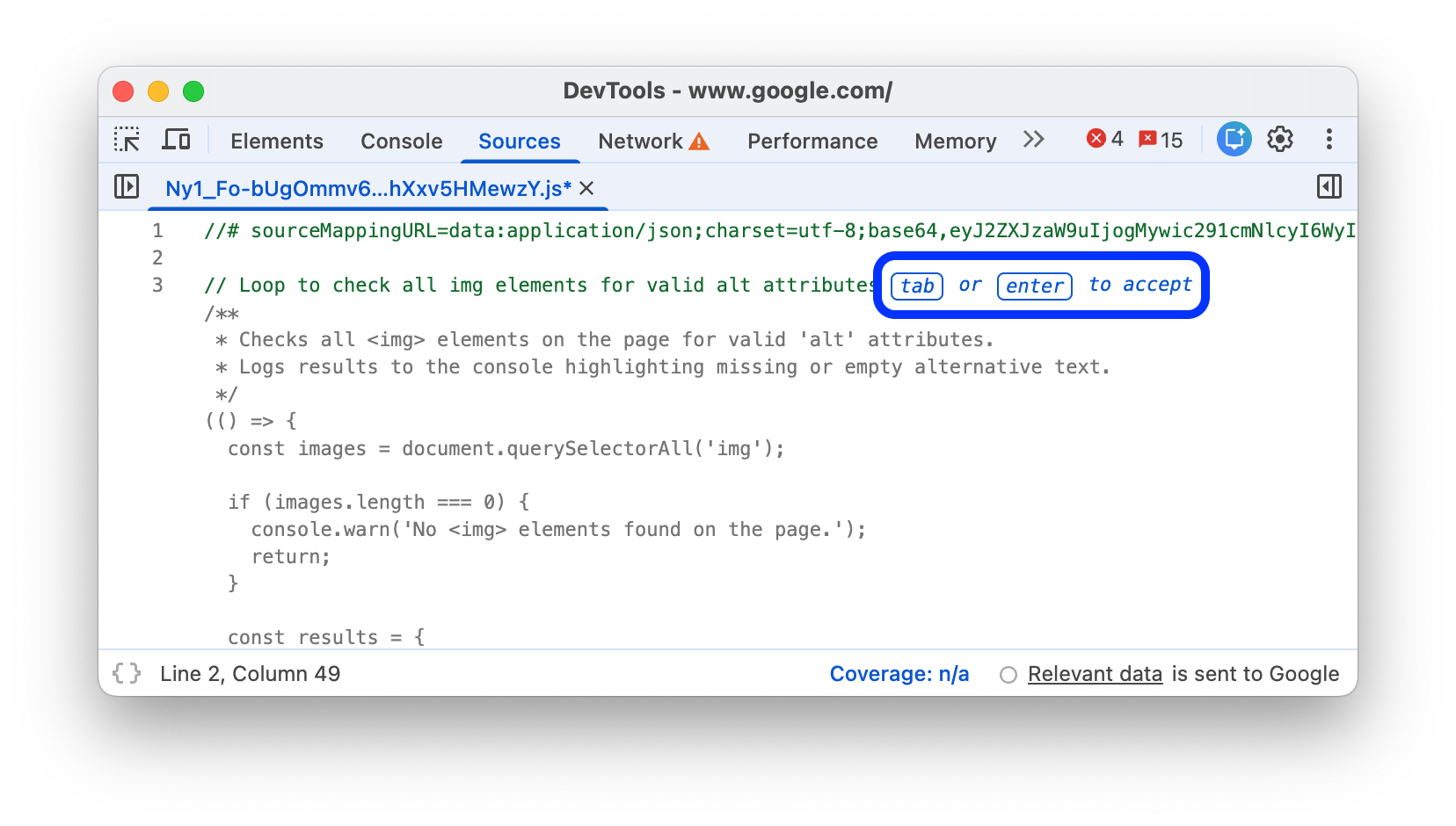
Use Gemini to generate code in the Console and Sources panels.
From Chrome 147, this feature is available for all text-based resources for a web page. The priority language for code generation is JavaScript.
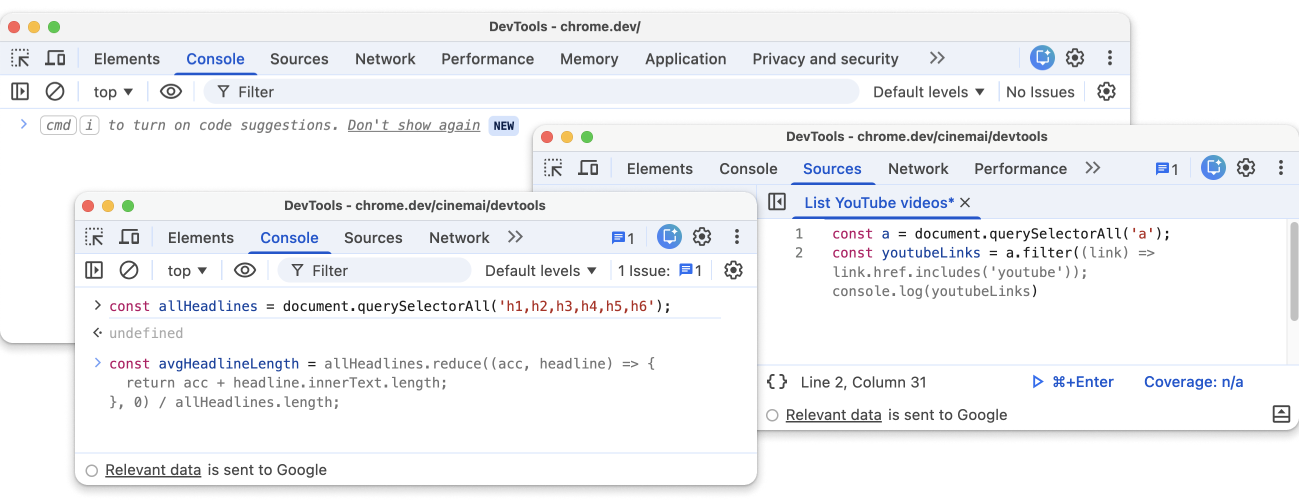
Availability
To use any of the available AI features in DevTools, make sure that you:
- Are at least 18 years old and are in one of the supported locations.
- Are using the latest version of Chrome.
- Are signed into Chrome with your Google Account.
- Have English (US) selected in Settings > Preferences > Appearance > Language in DevTools.
- Have enabled Settings > AI Innovations in DevTools.
Enable code generation
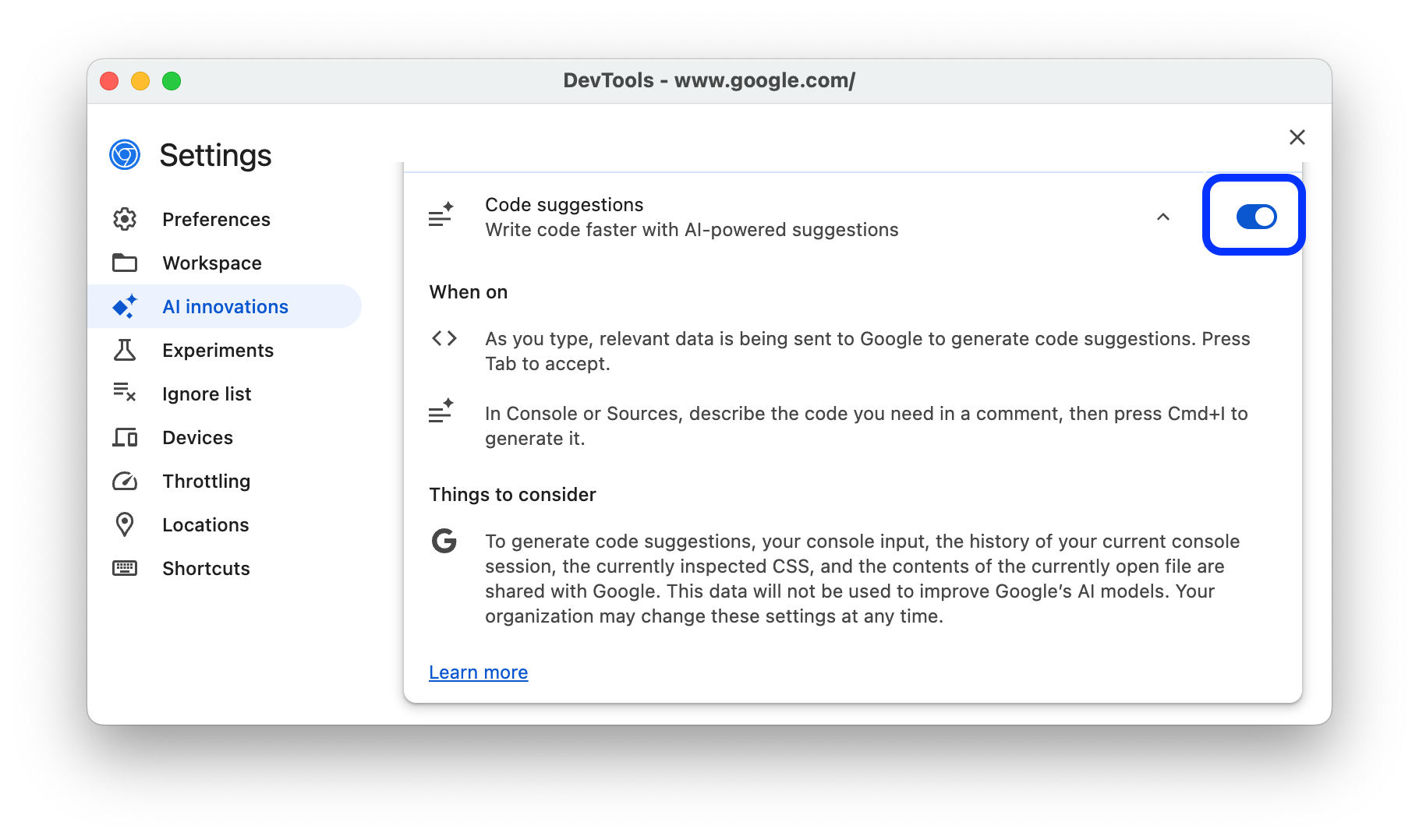
To enable code generation specifically, go to DevTools > Settings > AI innovations and turn on Code suggestions.
To enable code generation right from the Console or Sources panel:
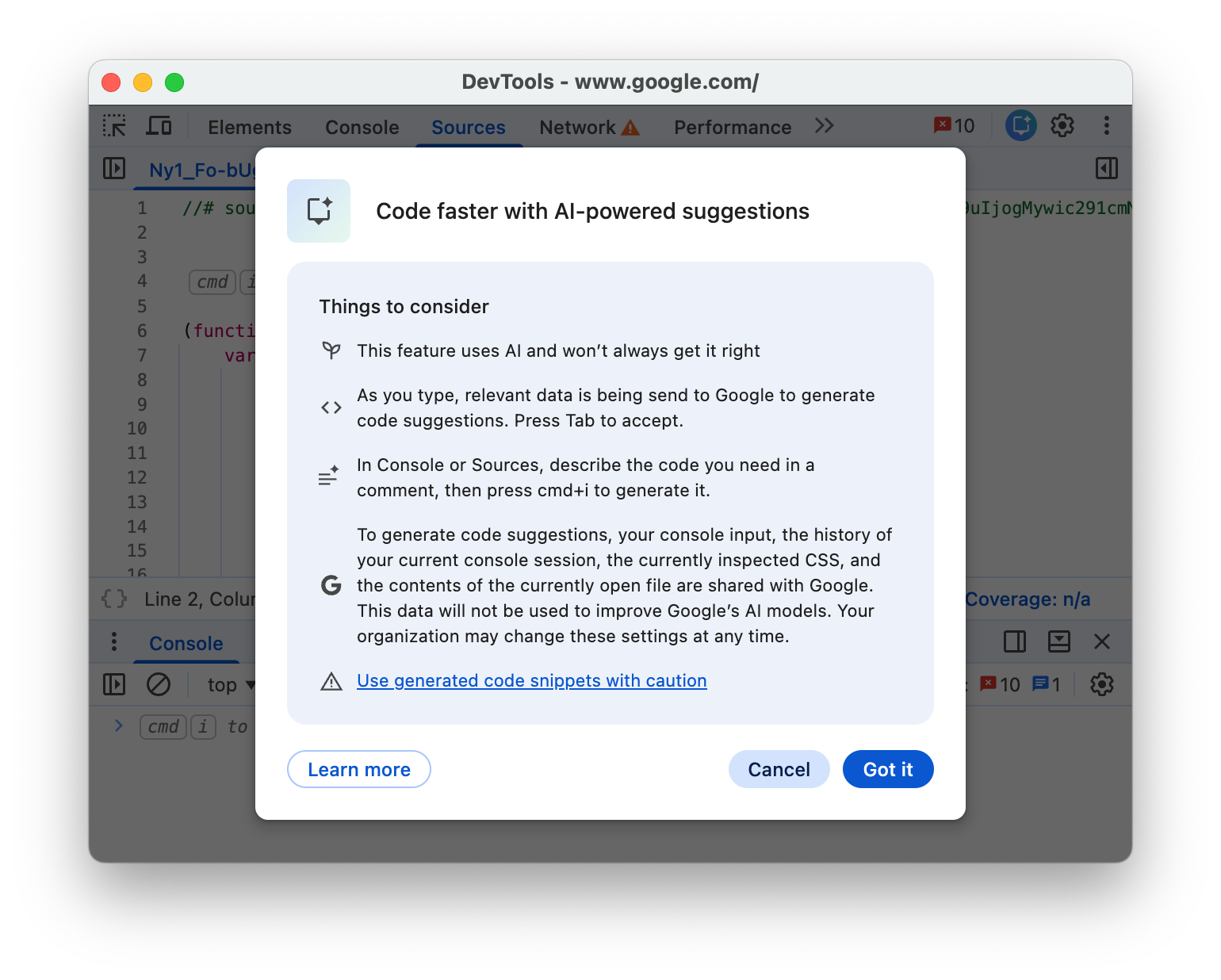
While editing source files or typing in the Console, press Command + i on Mac or Control + i. In this shortcut, i is lowercase.
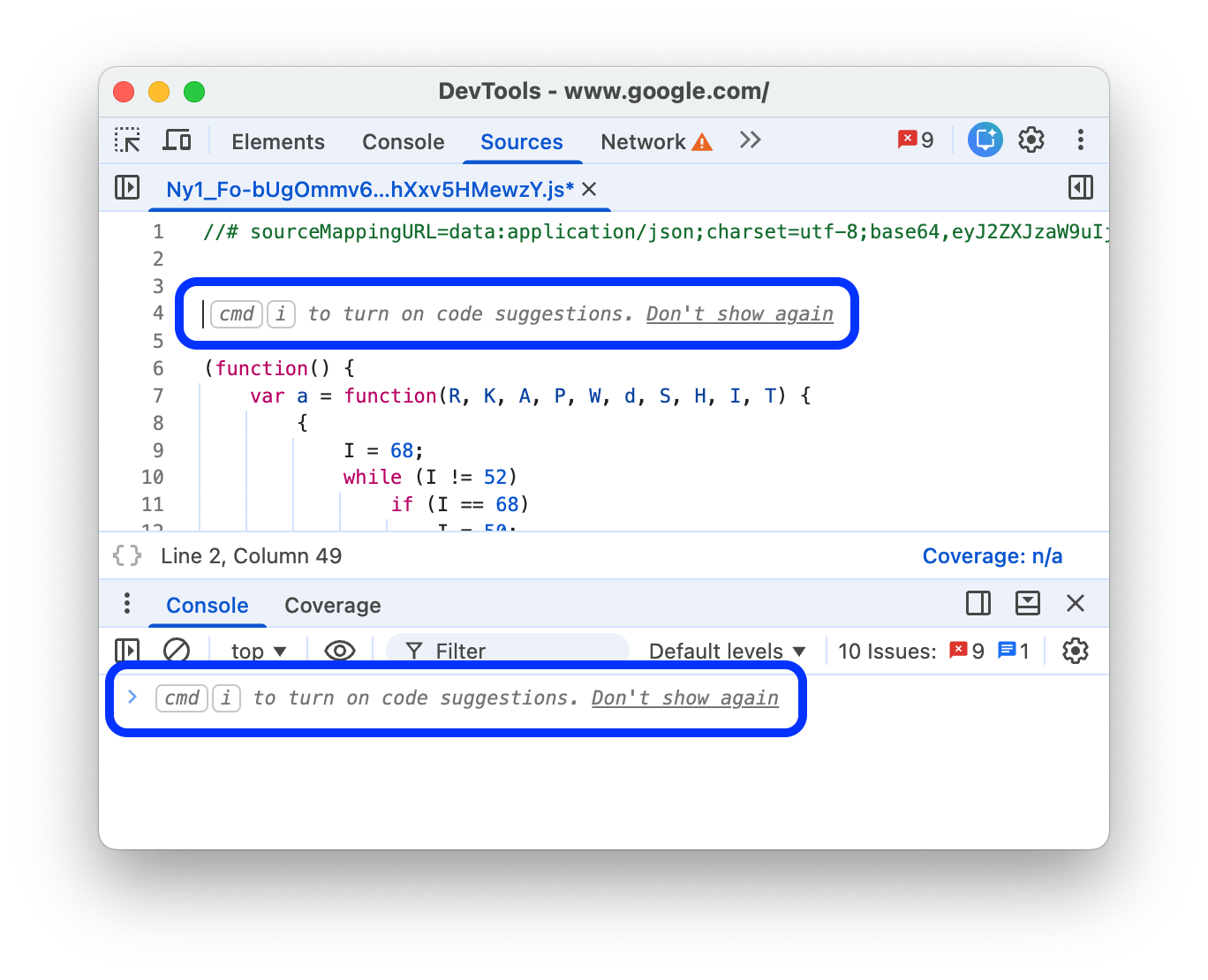
Read through Things to consider in the dialog window and click Got it.
Generate code
To generate code in the Console or Sources panel:
In a code comment, type your prompt, for example:
// Loop to check all img elements for valid alt attributes.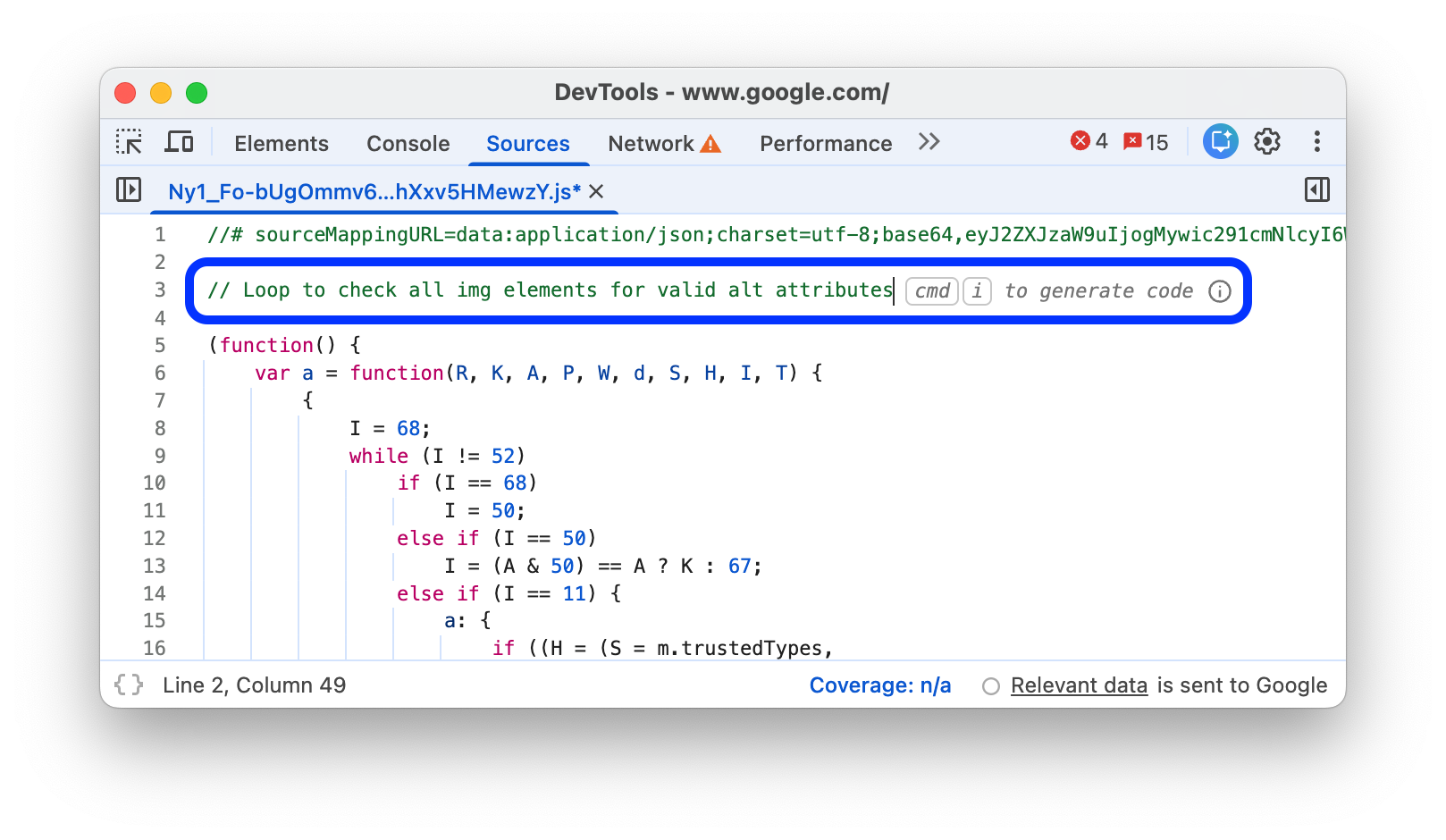
To start generating, press Command + i on Mac or Control + i. In this shortcut, i is lowercase.
Wait for code generation to finish. It may take a few seconds.
Press Tab or Enter to accept or Esc to reject the generated code block.