

The HTML-in-Canvas API lets you render interactive, accessible DOM subtrees directly into 2D, WebGL, or WebGPU canvas contexts.
This guide outlines HTML-in-Canvas technical concepts that are common across all the canvas contexts:
- Prepare your canvas to render HTML
- Understand the
drawablesubtree - Understand the
paintevent - Update an element's geometry
- Understand accessibility of HTML-in-Canvas
- Use fallback strategies
Prepare your canvas to render HTML
To render HTML elements inside a <canvas>, configure the following two attributes:
- Set
content="drawable"on the<canvas>: This opts the canvas element into laying out its descendant DOM nodes instead of treating them solely as hidden content. - Set
drawableon target elements: This marks an element as an independent paint root eligible for canvas rendering.
<canvas id="mainCanvas" width="600" height="400" content="drawable">
  <div id="parentElement" class="card" drawable>
    <h2>Container Title</h2>
    <p>Descriptive text inside the parent element.</p>
    <!-- Nested drawable: excluded from parentElement and drawn independently -->
    <button id="childElement" class="btn" drawable>Action Button</button>
  </div>
</canvas>
Understand the drawable subtree
When preparing HTML to be rendered into a canvas, you need to decide which elements should be drawn independently. Each drawable element represents an independent paint root and its drawable subtree.
A drawable subtree consists of an element with the drawable attribute and all of its descendants, excluding any nested descendants that also carry drawable, for example:
<canvas content="drawable">
  <!-- Subtree A (Renders parent container and text) -->
  <div id="parentElement" drawable>
    <h2>Parent Card Heading</h2>
    <p>Card body text content.</p>
    <!-- Subtree B (Excluded from Subtree A and drawn separately) -->
    <button id="nestedChildElement" drawable>
      Clickable Button
    </button>
  </div>
</canvas>
| Element | Paint boundary | Behavior |
|---|---|---|
#parentElement (Subtree A) |
Background panel, heading, and paragraph | Rendered when calling drawElementImage(parentElement, ...) |
#nestedChildElement (Subtree B) |
Button surface and text | Excluded from #parentElement subtree; rendered in a separate drawElementImage(nestedChildElement, ...) call |
drawable button is nested inside a drawable card, and each one is drawn by its own drawElementImage() call.Nesting drawable elements lets you maintain semantic HTML relationships while giving you the freedom to layer, position, or animate child elements independently over your canvas scene.
Understand the paint event
The HTML-in-Canvas API introduces the paint event. The browser automatically dispatches a paint event on the <canvas> whenever layout, text, or CSS styles change on any of its drawable descendants.
canvas.addEventListener("paint", (event) => {
  // Clear the viewport
  ctx.clearRect(0, 0, canvas.width, canvas.height);

  // Redraw elements individually
  ctx.drawElementImage(parentElement, 20, 20);
  ctx.drawElementImage(childElement, 40, 90);
});
The paint event dispatches an instance of CanvasPaintEvent, which extends the standard DOM Event and has a changedElements property that contains only the drawable descendants that visually changed (for example, style changes, layout shifts, text edits, or focus state changes) since the last paint.
canvas.addEventListener("paint", (event) => {
  // Array of changed elements
  for (const el of event.changedElements) {
    console.log(`Element #${el.id} visually changed and needs repainting`);
  }
});
Frame lifecycle
Canvas drawing commands executed inside the paint event appear in the current rendering update, but DOM modifications made inside the paint event don't show up until the subsequent frame:
canvas.addEventListener("paint", () => {
  // Renders in the CURRENT rendering update:
  ctx.drawElementImage(parentElement, 20, 20);

  // Modifying DOM styles inside paint schedules a new layout cycle;
  // changes will appear in the NEXT frame:
  parentElement.style.backgroundColor = "#e0f2fe";
});
Nested canvases
If your page contains nested <canvas content="drawable"> elements, the browser dispatches paint events in reverse DOM tree order (descendants fire before ancestors). This ensures child canvas elements render before parent canvas elements composite them.
Suppose in the following example the inner nestedElement element must visually change (for example, its CSS background color changes when the user holds the pointer over it). First, the paint event fires on the nestedCanvas canvas. Its listener clears the child buffer and calls ctx.drawElementImage(nestedElement, ...) to render the updated state. Then the paint event fires on parentCanvas. Its listener draws wrapperElement (which contains the already-updated nestedCanvas canvas) into the scene.
<!-- Outer parent canvas -->
<canvas id="parentCanvas" width="800" height="600" content="drawable">
  <!-- Wrapper container for nested content -->
  <div id="wrapperElement" drawable>

    <!-- Nested child canvas -->
    <canvas id="nestedCanvas" width="300" height="200" content="drawable">
      <div id="nestedElement" class="badge" drawable>
        Inner Child Content
      </div>
    </canvas>

  </div>
</canvas>

<script>
const parentCanvas = document.getElementById("parentCanvas");
const parentCtx = parentCanvas.getContext("2d");

const nestedCanvas = document.getElementById("nestedCanvas");
const nestedCtx = nestedCanvas.getContext("2d");

const nestedElement = document.getElementById("nestedElement");
const wrapperElement = document.getElementById("wrapperElement");

// ============================================================================
// 1. Child Canvas Listener (Fires FIRST)
// ============================================================================
nestedCanvas.addEventListener("paint", (event) => {
  // Clear and redraw the child canvas with the updated inner element
  nestedCtx.clearRect(0, 0, nestedCanvas.width, nestedCanvas.height);
  nestedCtx.drawElementImage(nestedElement, 10, 10);

  console.log("1. Child nested canvas rendered fresh pixels.");
});

// ============================================================================
// 2. Parent Canvas Listener (Fires SECOND)
// ============================================================================
parentCanvas.addEventListener("paint", (event) => {
  // Clear and redraw the parent canvas scene
  parentCtx.clearRect(0, 0, parentCanvas.width, parentCanvas.height);

  // Draws the wrapper container (including the freshly painted nestedCanvas)
  parentCtx.drawElementImage(wrapperElement, 50, 50);

  console.log("2. Parent canvas composited the complete scene.");
});
</script>
<canvas content="drawable"> elements are nested, paint events fire in reverse tree order: the nested canvas paints first, so the parent canvas can draw its up-to-date pixels.Trigger a paint event
Call requestPaint() to schedule a single paint event on the next frame, even if no DOM text or styles have changed. This can be used for rendering interactive scenes with moving elements, for example:
let animatedX = 0;

canvas.addEventListener("paint", () => {
  animatedX += 1.5; // Move the element horizontally
  ctx.clearRect(0, 0, canvas.width, canvas.height);
  ctx.drawElementImage(staticElement, 20, 20);
  ctx.drawElementImage(movingElement, animatedX, 200);
  // Request canvas paint on each rendering update for smooth animation
  canvas.requestPaint();
});

canvas.requestPaint();
Update an element's geometry
When you draw an HTML element into a canvas, your drawing code decides where the element appears and how large it is. Unlike regular HTML content, the element's on-screen position and size, its geometry, can't be determined from its computed style alone. The browser needs an element's geometry to do the following:
- Send input events such as clicks, taps, and pointer movement to the right element. This is called hit testing.
- Return accurate results from layout queries, such as
getBoundingClientRect(). - Report the element's bounds to assistive technologies, such as screen magnifiers.
In 2D, drawElementImage() updates the geometry automatically by default. The arguments you pass to it, together with the element's computed style and the context's current transform, are enough to determine where the element appears.
In WebGL and WebGPU contexts, the browser can't determine the geometry. An HTML element is copied into a texture, and your shader program can then map that texture onto the scene in any arbitrary way. To tell the browser where the element appears, pass a transform to updateElementGeometry().
updateElementGeometry(), the browser no longer knows where the HTML elements on the 3D card are. The card keeps turning, but clicks still land where it used to be.To update the geometry, pass a spatial transform to the method. Learn how to construct a transform for different contexts:
Manage hit-test stacking order
By default, every time an element's geometry is updated, the browser brings it to the top of the interaction stack (last drawn = topmost click target). You can control this behavior using preserveHitTestOrder:
// Updates the backdrop without stealing clicks from foreground elements
canvas.updateElementGeometry(backgroundElement, {
  canvasTransform: customTransform,
  preserveHitTestOrder: true
});
| Option | Behavior | Use case |
|---|---|---|
preserveHitTestOrder: false (default) |
Moves the element to the top of the hit-test stack. | Foreground elements that should receive clicks first. |
preserveHitTestOrder: true |
Leaves the element at its current stack priority. | Background elements that need to be updated after the foreground elements. |
Reset geometry
To un-draw an element without removing it from the DOM, call canvas.clearElementGeometry(). This resets the element's canvas transform and marks it as offscreen in the accessibility tree:
// Remove from canvas hit-testing and mark as offscreen
canvas.clearElementGeometry(childElement);
Sizing and units
When you draw HTML into a canvas, the browser operates in three coordinate systems at once: CSS pixels, device pixels, and canvas grid pixels.
CSS pixels are used for measuring and positioning content during layout. The browser then scales them by devicePixelRatio to rasterize the page into physical device pixels. Because CSS pixels are a logical unit, positions and sizes often end up as fractions of a device pixel (for example, 10.5 CSS px × a DPR of 1.5 = 15.75 device px). A screen can only color whole pixels, so the browser has to resolve anything that falls between them. It does this in two ways:
- Snapping: Box boundaries, borders, and layer offsets are rounded to the nearest whole device pixel so they stay crisp.
- Anti-aliasing: For text glyphs, curves, and transformed edges, partial coverage is blended into neighboring pixels so they still look smooth and in the right place.
A <canvas> has its own pixel grid, set by its width and height attributes, which is separate from both CSS pixels and device pixels. To display it, the browser resamples the canvas bitmap onto the physical pixel grid, blending neighboring canvas pixels to fill each device pixel. To learn how the browser maps between CSS, canvas, and device pixels, see Pixel-perfect rendering with devicePixelContentBox.
Any drawable HTML elements are laid out in CSS pixels. Because content drawn into a canvas can go through two conversions, from CSS pixels to the canvas grid and then from the canvas grid to physical pixels, each step that doesn't line up exactly adds another round of blending, and the result can look blurry. To avoid this, make the canvas grid match the physical pixel grid. This serves two purposes:
- Consistent rendering: If the canvas maps 1:1 onto physical pixels, converting CSS pixels to canvas pixels produces the same result as the browser's conversion from CSS pixels to physical pixels for regular HTML.
- No extra blending: If the canvas maps 1:1 onto physical pixels, converting it to device pixels doesn't add any blur.
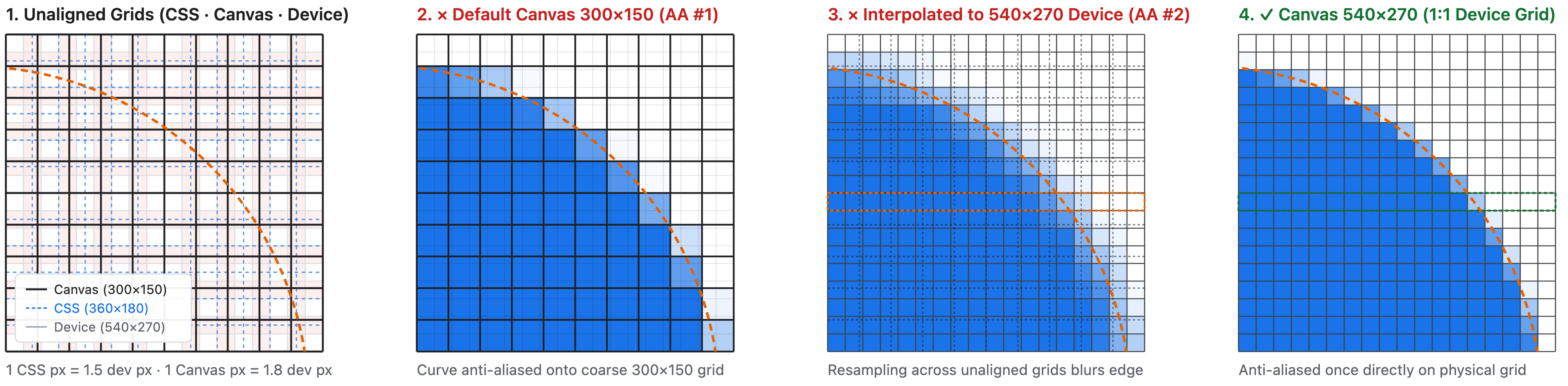
The following image demonstrates a pixel conversion that results in blurry content. The three grids don't line up: The canvas element is 360 × 180 CSS px, and the canvas size is 300 × 150 canvas grid pixels. At a device pixel ratio of 1.5, the canvas covers 540 × 270 device pixels. One CSS pixel spans 1.5 device pixels, and one canvas pixel spans 1.2 CSS px, or 1.8 device pixels (panel 1). When the circle is drawn, its position and radius are in canvas pixels, not CSS pixels, so the browser draws it into the 300 × 150 canvas bitmap and anti-aliases the edge (panel 2). To display the canvas, the browser then stretches this bitmap over 540 × 270 device pixels, so the browser has to interpolate: each device pixel takes a weighted mix of the nearest canvas pixels, which already contain the anti-aliased edge. The edge is blended a second time and spreads across several device pixels, so the circle looks blurry (panel 3). This could be avoided if the canvas grid matched the device pixels 1:1. The browser would then anti-alias the edge just once, directly on the device grid, and display the bitmap without resampling, so the edge stays crisp (panel 4):
For crisp rendering, the canvas grid must match the number of device pixels that the canvas covers: 540 × 270 in the preceding example.
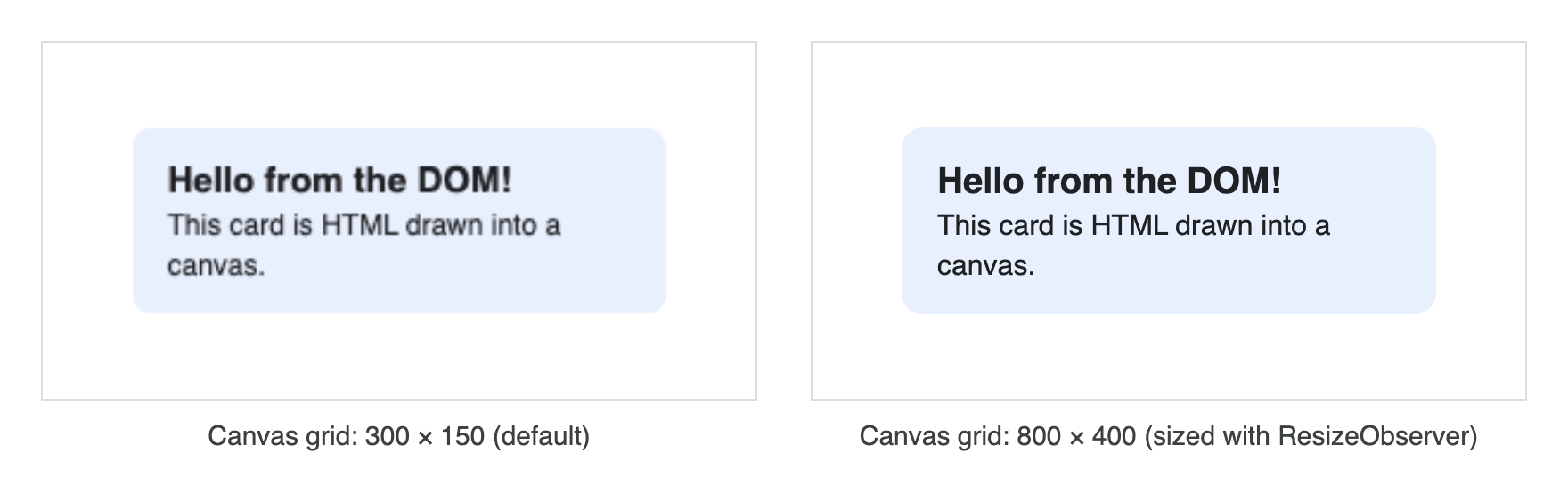
Size the canvas grid with a resize observer
The right grid size depends on the device, and it may change when the layout changes, when the user zooms the page, or when the user moves the window to a different display. So instead of hardcoding the grid size, let the browser tell you what it should be.
To keep the canvas grid in sync with the canvas on screen, always size it with a ResizeObserver and adjust the canvas grid to devicePixelContentBoxSize:
const observer = new ResizeObserver(([entry]) => {
  const dpc = entry.devicePixelContentBoxSize;
  canvas.width = dpc ? dpc[0].inlineSize : Math.round(entry.contentRect.width * window.devicePixelRatio);
  canvas.height = dpc ? dpc[0].blockSize : Math.round(entry.contentRect.height * window.devicePixelRatio);
});

const supportsDevicePixelContentBox =
  typeof ResizeObserverEntry !== 'undefined' &&
  'devicePixelContentBoxSize' in ResizeObserverEntry.prototype;
const options = supportsDevicePixelContentBox ? { box: 'device-pixel-content-box' } : {};
observer.observe(canvas, options);
Convert CSS pixels to canvas grid coordinates
A paint handler often combines DOM measurements with drawing calls—for example, to position an element based on its size. The two use different units:
- Canvas pixels describe the canvas grid, which is sized by
canvas.widthandcanvas.height. For example, thedx,dy,dwidth, anddheightparameters of thedrawElementImage()drawing methods, or other canvas APIs parameters, such asfillRect()andtranslate(). - CSS pixels describe the page. DOM measurements such as
offsetWidthandclientWidth, and pointer event coordinates such asoffsetX, are in CSS pixels.
Here's an overview of the units used by various API parameters:
| Value | Units |
|---|---|
canvas.width and canvas.height |
Canvas grid pixels |
2D drawing parameters, including dx, dy, dwidth, and dheight of drawElementImage() |
Canvas grid pixels |
width and height returned by canvas.getElementImageDefaultSize() |
Canvas grid pixels |
Source rectangles: sx, sy, swidth, and sheight of drawElementImage() and texElementSubImage2D(); sourceX, sourceY, sourceWidth, and sourceHeight of drawElementImageToTexture() |
CSS pixels |
Texture sizes: width and height options of texElementSubImage2D(); size of drawElementImageToTexture() |
Texture pixels. By default, the element's size in canvas grid pixels, rounded up |
Element geometry: getElementTransform(), and the canvasTransform and canvasClip options of updateElementGeometry() |
CSS pixels |
DOM measurements, such as offsetWidth, clientWidth, getBoundingClientRect(), pointer event coordinates, and contentBoxSize of a resize observer entry |
CSS pixels |
devicePixelContentBoxSize of a resize observer entry |
Device pixels |
If you use the wrong units, the size of the HTML content drawn into canvas might not meet your expectations. You need to convert the CSS pixel value into canvas grid pixels when drawing HTML into canvas. To do so, calculate the ratio between the canvas grid size and the canvas CSS size: canvas.width / cssContentWidth horizontally, and canvas.height / cssContentHeight vertically. Your resize observer is a convenient place to calculate the ratio as follows:
// The number of canvas grid pixels per CSS pixel
let scaleX = 1;
let scaleY = 1;

const observer = new ResizeObserver(([entry]) => {
  const dpc = entry.devicePixelContentBoxSize;
  const cssContentWidth = entry.contentRect.width;
  const cssContentHeight = entry.contentRect.height;

  // Best practice: make the canvas grid match the physical pixel grid
  if (dpc) {
    canvas.width = dpc[0].inlineSize;
    canvas.height = dpc[0].blockSize;
  } else {
    canvas.width = Math.round(cssContentWidth * window.devicePixelRatio);
    canvas.height = Math.round(cssContentHeight * window.devicePixelRatio);
  }

  scaleX = canvas.width / cssContentWidth;
  scaleY = canvas.height / cssContentHeight;
});

const supportsDevicePixelContentBox =
  typeof ResizeObserverEntry !== 'undefined' &&
  'devicePixelContentBoxSize' in ResizeObserverEntry.prototype;
const options = supportsDevicePixelContentBox ? { box: 'device-pixel-content-box' } : {};
observer.observe(canvas, options);
Then, multiply CSS pixel values by scaleX and scaleY before passing them to the drawing method. For example, to center a drawable element in the canvas:
const ctx = canvas.getContext('2d');
const card = document.getElementById('card');

canvas.onpaint = () => {
  ctx.reset();

  // offsetWidth and offsetHeight are in CSS pixels.
  // Convert them to canvas grid coordinates.
  const width = card.offsetWidth * scaleX;
  const height = card.offsetHeight * scaleY;
  const x = (canvas.width - width) / 2;
  const y = (canvas.height - height) / 2;

  // drawElementImage() takes canvas grid coordinates.
  ctx.drawElementImage(card, x, y);
};
Finally, because drawElementImage() draws the element's border box, use box-sizing: border-box to include padding and border in the card's width and height, so that the card is drawn at the size that you set:
#card {
  /* Make width and height include padding and border */
  box-sizing: border-box;
  width: 200px;
  padding: 16px;
}
Understand accessibility of HTML-in-Canvas
Generally, HTML content of a <canvas content="drawable"> is exposed to accessibility in the same way as regular DOM, which means it's represented in the accessibility tree unless explicitly hidden using attributes like aria-hidden="true" or inert. However, there's one key exception: a drawable element whose rendered geometry has not yet been established or updated.
A drawable element inside a <canvas content="drawable"> lacks rendered geometry if:
- It has not yet been rendered with
drawElementImage()which updates geometry automatically by default. - Its geometry has not been explicitly updated with
updateElementGeometry().
If a drawable element lacks rendered geometry, this drawable element and its drawable subtree are reported to the accessibility tree without geometry information. This is helpful, for example, to let screen readers access the semantic content, while signaling visual assistive tools (like magnifiers) to filter out the undrawn elements.
The following example preserves the semantics of a figure, image, and caption while drawing the image and figure separately:
<canvas id="canvas" width="400" height="300" content="drawable">
  <figure id="figure">
    <img drawable id="image" src="..." alt="image alt text" />
    <figcaption drawable id="caption">A caption</figcaption>
  </figure>
</canvas>
<script>
  const ctx = canvas.getContext('2d');

  canvas.onpaint = () => {
    ctx.reset();
    // Note: Because `preserveElementGeometry` defaults to false, the
    // `drawElementImage` call automatically updates geometry, ensuring
    // the image and caption have geometry information for accessibility.
    ctx.drawElementImage(image, 0, 0);
    ctx.drawElementImage(caption, 0, 200);
  };
</script>
Fallback strategies
The HTML-in-Canvas API shipped in Chrome 157, and it might not be supported in all browsers. To make sure your solution works smoothly for everyone, check whether the browser supports the API, and fall back to an alternative solution if necessary:
export function supportsHtmlInCanvas() {
  if (typeof document === 'undefined') return false;
  const canvas = document.createElement('canvas');
  canvas.setAttribute('content', 'drawable');
  return canvas.content === 'drawable';
}
If the API isn't supported, depending on your implementation goals, you can choose one of the following alternatives:
- An alternative UI
- Floating HTML overlays
- The three-html-render library
- html2canvas
- dom-to-image
Next steps
- Learn how to render HTML in a 2D context.
- Learn how to render HTML in a WebGL canvas.
- Learn how to render HTML in a WebGPU canvas.
- Learn about fallback strategies.
- File an issue on GitHub to share your feedback.
- Check out the HTML-in-Canvas demo collection by the community.