
The Chrome Web Store API lets you create, update, and publish items in the Chrome Web Store. This guide will tell you how to:
- Get a refresh token and access token to use in the tool of your choice.
- Make test HTTP requests using the OAuth 2.0 Playground.
Prerequisites
Before using the API, note the following:
- Developers are required to enable 2-step verification for their Google Account to publish or update an existing extension.
- Before you can publish a new item, you have to fill out the Store listing and Privacy tabs in the Developer Dashboard.
Initial setup
Before you can begin making REST calls against the Chrome Web Store, you will need to enable the Chrome Web Store API in a Google Cloud project, configure an OAuth consent screen, and retrieve your API access keys. The following sections walk through this process.
Enable the Chrome Web Store API
- Go to the Google Cloud Console.
- Create a new project or select an existing one.

Create a new project in the Google Console - In the search bar type "Chrome Web Store API".
- Enable the Chrome Web Store API.
Configure the OAuth consent screen
- Go to OAuth consent screen.
- Select External then Create.

Create an OAuth consent screen. - Fill out the required App information fields (listed below) then click Save and Continue.
- App name.
- User support email.
- Developer contact information.
- Click Save and Continue to skip the Scopes screen.
- Add your email address to Test users, then click Save and Continue. This lets you immediately use the project without needing to go through an approval process.
Create an OAuth Client
- Go to Credentials.
- Click Create Credentials then OAuth client ID.

Create credentials. - For Application type, choose Web application.
- Enter a name.
- Add
https://developers.google.com/oauthplaygroundto the list of Authorized redirect URIs. - Click "Create".
You will be given a client ID and a client secret. Keep these safe.
Obtain access and refresh tokens
Open https://developers.google.com/oauthplayground.

OAuth Playground. Click the settings icon in the top right, and choose "Use your own OAuth credentials".
Enter your client ID and client secret.
Add
https://www.googleapis.com/auth/chromewebstoreto the "Input your own scopes" field.Click "Authorize APIs".
Follow the steps to sign in with your Google Account.
Click "Exchange authorization code for tokens" to generate a new access token.
Obtain your publisher ID
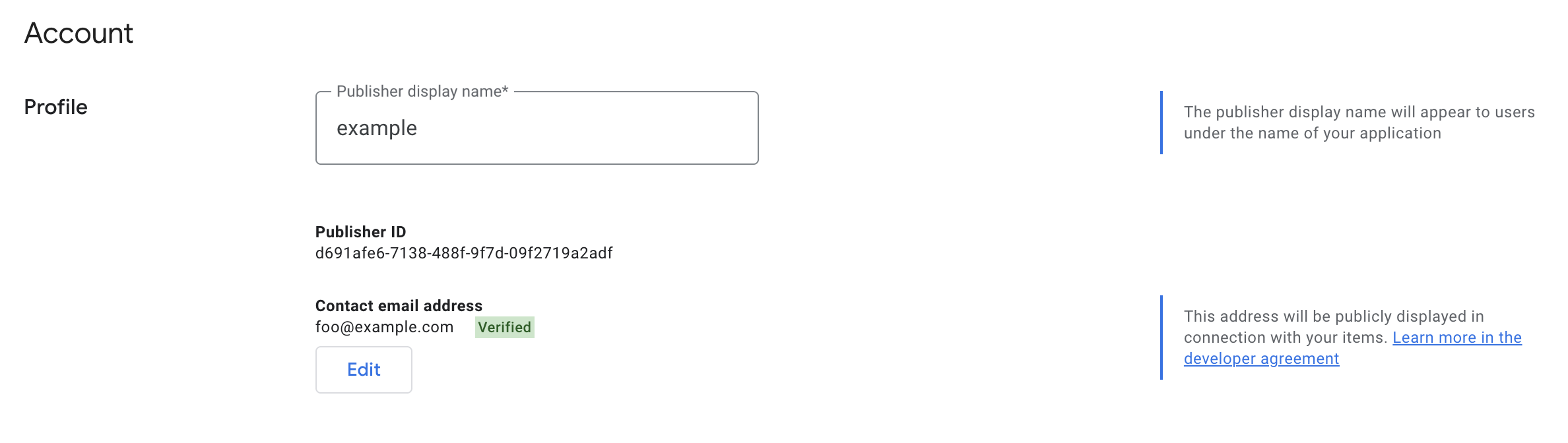
Find your publisher ID in the Developer Dashboard. You'll need this as part of the URL path for API endpoints.
Your publisher ID is displayed in the Publisher > Settings section:
Try a request
To try a request, copy the following to the Request URI field:
https://chromewebstore.googleapis.com/v2/publishers/PUBLISHER_ID/items/EXTENSION_ID:fetchStatus
Then, click "Send the request".
Example HTTP requests
Once you have a refresh token, you can obtain new access tokens and make API
calls outside of the playground using the tool of your choice. Below we show
a number of examples using curl.
Refresh your access token
Periodically, your access token will expire and you will need to obtain a new
one. To refresh your access token, make a request with your refresh token. For example, using curl, you can get an access
token by executing the following command (replacing the values of $CLIENT_ID, $CLIENT_SECRET, and
$REFRESH_TOKEN with your own values):
curl "https://oauth2.googleapis.com/token" -d "client_secret=$CLIENT_SECRET&grant_type=refresh_token&refresh_token=$REFRESH_TOKEN&client_id=$CLIENT_ID"This will return a result such as:
{
  "access_token" : "ya29...",
  "expires_in" : 3600,
  "refresh_token" : "1/rwn...",
  "scope": "https://www.googleapis.com/auth/chromewebstore",
  "token_type" : "Bearer",
}
Get an item
Use fetchStatus to check the upload status of an item if the most recent upload attempt returned UPLOAD_IN_PROGRESS in the uploadState field.
curl -H "Authorization: Bearer $TOKEN" -X GET -v https://chromewebstore.googleapis.com/v2/publishers/PUBLISHER_ID/items/EXTENSION_ID:fetchStatusUpload a package to update an existing store item
Use upload to upload a new package for
an existing version. If you have not increased the version field in
your extension's manifest file, this will fail.
curl -H "Authorization: Bearer $TOKEN" -X POST
-T $FILE_NAME -v https://chromewebstore.googleapis.com/upload/v2/publishers/PUBLISHER_ID/items/EXTENSION_ID:upload
Publish an item
Use publish to publish an item to
all users. The item will be submitted for review and published when the item
passes.
curl -H "Authorization: Bearer $TOKEN" -X POST -v https://chromewebstore.googleapis.com/v2/publishers/PUBLISHER_ID/items/EXTENSION_ID:publishItems are always published with the existing visibility settings. If you have manually changed the settings in the Developer Dashboard, you won't be able to publish using the API until you have manually published with the new visibility at least once.
Update percentage rollout
If your item has over 10,000 seven-day active users, you can update the current target percentage for percentage rollout.
curl -H "Authorization: Bearer $TOKEN" -X POST -H "Content-Type: application/json" -d "{ "deployPercentage": 100 }" -v https://chromewebstore.googleapis.com/v2/publishers/PUBLISHER_ID/items/EXTENSION_ID:setPublishedDeployPercentageCancel a submission
Use cancelSubmission to cancel an active submission which is under
review.
curl -H "Authorization: Bearer $TOKEN" -X POST -v https://chromewebstore.googleapis.com/v2/publishers/PUBLISHER_ID/items/EXTENSION_ID:cancelSubmissionUse a service account
Optionally, you can grant a service account access to the API. Learn more in Use a service account with the Chrome Web Store API.