

提供選項頁面,讓使用者自訂擴充功能的行為。如要查看擴充功能的選項,使用者可以在工具列中按一下擴充功能圖示,然後選取選項,或前往 chrome://extensions 的擴充功能管理頁面,找到所需擴充功能,按一下「詳細資料」,然後選取選項連結。
編寫選項頁面
以下是選項頁面的範例。
<!DOCTYPE html>
<html>
<head><title>My Test Extension Options</title></head>
<body>

Favorite color:
<select id="color">
 <option value="red">red</option>
 <option value="green">green</option>
 <option value="blue">blue</option>
 <option value="yellow">yellow</option>
</select>

<label>
  <input type="checkbox" id="like">
  I like colors.
</label>

<div id="status"></div>
<button id="save">Save</button>

<script src="options.js"></script>
</body>
</html>
使用 storage.sync API,在不同裝置上儲存使用者的偏好選項。
// Saves options to chrome.storage
function save_options() {
  var color = document.getElementById('color').value;
  var likesColor = document.getElementById('like').checked;
  chrome.storage.sync.set({
    favoriteColor: color,
    likesColor: likesColor
  }, function() {
    // Update status to let user know options were saved.
    var status = document.getElementById('status');
    status.textContent = 'Options saved.';
    setTimeout(function() {
      status.textContent = '';
    }, 750);
  });
}

// Restores select box and checkbox state using the preferences
// stored in chrome.storage.
function restore_options() {
  // Use default value color = 'red' and likesColor = true.
  chrome.storage.sync.get({
    favoriteColor: 'red',
    likesColor: true
  }, function(items) {
    document.getElementById('color').value = items.favoriteColor;
    document.getElementById('like').checked = items.likesColor;
  });
}
document.addEventListener('DOMContentLoaded', restore_options);
document.getElementById('save').addEventListener('click',
    save_options);
宣告選項頁面行為
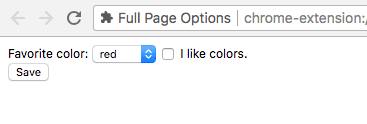
擴充功能選項頁面有兩種可用類型:「全頁」和「內嵌」。選項類型取決於資訊清單中的宣告方式。
全頁選項
擴充功能的選項頁面會在新分頁中顯示。選項 HTML 檔案會列在 options_page 欄位下。
{
  "name": "My extension",
  ...
  "options_page": "options.html",
  ...
}
嵌入選項
使用者可透過嵌入式選項調整擴充功能選項,不必離開嵌入式方塊內的擴充功能管理頁面。如要宣告內嵌選項,請在擴充功能資訊清單的 options_ui 欄位下註冊 HTML 檔案,並將 open_in_tab 鍵設為 false。
{
  "name": "My extension",
  ...
  "options_ui": {
    "page": "options.html",
    "open_in_tab": false
  },
  ...
}
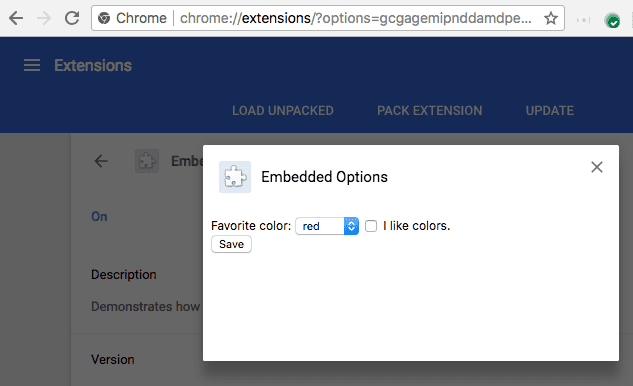
page(字串)選項頁面的路徑 (相對於擴充功能的根目錄)。
open_in_tab(布林值)指定為
false,宣告內嵌選項頁面。如果true,擴充功能選項頁面會在新分頁中開啟,而不是內嵌在 chrome://extensions 中。
考量兩者差異
內嵌在 chrome://extensions 中的選項頁面,與未在自有分頁中代管的選項頁面相比,行為有些微差異。
連結至選項頁面
擴充功能可以呼叫 chrome.runtime.openOptionsPage(),直接連結至選項頁面。
<button id="go-to-options">Go to options</button>
document.querySelector('#go-to-options').addEventListener('click', function() {
  if (chrome.runtime.openOptionsPage) {
    chrome.runtime.openOptionsPage();
  } else {
    window.open(chrome.runtime.getURL('options.html'));
  }
});
Tabs API
擴充功能內嵌選項頁面程式碼不會託管在分頁中,因此會影響 Tabs API 的使用方式:
- tabs.query 永遠不會在擴充功能的選項頁面網址中找到分頁。
- 開啟選項頁面時,系統不會觸發 tabs.onCreated。
- 選項頁面載入狀態變更時,系統不會觸發 tabs.onUpdated。
- 無法使用 tabs.connect 或 tabs.sendMessage 與選項頁面通訊。
如果選項頁面確實需要操控包含的分頁,使用 runtime.connect 和 runtime.sendMessage 即可避開這些限制。
Messaging API
如果擴充功能的選項頁面使用 runtime.connect 或 runtime.sendMessage 傳送訊息,系統不會設定「寄件者的分頁」,且「寄件者的網址」會是選項頁面網址。
尺寸
內嵌選項應會根據網頁內容自動決定自身大小。不過,內嵌方塊可能無法為某些類型的內容找到合適的大小。如果選項頁面會根據視窗大小調整內容形狀,最常發生這個問題。
如果這是問題所在,請為選項頁面提供固定的最小尺寸,確保內嵌頁面能找到合適的大小。