

如要在 Chrome 擴充功能中取得地理位置資訊,請使用任何網站平常使用的 navigator.geolocation Web Platform API。由於 Chrome 擴充功能處理機密資料的權限與網站不同,因此系統提供這篇文章。地理位置是非常敏感的資料,因此瀏覽器會確保使用者充分瞭解,並掌控分享確切位置和位置。
在 MV3 擴充功能中使用地理位置
在網路上,瀏覽器會保護使用者的地理位置資料,方法是顯示提示,要求他們將位置資訊存取權授予特定來源。相同的權限模型不一定適用於擴充功能。
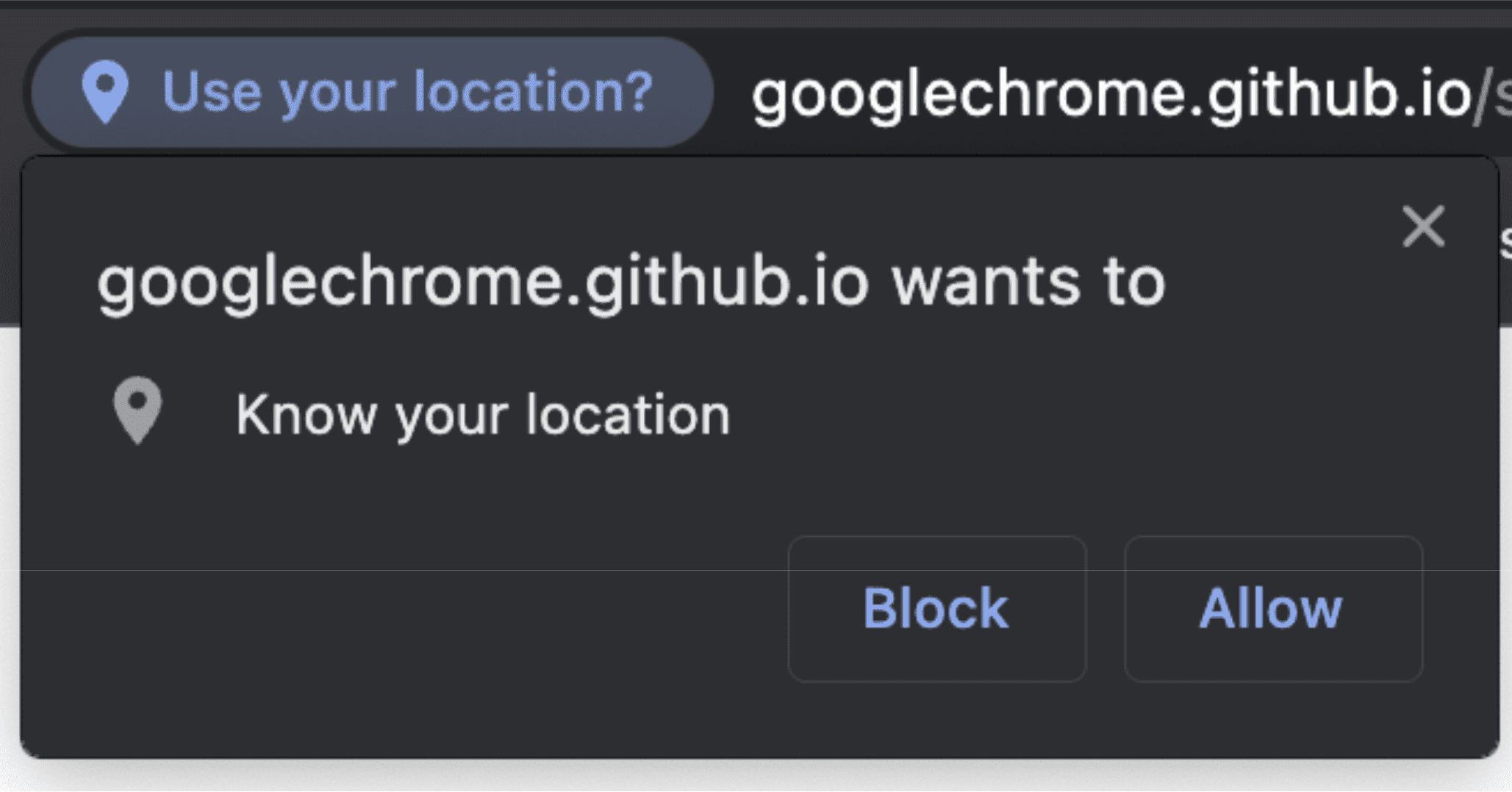
權限並不是唯一的差異。如上所述,navigator.geolocation 是 DOM API,也就是構成網站的 API 的一部分。因此,無法在工作站環境中存取,例如擴充功能 Service Worker (這是資訊清單 v3 擴充功能的骨幹)。不過,您絕對可以使用 geolocation。不過,使用方式和位置不盡相同。
在服務工作人員中使用地理位置
Service Worker 內沒有 navigator 物件。僅適用於有權存取頁面 document 物件的結構定義。如要取得 Service Worker 內部存取權,請使用 Offscreen Document,該檔案可存取 HTML 檔案,並將該檔案與擴充功能整合。
如要開始使用,請在資訊清單的 "permissions" 區段中新增 "offscreen"。
manifest.json:
{
  "name": "My extension",
    ...
  "permissions": [
    ...
   "offscreen"
  ],
  ...
}
新增 "offscreen" 權限後,請在擴充功能中加入含有螢幕外文件的 HTML 檔案。由於這個情況不會使用網頁的任何內容,因此這類檔案幾乎可以空白。只要只是一個小型 HTML 檔案,可以在指令碼中載入。
offscreen.html:
<!doctype html>
<title>offscreenDocument</title>
<script src="offscreen.js"></script>
請將這個檔案儲存在專案的根目錄中,並設為 offscreen.html。
如前所述,您需要一個名為 offscreen.js 的指令碼。此外,你也需要將這個項目和額外資訊組合在一起。會是服務工作處理程序的地理位置資訊來源。您可以在服務工作和 Service Worker 之間傳遞訊息。
offscreen.js:
chrome.runtime.onMessage.addListener(handleMessages);
function handleMessages(message, sender, sendResponse) {
  // Return early if this message isn't meant for the offscreen document.
  if (message.target !== 'offscreen') {
    return;
  }

  if (message.type !== 'get-geolocation') {
    console.warn(`Unexpected message type received: '${message.type}'.`);
    return;
  }

  // You can directly respond to the message from the service worker with the
  // provided `sendResponse()` callback. But in order to be able to send an async
  // response, you need to explicitly return `true` in the onMessage handler
  // As a result, you can't use async/await here. You'd implicitly return a Promise.
  getLocation().then((loc) => sendResponse(loc));

  return true;
}

// getCurrentPosition() returns a prototype-based object, so the properties
// end up being stripped off when sent to the service worker. To get
// around this, create a deep clone.
function clone(obj) {
  const copy = {};
  // Return the value of any non true object (typeof(null) is "object") directly.
  // null will throw an error if you try to for/in it. Just return
  // the value early.
  if (obj === null || !(obj instanceof Object)) {
    return obj;
  } else {
    for (const p in obj) {
      copy[p] = clone(obj[p]);
    }
  }
  return copy;
}

async function getLocation() {
  // Use a raw Promise here so you can pass `resolve` and `reject` into the
  // callbacks for getCurrentPosition().
  return new Promise((resolve, reject) => {
    navigator.geolocation.getCurrentPosition(
      (loc) => resolve(clone(loc)),
      // in case the user doesn't have/is blocking `geolocation`
      (err) => reject(err)
    );
  });
}
完成後,您就可以開始在 Service Worker 中存取螢幕外文件。
chrome.offscreen.createDocument({
  url: 'offscreen.html',
  reasons: [chrome.offscreen.Reason.GEOLOCATION || chrome.offscreen.Reason.DOM_SCRAPING],
  justification: 'geolocation access',
});
請注意,存取螢幕外的文件時,您必須提供 reason。geolocation 原因原先不可用,因此請指定 DOM_SCRAPING 備用項目,並在 justification 部分說明程式碼的實際運作情形。Chrome 線上應用程式商店的審查程序會使用這項資訊,確保螢幕外的文件遭人用於特定用途。
取得「螢幕外文件」的參照後,您可以傳送訊息,要求他們提供最新的地理位置資訊。
service_worker.js:
const OFFSCREEN_DOCUMENT_PATH = '/offscreen.html';
let creating; // A global promise to avoid concurrency issues

chrome.runtime.onMessage.addListener(handleMessages);

async function getGeolocation() {
  await setupOffscreenDocument(OFFSCREEN_DOCUMENT_PATH);
  const geolocation = await chrome.runtime.sendMessage({
    type: 'get-geolocation',
    target: 'offscreen'
  });
  await closeOffscreenDocument();
  return geolocation;
}

async function hasDocument() {
  // Check all windows controlled by the service worker to see if one
  // of them is the offscreen document with the given path
  const offscreenUrl = chrome.runtime.getURL(OFFSCREEN_DOCUMENT_PATH);
  const matchedClients = await clients.matchAll();

  return matchedClients.some(c => c.url === offscreenUrl)
}

async function setupOffscreenDocument(path) {
  //if we do not have a document, we are already setup and can skip
  if (!(await hasDocument())) {
    // create offscreen document
    if (creating) {
      await creating;
    } else {
      creating = chrome.offscreen.createDocument({
        url: path,
        reasons: [chrome.offscreen.Reason.GEOLOCATION || chrome.offscreen.Reason.DOM_SCRAPING],
        justification: 'add justification for geolocation use here',
      });

      await creating;
      creating = null;
    }
  }
}

async function closeOffscreenDocument() {
  if (!(await hasDocument())) {
    return;
  }
  await chrome.offscreen.closeDocument();
}
現在,當您想向服務工作人員取得地理位置時,只需呼叫:
const location = await getGeolocation()
在彈出式或側邊面板中使用地理位置
在彈出式視窗或側邊面板中使用地理位置的方法非常簡單,彈出式視窗和側邊面板都是網路文件,因此可以存取一般 DOM API。你可以直接存取「navigator.geolocation」。與標準網站唯一的差別在於,您必須使用 manifest.json "permission" 欄位來要求 "geolocation" 權限。如未提供權限,您將還是能存取「navigator.geolocation」。不過,任何嘗試使用這個值都會立即產生錯誤,就像使用者拒絕要求一樣。您可以在彈出式視窗範例中查看這一點。
在內容指令碼中使用地理位置
和彈出式視窗一樣,內容指令碼就具備 DOM API 的完整存取權。但使用者必須執行一般的使用者權限流程。這表示即使將 "geolocation" 新增至 "permissions",也不會自動授予您使用者的地理位置資訊您可以在內容指令碼範例中查看這項資訊。