Share ownership
Stay organized with collections
Save and categorize content based on your preferences.
You can share access to the items you manage in the Chrome Web Store by adding additional members to the publisher that owns them.
Create a publisher
Publishers own one or more items in the Chrome Web Store. A publisher is created when you first register as a developer, and you can create one additional publisher if needed.
To do so, go to your Profile page and choose the Create a new publisher option. You will be asked to provide a name for the new publisher.
Button on Profile page to create a new publisher.
Add a member
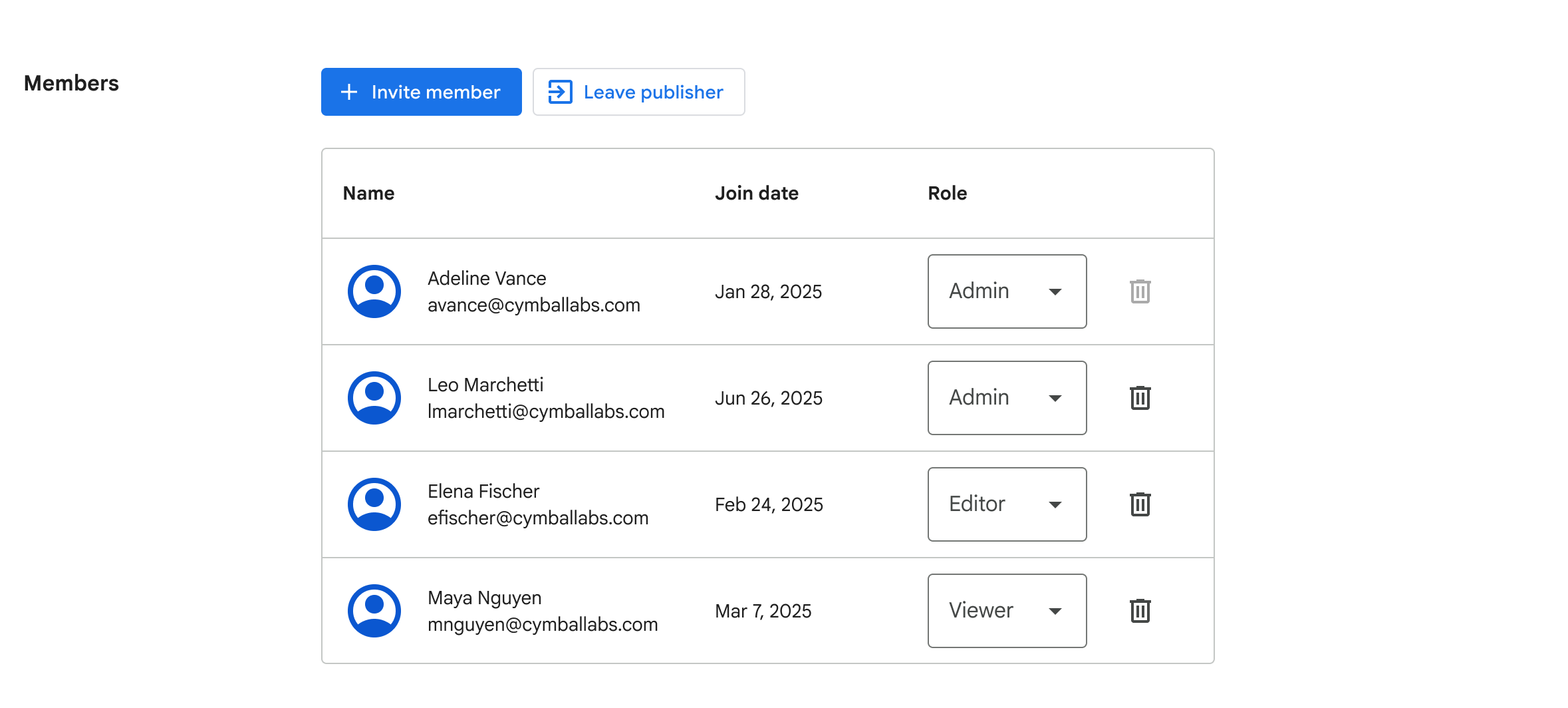
In the Developer Dashboard, open the Settings page for your publisher and find the members table.
Members table showing members of a publisher.
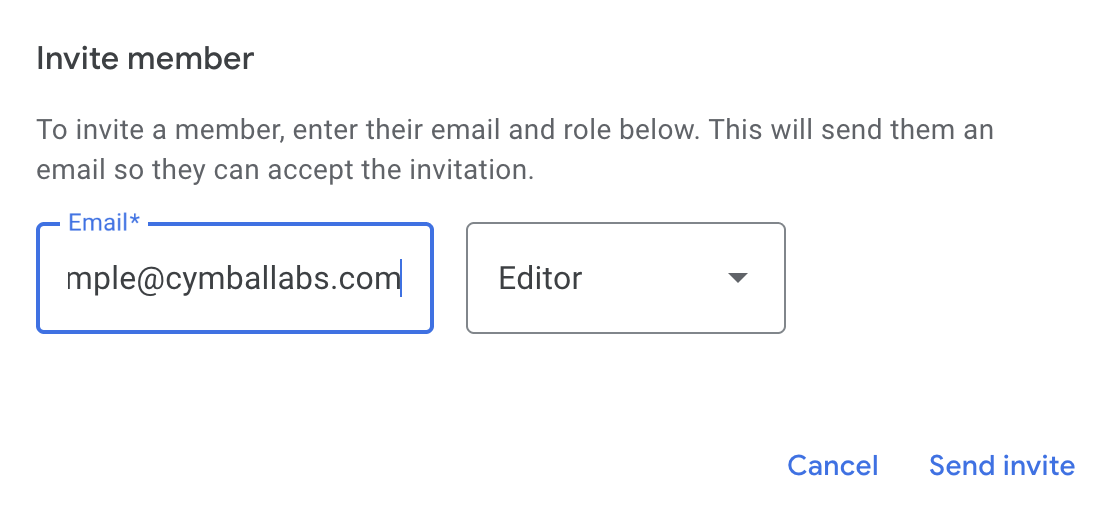
In the members table, choose "Invite member". Choose a role and an email will be sent to invite the user to join your publisher.
Modal shown when inviting a member.
Role permissions comparison
Each member of a publisher can be assigned a role that determines their level of access.
[[["Easy to understand","easyToUnderstand","thumb-up"],["Solved my problem","solvedMyProblem","thumb-up"],["Other","otherUp","thumb-up"]],[["Missing the information I need","missingTheInformationINeed","thumb-down"],["Too complicated / too many steps","tooComplicatedTooManySteps","thumb-down"],["Out of date","outOfDate","thumb-down"],["Samples / code issue","samplesCodeIssue","thumb-down"],["Other","otherDown","thumb-down"]],["Last updated 2026-04-15 UTC."],[],[]]