
This page describes how to delete CWS developer accounts and publishers.
About account deletion
Items in the Chrome Web Store are associated with developer and publisher accounts. There are a few things you need to understand before you delete an account:
- Account deletion is permanent. There is no "undo" for this action.
- You can't delete a publisher that still has published items. If you have published items, make sure to unpublish them before you try and delete the publisher.
- Publishers can only be deleted by an Admin of the publisher.
- You can't delete a developer that is the last Admin of a publisher. You will need to share ownership or delete the publisher before you can delete the developer.
How to remove a store listing item
Visit the developer dashboard. Click the item you want to remove from the store, so that the edit page for that item appears. Then click the "more options" icon in the top right-hand corner and select Unpublish. Your listing will no longer be visible in the store.

How to delete a developer account
Go to the Account > Profile page on the Chrome Web Store Developer Dashboard and click the Delete developer account button to permanently delete the developer account.
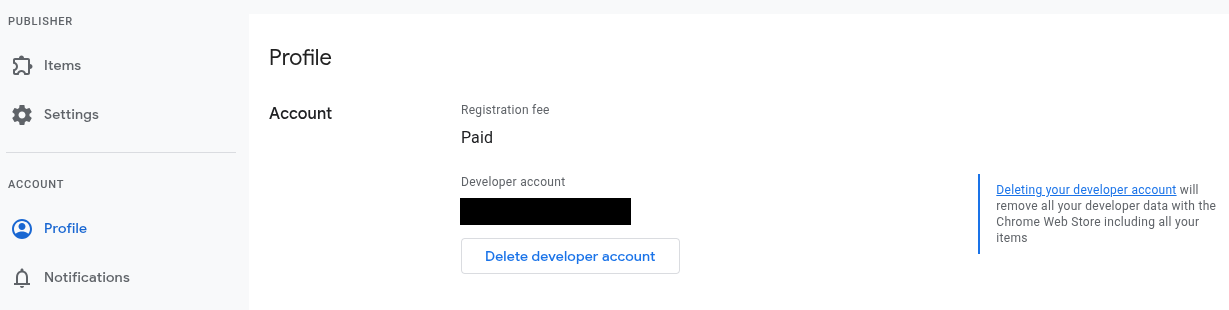
If this developer is the last Admin for any publishers, an error dialog will list the publishers that must be shared or deleted before the developer can be deleted.
How to delete a publisher account
To delete a publisher account, select it using the "Publisher" pulldown at the top of the Developer Dashboard. Make sure that you have unpublished any items associated with the publisher.
Navigate to the Management section on the Publisher > Settings page:
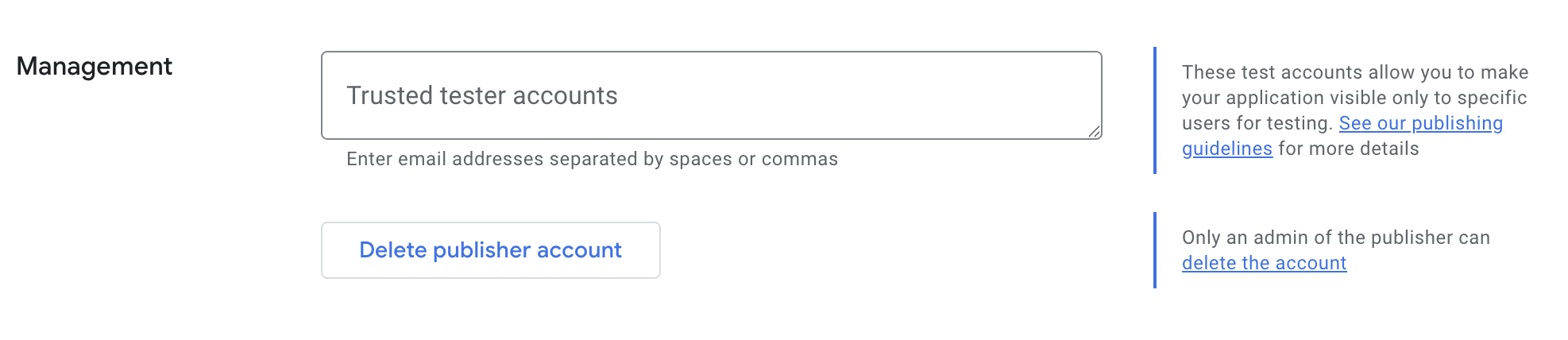
Click Delete publisher account to permanently delete the publisher account.